
As professionals or power users, efficient session management becomes a crucial need. Windows 11 offers various sign out methods that can be tailored to technical and security requirements. This article will discuss six different approaches relevant for advanced users.
Windows 11’s centralized interface presents a different navigation experience compared to previous versions. For technicians and gamers who prioritize efficiency, understanding various sign out methods becomes essential knowledge. Here are six applicable methods:
- Using Windows Menu
- Keyboard Shortcuts
- Security Screen (Ctrl+Alt+Del)
- Lock Screen Integration
- Command Line Execution
- PowerShell Alternative
1. Using Windows Menu
This method is the most straightforward solution for users who prefer graphical interfaces:
- Click the Start Button on the taskbar (configurable to center or left position)
- Select the User Profile Icon in the bottom left of the Start menu
- Click the Sign out option from the dropdown menu
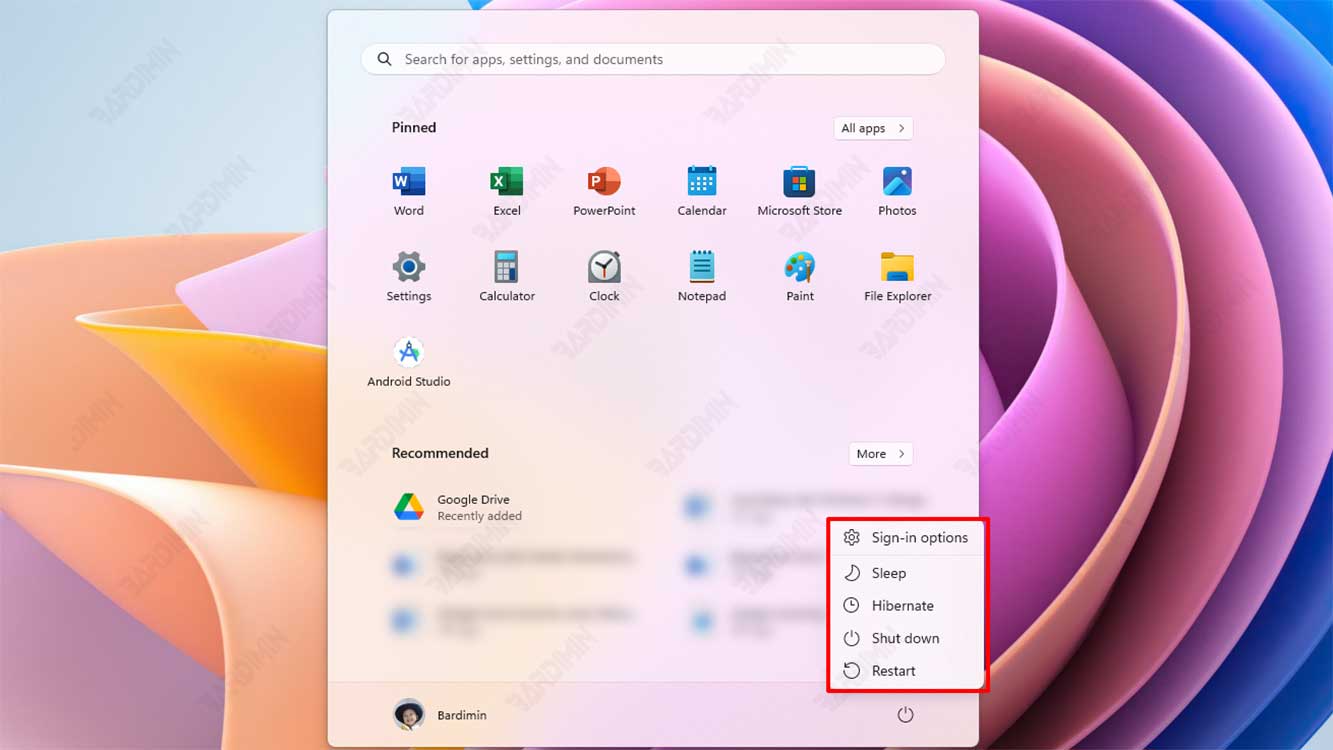
2. Keyboard Shortcuts for Efficiency
For users who prioritize speed, keyboard combinations can enhance productivity:
- Press Windows + X to open the Quick Link menu
- Press U to access the shutdown submenu
- Press I to execute the sign out command
Alternative: Press Alt + F4 from the desktop to display the shutdown dialog with sign out option.
3. Security Screen (Ctrl+Alt+Del)
This method is particularly useful in troubleshooting scenarios or when the system experiences unresponsive behavior:
- Press the Ctrl + Alt + Delete combination simultaneously
- On the security screen, click the Sign out option in the bottom right
- The system will immediately end the session and return to the lock screen
4. Lock Screen Integration
For security-focused workflows, this method provides an additional layer of protection:
- Press Windows + L for instant lock screen
- Click the user account tile in the center of the screen
- Select Sign out from the options menu
5. Command Line Execution
For automation scripts or remote administration, the command line interface provides precise control:
shutdown /lThe /l parameter functions for immediate sign out without additional prompts.
6. PowerShell Alternative
For enterprise environments using PowerShell for system management:
Stop-Computer -ForceNote: This command will perform a shutdown. For specific sign out, use:
(Get-WmiObject -Class Win32_OperatingSystem).Win32Shutdown(0)Best Practices for Professional Environments
In corporate settings, sign out procedures become critical for maintaining security posture:
- Always sign out when leaving workstations
- Implement regular session timeout policies
- Use credential guarding for sensitive operations
- Consider implementing conditional access policies
For gaming scenarios, ensure all game progress is saved before signing out to prevent data loss.
Technical Conclusion
Windows 11 provides various sign out methodologies that can be tailored to specific use cases. From graphical approaches to command line execution, each method has its own advantages. For daily use, keyboard shortcuts offer optimal balance between speed and convenience, while command line methods are essential for automation and remote management scenarios.
Comprehensive understanding of these various techniques enables IT professionals, technicians, and advanced users to maintain optimal workflow efficiency while ensuring proper security protocols.
