

Mastering the technique to send CTRL+ALT+DEL while controlling a remote computer is an essential skill for IT professionals and advanced users. This comprehensive guide reveals three proven methods, from secret shortcuts to smart configurations, ensuring you retain full control over remote system security with maximum precision and efficiency.
The legendary CTRL+ALT+DEL combination is more than just a common shortcut. It is the main gateway to the core security layer of Windows. This command activates the Windows Security Screen to switch users, lock the system, or manage credentials. Moreover, it is the ultimate weapon to open Task Manager and terminate processes that freeze the system.
In the hybrid work ecosystem and server administration, Remote Desktop Protocol (RDP) acts as your extended arm. This technology erases geographical boundaries, turning any computer into a portal to manage office workstations or data center servers. However, this convenience brings its own technical puzzle.
That puzzle arises when you need to access these security features. Pressing CTRL+ALT+DEL on the local keyboard only affects the computer in front of you, not the remote machine being controlled. So, how do you tame this paradox? Discover three elegant solutions that will restore full control to you.
Mastering the Art of Sending CTRL+ALT+DEL to a Remote Computer
Each method below has unique characteristics and advantages. The best choice depends on frequency of use, workflow preferences, and the level of control you need. Let’s explore them one by one.
1. The Secret Shortcut: CTRL+ALT+END, The Expert’s Fast Track
Think of this as a master key specifically designed for the Remote Desktop world. When an RDP session is active, forget the usual combination. Replace it with this magic spell:
Ctrl + Alt + End
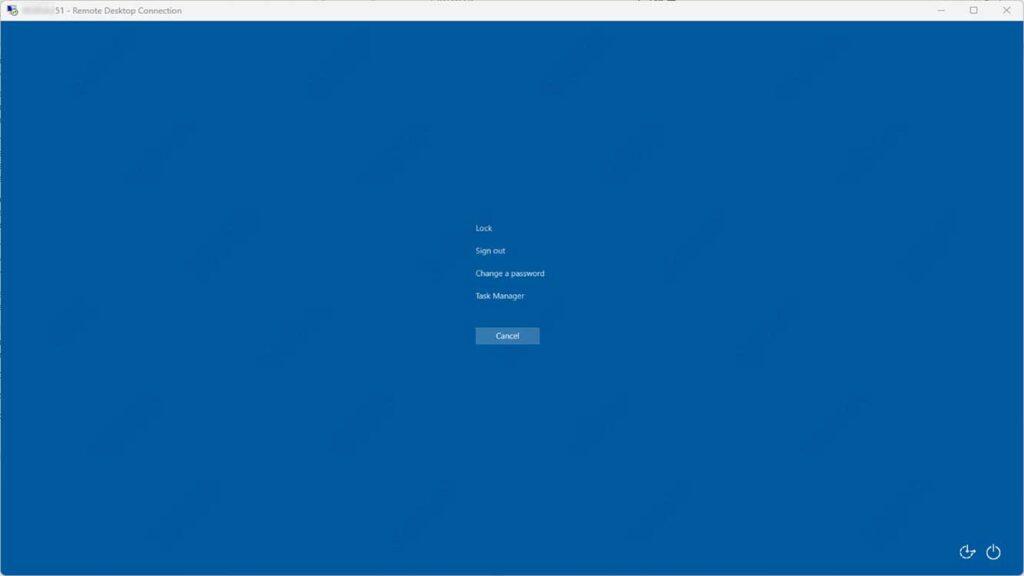
This is Microsoft’s official translation for the security command in a remote environment. With a single press, you are immediately presented with the Windows Security Screen on the remote side. This method is lightweight, instant, and leaves no configuration trace.
2. Smart Configuration: Redirect All Keyboard Power to the Remote
If you want deeper integration, this method turns your local keyboard into a direct extension of the remote computer. All shortcuts, without exception, will be executed there.
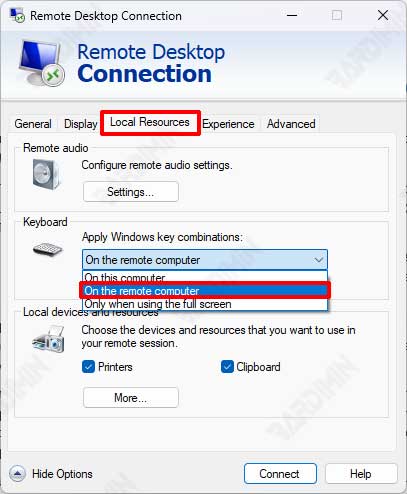
- Launch Remote Desktop Connection (
mstsc) and click “Show Options”. - Navigate to the “Local Resources” tab.
- In the Keyboard section, find the dropdown menu and select “On the remote computer”.
- Connect to the target computer. Now, all your keystrokes, including the legendary CTRL+ALT+DEL, will magically work on the remote machine.
Warning: with great power comes great responsibility. While the RDP window is active, shortcuts for local purposes (like ALT+TAB to switch applications) will also be sent to the remote.
3. Hybrid Tactic: Combining Local Keyboard with Remote On-Screen Keyboard
For emergency situations or when other methods are hindered, this combination tactic is the savior. This technique splits the command between two worlds: physical and virtual.
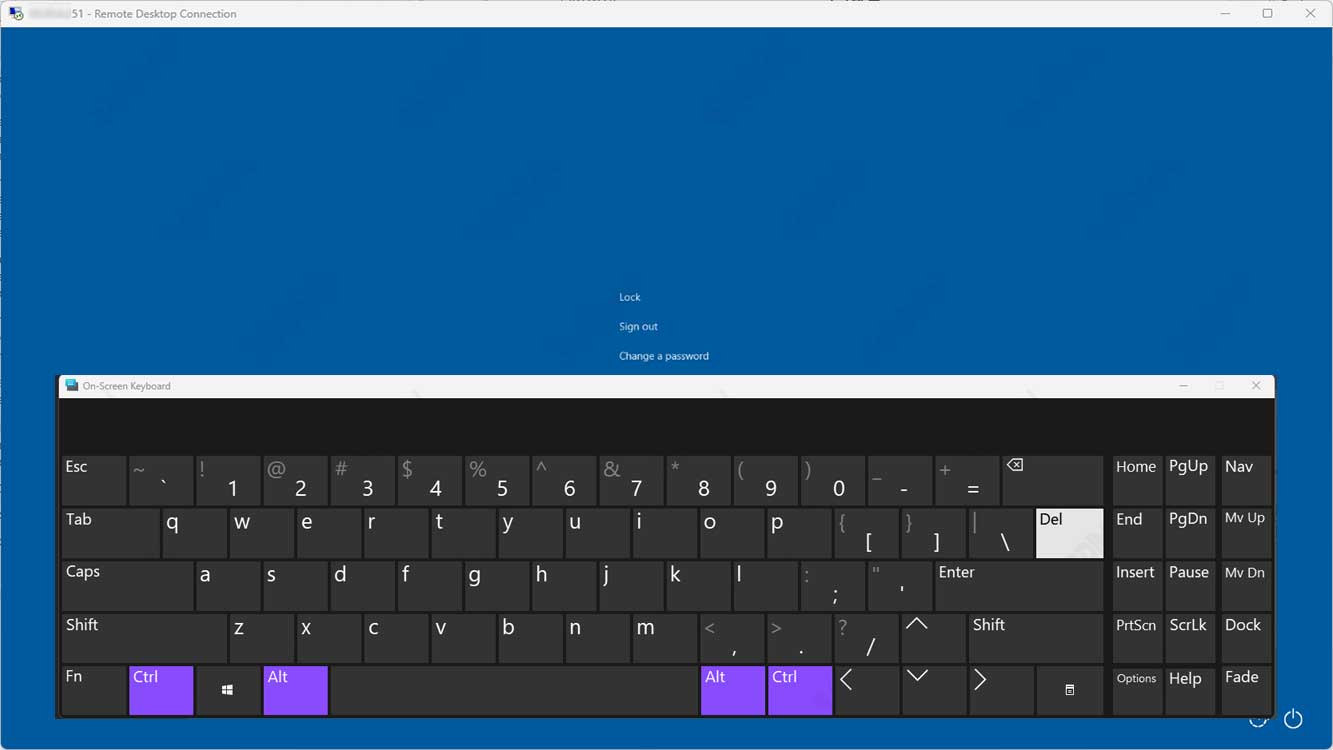
- On the remote side, summon the On-Screen Keyboard via Start search or by running the
oskcommand. - On the local side, press and hold the Ctrl and Alt keys.
- With both keys still held, drag the cursor into the RDP window and click the Delete key on the virtual keyboard on the remote screen. The result is a perfect execution of the CTRL+ALT+DEL command on the target system.
Choosing the Right Tool for Your Mission
All three methods for sending CTRL+ALT+DEL to Remote Desktop above are valid tools. CTRL+ALT+END is a swift and clean single-edged sword, ideal for sporadic use. The keyboard redirection configuration ensures every input is on target, suitable for marathon work sessions.
Understanding how to send CTRL+ALT+DEL in an RDP session is not just about technique; it’s about ensuring your sovereignty and security in the invisible digital world.
Meanwhile, the On-Screen Keyboard method is a Swiss Army knife always ready to be a savior. By understanding the strength of each, you not only solve technical problems but also optimize remote administration workflows. To build a more secure connection foundation, consider learning the principles of Network Level Authentication (NLA) from Microsoft’s official documentation.
