

Shortcut icons in Windows display a small arrow overlay to indicate they point to an application or file. While functional, these arrows can disrupt a clean desktop aesthetic, especially for professionals, technicians, and gamers who value minimalism. Windows does not offer a built-in option to remove them, but you can eliminate shortcut arrows using the Registry Editor or Command Prompt. This article provides detailed, step-by-step technical instructions to help you achieve a clutter‑free desktop.
Shortcuts are links that provide quick access to programs, folders, or files without navigating to their original locations. By default, Windows adds a small curved arrow overlay to the lower‑left corner of an icon to distinguish it from the actual file. Many users, however, find this arrow visually distracting. Professionals and technicians often have numerous icons on their desktops, so removing the overlay can reduce visual noise. Gamers, too, typically prefer a clean, focused interface. Unfortunately, Windows lacks a graphical setting to disable this overlay, so you must modify system configurations via the Registry or command line.
Before editing the Registry, it is strongly recommended to back it up. Incorrect modifications can lead to system instability.
Important Warning
Method 1: Remove Shortcut Arrows via Registry Editor
The Registry Editor is a powerful tool that lets you change deep Windows settings. Follow these steps carefully to hide the shortcut arrow.
- Open Registry Editor by pressing Win + R, typing regedit, and pressing Enter. If prompted by User Account Control (UAC), click Yes.
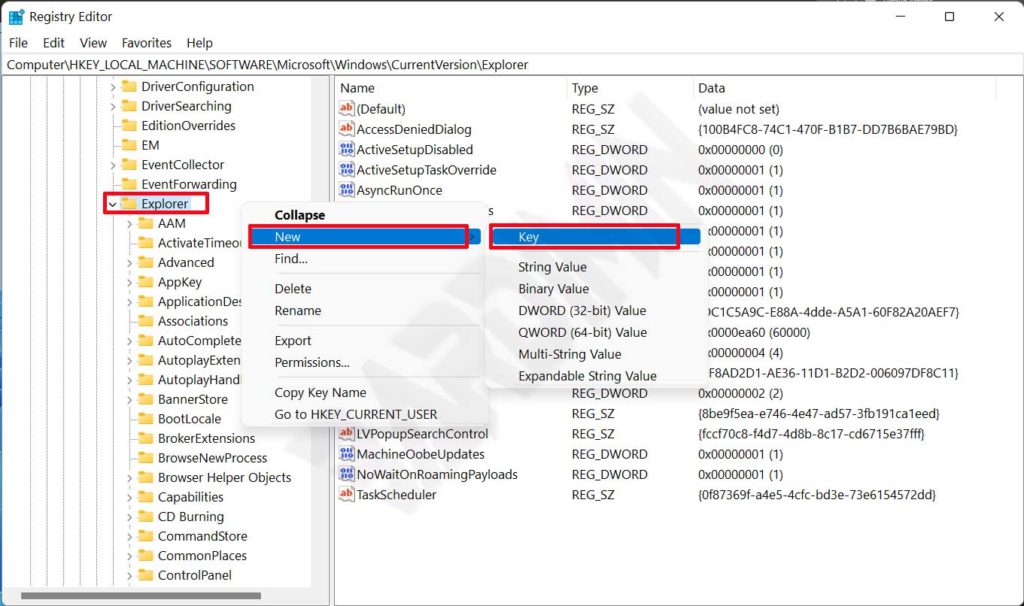
- In the left pane, navigate to the following path:
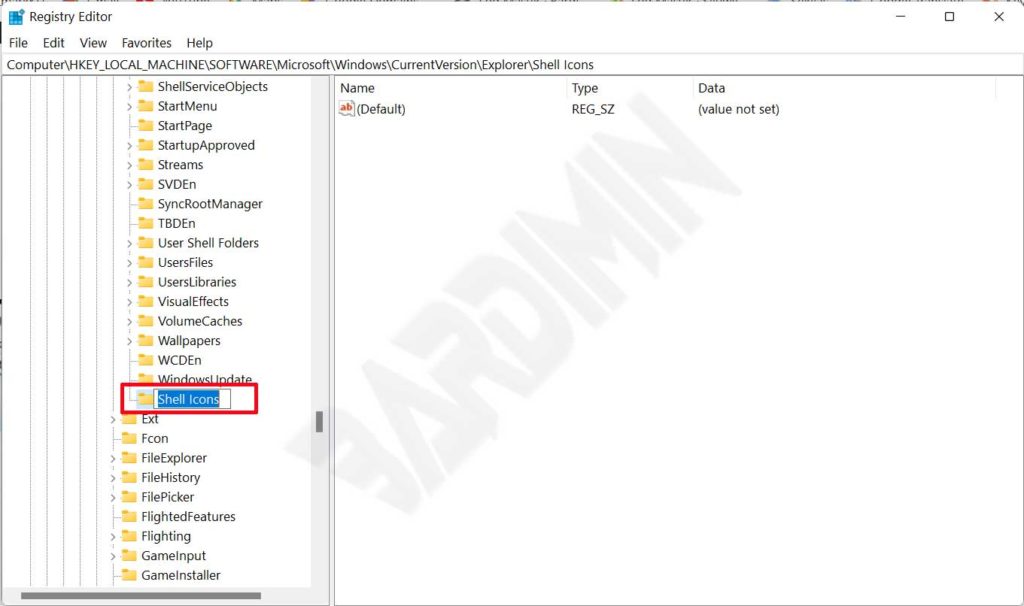
HKEY_CURRENT_USER\Software\Microsoft\Windows\CurrentVersion\Explorer - Right‑click on the Explorer folder, select New > Key, and name it Shell Icons.
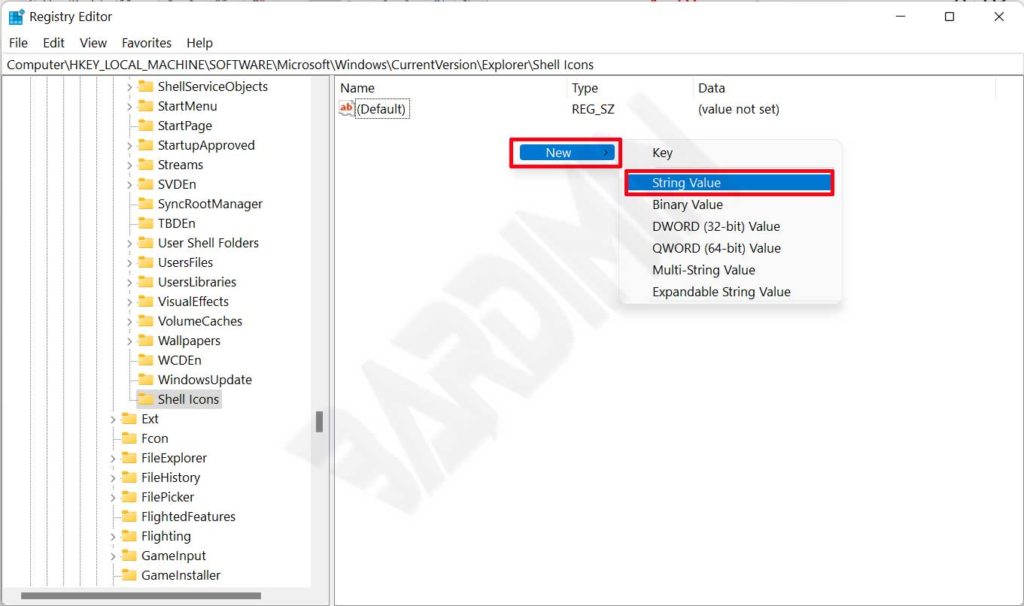
- After creating the Shell Icons key, select it. In the right pane, right‑click and choose New > String Value. Name it 29.
- Double‑click the newly created 29 value. In the Value data field, enter the following text: %windir%\System32\shell32.dll,-50. Then click OK.
- After entering the value, close Registry Editor and restart your computer to apply the changes. Alternatively, you can restart Windows Explorer via Task Manager.
After the restart, the shortcut arrows should disappear. If they persist, try refreshing the icon cache by deleting the IconCache.db file or running ie4uinit.exe -show in CMD.
Method 2: Remove Shortcut Arrows via Command Prompt (CMD)
For technicians who prefer the command line, the CMD method is faster and requires only a single command. Ensure you run CMD as administrator.
- Right‑click the Start button and select Command Prompt (Admin) or Windows Terminal (Admin).
- Copy and paste the following command into the CMD window, then press Enter:
REG ADD "HKEY_LOCAL_MACHINE\SOFTWARE\Microsoft\Windows\CurrentVersion\Explorer\Shell Icons" /v 29 /t REG_SZ /d "" /f - Wait for the message “The operation completed successfully”. Then restart your PC.
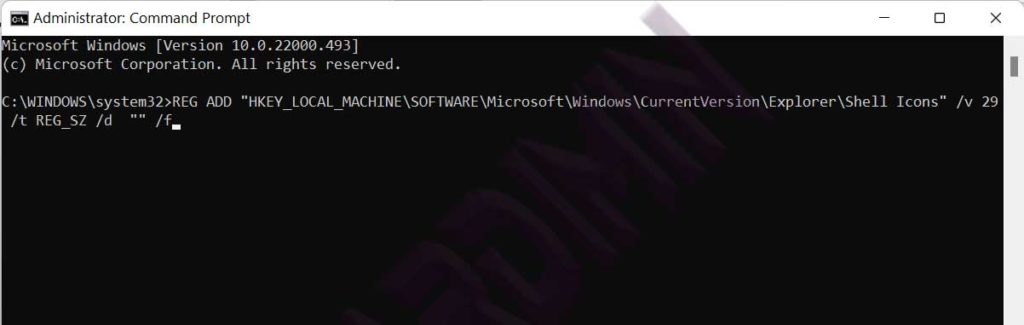
This command adds a string value named 29 under the Shell Icons key in the local machine registry. An empty data string ("") tells Windows not to display the arrow overlay. This method works on both Windows 10 and Windows 11.
The registry change is permanent until you remove the added value. To restore the arrows, simply delete the 29 value or the entire Shell Icons key.
Restoring Shortcut Arrows If Needed
If you ever wish to bring back the shortcut arrows, just delete the registry entries you added. For the Registry Editor method, remove the 29 value or delete the whole Shell Icons key. For the CMD method, you can use the following command to remove the value:
REG DELETE "HKEY_CURRENT_USER\Software\Microsoft\Windows\CurrentVersion\Explorer\Shell Icons" /v 29 /fRun this command in an administrator CMD prompt, then restart your computer. The arrows will reappear as before.
Additional Tips for a Cleaner Desktop
Once the shortcut arrows are gone, you might want to make further adjustments for an even tidier desktop. For instance, hide system icons like This PC or Recycle Bin, or reduce icon size. Gamers and professionals often use tools like Sysinternals Suite for advanced system management—always download from official sources to ensure security.
Additionally, make it a habit to back up the registry before any modification. You can export a key by right‑clicking it and selecting Export. This simple precaution can save you from potential headaches.
Conclusion
Removing shortcut arrow overlays in Windows can be accomplished via two primary methods: Registry Editor for full control or Command Prompt for speed. Both approaches are safe when followed carefully and greatly enhance desktop aesthetics, especially for technicians, professionals, and gamers seeking a minimalistic look. Always remember to back up the registry before making changes. With this guide, you can enjoy a cleaner, distraction‑free desktop without the shortcut arrows.
