

This technical guide explains three methods to disable Windows Firewall remotely to resolve Remote Desktop connection issues. It includes in-depth explanations of using Command Prompt (netsh), PowerShell, PsExec, and how to configure rules for each network profile for safer and more targeted solutions.
The failure of Remote Desktop Protocol (RDP) connections due to Windows Firewall blocking is a common issue in system and network administration. Disabling Windows Firewall remotely is often a necessary temporary solution. This process requires full administrative access and a thorough understanding of network security architecture. Therefore, ensure you have official authorization before proceeding.
Before executing remote commands, verify the following prerequisites. Ensure the target and local computers are on the same network or a trusted domain. You will need the target computer’s IP address or host name. The account used must have administrative rights on the target system. The “Windows Management Instrumentation (WMI)” and “Remote Registry” services must be running on the target computer. Additionally, ensure group policies do not lock firewall configuration.
Understanding and Configuring Firewall Profiles by Network Type
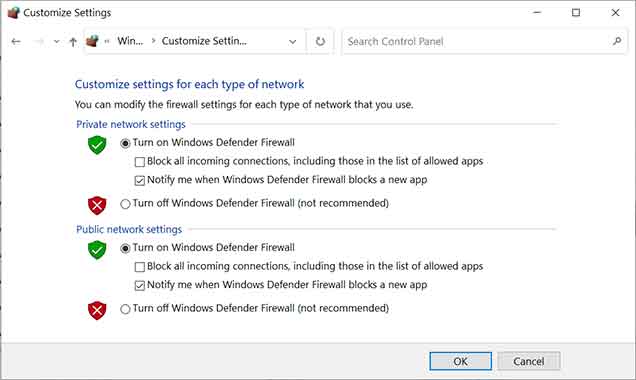
Windows Firewall operates with three separate profiles tailored to the type of network connection: Domain (for corporate networks), Private (for trusted home/office networks), and Public (for untrusted networks). Each profile has independent inbound and outbound rules. The Public profile typically has the strictest settings for maximum security. You can disable the firewall for all profiles or only for specific ones. A safer approach is to customize rules within the active profile.
To access these settings, open “Windows Defender Firewall with Advanced Security”. Then, click “Windows Defender Firewall Properties”. Here, you can change the status (On/Off) and default behavior (Block/Allow) for each profile individually on the corresponding tab. For example, you can disable the firewall only for the Private profile while keeping it active for Public. This configuration is useful for computers that frequently switch networks. However, ensure these changes are only temporary for troubleshooting purposes.
1. Remote Method via Command Prompt (netsh)
The netsh (Network Shell) utility is an effective command-line tool for modifying network and firewall configurations remotely. The basic syntax to disable all profiles is:
netsh -r 192.168.1.105 -u DOMAIN\AdminUser -p YourPassword advfirewall set allprofiles state off
The -r parameter specifies the remote address. The -u and -p parameters are for credentials. For better security, avoid including the password directly in the command. You can remove -p YourPassword, and the system will prompt for it interactively. To disable a specific profile, for example only Public, replace allprofiles with profile="public". Verify the change with the command: netsh advfirewall show allprofiles state.
2. Remote Method via PowerShell
PowerShell offers a more modern and structured approach through the Set-NetFirewallProfile cmdlet. This method requires PowerShell Remoting (WinRM) to be enabled on the target computer. The core command is:
Invoke-Command -ComputerName FS01 -Credential (Get-Credential) -ScriptBlock {
    Set-NetFirewallProfile -Profile Domain, Private, Public -Enabled False
}
The Get-Credential cmdlet will pop up a dialog to enter the username and password securely. You can also target a single profile, for example only Private, by changing the -Profile parameter. To re-enable the firewall, change the -Enabled value to $True. The advantage of PowerShell is its ability to manage rules with higher granularity compared to netsh.
3. Remote Method Using PsExec
PsExec is an external tool from the Microsoft Sysinternals PSTools suite. This tool is very usefull when native methods are blocked by policies or specific configurations. The basic command is:
psexec \\SERVER02 -u DOMAIN\AdminUser -p YourPassword -h netsh advfirewall set allprofiles state off
The -h parameter runs the command with high integrity level (administrator). Download the tool first from the official Microsoft site and extract it. Run Command Prompt as Administrator from that directory. Note that some security software may flag PsExec execution. Therefore, ensure its use complies with your organization’s security policy.
Security Recommendations and Conclusion
After successfully disabling Windows Firewall remotely and resolving the access issue, it is crucial to immediately restore protection. Re-enable the firewall using the same command by changing the status to on or $True. As a best practice, create a specific inbound rule for RDP (TCP Port 3389) from a particular IP address instead of disabling the entire firewall. Always use a VPN for remote connections to internal networks. Document all configuration changes for security audit. For more in-depth information, refer to the official documentation for Microsoft netsh and Set-NetFirewallProfile.
