

The Windows 11 Task Manager is a vital tool for monitoring system performance, processes, and resource usage. This article outlines seven practical methods to open Task Manager in Windows 11, covering keyboard shortcuts, graphical interfaces, and command line, tailored for professionals, technicians, and gamers.
Task Manager is a core system utility in Windows 11. This tool provides real-time information on running processes, CPU, memory, disk, network, and GPU performance. For professionals and gamers, this monitoring is crucial for optimizing performance and handling unresponsive applications.
Unlike previous Windows versions, the option to open Task Manager is no longer available in the taskbar right-click menu. Therefore, understanding the various access methods is essential. Here are seven ways to open Task Manager in Windows 11.
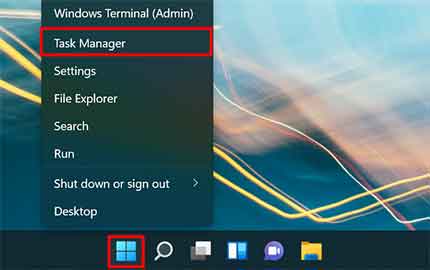
1. Right-Click the Start Button
This method is highly intuitive. Right-click the Start button on the taskbar. Then, select the Task Manager option from the menu that appears. This method is the direct replacement for the old taskbar method.
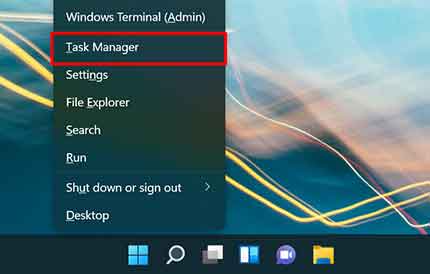
2. Use the Windows + X Shortcut
Keyboard shortcuts provide quick access. Press the Windows + X keys simultaneously to open the Power User menu. This menu is identical to the Start button right-click menu. Then, select Task Manager from the list.
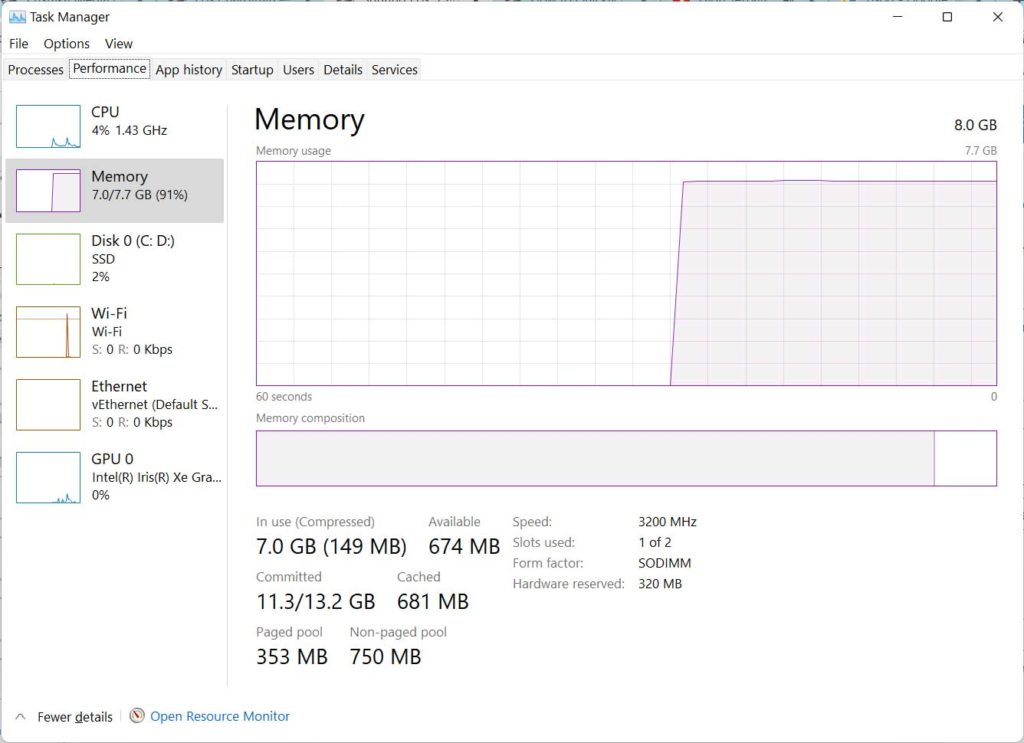
3. The Fastest Shortcut: Ctrl + Shift + Esc
This is the quickest method to open Task Manager in Windows 11. Press the three keys Ctrl + Shift + Esc simultaneously. Task Manager will open directly without any intermediary menu. This method is highly efficient when dealing with a hanging application.
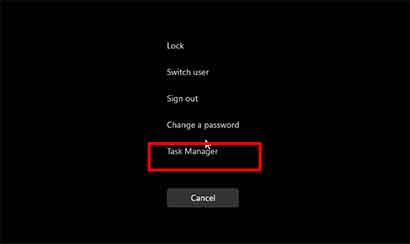
4. Via the Security Screen (Ctrl + Alt + Del)
This method is useful when the system experiences a severe freeze. Press Ctrl + Alt + Del. You will be directed to the Windows security screen. On that screen, choose the Task Manager option. This method is often the last resort when the system is unresponsive.
5. Search via Start Menu
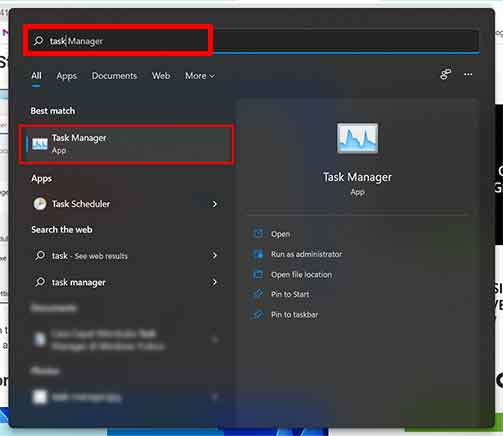
Use the integrated search function. Click the Start button or press the Windows key. Then, type “task manager” in the search box. The search results will display the Task Manager application. Click to open it.
6. Via Command Prompt or PowerShell
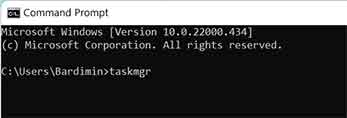
For more technical users, Command Prompt or PowerShell can be used. Open either application. Then, type the command taskmgr and press Enter. Task Manager will launch immediately. This method demonstrates the flexibility of the Windows 11 operating system.
7. Run via Windows Run Dialog
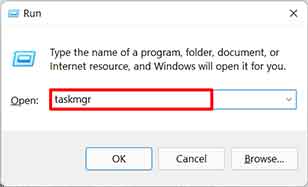
The Run dialog is a versatile tool. Open it by pressing Windows + R. In the dialog box, type taskmgr. Then, click OK or press Enter. Task Manager will open. This method is fast and direct.
By mastering these various ways to open Task Manager in Windows 11, you can stay productive in various situations. From routine monitoring to emergency handling when the system has issues. Next, exploring the features within Task Manager will help you optimize your PC’s performance. For official information on Windows system utilities, you can refer to the Microsoft support documentation.
