

For professionals, technicians, and gamers who rely on their PC for peak performance and productivity, activating Windows 11 with a valid product key is a critical step. This article outlines trusted technical methods to retrieve your Windows 11 product key, ensuring your system runs with a genuine license and has full access to all security features and updates.
A Product Key is a 25-digit alphanumeric code that acts as a digital certificate to authenticate and activate your copy of Windows. This code is typically found on the Certificate of Authenticity (COA) attached to your device, in the confirmation email for a digital purchase, or digitally embedded in the firmware of OEM devices. Losing access to your product key can hinder reactivation after a fresh install or a major hardware upgrade. However, the methods below allow you to retrieve this key.
Extracting the Product Key via Windows Management Instrumentation Command (WMIC)
Command Prompt (CMD) with administrator privileges allows the execution of WMIC commands to query software licensing services. This method is effective for extracting the OA3xOriginalProductKey stored within the system.
- Open the Start Menu, type “cmd“, then select Run as administrator.
- In the Command Prompt window, type the following command and press Enter:
wmic path softwarelicensingservice get OA3xOriginalProductKey
- The 25-digit Product Key will be displayed. Copy and store it in a secure location.
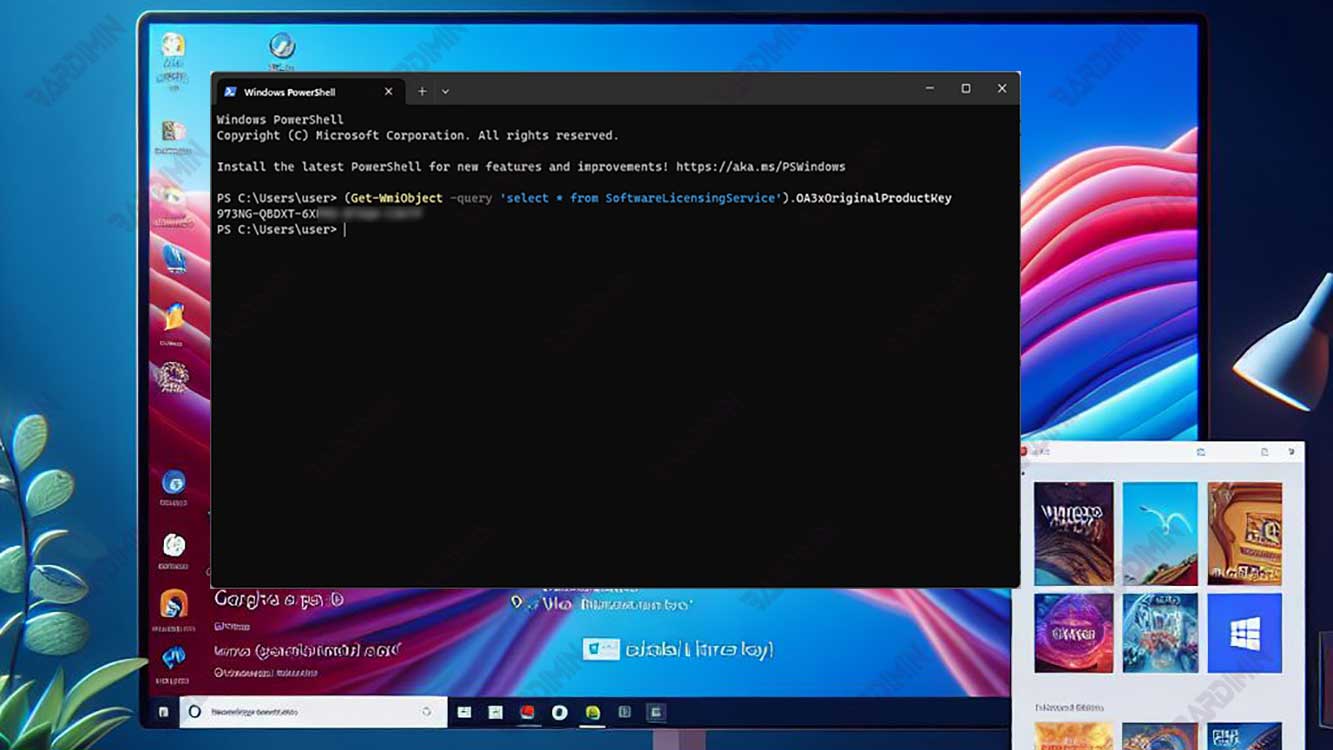
Using PowerShell with a WMI Script
PowerShell offers greater flexibility. Using the Get-WmiObject cmdlet (or Get-CimInstance for newer PowerShell versions), you can retrieve the same data with a more modern approach.
- Open Windows PowerShell by running it as an administrator.
- Execute one of the following scripts:
(Get-WmiObject -Query 'select * from SoftwareLicensingService').OA3xOriginalProductKey
Or, for the more recommended method:
(Get-CimInstance -ClassName SoftwareLicensingService).OA3xOriginalProductKey
- The Product Key will appear in the PowerShell console.
Via Registry Editor (Proceed with Caution)
The Registry Editor stores various system configurations, including the product key. This method is only recommended for experienced users, as incorrect edits can cause system instability.
- Open Run (Win + R), type “regedit“, and run it as an administrator.
- Navigate to the following registry key:
HKEY_LOCAL_MACHINE\SOFTWARE\Microsoft\Windows NT\CurrentVersion\SoftwareProtectionPlatform
- In the right panel, look for a value named BackupProductKeyDefault. Double-click it to view your product key.
Utilizing Trusted Third-Party Applications
For those seeking a user-friendly solution with a graphical interface, several lightweight and trusted third-party applications are available. Ensure you download them from official sources.
- ProduKey (NirSoft): A very lightweight portable utility. No installation is needed; simply run the executable file to view the product key for Windows and Microsoft Office.
- ShowKeyPlus: An open-source application available on the Microsoft Store. Besides showing the installed key, it can verify OEM keys and provide Windows edition information.
- Magical Jelly Bean Keyfinder: A free application that supports finding product keys for hundreds of applications besides Microsoft products.
Using these applications makes the product key extraction process more visual and requires minimal command-line interaction.
Possessing a valid product key is the foundation of a stable and secure Windows 11 system. The methods above, from command-line to GUI-based, provide you with options to retrieve your activation key with precision. Always store your product key in a safe place after successfully retrieving it.
