

Windows 11’s Archive Apps feature automatically compresses infrequently used Microsoft Store apps to save disk space and bandwidth. This guide explains how it works, its impact on gamers and professionals, and step-by-step instructions to enable or disable it.
Windows 11 includes a storage optimization tool called Archive Apps. Originally introduced in Windows 10, this feature is enabled by default in Windows 11. It targets apps installed from the Microsoft Store that you rarely launch, archiving them to reduce local storage consumption and internet data usage. However, many professionals and gamers worry about losing access to critical applications that might no longer be available in the Store. Understanding how to control this feature is essential for maintaining productivity and system performance.
When an app is archived, Windows removes its executable files from the local drive but retains user data and shortcuts. The app icon in the Start Menu displays a small cloud overlay. Launching an archived app triggers an automatic background download of the latest version from the Microsoft Store, provided the app is still listed. This behavior resembles the tombstoning mechanism found on mobile devices.
How Archive Apps Works
The feature applies only to apps installed through the Microsoft Store, including built-in ones like Calculator, Mail, and Store‑purchased games. Traditional Win32 desktop applications are unaffected. Windows marks an app for archiving when the following conditions are met:
- The app hasn’t been used for an extended period (the threshold is set by the system).
- Internal storage space is running low.
- The app’s developer has enabled support for archiving.
Archiving can shrink an app’s size by up to 80% without deleting personal data. When you reopen the app, Windows quietly downloads the required files in the background. This is analogous to OneDrive Files On‑Demand, but for applications.
Archive Apps is a lifesaver for users with limited SSD capacity or slow internet connections—apps remain accessible even when not stored locally.
Impact on Gamers and Professionals
For gamers, Archive Apps is a double‑edged sword. Modern games from the Microsoft Store (e.g., Forza, Halo) can exceed dozens of gigabytes. If such a game is archived, you must re‑download the entire package before playing, consuming time and bandwidth. On the other hand, archiving rarely played titles frees up space for active games. Professionals relying on business apps like Microsoft Teams or Office may find archiving disruptive if an app needs to be reinstalled during an urgent meeting.
Critical Note: If an archived app is removed from the Microsoft Store by its developer, you cannot restore it to its full version. Prevent important apps from being archived by disabling the feature or opening them periodically.
How to Disable Archive Apps in Windows 11
If you find Archive Apps more troublesome than helpful, follow these steps to turn it off.
- Open Settings by pressing Win + I.
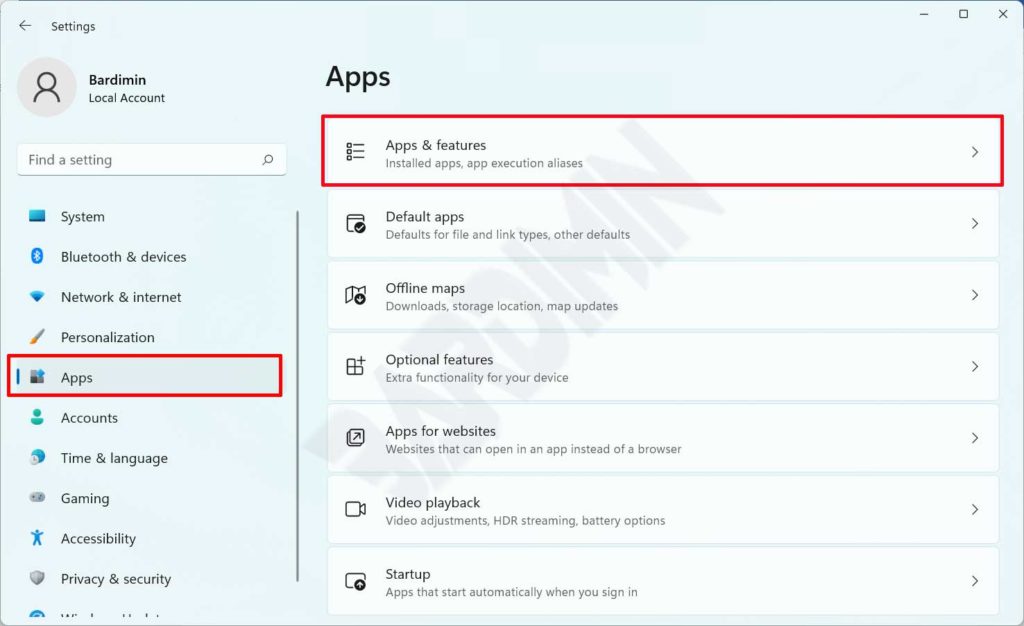
- Navigate to Apps > Apps & features.
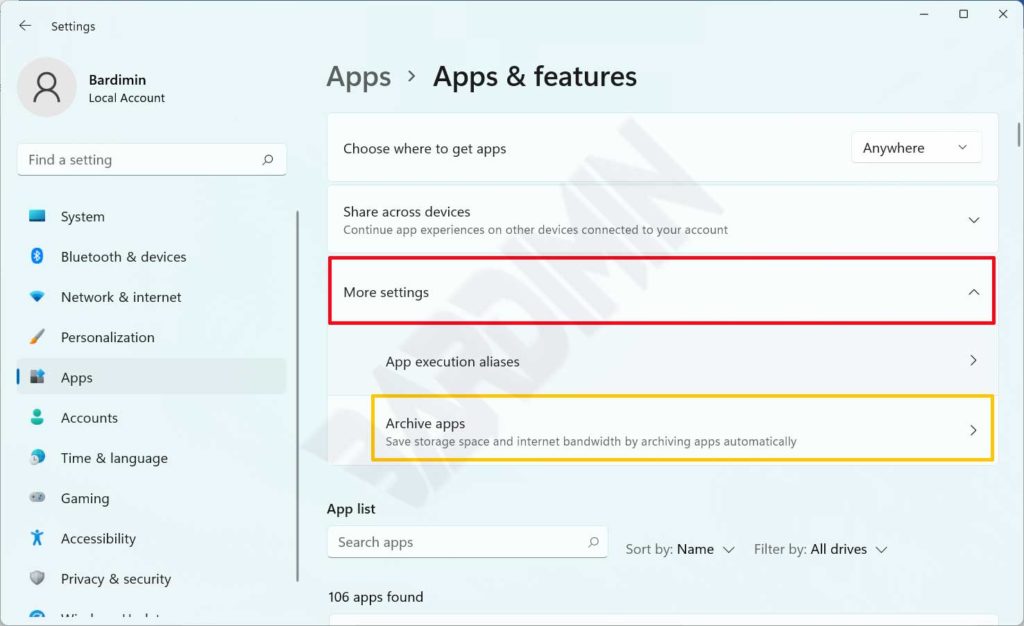
- On the Apps & features page, scroll down and click More Settings to expand additional options.
- Click Archive apps.
- In the Archive apps window, turn off the toggle switch (slide it to the left).
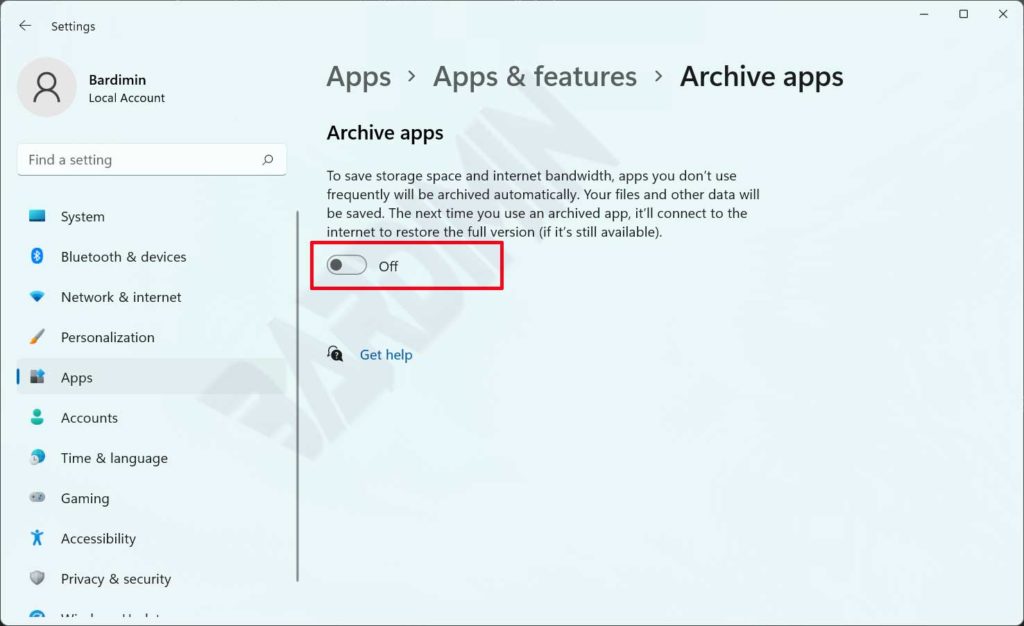
After disabling, Windows will not archive any new apps. However, already archived apps remain in that state until you launch them. To restore an archived app, simply open it from the Start Menu—Windows will automatically re‑download the latest version.
How to Enable Archive Apps Again
If you later decide to save space by re‑enabling the feature, the steps are nearly identical.
- Repeat steps 1 through 4 above to reach the Archive apps settings.
- Turn the toggle switch to the right (On position).
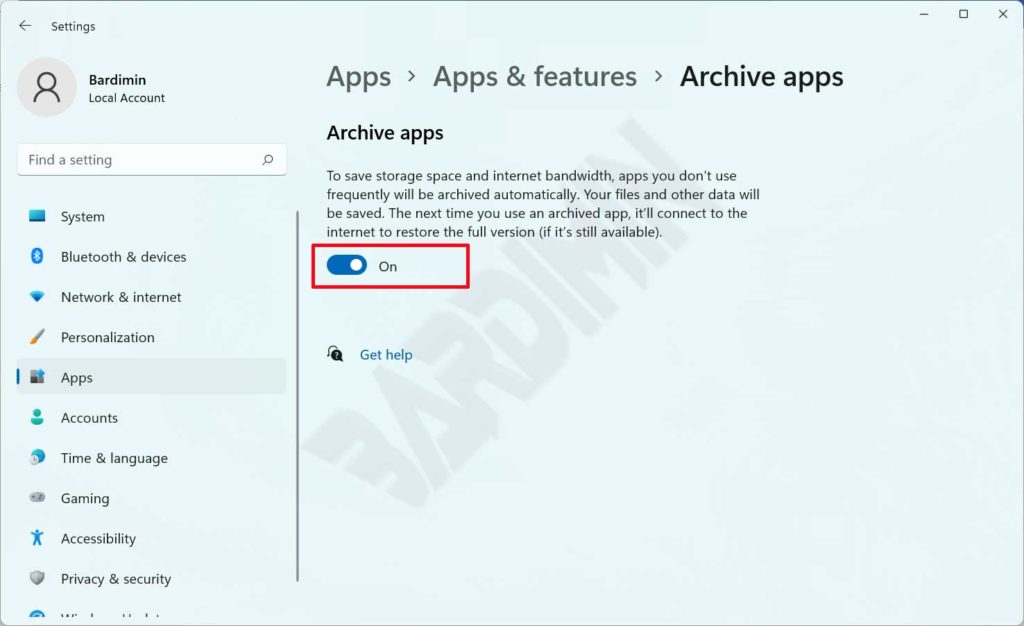
Once active, Windows will again monitor app usage and archive infrequently used ones. You can identify archived apps by the small cloud icon on their Start Menu tile.
Checking and Managing Archived Apps
Windows does not provide a built‑in GUI to list archived apps. However, you can use PowerShell to query them. Open PowerShell as administrator and run:
Get-AppxPackage -AllUsers | Where-Object {$_.IsArchived -eq $true}This command displays all archived apps. To manually restore a specific app, you can either launch it from the Start Menu or use:
Add-AppxPackage -ArchivePath "<path>"Advanced PowerShell usage should be left to experienced technicians.
Alternatives to Archive Apps
If you prefer not to use Archive Apps, Windows offers other space‑saving tools. Storage Sense can automatically delete temporary files and empty the Recycle Bin. For gamers, moving game installations to an external drive or using Compact OS (which compresses system files) are viable options.
Professionals managing multiple devices should consider disabling archiving for mission‑critical apps by using them regularly or applying Group Policy settings. Microsoft provides official documentation on configuring Archive Apps at their documentation site.
Conclusion
The Archive Apps feature in Windows 11 is an intelligent storage‑saving mechanism, but it requires careful management to avoid productivity hiccups. Whether you are a gamer juggling large titles or a professional relying on always‑available business tools, the steps above let you tailor the feature to your needs. Always verify an app’s continued availability in the Microsoft Store before depending on this functionality.
