

Learn how to disable Fullscreen Optimization in Windows 11 through the registry or per application. This technical guide helps boost FPS in games and resolve lag with detailed steps and screenshots.
What Is Fullscreen Optimization and How It Affects Game Performance
Fullscreen Optimization is a built-in feature of Windows 11 designed to prioritize CPU and GPU resources when applications run in full-screen mode, particularly games and videos. Its goal is to deliver a smoother experience by reducing interference from background processes. However, some users actually experience a drop in frames per second (FPS) or increased input lag when this feature is active. This issue is commonly encountered by gamers and technicians who demand maximum performance from their systems.
By default, Fullscreen Optimization is enabled in Windows 11. Unfortunately, not all games are compatible with this mechanism. Improper resource allocation can cause games to stutter. Therefore, understanding how to disable it—either globally via the registry or only for specific applications—becomes essential.
Disabling Fullscreen Optimization can quickly stabilize FPS in certain games that suffer from performance issues.
How Fullscreen Optimization Works
This feature alters the behavior of DirectX and desktop composition. When a game runs full-screen, Windows traditionally switches it to exclusive full-screen mode so the game has full control over the display. But with Fullscreen Optimization, Windows attempts to retain some composition elements (such as Game Bar overlays), causing the game to run in a fullscreen optimized mode similar to borderless window. This can lead to increased latency and lower FPS on some systems.
How to Disable Fullscreen Optimization via Windows Registry
The first method disables this feature globally for all applications using the Registry Editor. This approach is suitable if you want to ensure no game or program is affected by Fullscreen Optimization. Warning: Incorrectly editing the registry can cause system instability. Always back up the registry first.
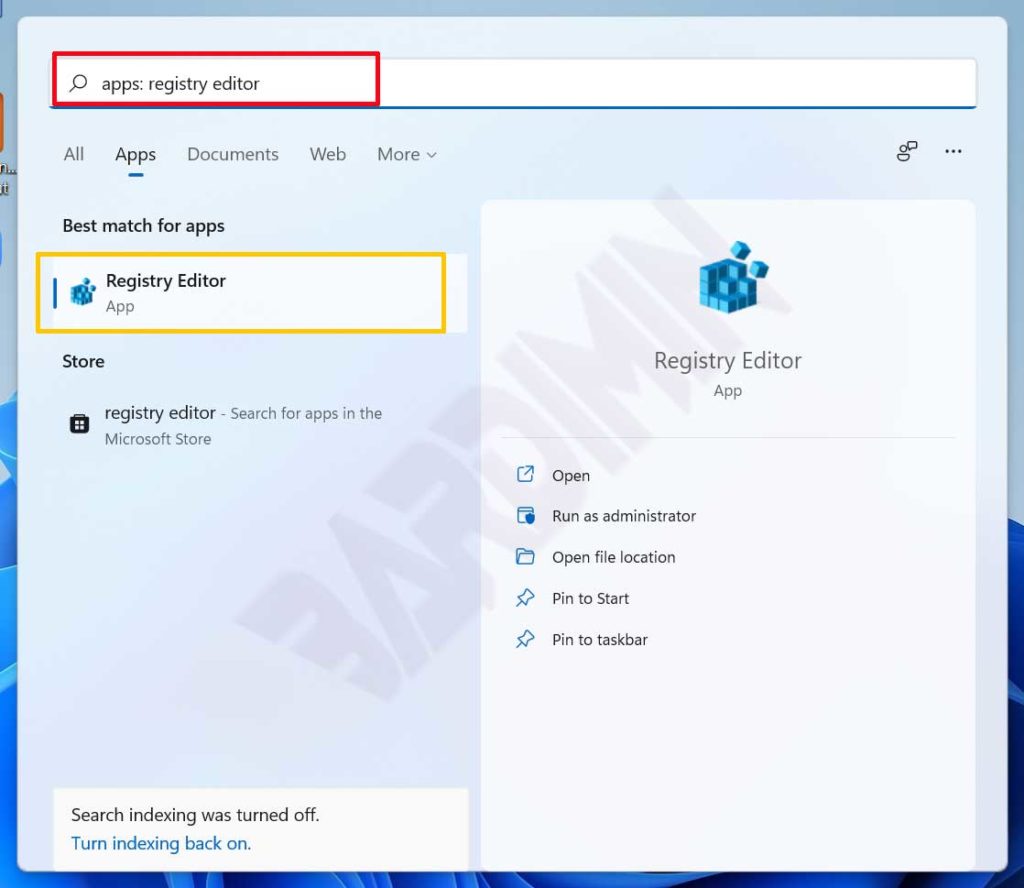
- Open Registry Editor by typing “registry editor” in the Windows search bar. Right‑click it and select “Run as administrator”.
- In the Registry Editor window, navigate to the following location:
HKEY_CURRENT_USER\System\GameConfigStore. - Right‑click an empty area in the right pane, select New > DWORD (32-bit) Value.
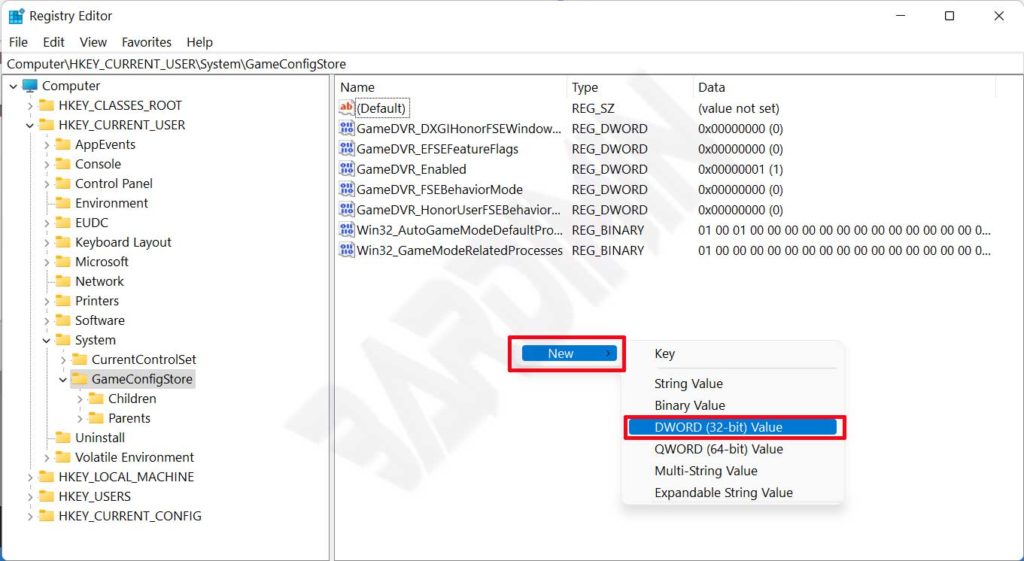
- Name the new key GameDVR_DSEBehavior.
- Right‑click GameDVR_DSEBehavior and choose Modify…. Set the Value data to 2, then click OK.
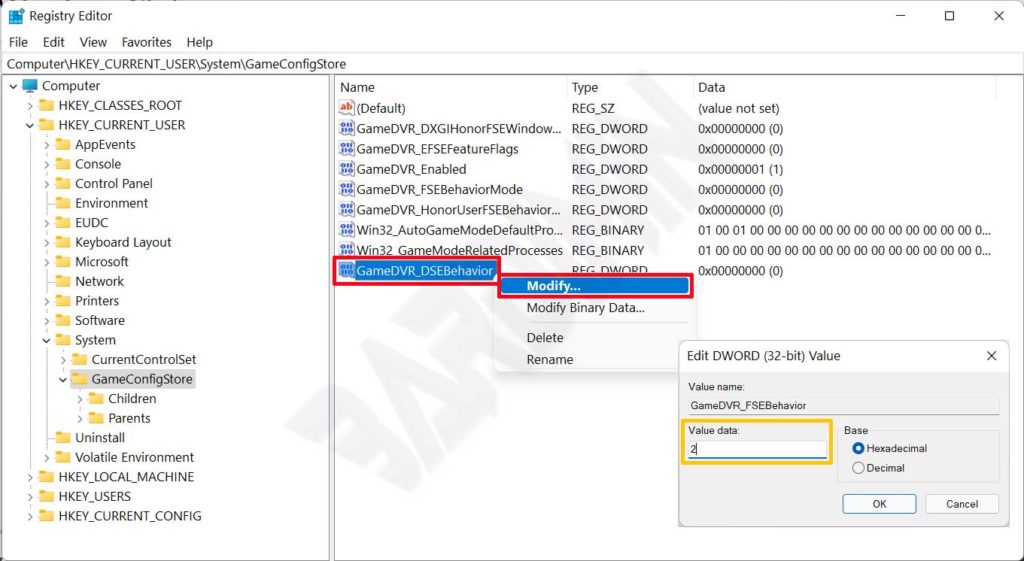
Value meanings:
0 = Fullscreen Optimization enabled (default)
2 = Fullscreen Optimization disabled
After completing these steps, close Registry Editor and restart your computer to apply the changes. To verify, you can check the value again or launch a game that previously had issues.
Disable Fullscreen Optimization for Specific Applications
If you only want to disable this feature for one or a few games, the per‑application method is recommended. It does not interfere with global settings and retains optimization for other apps. Ideal for users who encounter problems only in particular games.
- Locate the .exe file of the game or application you want to adjust. It is usually in the installation folder or on the desktop as a shortcut.
- Right‑click the file and select Properties.
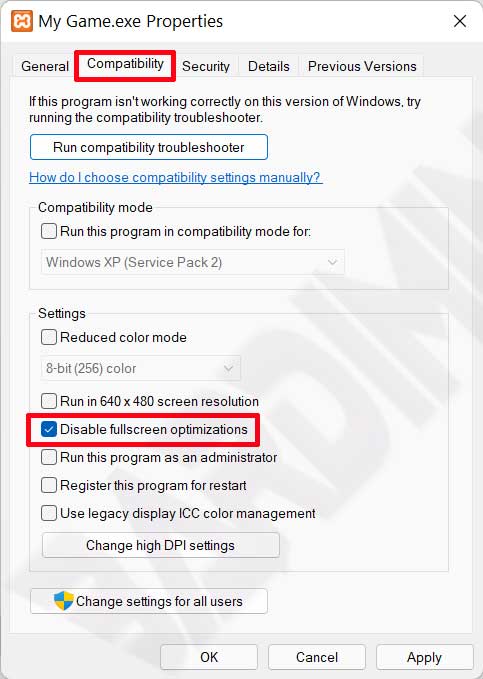
- In the Properties window, go to the Compatibility tab.
- Check the box Disable fullscreen optimizations.
- Click Apply and OK to save.
This method takes effect immediately without a restart. Launch the game and feel the diffrence. If the issue persists, you can also adjust other options like Run this program as an administrator or change DPI settings.
Comparison of Both Methods and When to Use Them
- Registry (global): Affects all full‑screen applications directly. Suitable if many games are problematic or you want a system‑wide change. However, it lacks flexibility.
- Per application: Only impacts the selected program. Safer and more specific. Ideal for testing individual games without affecting others.
Impact of Disabling Fullscreen Optimization
After turning off this feature, you may notice several changes:
- Increased FPS: Games that were previously hindered by desktop composition can run smoother.
- Reduced input lag: Keyboard and mouse responses become faster because the game gains direct GPU access.
- Game Bar overlay may not appear: Features like screenshots or recording from Game Bar might be unavailable due to exclusive full‑screen mode.
- Possible flicker when alt‑tabbing: Switching between applications may cause brief flickering as display modes change.
Therefore, consider your priorities. If streaming or recording gameplay is important, you might still need the overlay, making the per‑application method a wiser choice.
Additional Tips for Gaming Optimization on Windows 11
Besides disabling Fullscreen Optimization, the following steps can further enhance gaming performance:
- Enable Game Mode in Settings > Gaming > Game Mode. This feature allocates resources to games.
- Regularly update GPU drivers from the official NVIDIA, AMD, or Intel websites.
- Close unnecessary background applications via Task Manager.
- Adjust power settings to High Performance in Control Panel.
For more details on Windows 11 gaming optimizations, refer to Microsoft’s official documentation (unofficial source, nofollow).
Conclusion
Fullscreen Optimization in Windows 11 is designed to enhance multimedia experiences, but it doesn’t always play nicely with every game. By following the steps above, you can disable it globally via the registry or on a per‑application basis through properties. Choose the method that best suits your needs to achieve maximum gaming performance. Always remember to back up the registry before making any major changes.
If FPS issues persist after trying these solutions, other factors such as RAM capacity or hardware temperatures might be the culprit. Conduct further testing with monitoring software like MSI Afterburner.
