

RAMDisk technology repurposes a portion of your system’s RAM as an ultra-fast virtual drive, delivering read/write speeds that dwarf even the fastest NVMe SSDs. This article provides a technical exploration of RAMDisk architecture, step-by-step configuration using reliable software, and strategic applications for professionals, developers, and gamers seeking to eliminate storage bottlenecks.
What Is a RAMDisk and Why Speed Matters
A RAMDisk is essentially a block of system memory (RAM) that your operating system treats as a physical disk drive. Specialized software carves out a portion of RAM, formats it with a file system, and assigns it a drive letter. From there, any application can read and write to it just like an SSD or HDD—except the underlying hardware is DRAM, which operates at nanosecond latency and delivers bandwidth measured in gigabytes per second.
To put that in perspective, consider contemporary storage tiers. A high-end SATA SSD might push 550 MB/s; a cutting-edge PCIe Gen4 NVMe drive can reach 7,000 MB/s under ideal conditions. Meanwhile, a dual-channel DDR4-3200 memory subsystem offers roughly 25,000 MB/s (25 GB/s) of theoretical bandwidth. Modern DDR5 can exceed 40 GB/s. A RAMDisk harnesses that bandwidth directly, effectively performing at speeds 3–5 times faster than the fastest consumer SSDs—and orders of magnitude faster than traditional hard disks.
By leveraging native RAM bandwidth, a properly configured RAMDisk can achieve data transfer rates exceeding 20 GB/s, eliminating I/O wait times for applications that thrash temporary files or caches.
— Performance Analysis, Storage Review Quarterly
This isn’t merely academic. For workflows constrained by disk I/O—think game level loading, video scratch disks, compiler output directories, or database temp spaces—the difference translates directly to reduced wall‑clock time and smoother interactivity.
Practical Guide: Building Your Own RAMDisk
Creating a RAMDisk requires third‑party software, as mainstream operating systems lack built‑in support. The tool landscape ranges from free, open‑source options to commercial packages with advanced features. For most users, AMD Radeon RAMDisk offers a solid free tier (up to 4 GB) and a straightforward interface. Power users may prefer ImDisk Toolkit (free, scriptable) or SoftPerfect RAM Disk (paid, with image persistence and dynamic sizing).
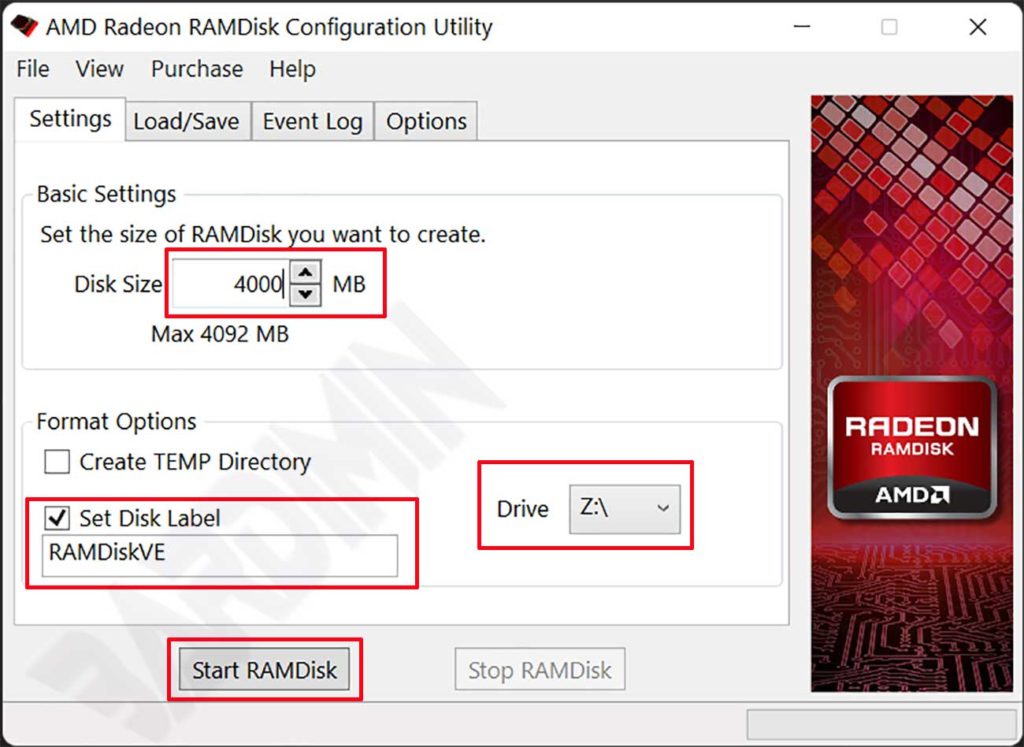
Below is a step‑by‑step walkthrough using AMD Radeon RAMDisk on Windows:
- Download the installer from the official AMD Radeon RAMDisk page (verify the source).
- Run the installer, accept the license, and complete the setup. A reboot may be required.
- Launch the application. In the main window, enter the desired size in the “Disk Size” field. The free version caps at 4092 MB.
- Optionally, provide a label (e.g., “SCRATCH”) and select a drive letter (e.g., “R:”).
- Click “Start RAMDisk”. The software will allocate the memory, format the volume, and mount it—typically in under two seconds.
- Verify the new drive appears in File Explorer. It is now ready for use.
⚠️ Critical caveat: RAM is volatile. Everything stored on a RAMDisk vanishes the moment power is cut—shutdown, restart, or even a brief power loss. Never use it for irreplaceable data unless you have a backup strategy (e.g., saving an image to disk before shutdown).
Sizing Your RAMDisk Without Crippling the System
Before allocating memory, assess your total RAM and typical workload. A system with 16 GB might safely spare 4 GB for a RAMDisk, leaving 12 GB for the OS and applications. For a 32 GB machine, 8–10 GB is often feasible. The key is to monitor memory usage under load: if you see high paging or out‑of‑memory errors, reduce the RAMDisk size. Tools like Resource Monitor (Windows) or htop (Linux) help gauge headroom.
Strategic Use Cases Where RAMDisk Shines
Given its volatility and speed, RAMDisk is best suited for temporary, high‑throughput tasks. Below are scenarios where it delivers tangible benefits:
- Game asset caching: Place game cache folders or even entire game installations on a RAMDisk to slash level load times. Works best for open‑world titles that stream assets continuously.
- Browser cache redirection: Point Chrome, Firefox, or Edge cache directories to the RAMDisk. Browsing feels snappier, and SSD write wear is reduced.
- Video editing scratch disks: Configure Adobe Premiere Pro, DaVinci Resolve, or Final Cut to use a RAMDisk for preview renders and timeline cache. This eliminates stutter during playback of high‑bitrate footage.
- Software compilation: Store source trees and object files on a RAMDisk. Compilers that generate many intermediate files (C++, Go, Rust) will see dramatic speedups.
- System TEMP folders: Redirect environment variables
%TEMP%and%TMP%to the RAMDisk. This accelerates installers, archivers, and any tool that writes temporary data. - Virtual machine disks: Run a VM’s virtual hard disk from a RAMDisk for near‑instant I/O. However, remember to snapshot or shut down the VM gracefully to avoid data loss.
- Database temporary tablespaces: For development databases (MySQL, PostgreSQL), move temp tablespaces to RAMDisk to speed up sorting, hashing, and join operations.
- Sensitive data processing: Use a RAMDisk as a ephemeral workspace for confidential files that must leave no trace after power‑off (e.g., cryptographic operations).
Additionally, any application that performs frequent small I/O operations—such as source control diffs, log aggregation, or scientific simulations—can benefit from RAMDisk’s low latency. Threre is also potential for use in high-frequency trading simulations where every microsecond counts.
Advanced: Persistence and Optimization
Most RAMDisk utilities offer an option to save the drive’s contents to an image file on shutdown and reload it at startup. This bridges the volatility gap, but adds overhead. Enable this only if you need data to survive reboots; for pure scratch space, keep it disabled for maximum speed.
Some power users move the Windows pagefile to a RAMDisk. This is not recommended for general use—if the RAMDisk fills up, the system may crash. A safer approach is to place only application‑specific caches there. Tools like PrimoCache offer hybrid caching, using RAM to accelerate existing drives without the volatility risk.
Performance tip: Always benchmark your RAMDisk after creation. Tools like CrystalDiskMark can confirm you’re achieving expected speeds (typically >10 GB/s sequential reads). If numbers seem low, check that your RAM is running at its rated speed and that the software isn’t throttling due to filesystem overhead.
In conclusion, a RAMDisk is a specialized but potent tool for accelerating I/O‑bound tasks. By understanding its strengths—extreme speed—and its weakness—volatility—you can strategically deploy it to make your workflows faster, smoother, and more efficient. The key is matching the tool to the right job: temporary, high‑intensity workloads that can tolerate the risk of power‑loss data erasure.
Always monitor system stability after implementation, and adjust allocations based on real‑world usage patterns.
