

Knowing the correct method to check your Windows version is a critical step for professionals, technicians, and gamers. This information is essential for software compatibility, system troubleshooting, and optimization. This guide outlines three primary methods for checking your Windows version, including via Settings, Command Prompt, and the winver dialog, updated for Windows 11.
How to check Windows version is a fundamental skill every user should master. You need this when installing new applications, updating drivers, or performing troubleshooting. The exact version and build number are crucial for determining feature support and security updates. Therefore, understand the following methods.
How to Check Windows Version via Settings (About)
This is the easiest and most recommended method. The About page in Settings provides comprehensive system information. The process is similar for Windows 10 and Windows 11 with minor interface differences.
Steps via the Start Menu
First, click the Start button and select the Settings (gear) icon. Then, navigate to System > About. An alternative is to press Windows + I to open Settings directly.
Steps via Search
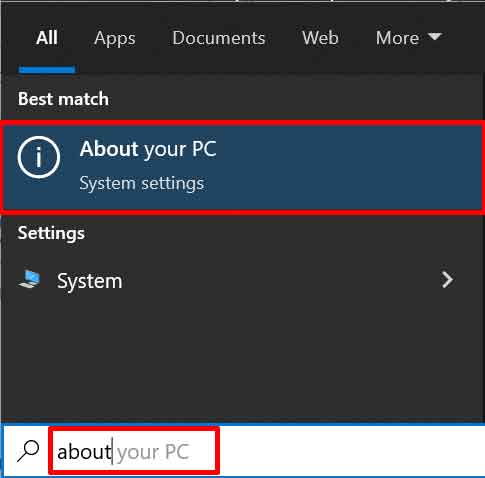
Click the search icon on the taskbar or press Windows + S. Next, type “about your pc” and select the top result. This method is very quick and efficient.
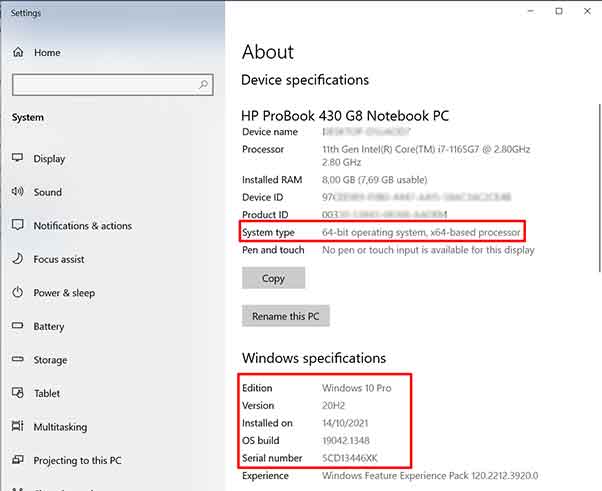
On the About page, you can view detailed system specs. Key information includes the Windows edition, version, OS build, and system type (64-bit or 32-bit). This data is presented clearly.
How to Check Windows Version via Command Prompt (CMD)
For technicians and advanced users, Command Prompt offers a powerfull method. You can retrieve detailed information with a single command. First, open CMD as an administrator.
systeminfo | findstr /B /C:"OS Name" /C:"OS Version"
The command above filters the output to show the OS name and version. If you only need the simple version, use the ver command. This method is consistent across all Windows editions.
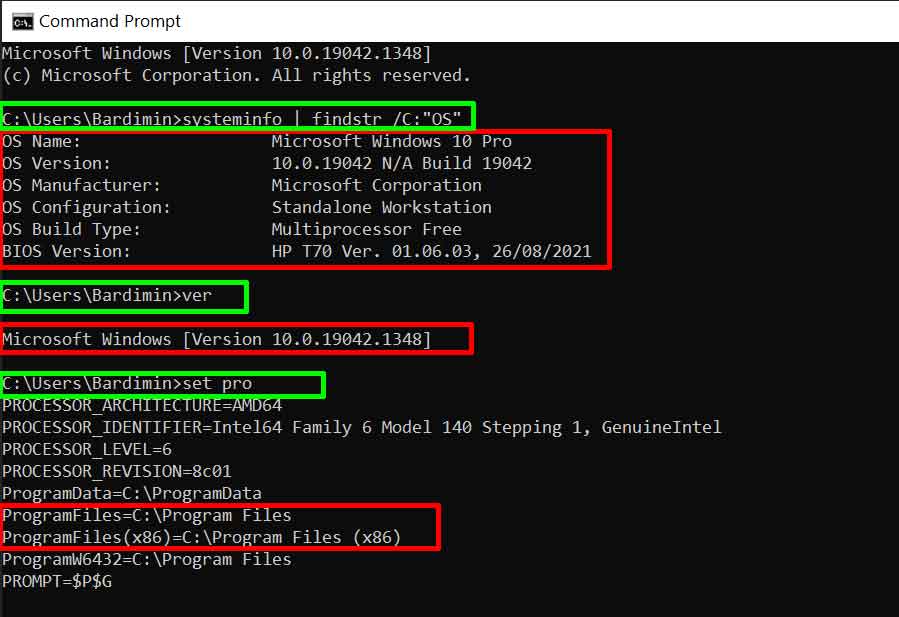
To determine if Windows system is x64 or x86, run this command:
echo %PROCESSOR_ARCHITECTURE%
A result of “AMD64” indicates a 64-bit system. Conversely, “x86” indicates a 32-bit architecture. You can also check for the presence of the “Program Files (x86)” folder as an indirect indicator.
Check Windows Version Using the Winver Dialog
The winver dialog displays version information in a concise pop-up. This method quickly provides core data like edition, version, and build number. Follow these steps.
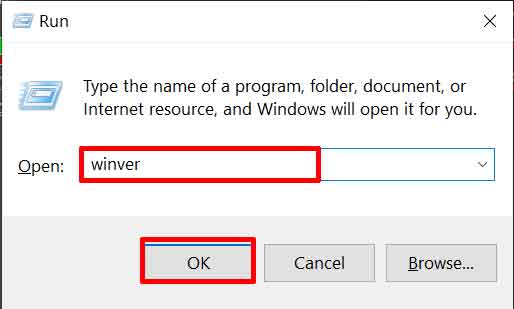
- Press the Windows + R keys simultaneously to open the “Run” dialog.
- Type “winver” (without quotes) in the provided field.
- Click “OK” or press Enter. Your Windows version information will appear.
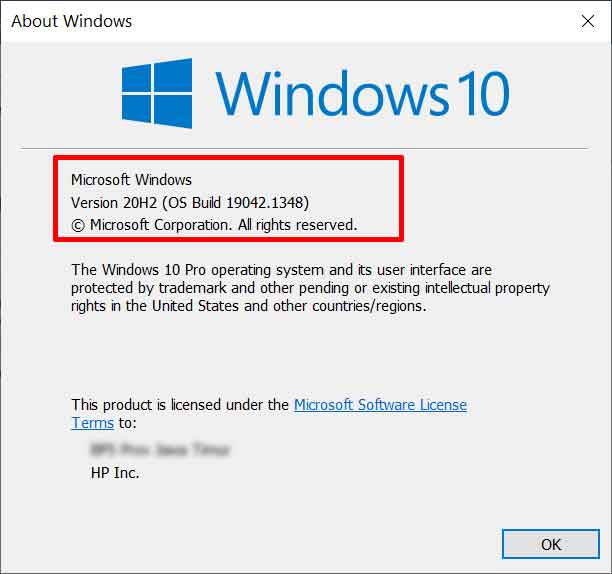
The three methods above complement each other. Casual users can rely on Settings. However, technicians may prefer CMD for automation scripts. The winver dialog is suitable for a quick check. Always ensure your system receives the latest security updates from the official Microsoft source. By knowing how to check Windows version and its build, you can keep your system optimized and compatible.
