

Controlling application network access is a fundamental aspect of cybersecurity in Windows environments. This technical article provides an in-depth guide to blocking application internet access using Windows Firewall with Advanced Security (WFAS) and third-party tools, designed for IT professionals, system administrators, and advanced users concerned with data security and bandwidth optimization.
In modern security architecture, the principle of least privilege should apply not only to user permissions but also to each application’s network access. Many applications, including background processes and telemetry services, make outbound connections that are not always essential for their core operation. These connections can become data exfiltration vectors, entry points for malware, or simply bandwidth waste. Therefore, the ability to block application from internet access selectively is a critical skill.
Windows Firewall with Advanced Security (WFAS) is an integrated stateful firewall component in the Windows operating system (from Vista to Windows 11). Unlike a basic firewall that only filters traffic by port and IP address, WFAS allows the creation of granular, process-based (application-aware) rules. Outbound rules in WFAS default to allowing all outgoing connections (allow by default). Proactive security configuration requires shifting this paradigm to deny by default for specific applications, which we will implement.
Architecture and Mechanism of Windows Firewall for Blocking Applications
Before creating rules, understand the WFAS rule evaluation hierarchy. This firewall uses the Windows Filtering Platform (WFP), which processes rules based on specificity order. Rules filtering by application path have higher priority than port-based rules. Each rule must define five components: Program, Action (Allow/Block), Profile (Domain, Private, Public), Protocol & Port, and Address. To block an application, our focus is on the Program and Action components.
Steps for Precise Outbound Rule Configuration
- Open Windows Defender Firewall with Advanced Security. The quickest method is to run the
wf.msccommand via the Run dialog (Win + R) or PowerShell with Administrator privileges.
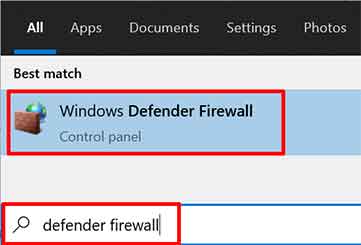
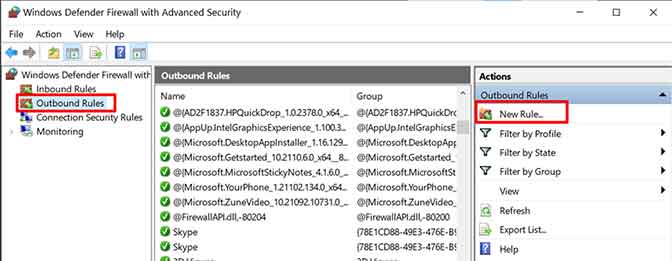
- In the left panel, navigate to Outbound Rules. Right-click and select New Rule… to open the Wizard. Choose the Program rule type because we will identify the application by its hash or executable file path (.exe).
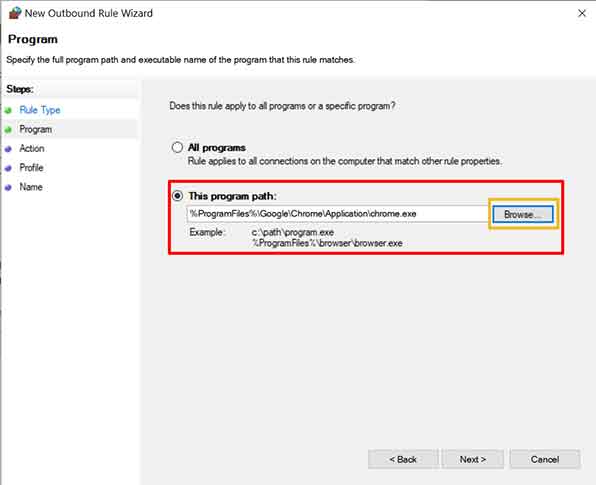
- On the Program page, select the “This program path:” option. Enter the absolute path to the target application’s .exe file. For maximum accuracy, use the Browse button to avoid typing errors. Importantly, the rule will bind to that specific digital signature or file path. If the application is updated and its path or hash changes, the rule may need updating.
- On the Action page, choose “Block the connection”. This option will cause WFAS to drop all network packets originating from that process, without sending a deny response to the application. This drop behavior is generally more secure as it provides no feedback to external entities.
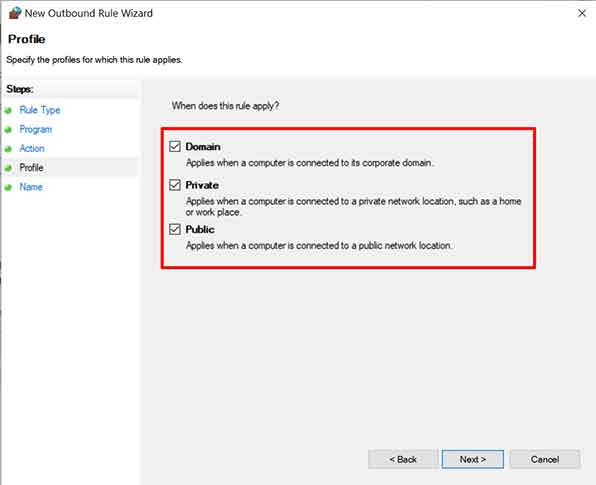
- On the Profile page, enable all three profiles (Domain, Private, Public) unless you have specific requirements. This ensures the application is blocked on all network types. The Public profile typically has the strictest rules, so applying it here is highly recommended.
- Provide an informative name and description on the Name page. Use a clear naming convention, e.g.,
[BLOCK] - AppName - Outbound - All Protocols. The description can include the blocking purpose and implementation date. Click Finish.
The newly created rule becomes active immediately. You can verify it in the console, where block rules are marked with a red circle icon. For testing, try running the application and monitor its connection attempts using Resource Monitor (Network tab) or Process Explorer from Sysinternals to see if TCP/UDP connections are prevented.
Complex Scenario: Blocking Multiple Executables and Child Processes
Many applications, especially game clients (like Steam, Epic Games Launcher) or software development kits, consist of multiple interelated processes (parent-child process tree). Creating manual rules for each .exe is inefficient. The technical solution is to create rules based on directory location or use automation tools.
Method 1: Directory-Based Firewall Rules (Using PowerShell)
Windows Firewall does not have a “Block entire folder” option in its graphical interface. However, you can achieve this with a PowerShell script. The following script will create block rules for all .exe files within a directory and its subdirectories:
# Replace $TargetFolder with the application folder path
$TargetFolder = "C:\Program Files\TargetApp"

# Get all .exe files
$ExeFiles = Get-ChildItem -Path $TargetFolder -Filter *.exe -Recurse -File

foreach ($Exe in $ExeFiles) {
    $RuleName = "BLOCK - " + $Exe.Name
    # Check if rule already exists
    if (-not (Get-NetFirewallApplicationFilter -Program $Exe.FullName -ErrorAction SilentlyContinue)) {
        New-NetFirewallRule -DisplayName $RuleName -Direction Outbound -Program $Exe.FullName -Action Block -Enabled True
        Write-Output "Rule created for: $($Exe.FullName)"
    }
}
Run PowerShell as Administrator. This script leverages the NetSecurity module to create rules programmatically. Its advantages include accuracy and the ability to be part of a deployment script in corporate environments.
Method 2: Using Firewall App Blocker (FAB) – Technical Analysis
Firewall App Blocker (FAB) by Sordum is a portable front-end GUI for WFAS. Internally, FAB does not implement its own firewall but calls the Windows Firewall API (via COM or PowerShell) to create rules. FAB’s strengths include bulk operations capability and more visual rule management.
- Download and extract FAB. Run Fab.exe with Administrator privileges (without this, FAB cannot modify firewall rules).
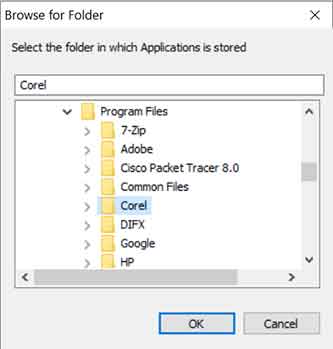
- The main interface displays a list of existing outbound rules. To add a folder, click File > Add Folder Contents.
- FAB will recursively scan the folder and show a confirmation dialog with the number of .exe files to be blocked. Technically, FAB creates a separate rule for each .exe file found.
- After the process completes, all rules will appear in the list with Enabled status and Block action. You can disable or delete rules in bulk via FAB.
A drawback of this approach is that if new .exe files are added to the folder after the rules are created, they will not be covered. You must run a rescan. Therefore, for highly dynamic directories, consider solutions based on Group Policy or scheduled scripting.
Best Practices and Advanced Security Considerations
- Audit and Logging: Enable logging for block rules in the rule’s Properties (General tab). Logs are stored in
%SystemRoot%\System32\LogFiles\Firewalland can be analyzed with tools like Windows Event Viewer (Filter: Microsoft-Windows-Windows Firewall With Advanced Security/Firewall). - Signature Verification: For higher security, utilize the Authorized Users or Package SID options in the Local Principals tab of the rule properties. This allows restrictions based on the process security context.
- Interaction with Other Security Solutions: Ensure firewall configuration does not conflict with rules from EDR (Endpoint Detection and Response) or third-party AV solutions. Some solutions may replace or complement Windows Firewall.
- Recovery (Rollback): Always export the firewall configuration before making major changes. Use the command
netsh advfirewall export "C:\backup\firewall.wfw"or export via the WFAS console. This allows quick recovery if issues arise.
Implementing block application from internet access is a proactive defensive step that significantly strengthens security posture. By understanding the technical mechanisms behind Windows Firewall and available tools, IT professionals can implement precise network controls, mitigate data exfiltration risks, and ensure compliance with organizational security policies. For in-depth official guidance, reference to Microsoft documentation is highly recommended.
