

If an external hard drive could talk, it would often complain: “I’m tired of being told to go to sleep!” The phenomenon of external HDDs suddenly turning off or disappearing from Windows 11 systems isn’t just a minor nuisance – it’s a digital nightmare that could ruin your day. Imagine a video project that is already 90% rendered suddenly becoming corrupted because the hard drive sleeps at the last second, or a critical database that becomes corrupted due to a backup being interrupted midway.
7 out of 10 Windows users have experienced a moment of panic when their external hard drive suddenly “disappeared” from the system. The main cause? An overzealous Windows power management system saves energy to the point of shutting down external storage devices without permission. In fact, for critical jobs like video editing directly from an external drive, local media server, or 24-hour automatic backup, an HDD that stays active is an absolute necessity.
Why Does Windows Like To Turn Off External HDDs Automatically?
Windows 11 often acts like an overprotective parent, without permission to shut down your external HDD for the sake of the “goodness” of the system. But don’t worry, we’ll dissect why Windows is reckless in doing this and how to fight it!
1. Power Management Feature: The Power Saver Who Is Too “Passionate”
Windows 11 turns out to have a “power stingy” habit that can be frustrating! This operating system features Power Management that works like an overly diligent household assistant, without being asked to turn off devices that are “considered” unimportant, including your external HDD.
This feature is designed to:
- Extends laptop battery life
- Optimize power consumption
- Reduce device heat
But unfortunately, his intelligence is often overblown! Windows frequently misjudges:
- “The HDD has been idle for 10 minutes? Just turn it off!”
- “This is an external device; surely it’s not urgent, right?”
Even though you may be a:
- Transfer large files silently (with no visible progress bars)
- Running an important backup process in the background
- Using HDDs as a media server or shared storage
Consequently? An external HDD that was supposed to stay active suddenly “faints” at the most crucial moments. It’s like a maid who turns off the fridge because she thinks it’s empty!
2. USB Selective Suspend: Frequently Misplaced Features
The USB Selective Suspend feature in Windows is like a security guard who is too excited; indiscriminately, he will turn off the USB port that is considered “idle”. It could be that your external HDD is hard at work behind the scenes!
How this feature works:
- Flashing off: Disconnects power to a USB port that is considered idle
- Saving mode: Reduces the power consumption of external devices
- Auto-on: Especially in Balanced and Power Saver modes
The main problem? Windows is often misdiagnosed!
“While engrossed in streaming movies from an external HDD, suddenly an error occurred because Windows considered the drive ‘idle’!”
This feature that is supposed to be a battery savior often turns into the culprit of external HDD connection problems!
3. Hard Disk Sleep Mode: Causes of HDD Suddenly “Fainting”
This feature works like an overly sensitive alarm; once the external HDD is silent for a while, it is instantly considered “sleeping” and forcibly shut down. It could be that the drive is a:
- ✔ Process large file transfers in the background
- ✔ Run automatic backup tasks
- ✔ Serves as a shared storage medium
Problematic Way of Working:
- The timer is inaccurate. Windows will shut down the HDD after 20 minutes of idleness, even if it’s actually in use!
- Slow Wake Up Process. It takes 5-15 seconds to “wake up” a sleeping drive
- High Risk of Error. Often fail to reconnect after sleep
Frequent Terrible Impacts:
| PROBLEM | FATAL CONSEQUENCES | REAL EXAMPLES |
| Dropped Data Transfer | Corrupt files- the process fails completely | Video renders 90% suddenly error |
| Sudden Access Lost | Must restart the application/computer | “Drive not recognized” when presentation is important |
| Physical Damage | HDD lifespan shrinks 40% faster | Bad sector appears after 6 months |
“3-year research data from Backblaze shows HDDs that are often forced to shut down have a 2.5x higher failure rate!”
Step 1: Change Power Plan Settings
The first step to keeping an external HDD active in Windows 11 is to make adjustments to the power settings. By default, Windows will shut down the drive after a few minutes of inactivity to conserve energy, especially when using Balanced or Power Saver mode.
Let’s “tame” this overly aggressive Windows power-saving feature! Follow these steps carefully:
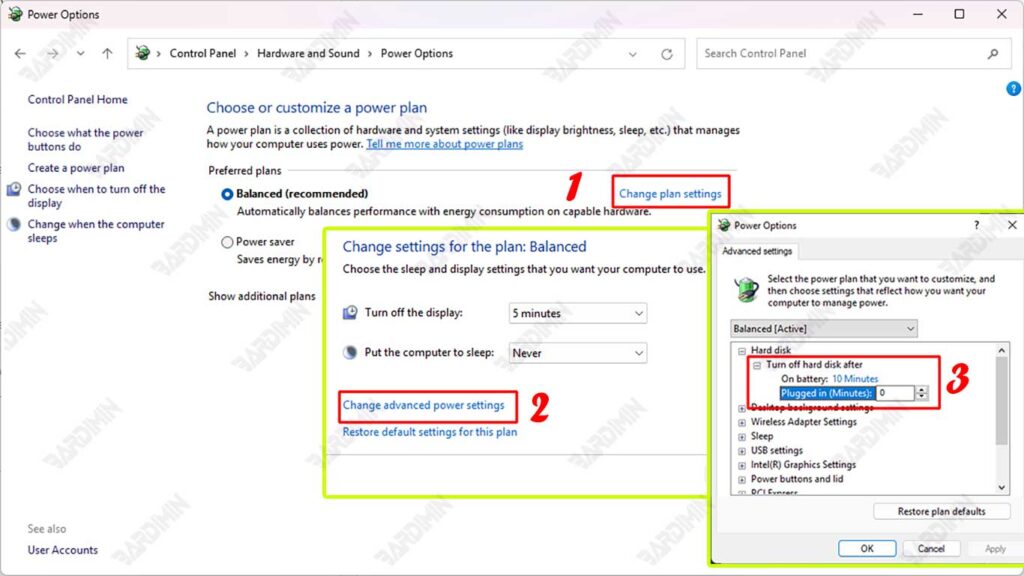
How to Disable Sleep Mode for External HDDs
1. Open the Power Options Menu
- Right-click the battery icon in the taskbar (for laptops)
- Or open Control Panel → Power Options
2. Edit Power Plan
- Select an active plan (usually “Balanced”)
- Click “Change plan settings”
- Select “Change advanced power settings”
3. Turn off the HDD Sleep Timer
- Look for the “Hard disk” option → “Turn off hard disk after”
- Change all values to “0” (Never)
- On battery: 0
- Plugged in: 0
- Click on “Apply” and then “OK.”
Step 2: Disable USB Selective Suspend
USB Selective Suspend is a power-saving feature that allows the operating system to disable specific USB ports individually when they are considered inactive. While this feature is effective for saving energy, especially on laptop devices, it can disrupt the stability of external HDD connections connected via USB ports.
This feature is like a Windows “electrician” who likes to cut off the power to the USB port at will. When Windows detects a “quiet” USB port for a while, it will:
- Unilaterally disconnect power
- Consider USB devices unimportant
- Causes an external HDD to suddenly disappear from the system
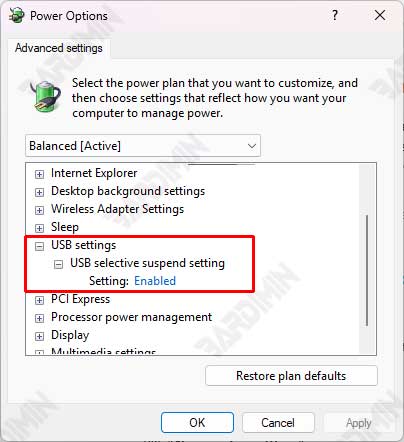
How to turn off USB Selective Suspend:
1. Open Advanced Power Settings
- Control Panel > Power Options
- Select “Change plan settings” in the active plan
- Click “Change advanced power settings”
2. Find the USB Settings
- Scroll to the “USB settings” section
- Open the “USB selective suspend setting” submenu
3. Disable Completely
- Change both options to “Disabled”:
- On battery: Disabled
- Plugged in: Disabled
- Click “Apply” or “OK”
Step 3: Check Device Manager – Power Management Settings
In addition to doing the setup via Power Options, you also need to make sure that Windows doesn’t automatically turn off the USB port via Device Manager.
Windows likes to “cheat” on us! Even though it has turned off USB Selective Suspend, some USB ports can still be force-shut off via Device Manager. This is often the cause of external HDDs suddenly disconnecting!
How to Disable Power Management for USB Ports in Device Manager
Follow these steps to disable the power-saving setting on each USB port used by your external HDD:
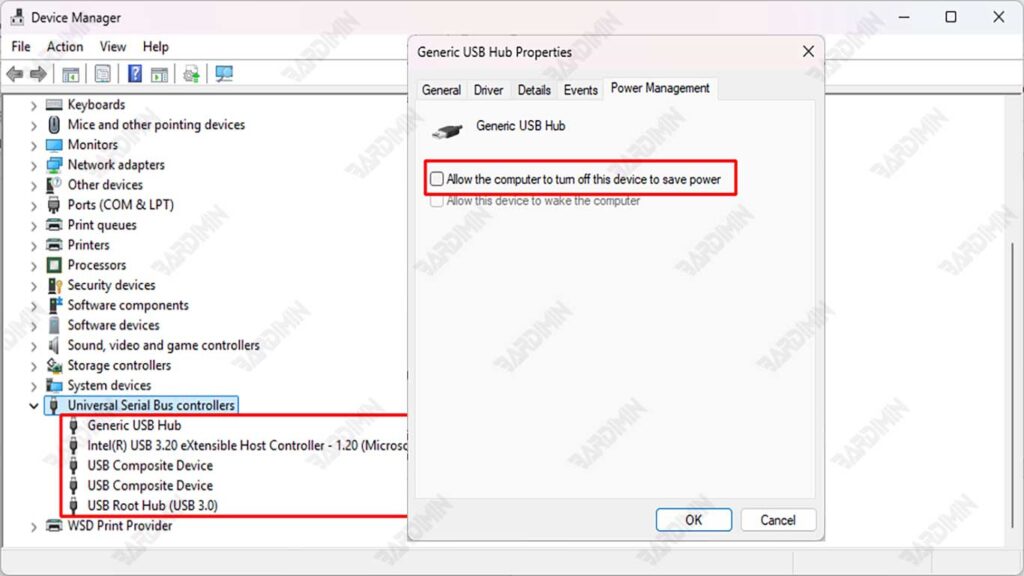
1. Open Device Manager
- Right-click the Start menu → Select Device Manager
- Search and open the → Universal Serial Bus controllers category
2. Turn Off the Power Saving Option on Each USB Port
- Right-click on USB Root Hub (USB 3.0), Generic USB Hub, and USB Composite Device
- Select Properties → Open the Power Management tab
- Uncheck “Allow the computer to turn off this device to save power.”
- Click OK
3. Repeat for All Ports Used by External HDDs
- Test the USB port where the HDD is connected (unplug & plug in to be sure).
- Disable this option on all listed USB Hubs.
If you’re not sure which port is being used by the external HDD, disable this setting for all available USB ports. This is safe and ensures nothing is missed.
This change does not affect the overall performance of the system, but it is especially beneficial for devices that require constant connectivity, such as external HDDs.
