

This article provides a complete technical guide for system administrators to grant controlled local administrator access to domain users. You will learn how to make a domain user a local administrator using Group Policy Objects (GPO) in an Active Directory environment. This method adheres to the principle of least privilege, enabling end-user productivity without compromising overall network security.
In a corporate IT infrastructure, standard domain users typically have limited access rights on their workstations. This security policy is designed to prevent unintended or harmful system changes. However, this restriction often creates operational hurdles. Users may be unable to install applications, printer drivers, or legitimate supporting software required for their tasks.
Granting local administrator rights directly to individual accounts is a high-risk practice. Therefore, a more secure and manageable solution is to utilize Group Policy Objects (GPO). Through GPO, administrators can add specific domain security groups to the local Administrators group on targeted computers. This approach provides centralized control, traceability, and consistent deployment across the network.
Security Considerations and Prerequisites
Before implementing this configuration, ensure you have Domain Administrator privileges. Always follow the least privilege principle. Only add users who genuinely require administrator-level privileges to the designated security group. Document all policy changes for audit purposes. For official Microsoft security best practices, visit the Microsoft documentation on Securing Privileged Access.
Step 1: Create a Security Group in Active Directory
The first step is to create a Security Group that will contain all domain users requiring local administrator rights. Using a group simplifies future membership management.
- On the Domain Controller, open Server Manager.
- Select the Tools menu, then click Active Directory Users and Computers.
- Navigate to the appropriate Organizational Unit (OU), such as Users.
- Right-click the OU, select New, then choose Group.
- In the new window, enter a group name, e.g., G_LocalWorkstationAdmins. Ensure the group type is Security and the scope is Global. Click OK.
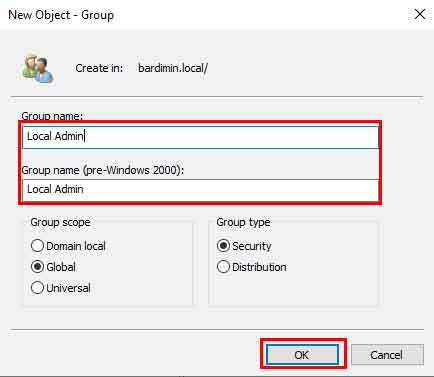
Once the group is created, add members. Open the properties of the G_LocalWorkstationAdmins group. Go to the Members tab, click Add, then enter the names of the domain users requiring access. Click OK to save.
Step 2: Create and Configure the Group Policy Object
Next, create a new Group Policy Object that will apply the local group membership settings to target computers.
- From Server Manager, select Tools then Group Policy Management.
- In the GPMC console, expand Forest and Domains. Then, right-click the Group Policy Objects folder.
- Select New. Give the GPO a descriptive name, such as GPO_LocalAdminRights. Click OK.
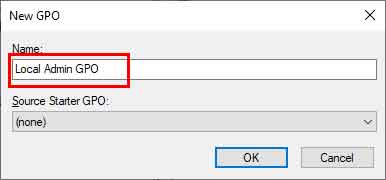
- Right-click the newly created GPO_LocalAdminRights GPO and select Edit.
- In the Group Policy Management Editor, navigate to: Computer Configuration > Policies > Windows Settings > Security Settings > Restricted Groups.
- Right-click an empty area in the right panel, then select Add Group.
- Click Browse, find and select the G_LocalWorkstationAdmins group. Click OK.
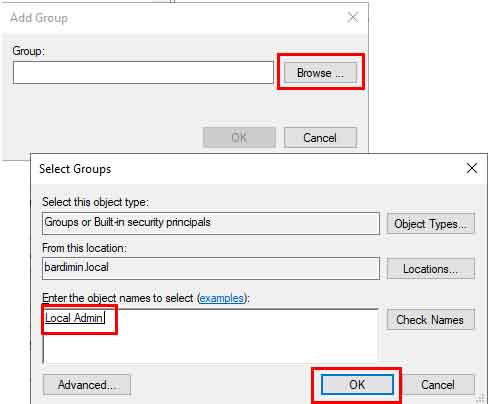
- In the group properties window, click Add in the This group is a member of: section.
- Type Administrators (ensure spelling matches the local group name in Windows) and click OK. For Remote Desktop access, you can separately add Remote Desktop Users.
- Close the properties window by clicking OK. Then, close the GPO editor.
Step 3: Link the GPO to the Computer Organizational Unit
The GPO must be linked to the Organizational Unit (OU) containing the computer objects. This link ensures only computers in that OU receive the policy.
- In the Group Policy Management console, locate and right-click the OU where the target computers reside (e.g., Workstations).
- Select Link an Existing GPO.
- From the list, select GPO_LocalAdminRights, then click OK.
Important: Since this GPO is configured under Computer Configuration, the policy applies to computers, not users. Therefore, ensure the GPO is linked to a computer OU, not a user OU.
Step 4: Testing and Verifying the Configuration
After configuration, conduct thorough testing to ensure the policy works as expected.
- Log in to a Windows 10/11 client computer within the linked OU, using a domain user account added to the G_LocalWorkstationAdmins group.
- Open Command Prompt or Windows PowerShell as a regular user.
- Run the command
gpupdate /forceto force an immediate group policy update. - Restart the client computer to ensure all settings are fully applied.
- After restarting, verify by attempting a task requiring admin rights (e.g., installing an application from a legitimate source). For visual confirmation, open Computer Management > Local Users and Groups > Groups and check the membership of the Administrators group. The domain group name G_LocalWorkstationAdmins should be listed there.
Troubleshooting and Best Practices
If the policy does not apply, check the following: Group Policy Modeling in GPMC can simulate results. Ensure client computers can communicate with the Domain Controller. Use the command gpresult /h report.html on the client to generate a report of applied policies.
As a best practice, regularly review the membership of the domain security group. Utilize Item-level Targeting in Group Policy Preferences if you need to apply the policy to a more specific subset of computers. Always test GPOs in a lab environment or separate OU before deploying to production.
Conclusion
Using GPO to make a domain user a local administrator is a robust and secure methodology. This approach meets end-user productivity demands while maintaining network security posture. Centralized administration via GPO simplifies management and allows for quick adjustments. By implementing the steps in this guide, you can achieve an optimal balance between access and control in a corporate IT environment.
