

File Explorer’s search feature is a gateway to quickly finding files on Windows. However, many users complain that “the search bar doesn’t produce results” or doesn’t even respond.
Are you frustrated that File Explorer search is not working on Windows 11? You type a keyword in the search bar, but the results are blank, or even the search feature doesn’t respond at all? This problem often occurs after Windows updates, changes in system settings, or due to corrupt indexing.
The search feature in File Explorer should make it easy for you to find files quickly. However, when the search box errors, productivity can be immediately disrupted. Especially if you’re in a hurry to find an important document!
No need to worry about data loss, most of the solutions here are non-destructive and safe for your system. Let’s investigate why the Windows search bar is having problems and how to fix it in minutes!
Causes of File Explorer Search Error
When File Explorer Search suddenly stops working, several causes are often the culprit. Understanding the root cause will help you choose the most appropriate solution.
1. Indexing Corruption – Search Database Corrupted Due to Improper Shutdown
Windows uses database indexing to speed up file searches. If the PC shuts down suddenly (improper shutdown), the database can be corrupted or incomplete, so the search function fails to find the relevant results.
Signs:
- Search only shows a portion of the file
- Results don’t appear at all
- Files that should exist are not detected
2. Windows Search Service Shut Down – Service Not Running
Windows Search relies on a background service that must be active for the search feature to work. If the service is down or crashes, the search bar will freeze or not respond.
Signs:
- The search box is not clickable
- Search is very slow
- The message “Search is disabled” appears
3. Bugs after Windows Update – Conflicts with Latest Builds
Microsoft sometimes releases Windows updates that have not been fully tested for compatibility. As a result, bugs in the indexing system or search algorithm can appear after the update.
Signs:
- Search errors appear right after the update
- Other features, such as Start Menu Search, are also problematic
- Restarting the PC does not fix the problem
4. Corrupted System Files – Due to Malware or Disk Error
System files responsible for search (such as SearchIndexer.exe or Cortana components) can be corrupted due to:
- Malware attacks
- Bad sectors on SSD/HDD
- Interruptions during the update process
Signs:
- Error message such as “SearchIndexer.exe not found”
- BSOD (Blue Screen of Death) related to the search protocol
- Search returns irrelevant results
7 Permanent Solutions to Fix File Explorer Search
When File Explorer Search has problems, don’t rush to reset Windows! Most cases can be fixed with a simple solution. Here’s an explanation for each method, including the reasons why it works and additional troubleshooting if the initial steps fail.
1. Restart Windows Search Service
The Windows Search service is the engine behind the search feature. If this service hangs or crashes, File Explorer can’t process search requests.
How to Restart Windows Search Service :
- Open Services Manager by pressing Win + R → type services.msc → Enter.
- Search for Windows Search by scrolling down or typing directly in the search field.
- Restart the Service by right-clicking → Restart (If the restart button is greyed out, select Stop first, then Start).
- Make sure Startup Type = Automatic. How to: Right-click → Properties → On the Startup type dropdown, select Automatic.
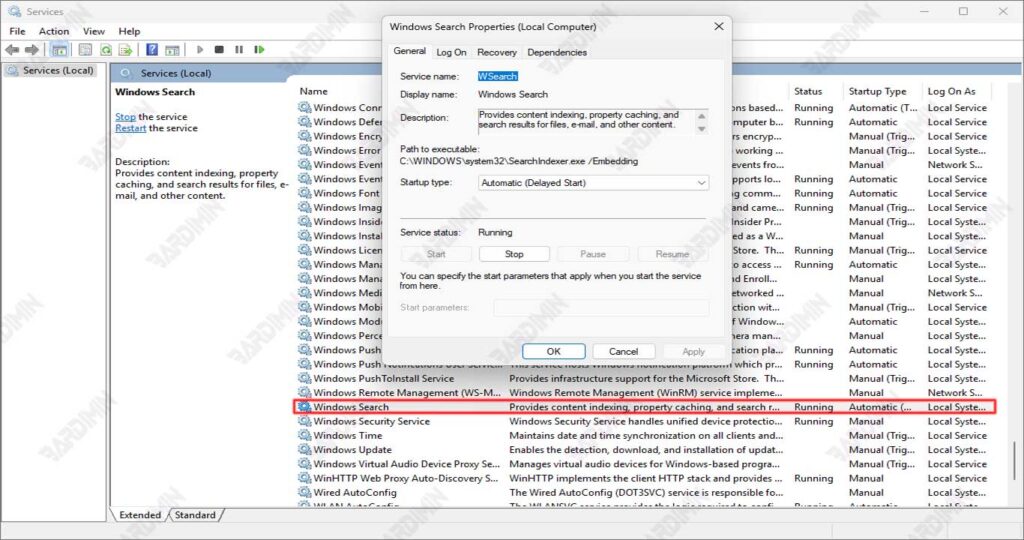
If it still fails:
Open Task Manager (Ctrl+Shift+Esc) → check if the SearchIndexer.exe process is running. If not, try running it manually via Command Prompt:
net start “Windows Search”2. Rebuild Search Index
Indexing databases can be corrupted due to:
- Improper shutdown
- Corrupt system files
- Conflicts after Windows updates
With a rebuild, Windows recreates the search database from scratch.
How to Rebuild Search Index:
- Press Win + S → type Indexing Options → open it from the search results.
- Select the tab Advanced → click Rebuild in the Troubleshooting section.
- Wait for the process to complete. Progress can be seen in the notification area (the Windows Search icon on the taskbar). The time depends on the number of files (it can be 10 minutes to a few hours).
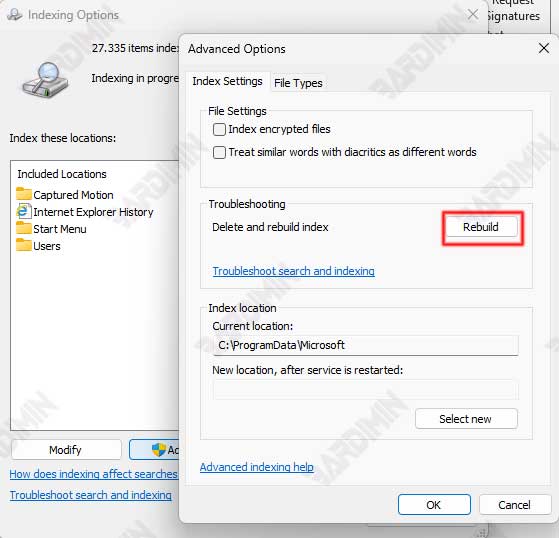
If the rebuild fails, try disabling indexing for a specific folder (for example, a folder with a corrupt file). Make sure the C: drive has enough storage space (min. 500MB free space).
As a quick alternative, you can use PowerShell to force a rebuild:
Stop-Service -Name “Windows Search”

Remove-Item -Path “C:\ProgramData\Microsoft\Search\Data\Applications\Windows\” -Recurse -Force

Start-Service -Name “Windows Search”
Rebuilding the index doesn’t delete your files, it just resets the search database. After a rebuild, the search may be temporarily slow until indexing is complete.
3. Repair System Files with DISM & SFC
Problems with Windows system files can cause File Explorer Search to fail to work. Windows built-in tools, such as System File Checker (SFC) and Deployment Image Servicing and Management (DISM), can repair corrupt or missing system files.
Steps to Repair System Files:
1. Open the Command Prompt as an Admin:
- Press Win + X → select Terminal (Admin) or Command Prompt (Admin).
- If you’re using PowerShell, make sure Admin mode is enabled.
2. Run SFC (System File Checker):
sfc /scannowThis process will scan and repair corrupted system files. Wait for it to finish (it can take 15-30 minutes).
Possible Outcomes:
- “Windows Resource Protection did not find any integrity violations.”→ No problem.
- “Windows Resource Protection found corrupt files and successfully repaired them.” → Corrupted files have been fixed.
- “Windows Resource Protection found corrupt files but was unable to fix some of them.” → Continue to DISM.
3. Run DISM (Optional, if SFC fails):
dism /online /cleanup-image /restorehealthDISM fixes the Windows Image that is the source of system files. Make sure your internet connection is stable because DISM may need to download components from Windows Update.
If the DISM error occurs, try the following command before running it again:
dism /online /cleanup-image /startcomponentcleanup4. Disable/Enable Windows Search Again
Sometimes, Windows Search Service gets stuck in an error state. By disabling and reactivating it, we allow the system to reset the service configuration.
Steps:
- Press Win + R → type services.msc → Enter.
- Search for Windows Search by scrolling down or typing directly in the search field.
- Disable Service:
- Right-click → Stop.
- Right-click → Properties → change Startup type to Disabled.
- Click Apply → OK.
- Restart the PC to make sure all related processes Windows Search, have completely stopped.
- Reactivate the Service:
- After the reboot, reopen services.msc.
- Right-click Windows Search → Properties → change Startup type to Automatic.
- Click Start → Apply → OK.
If the service fails to start, reset the service via Command Prompt:
sc config “Windows Search” start= auto

net start “Windows Search”
5. Use Alternative Search Tool (Everything by Voidtools) – Quick Solution Without Indexing
When File Explorer Search has problems, Everything from voidtools.com offers instant solutions because:
- Use a real-time search system without the need for indexing
- Supports ultra-fast file search (count seconds)
- The app size is only 2MB and does not overload the system
Usage Detail Steps:
- Visit [voidtools.com](https://www.voidtools.com)
- Download the latest version (portable and installer available)
- The installation process only takes 30 seconds
- Open the app → type the file name in the search bar
- Results will appear in real-time as you type
Everything only searches for the file name, not the file content. For document content searches, consider DocFetcher as an alternative
6. Create a New User Account – Fix a Broken User Profile
Windows user profiles can be corrupted due to:
- Login/logout glitches
- Conflict of interest
- User-specific registry errors
Steps to Create a New Account:
- Open Settings → Accounts
- Select Family & other users
- Click Add account → I don’t have this person’s sign-in information
- Create a local account with: New username and Password (optional)
- Once created, log out of your old account and sign in to your new account
7. PC Reset – The Most Drastic Last Solution
When Needed:
- All previous solutions failed
- There are indications of extensive system malfunction
- Want to restore Windows to its original state without reinstalling
Safe Reset Procedure:
- Backup important data to an external drive
- Open Settings → Update & Security → Recovery
- Select Reset this PC → Keep my files (safest option)
- Follow the wizard’s instructions:
- Select the system drive (usually C:)
- Confirm the reset process
Solution Selection Guide
Comparison Table 7: File Explorer Search Error Solutions
| Yes | Solution | When to Use? | Difficulty Level | Time | Risk | Tools Needed |
| 1 | Restart Windows Search Service | Search bar not responding/freezing | Easy | 2-5 minutes | Low | services.msc |
| 2 | Rebuild Search Index | Incomplete/inaccurate search results | Keep | 10 minutes-2 hours* | Low | Control Panel → Indexing Options |
| 3 | DISM & SFC Scan | Comprehensive system error + BSOD symptoms | Keep | 30-60 minutes | Low | Command Prompt (Admin) |
| 4 | Disable/Enable Windows Search | Service can’t be started | Easy | 10-15 minutes | Low | services.msc + restart PC |
| 5 | Use Everything Tool | Need an emergency search without repair | It’s Very Easy | 5 minutes | None | Everything App (voidtools.com) |
| 6 | Create a New User Account | User-specific errors (corrupted profiles) | Keep | 15-30 minutes | Medium** | Settings → Accounts |
| 7 | Reset PC | All solutions fail + severe system damage | Tall | 1-2 hours | Tall*** | Settings → Recovery |
Information:
- *Index rebuild time depends on the number of files (1 million files ≈ 1 hour).
- **Medium risk on solution 6: need manual migration of files/settings to a new account.
- ***High risk on solution 7: uninstalled applications (data backup required).
Guidelines for Selection Based on Symptoms
| Main Symptoms | Priority Solutions (Execution Order) |
| Search bar freezes/unresponsive | 1 → 4 → 5 → 6 |
| Inaccurate search results | 2 → 1 → 3 |
| Errors after Windows Update | 3 → 2 → 7 |
| A “SearchIndexer.exe error” message appears | 3 → 2 → 6 |
| Search doesn’t work only on certain accounts | 6 → 1 → 2 |
