

Microsoft Word is one of the most popular and versatile word-processing applications. You can use Word to create all kinds of documents, from letters, reports, papers, and books, to posters, brochures, and invitations.
One feature that makes Word stand out is its ability to add special effects to text, images, and other objects. These special effects can make your documents more attractive, professional, and creative.
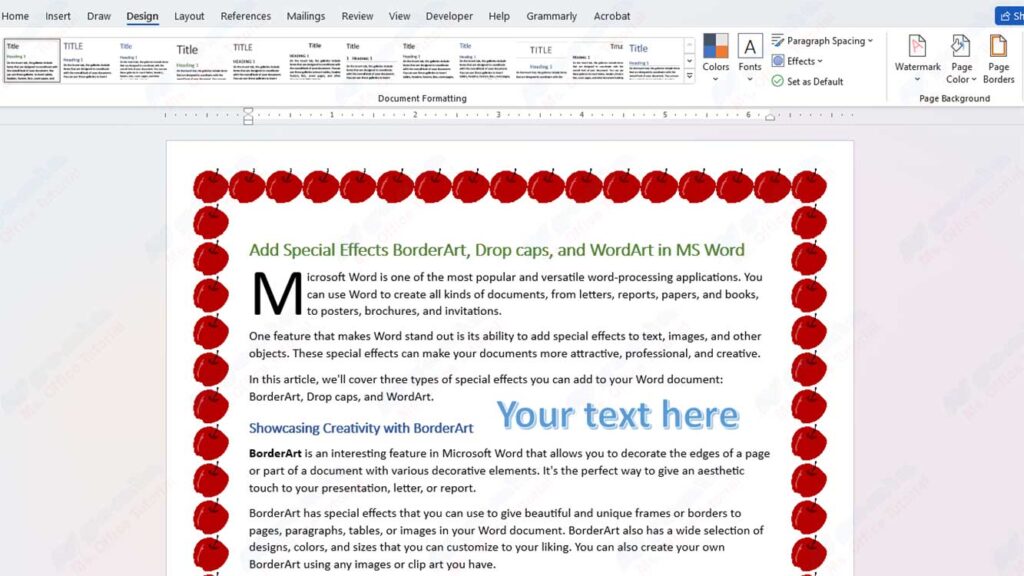
In this article, we’ll cover three types of special effects you can add to your Word document: BorderArt, Drop caps, and WordArt.
Showcasing Creativity with BorderArt
BorderArt is an interesting feature in Microsoft Word that allows you to decorate the edges of a page or part of a document with various decorative elements. It’s the perfect way to give an aesthetic touch to your presentation, letter, or report.
BorderArt has special effects that you can use to give beautiful and unique frames or borders to pages, paragraphs, tables, or images in your Word document. BorderArt also has a wide selection of designs, colors, and sizes that you can customize to your liking. You can also create your own BorderArt using any images or clip art you have.
To add BorderArt to your Word document, follow these steps:
- Select the object you want to BorderArt, such as a page, paragraph, table, or figure.
- Click the “Design” tab (or “Page Layout” for Word 2016 and earlier), then click “Page Borders” in the “Page Background” group.
- In the “Borders and Shading” dialog box, click the “Page Border” tab (or “Borders” for tables or figures).
- Under the “Style” section, click the “Box” button to select the type of frame you want to use.
- Under the “Width” section, click the down arrow to select the line weight you want to use.
- Under the “Color” section, click the down arrow to select the line color you want to use.
- Under the “Art” section, click the down arrow to select the BorderArt design you want to use. You can preview the design in the box on the right.
- If you want to create your own BorderArt using an image or clip art you have, click the “Create Custom Border” button under the “Art” section. In the “Create Custom Page Border” dialog box, click the “Browse” button to locate the image or clip art you want to use as BorderArt. After selecting the image or clip art, click the “Insert” button and then click the “OK” button.
- In the “Borders and Shading” dialog box, under the “Apply to” section, select the object that you want to assign a BorderArt to, such as a whole page, a specific paragraph, a specific table, or a specific image.
- Click the “OK” button to apply the BorderArt to the selected object.
Start a Paragraph with Drop-caps
Drop caps are text design elements used to start a paragraph with uppercase letters looming over the first line. This is a technique often used in books, magazines, or artistically formatted documents.
Drop caps can give an elegant and artistic feel to your Word document, especially if you’re writing narrative text like stories or poems.
To add drop caps to your Word document, follow these steps:
- Select the paragraph you want to give drop caps.
- Click the “Insert” tab, then click “Drop Cap” in the “Text” group.
- Select one of the available Drop cap options:
- “None” : to remove the Drop stamp from the selected paragraph.
- “Dropped” : to make the first letter of a paragraph larger and drop a few lines below the other letters.
- “In margin” : to make the first letter of the paragraph larger and located on the left side of the text.
- If you want to customize the size, font, spacing, or color of the Drop cap, click the “Drop Cap Options” option under the “Drop Cap” menu. In the “Drop Cap” dialog box, you can change the following settings:
- “Position” : to choose whether the Drop cap will be inside or outside the margin.
- “Font” : select the font you want to use for the Drop cap.
- “Lines to drop” : select how many rows you want to use for the Drop stamp.
- “Distance from text” : select the distance between the Drop stamp and other text.
- “Color” : select the color you want to use for the Drop cap.
- Click the “OK” button to apply the Drop stamp to selected paragraphs.
Using WordArt for Strong Messages
WordArt is a great tool in Microsoft Word that lets you create creatively formatted text with interesting visual effects. You can use WordArt to create striking headings, strong slogans, or messages that you want to highlight in your document.
WordArt also has special effects that you can use to make text more interesting and dynamic by applying shapes, colors, shadows, sparkles, or reflections to text. WordArt can make your Word document more vivid and stand out, especially if you want to add titles, slogans, or quotes.
To add WordArt to your Word document, follow these steps:
- Click the “Insert” tab, then click “WordArt” in the “Text” group.
- Select one of the WordArt styles available in the WordArt gallery. A WordArt text box appears in your document.
- Type the text that you want to use as WordArt in the text box. You can change the size, position, or orientation of a text box by using the handles around it.
- To adjust the WordArt effect, select the WordArt text box, and then click the “Format” tab (or “Drawing Tools Format” ) under the “WordArt Tools” tool. In this tab, you can change the following settings:
- “Text Fill” : select the color, gradient, texture, or image you want to use to fill WordArt text.
- “Text Outline” : select the color, thickness, style, or outline effect you want to use for WordArt text.
- “Text Effects” : select special effects such as shadows, reflections, sparkles, 3D, or transformations that you want to use for WordArt text.
- If you want to change the shape or size of WordArt text proportionally, select the WordArt text box, and then click the “Format” tab (or “Drawing Tools Format” ) under the “WordArt Tools” tool. In the “Size” group, you can change the height or width of the text box by using the number box or the up and down arrow keys. In the “Arrange” group, you can change the position or orientation of the text box using the available buttons.
Conclusion
By using BorderArt, Drop caps, and WordArt special effects, you can make your Word documents more attractive and professional. These special effects can help you highlight important elements in your document, such as headings, opening paragraphs, tables, images, or citations.
These special effects can also give an artistic and creative feel to your document, especially if you’re writing narrative text like stories or poems. These special effects are easy to use and customize with a wide selection of designs, colors, sizes, and effects available in Microsoft Word. Good luck!
