

Have you ever experienced a Windows 11 sudden error after an update, but don’t know the root cause? There’s a hidden file named CBS.log that might hold the answer! Like a black box on a plane, this file records every detail of your Windows 11 system operation, from failed installations, driver crashes, to mysterious errors.
Before spending hundreds of thousands on service, check the CBS.log file in your Windows 11. This file is what IT experts use to diagnose system errors.
If Windows 11 is the human body, then CBS.log is its digital medical record. Every system “disease”, from failed updates, BSOD (blue screen), to applications that suddenly crash, is neatly recorded here. But how to read this technical file? Calm! This article will translate “Windows doctor language” into layman.
Unraveling the Mystery of CBS.log: “Black Box” Windows 11
Files CBS.log (Component-Based Servicing log) are often referred to as Windows “black boxes”, because they contain in-depth records of various system activities that are not always explicitly displayed in the user interface. This log file stores crucial information related to:
- Windows installation and update process
- Changes or replacement of internal system components
- Critical failures and errors that are not logged in Event Viewer
Microsoft uses CBS.log as the primary source for diagnosing user-reported system problems. For system administrators and IT technicians, these files are an important investigative tool in dealing with system crashes and update glitches that are difficult to track.
This file is located by default in:
C:\Windows\Logs\CBS\CBS.log
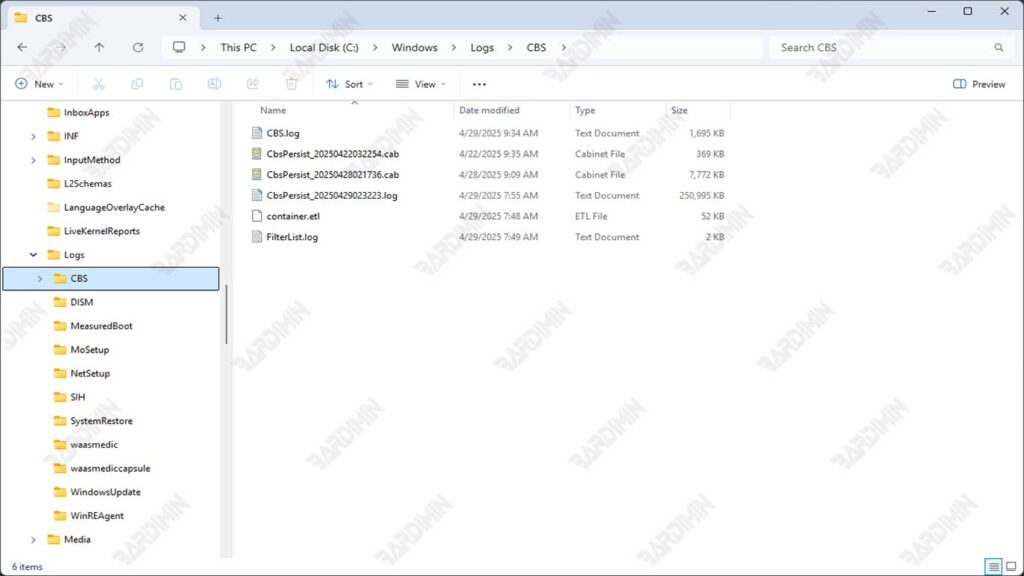
and can be opened using Notepad or further analyzed through PowerShell to get a thorough picture of the internal state of the Windows system.
How CBS.log Files Are Created?
The CBS.log file is not created carelessly, it is automatically generated by the Windows 11 system when certain activities occur that touch the core components of the operating system. These processes aim to repair, update, or check the integrity of the system, all of which are recorded in detail in this log.
Activities that trigger CBS.log creation
Some common processes that directly trigger the creation or update of CBS.log files include:
- Windows Update (Installation/update process)
- System File Checker (SFC) when verifying system integrity
- DISM (Deployment Image Servicing and Management)
- Installing/removing Windows components
- Changes CBS (Component Based Servicing)
Examples of Commands That Generate CBS.log
Here are the two most frequently used commands that result in updates to CBS.log files:
sfc /scannowThis command scans all Windows system files and replaces the corrupted files with a correct copy from the cache.
DISM /Online /Cleanup-Image /RestoreHealthThis command is used to repair corrupted Windows images, especially when the update process fails or the system files cannot be repaired by SFC.
File Format and Structure CBS.log
CBS.log files are plain text and can be opened using Notepad, but because of their large size and complex content, users often rely on PowerShell or CMTrace (from Microsoft System Center) for more effective analysis.
The CBS.log structure includes:
- Timestamp: The time of occurrence of each system activity.
- Component ID: The name of the Windows service or module involved.
- Error Status & Code: Indicates whether a process succeeded, failed, or needed intervention.
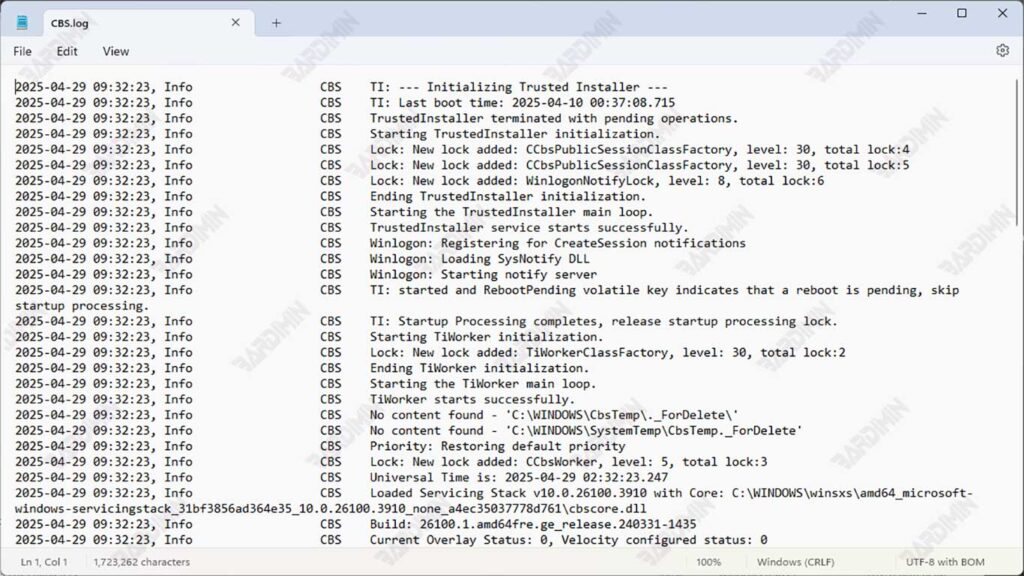
This log file uses a text format with a special pattern:
1. Header Information:
2024-07-25 09:15:33, Info CBS TI:  ---  Initializing Trusted Installer ----
2024-07-25 09:15:33, Info CBS TI: Last boot time:  2024-07-25 08:52:21
2. Basic Structure of Log Entry:
[Timestamp], [Level] [Component] [Message]Example:
2024-07-25 10:22:45, Error CBS Failed to install package [HRESULT=0x80070002]3. Main Components:
Timestamp: Format YYYY-MM-DD HH:MM:SS
Log Level:
- Info (Ordinary information)
- Warning
- Critical Failure
- HEX format (example: 0x80070005)
- Often accompanied by a description of the problem
Many of the entries in the CBS.log are technical and intended for system administrators. However, these logs can be of great help to advanced users in finding the root cause of Windows problems.
How to Read and Analyze CBS.log
Although CBS.log files are written in plain text format, the content of these files is highly technical and dense, requiring a systematic approach to read them effectively. Understanding these logs is essential for system administrators, IT technicians, and advanced users who want to resolve Windows 11 system errors independently.
Tools for Reading CBS.log Files
You can open CBS.log files with a variety of tools, including:
- Notepad
Suitable for quick reads, but can feel slow for large files.
- PowerShell
It’s useful for extracting important entries, filtering by keywords, and speeding up searches.
Example command to look for errors:
Select-String -Path “C:\Windows\Logs\CBS\CBS.log” -Pattern “[SR]” | Out-File C:\Desktop\SR_errors.txt- Event Viewer
While it doesn’t display CBS.log directly, Event Viewer can be a complement to seeing the relationship between system logs and CBS.log.
- CMTrace (from Microsoft)
The tool provides a more user-friendly look with syntax coloring and column separation based on information type.
How to Extract Important Information from CBS.log
The CBS.log file contains thousands of lines of text. To quickly find important information:
1. Focus on entries with keywords like:
- Error
- Failed
- Corrupt
- Cannot repair the member file
2. Use the search (CTRL+F) on Notepad or the Select-String command in PowerShell to filter out important entries.
3. Pay attention to the timestamp to find out the sequence of times the error occurred and the system process.
4. Save the extraction results to a new text file for further analysis.
Example of Error Entry and Its Interpretation
Here is a real-life example of an entry in CBS.log and an explanation of what it means:
2025-04-29 11:18:24, Info CSI 0000043b [SR] Repairing corrupted file \??\C:\Windows\System32\drivers\afd.sys from storeMeaning:
- CBS is trying to repair a afd.sys system file that was identified as corrupted.
- This process is triggered by the command sfc /scannow.
- “from store” indicates that the file was repaired using a cached copy of the WinSxS folder.
2025-04-29 12::45:10, Error CBS process toFailedpackage: Package_21_for_KB5033369 31bf3856ad364e35 amd64 101 update: 600, start: 2225-44-2222245:45:15:1047, hr: 0x800f081fMeaning:
- Failed when trying to install the KB5033369 update.
- Error codes 0x800f081f indicate a source file missing, usually resolved with DISM.
