

Want to make your Windows desktop look different from the rest. Here’s the Windows registry to do just that.
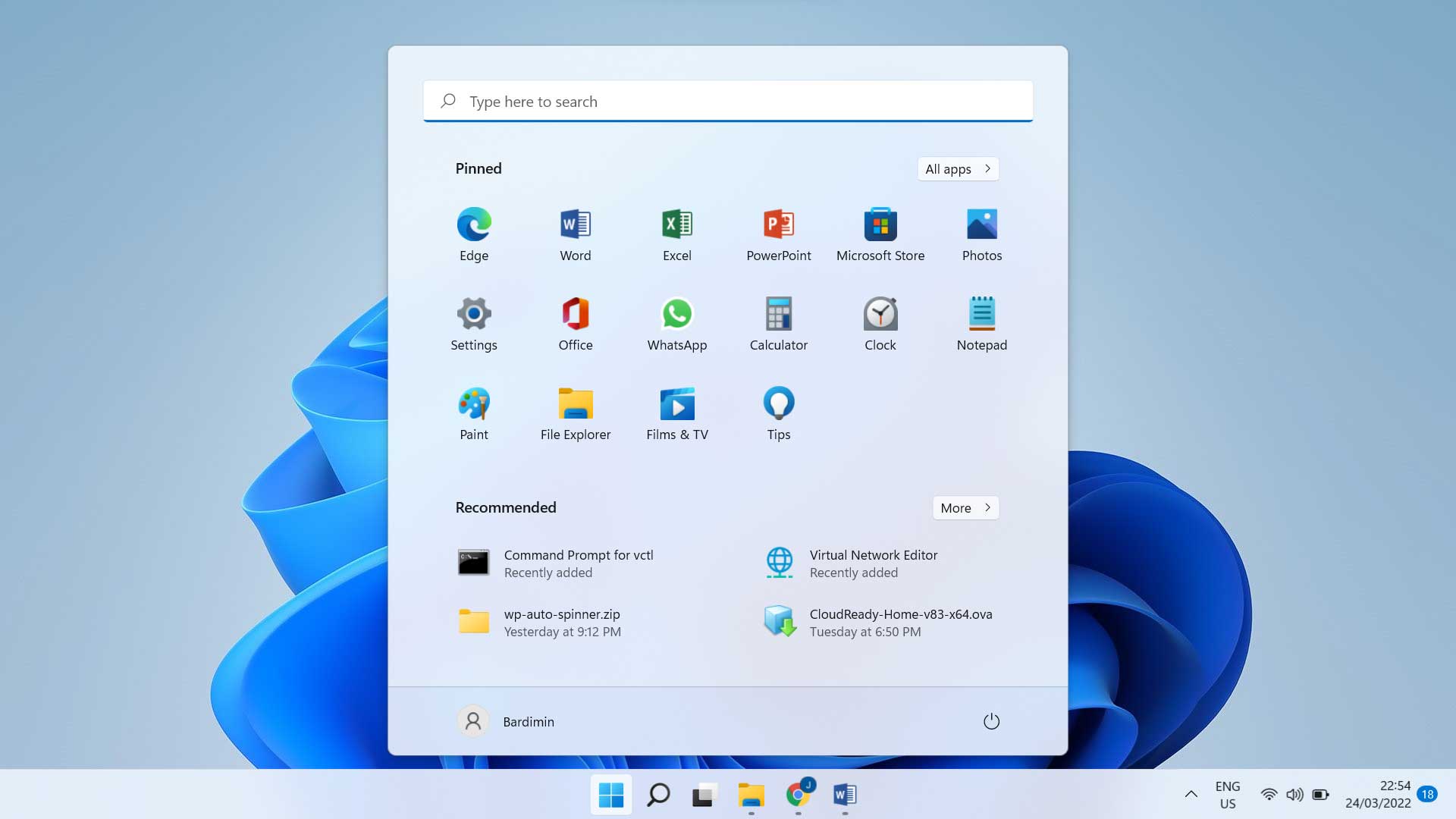
Hide Printer & Faxes Icon from Start Menu
HKEY_CURRENT_USER/Software/Microsoft/Windows/CurrentVersion/Explorer/Advanced
Find the value named Start_ShowPrinters and assign 0 to the Value Data.
Hide Control Panel From Start Menu
HKEY_CURRENT_USER/Software/Microsoft/Windows/CurrentVersion/Explorer/Advanced
Find the value named Start_ShowControlPanel and double-click on it.
Enter 0 in Value Data.
Hide My Pictures Menu From Start Menu
HKEY_CURRENT_USER/Software/Microsoft/Windows/CurrentVersion/Explorer/Advanced
Double-click on Start_ShowMyPics and enter 0 in the Value Data section.
Bring up the Administrative Tools Menu
HKEY_CURRENT_USER/Software/Microsoft/Windows/CurrentVersion/Explorer/Advanced
Double-click on StartMenuAdminTools and assign the number 1 to Value Data.
Shrink the Start Menu Icon
HKEY_CURRENT_USER/Software/Microsoft/Windows/CurrentVersion/Explorer/Advanced
Double-click on Start_LargeMFUIcons and enter 1 in Value Data.
Removing Username from Start Menu
HKEY_CURRENT_USER\Software\Microsoft\Windows\Curre ntVersion\Policies\Explorer
Choose Edit > New > DWORD Value and name it NoUserNameInStartMenu.
Double-click NoUserNameInStartMenu and enter the number 1 in Value Data.
Prevent Start Menu Changes
HKEY_CURRENT_USER/Software/Microsoft/Windows/CurrentVersion/Policies/Explorer
Create a new DWORD Value and name it NoChangeStartMenu.
Double-click NoChangeStartMenu and enter the number 1 in Value Data.
Hide My Recent Documents
HKEY_CURRENT_USER/Software/Microsoft/Windows/CurrentVersion/Explorer/Advanced
Double-click on Start_ShowRecentDocs and enter 0 in Value Data.
Rename Important Default Shortcuts on Desktop
HKEY_CURRENT_USER/Software/Microsoft/Windows/CurrentVersion/Explorer/CLSID
Double-click on the default value in each subkey below:
My Network Places:
{208D2C60-3AEA-1069-A2D7-08002B30309D}
My Computer:
{20D04FE0-3AEA-1069-A2D8-08002B30309D}
My Documents:
{450D8FBA-AD25-11D0-98A8-0800361B1103}
Recycle Bin:
{645FF040-5081-101B-9F08-00AA002F954E}
Default IE Icon:
{871C5380-42A0-1069-A2EA-08002B30309D}
enter unique names instead of their default names.
Hide Icons on the Desktop
HKEY_CURRENT_USER/Software/Microsoft/Windows/CurrentVersion/Explorer/Advanced
Double-click on HideIcons and enter the number 1 in Value Data.
Clearing All Icons on the Desktop
HKEY_CURRENT_USER/Software/Microsoft/Windows/CurrentVersion/Policies/Explorer
Create a new DWORD Value and name it NoDesktop.
Double-click on NoDesktop and enter the number 1 in Value Data.
Make Desktop More Stable
HKEY_CURRENT_USER/Software/Microsoft/Windows/CurrentVersion/Explorer
Create a new DWORD Value and name it DesktopProcess.
Double-click DesktopProcess and enter 1 in Value Data.
Clearing the Program List in the Run Menu
HKEY_CURRENT_USER/Software/Microsoft/Windows/CurrentVersion/Explorer/RunMRU
In the right window, you will see a row of software (marked alphabetically a, b, c, d, and so on).
To delete it, simply select any (or all) of the program names and press the Del key.
If a confirmation window for data deletion appears, press Yes.
Cleaning Recent Documents
HKEY_CURRENT_USER/Software/Microsoft/Windows/CurrentVersion/Policies/Explorer
Create a new DWORD Value and name it NoRecentDocsHistory.
Double-click on NoRecentDocsHistory and enter 1 in the Value Data section.
Remove Tip Info on Folders Icon on Desktop
HKEY_CURRENT_USER/Software/Microsoft/Windows/CurrentVersion/Explorer/Advanced
Double-click on FolderContentsInfoTip with the number 0.
Locking the Taskbar
HKEY_CURRENT_USER/Software/Microsoft/Windows/CurrentVersion/Explorer/Advanced
Double-click on TaskBarSizeMove and enter 0 in Value Data.
Delete Past Items Icons on the Taskbar
HKEY_CURRENT_USER\Software\Microsoft\Windows\Curre ntVersion\Explorer\TrayNotify
Delete IconStreams and PastIconsStream, then open Task Manager, on the Processes Tab right-click on explorer.exe and select End Process.
Click File > New Task (Run) menu and retype explorer and press OK.
Hiding the System Tray
HKEY_LOCAL_MACHINE\Software\Microsoft\Windows\Curr entVersion\Policies\Explorer
If the Explorer key does not already exist create a new DWORD Value and name it NoTrayItemsDisplay.
Double-click NoTrayItemsDisplay and enter the number 1 in Value Data.
To restore the System Tray enter 0 in Value Data.
Disabling Right-Click on the Desktop
HKEY_CURRENT_USER/Software/Microsoft/Windows/CurrentVersion/Policies/Explorer
Create a new DWORD Value and name it NoViewContextMenu.
Double-click on the NoViewContextMenu and enter the number 1 in Value Data.
Changing the Delay Time When Opening the Menu
HKEY_CURRENT_USER/Control Panel/Desktop
Double-click on MenuShowDelay and change the number of milliseconds from 400 to another number. The smaller the faster.
Resize Icons on Desktop and Start Menu
HKEY_CURRENT_USER/Control Panel/Desktop/WindowMetrics
Double-click on Shell Icon Size and change the number 32 to another number, such as 10.
Changing Color Windows
HKEY_CURRENT_USER/Control Panel/Colors
Double-click Window and enter an RGB color combination (use Adobe PhotoShop to find a suitable color combination).
Replacing ColorText In Windows
HKEY_CURRENT_USER/Control Panel/Colors
Double-click WindowText and enter an RGB color combination.
Menghilangkan Tab Screen Saver
HKEY_CURRENT_USER/Software/Microsoft/Windows/CurrentVersion/Policies/System
HKEY_LOCAL_MACHINE/Software/Microsoft/Windows/CurrentVersion/Policies/System
Create a new DWORD Value and name it NoDispScrSavPage.
Click doubleNoDispScrSavPage and enter 1 in Value Data.
Replacing Screen Saver via Registry
HKEY_CURRENT_USER/Control Panel/Desktop
Double-click SCRNSAVE.EXE and enter the path to the desired Screen Saver file.
Example: C:\WINDOWS\ScreenSaver.scr
Disable Default Screen Saver
HKEY_USERS/.DEFAULT/Control Panel/Desktop
Double-click ScreenSaveActive and enter 0 in Value Data.
To return it, enter 1 in the Value Data.
Remove Arrows from Shortcut Icons
HKEY_CLASSES_ROOT/Inkfile
HKEY_CLASSES_ROOT/piffile
Rename IsShortcut to IsShortcuts.
Mengubah Style Wallpaper
HKEY_CURRENT_USER/Control Panel/Desktop
Double-click on WallpaperStyle and enter the following numbers in Value Data:
1 > Center
2 > Stretch
3 > Tile
Disable Low Disk Space Warning
HKEY_CURRENT_USER/Software/Microsoft/Windows/CurrentVersion/Policies\Explorer
Create a new DWORD Value and name it NoLowDiskSpaceChecks.
Double-click NoLowDiskSpaceChecks and enter 1 in the Value Data.
Disable My Computer Properties Menu
HKEY_CURRENT_USER/Software/Microsoft/Windows/CurrentVersion/Policies/Explorer
Create a new DWORD Value and name it NoPropertiesMyComputer.
Double-click NoPropertiesMyComputer and enter 1 in Value Data.
HKEY_LOCAL_MACHINE/Software/Microsoft/Windows/CurrentVersion/Policies/Explorer
Create a new DWORD Value and name it NoPropertiesMyComputer.
Double-click NoPropertiesMyComputer and enter 1 in Value Data.
If the Explorer key does not exist, create a new one by clicking the Edit > New > Key menu and name it Explorer.
