

Mastering the Excel Filter is a vital skill for efficient data processing. This technical guide details the steps to apply filters, including the use of wildcards and specific criteria for dates, text, and numerical data, thereby simplifying your analysis.
The Excel Filter feature is a fundamental function that allows users to display a subset of data based on specific criteria. By mastering this tool, you can significantly boost productivity in data analysis. This article discusses filter application techniques in detail, including for specific data types like dates, text, and numbers, with an approach suitable for professionals and technicians.
How to Activate and Use the Filter in Excel
The first step in using the filter is to activate it on your dataset. Here is the correct procedure:
- Select Cells or Table: Highlight the data range you wish to filter, including the column headers. Ensure there are no empty cells in the header row.
- Activate Filter: On the Excel ribbon, navigate to the Data tab. Then, click the Filter button. A funnel icon will appear in each header cell.
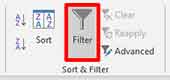
Once the filter is activated, a dropdown arrow button will appear on each column header. Click this button to apply your desired filtering criteria. You can choose specific values from the list or define advanced criteria.
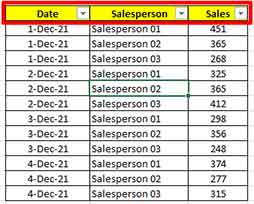
Filtering Techniques Based on Date Data Type
Excel intelligently recognizes columns containing dates and offers contextual filter options. After clicking the dropdown on a date column, select Date Filters. The options that appear include dynamic periods like Today, This Week, Last Month, or Year to Date. For more granular control, use Custom Filter.
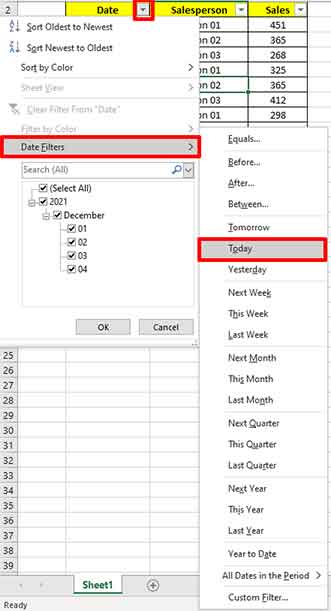
Important Note: Date filters in Excel use the local computer’s system date as a reference. Therefore, the result of the “Today” filter will depend on the date set on your operating system at that time. Ensure your date and timezone settings are correct for data accuracy.
Filtering Text Data with Wildcards
For text data, Excel supports using wildcards as flexible search patterns. This feature is very useful for finding word variations or specific patterns. Here are the main wildcards you can use:
- Asterisk (*): Represents any number of characters. Example: entering
proj*will filter all rows starting with “proj”, such as “project”, “projek”, or “projective”. - Question Mark (?): Represents exactly one single character. Example: the pattern
K?Mwill match “KAM”, “KOM”, or “K3M”, but not “KAAM”.
Additionally, you can also utilize the “Contains”, “Begins With”, or “Ends With” options in the text filter menu for simpler searches without wildcards.
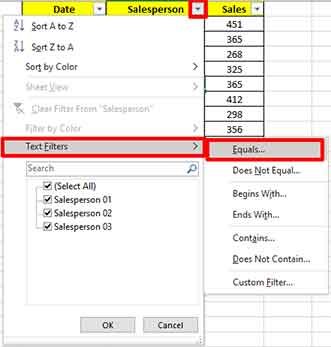
Filtering Numerical Data with Comparison Operators
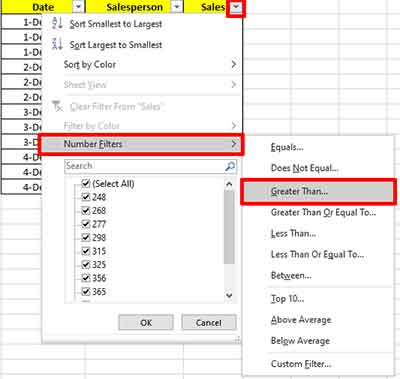
For number columns, Excel provides Number Filters rich in logical operators. You can choose standard criteria like Equals, Greater Than, Between, or Top 10.
Another standout feature is the ability to filter based on statistical average, namely Above Average and Below Average. This option automatically calculates the average of all values in the range and filters data above or below that number, making it very useful for quick analysis.
By understanding these three types of filters, you can perform how to use filter in Excel for various complex data scenarios. For instance, a financial analyst can quickly isolate Q3 transactions with values above average, or an inventory manager can find products with specific codes that are low in stock.
For official and updated information on this feature, you can refer to Microsoft’s documentation: Filter data in a range or table. Mastering filter techniques is a crucial first step towards more advanced data processing, such as using PivotTables or array formulas.
