

The File Explorer tabs Windows 11 feature is designed so professionals, technicians, and gamers can navigate multiple folders in a single window more efficiently.
Starting from Windows 11 version 22H2, File Explorer includes tab support. Each tab represents a different directory, allowing you to manage files without opening multiple windows. Recent Windows updates also improve tab stability and reduce delays when loading large directories.
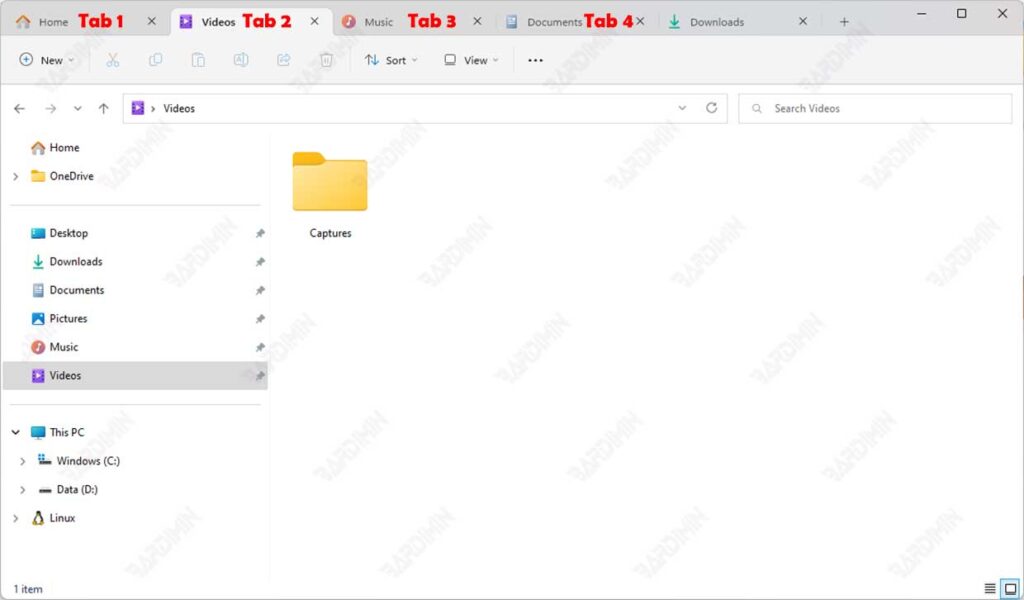
This article explains how to switch between tabs without using a mouse by relying on keyboard shortcuts. This method is especially useful when you work with several directories, such as comparing system files or handling project assets.
How to Switch Directly to a Specific Tab
This shortcut lets you jump to a specific tab instantly. Windows assigns numbers to each tab from left to right.
CTRL + (Tab Number)
Example: if the first tab contains your project folder and the second tab contains your backup folder, pressing CTRL + 2 takes you directly to the backup tab.
How to Switch to the Next Tab
This shortcut moves focus to the tab on the right of the currently active one. It is helpful when reviewing folders in sequence.
CTRL + TAB
Using this shortcut improves workflow efficiency, particularly when comparing directory contents or browsing through multiple drives.
How to Switch to the Previous Tab
This shortcut moves focus to the tab located to the left of the current tab.
CTRL + SHIFT + TAB
This combination is useful when returning to your main tab after checking a subfolder or reviewing contents in the next tab.
Microsoft continues to improve File Explorer and its tab functionality with ongoing updates. Its official documentation confirms that keyboard navigation remains supported for productivity-focused users (Microsoft source).
