

Smartphones have now become an important part of our daily lives. However, problems such as broken screens, fast battery drains, or slow phones often interfere with our comfort. Don’t worry, many of these common problems can be solved in simple ways you can do yourself at home.
Bardimin will provide a step-by-step guide to repair minor damage to smartphones without spending a fortune on technicians. Let’s keep your smartphone in good condition and avoid unnecessary expenses!
The Importance of Making Repairs Yourself
Doing your repairs to your smartphone is not only related to cost savings, but it also provides several other benefits that you may not know about. Here are some reasons to consider self-improvement:
- Avoid high fees from service centers for minor problems.
- The self-repair process is usually faster than waiting at a service center.
- Overcoming repairs on your own provides valuable experience for the future.
- Understanding how to make the right repairs helps keep your device performing longer.
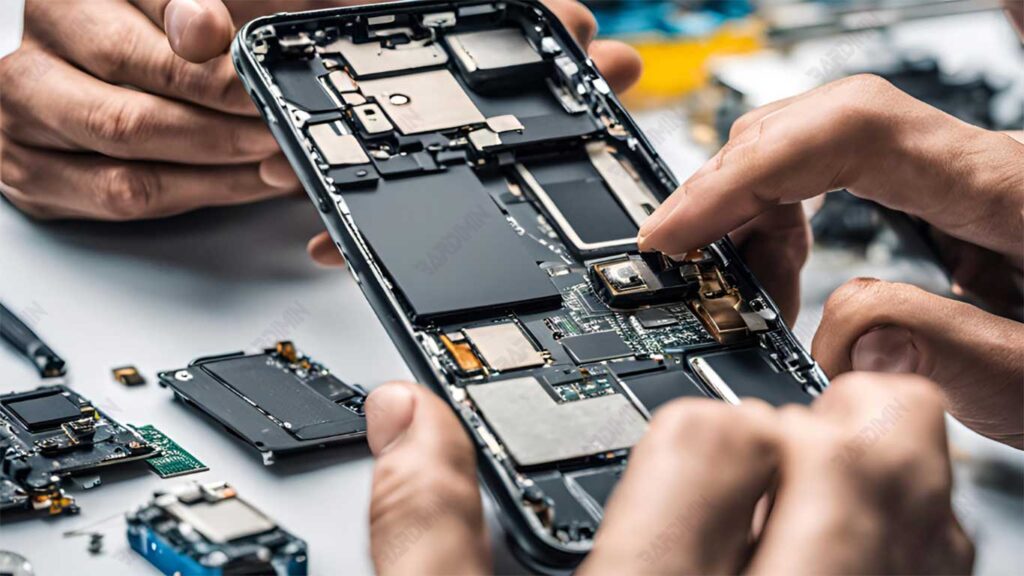
1. How to Overcome a Cracked Screen on a Smartphone
Cracked smartphone screens can be a nuisance and potentially get worse if not addressed immediately. Here are some steps you can take to fix a cracked screen without visiting a technician.
Utilizing Additional Screen Protectors
If the cracks on the screen are still relatively mild, adding a silicone screen protector can be a simple but effective solution.
Make sure you choose a screen protector that matches your phone model. Silicone or tempered glass protectors are a common and easy-to-find option.
By using a protector, you can reduce the chance of cracks getting wider, as well as protect the screen from dust or small particles that can worsen the condition of the screen.
Don’t wait for the crack to get bigger! Immediately put on the guard to keep the screen safe until you’re ready to make further repairs.
Replacing a Broken Screen
If the cracks on the screen are very severe, replacing the screen can be the best solution. Here are the steps that can be followed:
You can get a *screen replacement kit* which is available on various e-commerce platforms, such as Amazon or Tokopedia. These kits generally come with all the tools needed to replace the screen.
Screen Replacement Steps:
- Make sure you work on a clean, flat surface to prevent dust or debris from getting inside the device.
- Before starting the process, make sure your phone is turned off to keep it safe.
- Follow the instructions that are usually included in the screen replacement kit. Be careful when removing the old screen, and make sure not to press the screen too hard so that it doesn’t break into small pieces.
- Once the old screen has been successfully removed, carefully install the new screen. Make sure all flexible cables are properly connected before closing the phone again.
If you feel unsure about doing a screen replacement yourself, it’s best to visit a professional repair center. Performing screen replacements with no experience can be risky for beginners.
2. How to Deal with a Smartphone Flooded
Don’t panic if your smartphone falls into the water. Quick action is essential to reduce water damage and increase the chances of the phone working properly again. Here are some steps you can take.
Drying Method Using Rice
Using rice to dry a phone is a common and effective method of absorbing moisture. Here are the steps:
- Immediately turn off the phone to prevent a short circuit. If possible, remove the battery, SIM card, and memory card. Dry the components with a clean, lint-free cloth.
- Put your phone in a container containing raw rice (dry white rice is the best option), then close the container tightly. Make sure the phone is fully immersed in the rice.
- Rice serves as a natural moisture-absorbing material that can draw water from inside the phone. Leave the phone in the rice container for at least 24 to 48 hours to ensure an optimal drying process.
After the allotted time, reassemble the phone and try to turn it on. If the phone still doesn’t work, repeat this process or take it to a technician for further checking.
Handling for Dirty or Salty Water
If your phone has been dropped into dirty or salty water, additional steps are required to minimize the risk of corrosion:
- Immediately rinse the phone using clean water (preferably distilled water) to remove any dirt or salt that sticks to it. The salt content in salt water can accelerate the corrosion process in electronic components, while dirty water can leave debris that damages the circuit.
- After rinsing, dry the phone with a clean cloth, then do the drying process using rice as previously explained. Make sure all components are separated during the drying process.
Saltwater can accelerate corrosion, so it is important to dry immediately after cleaning. The sooner you carry out these steps, the more likely it is that your phone can be restored without further damage.
3. Overcoming Stuck Cell Phone Buttons
Phone buttons that have stuck or sticking problems can interfere with the experience of use and are generally caused by dust or dirt trapped between the buttons. With proper care, the button can function properly again. Here is a safe way to clean it.
Cleaning Methods Using Isopropyl Alcohol
Isopropyl alcohol is a very effective ingredient for cleaning phone buttons because it evaporates quickly and leaves no residue. Here are the steps that can be followed:
- Take a microfiber cloth, a small cotton swab, or a cotton swab, as well as an isopropyl alcohol of 70% or more. Avoid using regular cotton, as the fibers can get stuck between the buttons.
- For safety, make sure your phone is turned off and disconnected from the power source.
- Clean Using Isopropyl Alcohol:
- Dip a microfiber cloth or cotton swab in isopropyl alcohol, making sure it is not too wet—moist enough.
- Press and gently rub the area around the jammed button in a circular motion. Avoid pressing too hard so that the liquid does not seep into the components.
- Repeat this step a few times until the buttons feel looser and more responsive.
- After the cleaning process, let the phone dry for a few minutes to ensure that the isopropyl alcohol has evaporated completely before turning the phone back on.
Do this cleaning regularly to prevent dirt buildup around the buttons, especially if you often store your phone in a bag or bag.
4. Optimizing Storage Space on Smartphones
A phone filled with unused files and apps can experience a decrease in performance and efficiency. Managing your storage regularly will help keep your phone functioning properly and responsive. Here are some steps to optimize storage space on your smartphone.
Deleting Unnecessary Files
Cleaning up files and apps that you no longer need is an effective way to keep your phone performing. Here are the steps that can be followed:
Backup Photos and Videos to Cloud Storage
Photos and videos often take up a lot of space on your phone. Take advantage of cloud storage services such as Google Drive or iCloud to store these files online.
Install the Google Drive or iCloud app on your phone, then enable the automatic backup option for photos and videos. Once successfully uploaded, you can delete the files from your phone without worrying about data loss.
Remove Unused Apps
Review the apps on your phone and delete apps that you rarely or never use.
Access your phone’s storage settings to see a list of apps that are taking up the most space. Remove unnecessary apps or look for lighter alternatives.
Delete Unnecessary Files and Caches
Every application usually generates temporary files (caches) that, if left unchecked, can pile up and consume space. Use the storage cleaner feature on your phone to clear the cache periodically.
Perform regular cleanups of your gallery, downloads, and temporary file folders to keep your storage space optimal.
Utilizing microSD Cards
For Android users, adding a microSD card is an efficient solution to increase storage capacity. Here are some of the advantages and steps to use it:
By adding a microSD, you can move large files such as photos, videos, or documents to external storage, giving you more space for internal storage.
Steps to Transfer Data to microSD:
- Make sure your phone has a slot for microSD, then insert the card into the available slot.
- Access the storage settings, select the files you want to move, and select the “Move to microSD” option if available. Some phones also allow you to set up photo storage or automatic downloads to a microSD.
MicroSD cards can’t be used on all devices, such as iPhones that don’t have a slot for microSD cards. Make sure your phone supports microSD before making a purchase.
5. Saves Smartphone Battery
The problem of a battery draining quickly is common among modern smartphone users, especially with many advanced features active in the background. By making a few simple adjustments, you can save battery power and extend the time you use your phone every day. Here are the steps that can be taken:
Disable Unnecessary Features
Features like Bluetooth, Wi-Fi, and GPS can drain battery power significantly if left on, especially when not in use.
- Make sure to enable Bluetooth and Wi-Fi only when needed. Turn them off when not in use to reduce power consumption.
- GPS features are often used by location-based apps and can drain power quickly. Turn off GPS if you’re not using navigation apps or location-based services.
Make use of the quick settings menu on the main screen to turn off these features with a single touch. This will help you in managing the battery power more efficiently.
Display Settings
The screen is one of the elements that consumes the most power. By making some adjustments to the display, you can save power significantly.
Reduce Screen Brightness
Adjust the screen brightness to a comfortable level without being too dazzling. Alternatively, turn on automatic settings so that your phone can adjust the brightness of the screen according to the ambient lighting.
Enable Dark Mode
Many phones and apps now provide a dark mode that reduces the intensity of the screen’s light and saves power, especially on OLED or AMOLED screens that are more efficient when displaying dark colors.
Choose Dark Wallpapers
Using dark wallpapers can also help save battery life on AMOLED screens, as dark pixels consume less power than light pixels.
Disable Vibration Effects
The vibrate feature on the phone requires a considerable amount of power, especially when receiving notifications or when typing. Turn off the vibration effect to extend battery life.
Activating airplane mode when in an area with a weak signal can also help save battery, as the phone is not constantly looking for a signal.
