

Are you having internet connection issues on Windows 11? Learn how to easily reset TCP/IP or Internet Protocol to restore network stability. This is a complete guide for beginners and advanced users!
Have you ever felt frustrated when your internet connection suddenly dropped for no apparent reason, even though the Wi-Fi network seemed to be active and smooth? Or maybe you’ve come across a mysterious message like “No Internet, secured” in Windows 11 that brings your online activity to a complete halt? If so, it could be that the root of the problem is hidden in your network protocol system, precisely in the TCP/IP configuration.
You may be wondering, what exactly is TCP/IP, and why does it need to be reset? This is the crucial part of the Windows operating system that governs how your computer communicates with the Internet. When this protocol is disrupted, the effects can be felt immediately, ranging from a drastically reduced access speed to a total inability to connect to the network.

What Is TCP/IP and Why Does It Need to Be Reset?
TCP/IP (Transmission Control Protocol/Internet Protocol) is a core component that allows your devices to connect and communicate with the internet. This protocol governs how data is sent and received between computers and networks. If there is a fault or misconfiguration of TCP/IP, then the internet connection can become unstable, very slow, or even completely fail.
Although often invisible, a malfunction of this protocol can cause a variety of confusing network issues. This is where TCP/IP reset comes in: restoring the protocol configuration to its original state to fix hidden errors.
As the “universal language” of the digital world, TCP/IP works through two main components:
- TCP – Responsible for ensuring reliable and orderly data delivery
- IP – Set the address and routing of data packets to the correct destination
Why Is TCP/IP Often Problematic?
Like digital highways, TCP/IP can experience “stuck” for a variety of reasons:
- Conflicts after Windows system updates
- Accidental network settings changes
- Presence of malware or annoying viruses
- Compatibility issues with VPN/firewall software
- Manual network misconfigurations
6 Critical Symptoms That Require a TCP/IP Reset
If you’re experiencing any of the following issues, resetting TCP/IP might be the solution you need:
1. Sudden Disconnection
- Internet disconnects without warning despite a strong signal
2. Abnormally Slow Network Performance
- Download/upload speed suddenly drops drastically
- High ping is unnatural for stable connections
3. Failed to Connect to the Network
- The device can’t get a valid IP address
- “Unable to connect to this network” error message
4. Website Inaccessible
- The browser can’t open the site even if the Wi-Fi connection is active
- “Page can’t be displayed” error
5. Specific DNS/IP Errors
- DNS_PROBE_FINISHED_BAD_CONFIG
- ERR_NETWORK_CHANGED
- IP address conflict
6. Network Adapter Is Unresponsive
- Network icons keep loading without results
- Network adapter not detected in Device Manager
Think of TCP/IP as your device’s digestive system:
– Minor problem = Can heal on its own (like a regular restart)
– Chronic problems = Need a “detox” (TCP/IP reset) to clean
Steps to Reset TCP/IP in Windows 11 (2 Methods)
If you’re experiencing a network issue that’s hard to explain, such as slow internet or an unstable connection, a TCP/IP reset can be a quick and efficient solution. In Windows 11, this process can be done in two ways: using Command Prompt and Windows Settings (GUI). Here is a full explanation and the steps you can follow.
1. Reset TCP/IP via Command Prompt (Admin)
The first and most commonly used method is through the Command Prompt with administrator privileges. This technique makes use of a built-in Windows tool called netsh to restore network settings to their default state, such as when they were newly installed.
A. Preparation Before Execution
Make sure you keep:
- Password WiFi/VPN
- Static IP configuration (if applicable)
- List of dedicated proxies used
- Close all apps that use the connection (Zoom, online games, etc)
B. Steps to Reset TCP/IP via Command Prompt (Admin)
1. Open Command Prompt Elevated
- Press Windows + X → Select Terminal (Admin)
- Or type cmd in the Start Menu → Right-click → Run as administrator
2. Execute Sequential Reset Commands
Run the following commands one at a time by pressing Enter after each:
netsh int ip reset C:\resetlog.txt

netsh winsock reset

ipconfig /flushdns
Technical Explanation of Each Command:
| Command | Function | Impact |
| netsh int ip reset | Resets the entire TCP/IP stack to the default | – Delete custom IP – Restore default DHCP |
| netsh winsock reset | Fix the catalog socket API | – Fixed an application failure to connect error |
| ipconfig /flushdns | Clearing the local DNS cache | – Resolve the “DNS_PROBE_FINISHED_BAD_CONFIG” error |
3. Verify and Restart
- Check the log file in C:\resetlog.txt to see the changes
- A restart is mandatory for the change to take effect permanently
If the “Access Denied” error appears:
– Make sure the CMD is run as an admin
– Temporarily disable antivirus/firewall
2. Reset TCP/IP via Windows Settings (GUI)
For those of you who don’t feel comfortable using Command Prompt or typing manual commands, Windows 11 provides an easier way through the graphical interface (GUI). This feature is called Network Reset, which will automatically reset all network configurations, including TCP/IP, Winsock, and network adapters.
This method is perfect for general users who want a more intuitive process without the need to understand the technical command line.
A. Step by Step Reset TCP/IP via Windows Settings (GUI)
1. Open Network Reset Utility
- Windows + I → Network & Internet → Advanced network settings
- Scroll down → Click Network reset
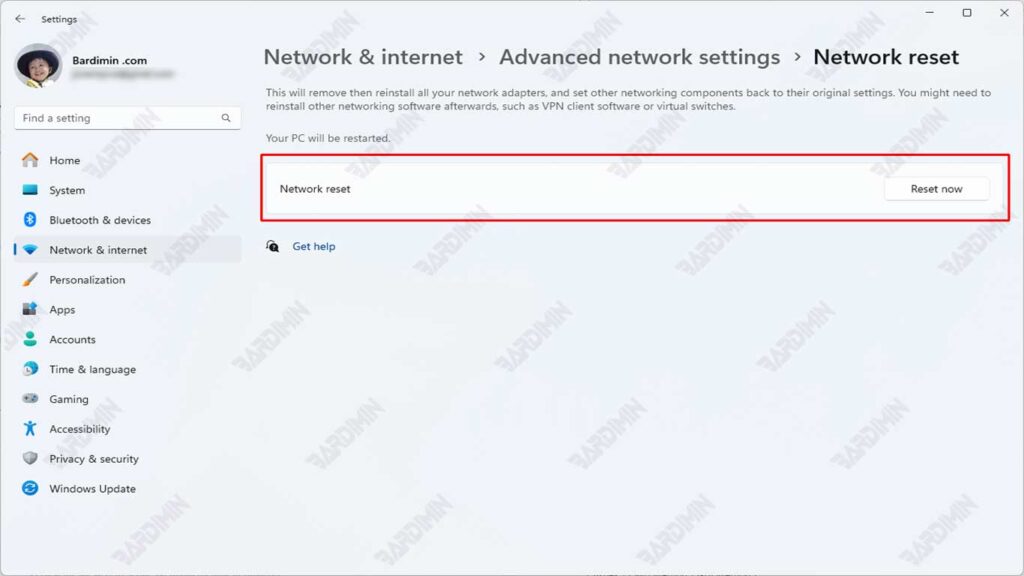
2. Confirm the Reset
- Click Reset now → Yes on the confirmation pop-up
- The system will be automated:
- Uninstall and reinstall network adapters
- Restore all network components to the default
3. Process Completion
- The PC will automatically restart in 5 minutes
- After the reboot:
- Reconnect to WiFi (enter password again)
- Reconfigure VPN if used
B. Fundamental Differences with the CMD Method
| Aspects | CMD Method | GUI Method |
| Level Reset | TCP/IP stack only | All network components |
| Restart Needs | Manual | Automatic |
| Impact | At least | More extensive (including drivers) |
| For Cases | Specific TCP/IP errors | Complex network problems |
The GUI Method will remove all:
– Network profiles (WiFi, Ethernet)
– VPN configurations
– Adapter-specific settings
– Backup first if there are special settings!
