

Understanding how Excel VBA 365 automates tasks through macro creation and editing is essential for increasing productivity, especially for users who frequently handle large data or repetitive tasks. Macro record activities on reexecutable worksheets, saving time and effort.
With Visual Basic for Applications (VBA), Excel becomes a platform for creating automated solutions to complex problems. Macro can automate data processing, generate instant reports, and integrate Excel with other applications.
This automation is especially beneficial in jobs that require high efficiency, such as data analysis and accounting. In addition to reducing human error, macro allows users to focus on more strategic aspects of work. Therefore, learning how to create and edit macro in Excel VBA 365 is valuable for professionals in various fields.
How to Create Macros in Excel VBA 365
1. Activating the Developer Environment
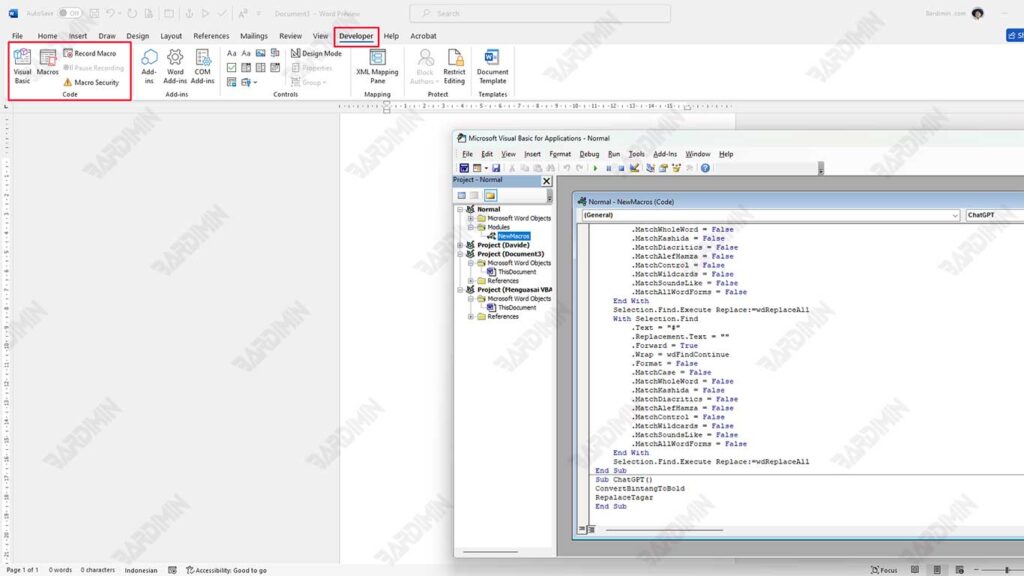
The first step to creating a macro is to make sure the Developer tab is already active in Excel. This tab provides a variety of tools for creating and managing macro.
- To turn on the Developer tab, click File at the top, then select Options.
- In the Excel Options window, select Customize Ribbon on the left side.
- Check the Developer option in the right pane, then click OK. The Developer tab will now appear in the Excel ribbon.
Once enabled, you can start creating macro in a variety of ways, including recording macro and accessing Visual Basic Editor (VBE).
2. Record Macros
One of the easiest ways to create a macro is to use the recording feature. This feature allows you to record a series of actions performed in Excel.
- To get started, click on the Record Macro button in the Developer tab.
- A dialog window will appear, asking you to give the macro to be created. For example, you could name it ‘Test_Macro’. Make sure the name follows macro naming rules.
- Select a macro storage location: in the current workbook or Personal Macro Workbook (so that it can be accessed across all workbooks).
3. Macro Naming
When giving a name to macro, there are a few important rules to keep in mind:
- The name macro must begin with an underscore (‘_’) letter or sign.
- Names must not contain spaces between characters.
- The macro name must not be the same as other names that already exist in the same workbook.
4. Changing Macros
Once you’ve created your macro, you can change it by going to Visual Basic Editor (VBE). Here, you can view macro in code and make changes as needed.
- Access Visual Basic Editor by clicking the Visual Basic button in the Developer tab.
- In the VBE window, select the macro you just created. The code macro is written as a VB (Visual Basic) procedure that starts with the keyword ‘Sub’ and ends with ‘End Sub’.
- You can add or change the VBA code to improve macro functionality.
Creating Macros from Scratch
Here’s an example of creating a macro from scratch that records simple steps in a worksheet, edits them by adding cell formatting, and displays the results of salary calculations using Message Box.
1. Recording Macros
At this stage, we will record the steps to enter the numbers and calculate the salary automatically:
- Enter the wage number in cell A1.
- Enter the number of hours in cell A2.
- Add the results in cell A3 to calculate the salary.
2. Edit Macros
After recording those basic steps, you can open Visual Basic Editor (VBE) and add some code to:
- Format a range of cells with font and interior properties (for example, make the text bold and give it a background color).
- Added a Message Box to display the payroll calculation results.
Simple Macro Example: Calculating Salary and Formatting Cells.
Sub Calculate_Salary()
    Dim wage As Single
    Dim hours As Single
    Dim salary As Single

    wage = Range(“A1”).Value
    hours = Range(“A2”).Value

    salary = wage * hours

    MsgBox “Your salary is “ & salary, vbInformation, “Salary Calculation”

    Range(“A3”).Value = salary

    With Range(“A1:A3”)
        .Font.Bold = True
        .Interior.Color = RGB(144, 238, 144) ' Latar belakang hijau muda
    End With
End Sub
Code Explanation:
- Dim wage As Single: This is a wage variable declaration (wage) with data type Single.
- Dim hours As Single: This is a variable declaration hours (working hours) with a Single data type.
- salary = wage * hours: Here, the total salary is calculated by multiplying the wages and hours worked.
- MsgBox: The salary calculation results will be displayed through the message box (Message Box).
- Range(“A3”).Value = salary: The results of the salary calculation are stored in cell A3.
- With Range(“A1:A3”): Cells A1 through A3 will be formatted with bold text and a light green background (RGB(1444, 238, 144)).
Expected Results:
- You will enter the value of wages in A1 and hours worked in A2.
- When the macro is run, the salary will be automatically calculated and displayed in the A3 cell.
- The salary results will also appear in the Message Box.
- Cells A1 through A3 will be formatted with bold text and a light green background color.
Using For…Next Loop in Macros
By leveraging the For…Next Loop structure, you can automate the filling of cells in Excel worksheets with specific data. For…Next Loop allows you to iterate through rows or columns within a specified range, making it very effective for repeating tasks in data filling.
Example: Fill a Cell Range with Row and Column Summing Results
Here is an example of a macro that utilizes For…Next Loop to fill the range of cells A1:E10 with the value generated by the sum between the row number and the column number.
Sub Fill_Cells_With_Loop()
    Dim i As Integer, j As Integer
    For i = 1 To 10
        For j = 1 To 5
            Cells(i, j).Value = i + j
        Next j
    Next i

    With Range(“A1:E10”)
        .Font.Bold = True
        .Interior.Color = RGB(224, 255, 255)
    End With
End Sub
Code Explanation:
- For i = 1 To 10: The first loop for iteration through rows, from 1 to 10 (rows 1 to 10).
- For j = 1 To 5: The second loop for iterations through columns, from 1 to 5 (columns A to E).
- Cells(i, j).Value = i + j: Fill the cell with the sum result between the row number (i) and the column number (j).
- With Range(“A1:E10”): Format cells A1 to E10 with bold text and light blue background.
Using Chr() Function to Create Characters
The Chr() function in VBA works to generate characters that correspond to ASCI codes. ASCII codes are numbers that represent characters in computer systems. For example, the 65 code indicates the letter A, while the code 66 indicates the letter B, and so on.
You can leverage the Chr() function to create macros that populate cells with characters generated from ASCII codes, either randomly or specifically.
Example: Filling a Cell Range with Random Characters Using the Chr() Function
Sub Fill_Cells_With_Random_Characters()
    Dim i As Integer, j As Integer
    Dim asciiCode As Integer

    For i = 1 To 5
        For j = 1 To 5
            asciiCode = Int(26 * Rnd) + 65
            Cells(i, j).Value = Chr(asciiCode)
        Next j
    Next i

    With Range(“A1:E5”)
        .Font.Bold = True
        .Interior.Color = RGB(255, 228, 196)
    End With
End Sub
Code Explanation:
- Dim asciiCode As Integer: Declares a variable to store ASCII code.
- Int(26 * Rnd) + 65: Generates a random number between 65 and 90. The 65 code is A in ASCII, and the 90 code is Z.
- Rnd generates a random number between 0 and 1.
- 26 * Rnd generates a number between 0 and 25 and then adds 65 to get the ASCII code between 65(A) and 90(Z).
- Cells(i, j).Value = Chr(asciiCode): Fills a cell with characters generated by Chr() based on ASCII code.
- With Range(“A1:E5”): Formats an A1:E5 range of cells with bold text and a peach-colored background (RGB(255, 228, 196)).
Conclusion
By utilizing Excel VBA 365, you can improve your work efficiency in Excel. Learning about macro creation and editing will provide an invaluable skill in the modern world of work, where automation is the key to success.
