

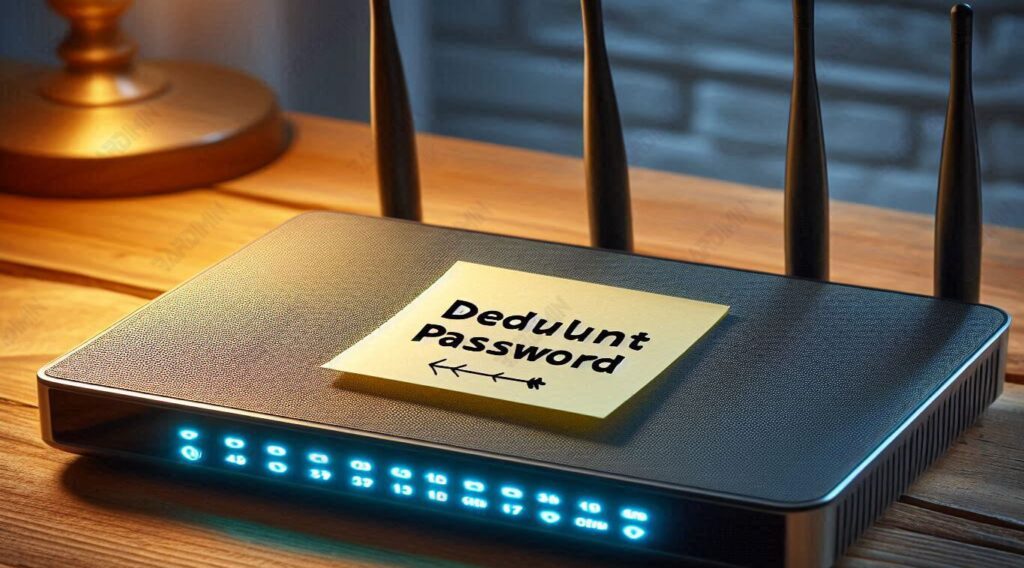
The default password is the default password set by the manufacturer on each router device. This password is used to log in to the router’s administration interface and configure network settings.
The default password is usually the same for all units of a particular model. For example, for some Linksys routers, the default password is “admin”, while for some Netgear routers, the default password can be “password” or even no password.
Why is the Default Password Important?
The default password is essential because:
- Ease of Early Access: Users can easily access and configure their devices without the need to set a new password the first time they are used.
- Guidance and Support: Many technical support guides and documentation rely on default passwords to help users access their router’s administration interface.
However, while this convenience provides an initial advantage, there are several reasons why it’s important to change the default password immediately after the initial setup has been made.
Risks of Using a Default Password
Using the default password for a long time can pose various security risks, including:
- Unauthorized Access: Because the default password is easy to find and often publicly documented, anyone who knows your router model can easily break into your network and change settings or steal data.
- Cyber Attacks: Hackers often use automated tools to search networks with default passwords. If your router still uses the default password, then your network is more vulnerable to attacks.
- Compromised Privacy: With access to the router’s administration interface, unauthorized people can see your internet activity, change DNS settings to redirect you to malicious sites, or install malicious firmware.
- Network Performance: An attacker accessing your router can manipulate network settings, which can result in poor performance, service interruptions, or unauthorized bandwidth usage.
Therefore, it is very important to immediately replace the default password with a stronger and more secure password as soon as the router is set up and used. This will help protect your network from unwanted threats and ensure that only authorized users can access and manage the router’s settings.
Default Password and IP Address Table by Brand and Model
| Brand | Type | Default IP Address | Username Default | Password Default |
| Linksys | WRT54G, WRT120N | 192.168.1.1 | admin | admin |
| Netgear | R7000, R8000 | 192.168.1.1 | admin | Password |
| TP-Link | Archer C7, TL-WR841N | 192.168.0.1 | admin | admin |
| D-Link | DIR-615, DIR-825 | 192.168.0.1 | admin | admin |
| ASUS | RT-AC68U, RT-N66U | 192.168.1.1 | admin | admin |
| 3Com | 3CRWDR101A-75, 3CRWER100-75 | 192.168.1.1 | admin | admin |
| Belkin | F5D7230-4, F9K1102 | 192.168.2.1 | admin | (empty) |
| BenQ | AWL700, AWL900 | 192.168.1.1 | admin | admin |
| Digicom | RAW300A, RAW150D-AP | 192.168.1.254 | admin | Michelangelo |
| Sitecom | WL-341, WL-606 | 192.168.0.1 | Sitecom | Sitecom |
| Thomson | TG585, TG585v7 | 192.168.1.254 | (empty) | admin |
| US Robotics | USR9108, USR5461 | 192.168.1.1 | admin | admin |
| ZyXEL | P-660HW, NBG-416N | 192.168.1.1 | admin | 1234 |
| TRENDnet | TEW-652BRP, TEW-432BRP | 192.168.10.1 | admin | admin |
| Tent | W311R, N301 | 192.168.0.1 | admin | admin |
| Buffalo | WZR-HP-G300NH, WHR-HP-G54 | 192.168.11.1 | Root | (empty) |
| Edimax | BR-6204WG, BR-6478AC | 192.168.2.1 | admin | 1234 |
| Sagemcom | FST 1704, FST 2804 | 192.168.1.1 | admin | admin |
| SMC | SMCWBR14S-N4, SMCWGBR14-N | 192.168.2.1 | admin | smcadmin |
| Arris | DG1670, DG2460 | 192.168.0.1 | admin | Password |
| Actiontec | GT784WN, MI424WR | 192.168.1.1 | admin | Password |
| LevelOne | WBR-6800, WBR-6011 | 192.168.0.1 | admin | admin |
| Huawei | HG532e, HG8245H | 192.168.1.1 | admin | admin |
| EnGenius | ESR300, ESR600 | 192.168.0.1 | admin | admin |
| Cisco | RV320, WAP4410N | 192.168.1.1 | Cisco | Cisco |
| Technicolor | TG582n, TC8717T | 192.168.0.1 | (empty) | admin |
List of Access Point Default Passwords
Before discussing more about the default password on an access point, it is important to understand the difference between a router and an access point.
- Router: A device that connects multiple networks and routes data traffic between them. Routers usually also have features such as NAT (Network Address Translation), DHCP (Dynamic Host Configuration Protocol), and firewalls.
- Access Point: A device that extends the range of a wireless network. Access points typically connect to a router or switch and provide Wi-Fi access to devices within range. Access points do not regulate data traffic between networks like routers.
Due to their different functions, the default passwords for routers and access points may also be different. This default password is used to access the device’s administration interface, where users can configure network settings.
How to Find the Access Point’s Default Password
Using Stickers on Access Points
As with routers, many access points also have stickers that display the default login information. This sticker is usually located on the bottom or back of the device and states:
- SSID: The name of the Wi-Fi network provided by the access point.
- Default IP Address: The IP address used to access the access point administration interface (for example, 192.168.0.1).
- Default Username: The username used to log in (usually “admin”).
- Default Password: The password used to log in (for example, “admin” or “password”).
If you are still using the default password, it is highly recommended to change it immediately for the security of your network.
Refer to the Manual Manual
The manual that comes with the access point at the time of purchase usually lists the default password and other login information. The manual also provides instructions on how to configure and set up the access point.
If you lose the manual, you can download a digital version from the official website of the access point manufacturer.
Search on the Official Website
If you can’t find the default password on the sticker or manual, you can visit the official website of the access point manufacturer. Most manufacturers provide a support page where you can search for your access point model and find the default login information. General steps you can take on the official website:
- Go to the official website of the access point manufacturer (for example, www.linksys.com or www.netgear.com).
- Navigate to the Support section.
- Search for your access point model using the search field or drop-down menu.
- Look for user manuals or technical documentation that usually lists the default password.
Here are some official websites of popular access point manufacturers:
- Linksys: linksys.com/support
- Netgear: netgear.com/support
- TP-Link: tp-link.com/support
- D-Link: dlink.com/support
- ASUS: asus.com/support
List of Access Point Default Passwords
Here is a list of default passwords for some popular access point models:
| Brand | Type | Default IP Address | Username Default | Password Default |
| Linksys | LAPAC1200, LAPAC1750 | 192.168.1.252 | admin | admin |
| Netgear | WAC510, WAC104 | 192.168.0.100 | admin | Password |
| TP-Link | EAP225, EAP245 | 192.168.0.254 | admin | admin |
| D-Link | DAP-1360, DAP-1650 | 192.168.0.50 | admin | admin |
| ASUS | EA-AC87, RP-AC56 | 192.168.1.1 | admin | admin |
| 3Com | 3CRWE454G72, 3CRWE554G72 | 192.168.1.1 | admin | admin |
| Belkin | F5D7132, F5D7230-4 | 192.168.2.1 | admin | (empty) |
| BenQ | AWL700, AWL900 | 192.168.1.1 | admin | admin |
| Digicom | RAW300A, RAW150D-AP | 192.168.1.254 | admin | Michelangelo |
| Sitecom | WL-341, WL-606 | 192.168.0.1 | Sitecom | Sitecom |
| Thomson | TG585, TG585v7 | 192.168.1.254 | (empty) | admin |
| US Robotics | USR9108, USR5461 | 192.168.1.1 | admin | admin |
| ZyXEL | P-660HW, NBG-416N | 192.168.1.1 | admin | 1234 |
| TRENDnet | TEW-652BRP, TEW-432BRP | 192.168.10.1 | admin | admin |
| Tent | W311R, N301 | 192.168.0.1 | admin | admin |
| Buffalo | WZR-HP-G300NH, WHR-HP-G54 | 192.168.11.1 | Root | (empty) |
| Edimax | BR-6204WG, BR-6478AC | 192.168.2.1 | admin | 1234 |
| Sagemcom | FST 1704, FST 2804 | 192.168.1.1 | admin | admin |
| SMC | SMCWBR14S-N4, SMCWGBR14-N | 192.168.2.1 | admin | smcadmin |
| Arris | DG1670, DG2460 | 192.168.0.1 | admin | Password |
| Actiontec | GT784WN, MI424WR | 192.168.1.1 | admin | Password |
| LevelOne | WBR-6800, WBR-6011 | 192.168.0.1 | admin | admin |
| Huawei | HG532e, HG8245H | 192.168.1.1 | admin | admin |
| EnGenius | ESR300, ESR600 | 192.168.0.1 | admin | admin |
| Cisco | RV320, WAP4410N | 192.168.1.1 | Cisco | Cisco |
| Technicolor | TG582n, TC8717T | 192.168.0.1 | (empty) | admin |
How to Change the Default Password
Changing the default password on a router or access point is essential for several reasons:
- Security: Default passwords are usually easy to guess or find online. If not replaced, it can become an entry point for unauthorized people to access your network.
- Prevent Misuse: By changing the default password, you reduce the risk of your network being used for illegal or unauthorized activities.
- Protecting Personal Data: Accessing a router or access point with a default password allows hackers to view your data and change network settings.
Steps to Change the Default Password on Different Router Brands
Linksys
- Log in to the Web Interface: Open a browser and enter the default IP address (usually 192.168.1.1).
- Login: Enter your default username and password (usually “admin” for both).
- Navigate to the Administration Menu: Select the “Administration” tab.
- Change Password: Enter the new password in the “Router Password” field and confirm in the “Re-enter to confirm” field.
- Save Settings: Click “Save Settings” to save the changes.
Netgear
- Log in to the Web Interface: Open a browser and enter the default IP address (usually 192.168.1.1 or routerlogin.net).
- Login: Enter your default username and password (usually “admin” and “password”).
- Navigate to the Settings Menu: Select the “Advanced” tab and then “Administration”.
- Change Password: Select “Set Password” and enter the new password and confirm it.
- Save Settings: Click “Apply” to save the changes.
TP-Link
- Log in to the Web Interface: Open a browser and enter the default IP address (usually 192.168.0.1 or tplinkwifi.net).
- Login: Enter your default username and password (usually “admin” for both).
- Navigate to the System Tools Menu: Select “System Tools” and then “Password.
- Change Password: Enter your old username and old password, then enter your new username and new password.
- Save Settings: Click “Save” to save the changes.
D-Link
- Log in to the Web Interface: Open a browser and enter the default IP address (usually 192.168.0.1).
- Login: Enter your default username and password (usually “admin” for both).
- Navigate to the Maintenance Menu: Select the “Maintenance” tab and then “Device Administration”.
- Change Password: Enter the old password, then enter the new password and confirm.
- Save Settings: Click “Save Settings” to save the changes.
ASUS
- Log in to the Web Interface: Open a browser and enter the default IP address (usually 192.168.1.1).
- Login: Enter your default username and password (usually “admin” for both).
- Navigate to the Administration Menu: Select the “Administration” tab and then “System.
- Change Password: Enter the old password, then enter the new password and confirm.
- Save Settings: Click “Apply” to save the changes.
Tips for Creating Strong and Secure Passwords
- Use Character Combinations: Strong passwords should consist of a combination of uppercase letters, lowercase letters, numbers, and symbols.
- Password Length: Try to keep your password at least 12 characters long.
- Avoid Personal Information: Don’t use personal information such as names, dates of birth, or words that are easy to guess.
- Use Unique Phrases: Create unique phrases that don’t relate directly to you.
- Update Regularly: Change your passwords regularly to improve security.
- Use a Password Manager: Consider using a password manager app to store and manage your passwords.
Troubleshooting Common Router Password Issues
Forgetting the router password is a common problem that users often face. Here are some steps you can take to resolve this issue.
Reset the Router to Factory Settings
If you have forgotten your router password and are unable to access the administration interface, the easiest way is to reset the router to factory settings.
- Look for the Reset Button: The reset button is usually located on the back or bottom of the router. These buttons are often small and must be pressed using a small tool such as a pin or pen tip.
- Press and Hold the Reset Button: Press and hold the reset button for 10-30 seconds until the light on the router starts flashing or changes color.
- The router will restart: After resetting, the router will return to factory settings, including the default password. You can use the default username and password to log in to the administration interface.
Using Password Recovery Tools
Some router manufacturers provide tools or features for recovering lost passwords.
- Check the Manual or Official Website: Look for information about the password recovery tool in the router’s manual or on the manufacturer’s official website.
- Use a Password Recovery Tool: Follow the instructions provided by the manufacturer to use a password recovery tool, if available.
Can’t access the router login page
Sometimes, users encounter issues while trying to access the router’s login page. Here are some solutions to this problem.
Checking the Internet Connection
- Check Cables and Connections: Make sure all cables are properly connected and that nothing is loose.
- Try a Wired Connection: If you’re trying to access the login page via Wi-Fi, try using a direct Ethernet cable connection to the router to ensure a stable connection.
Using the Router’s Default IP Address
- Default IP Address: Make sure you’re using the correct default IP address to access the login page (usually 192.168.1.1 or 192.168.0.1).
- Reset Network Settings: If you still can’t access it, try resetting the network settings on your device.
Compatibility Issues with Certain Devices
Compatibility issues between the router and certain devices can cause difficulties in accessing or using the network.
Updating the Router Firmware
- Search for the Latest Firmware Version: Visit the official website of the router manufacturer and look for the latest firmware for your router model.
- Download and Install Firmware: Follow the instructions on the website to download and install the latest firmware. Firmware updates can fix bugs and improve device compatibility.
Contacting Customer Support
- Contact Customer Support: If you are still experiencing issues after updating the firmware, contact the router manufacturer’s customer support.
- Provide Detailed Information: Describe your issue in detail and mention the router model and device experiencing compatibility issues. Customer support may have specific solutions or additional updates that can help.
Security and Best Practices
Keeping Your Wi-Fi Network Secure
To ensure your Wi-Fi network is safe from threats, it’s important to follow these best practices:
- Replacing the Default SSID: The default network name usually reveals the make and model of the router, which can make it easier for hackers. Change the SSID to a unique and unguessable name.
- Use Strong Encryption: Enable WPA3 encryption if available. Otherwise, use WPA2 as a second option. Avoid using WEP as it is easy to hack.
- Setting a Strong Password: Use a strong Wi-Fi password with a combination of uppercase letters, lowercase letters, numbers, and symbols.
- Hiding SSIDs: Hiding your SSIDs from the list of available networks can add an extra layer of security.
Updating Firmware Regularly
Firmware updates can fix bugs, add new features, and improve security. Here are the steps to update the router’s firmware:
- Check Firmware Version: Go to the router’s administration interface and check the current firmware version.
- Visit the Manufacturer’s Official Website: Look for the latest firmware update for your router model.
- Download Firmware: Download the latest firmware from the official website.
- Install Updates: Follow the instructions in the router’s administration interface to upload and install the latest firmware. Make sure not to turn off the router during this process.
Using WPA3 for Better Security
WPA3 is the latest encryption standard that offers better security compared to WPA2. The main advantages of WPA3 include:
- Stronger Encryption: WPA3 uses stronger encryption which makes it harder to hack.
- Protection Against Brute Force Attacks: WPA3 introduces a stronger authentication method, reducing the risk of brute force attacks.
- Enhanced Open: WPA3 protects open networks (not using passwords) by encrypting data traffic, even if there is no authentication.
Enabling the Firewall Feature on the Router
Firewalls help protect your network from unauthorized access and outside attacks. Steps to enable the firewall:
- Go to the Administration Interface: Access the router’s login page through a browser by entering the default IP address.
- Login: Enter your username and password to log in to the administration interface.
- Navigate to Security Settings: Look for a tab or menu related to security or firewall.
- Enable Firewall: Enable the firewall feature and save the settings. Some routers also allow the configuration of firewall rules for more granular control.
Conclusion
Knowing and changing the default passwords on routers and access points is essential to keep your network secure. The default unchanged password is easy to find and can be used by unauthorized parties to access your network. Changing the default password is the first and most basic step in securing your network from potential threats.
By understanding the importance of changing your default password and implementing best practices in securing your network, you can protect your data and prevent unauthorized access. Stay up-to-date with the latest information and keep security measures in place to ensure your network remains safe from evolving threats.
