

In the digital era, laptops have become vital professional, educational, and entertainment devices. Keeping the laptop in optimal condition is essential to prevent activity interruptions and data loss.
Users often face issues such as:
- Scratched Screen
- Low Battery
- Charger Cable Peeling
- Overheating
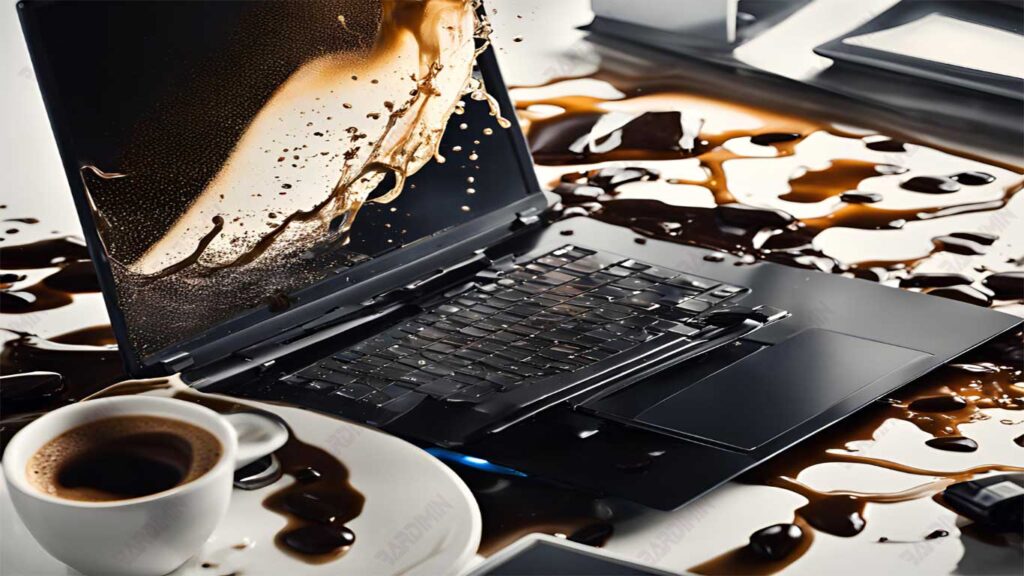
- Liquid Spill
Overcoming Scratched Screens
Scratched laptop screens can interfere with the visual experience and reduce comfort when using the device. However, with a few easy steps, you can fix the scratched screen display.
Initial Cleaning
Before carrying out repairs, it is very important to clean the scratched area so that no dust or dirt obstructs the repair process. Here are the steps that can be followed:
- Take a clean, slightly damp microfiber cloth.
- Gently wipe the scratched area with the cloth to remove dust and dirt. Make sure the cloth is not too wet so as not to damage the components in the screen.
- Use another dry microfiber cloth to wipe off any remaining moisture on the screen.
Using a Pencil Eraser
For light strokes, you can try using a pencil eraser. This method is quite effective and easy to do:
- Use a clean, soft pencil eraser.
- Gently rub the eraser into the scratched area in the direction of the stroke. Do this slowly and repeatedly until the scratches begin to fade.
- After a few rubbings, check if the scratches have reduced or disappeared.
Using Petroleum Jelly
For deeper scratches, petroleum jelly can be used to fill and disguise the scratches:
- Make sure the area around the scratch is as clean as the initial cleaning step.
- Take a small amount of petroleum jelly with a clean finger and gently press it into the stroke. Make sure the jelly gets into the scratch gap.
- Use a microfiber cloth to remove excess petroleum jelly around the scratch, so that only the scratch remains.
- Over time, petroleum jelly may fade; You can repeat this process as needed.
Data Access on Laptops with Broken Screens
When a laptop screen is damaged, accessing important data can be difficult. However, there are a few steps you can take to connect your laptop to an external monitor and back up your data securely.
Connecting to an External Monitor
Connecting a laptop to an external monitor is an effective solution for accessing data when the laptop screen is not working. Here are the steps you need to follow:
- Check the back or side of your laptop to find the appropriate port. Generally, laptops come with VGA (15 pins in three rows) or HDMI ports for connection to monitors.
- Get a suitable cable (VGA or HDMI) to connect the laptop to an external monitor. If you don’t have the cable, you can borrow it or buy it at your local electronics store.
- Before connecting the cables, be sure to turn off the laptop to prevent further damage.
- Connect one end of the cable to a port on the laptop and the other end to the port on the external monitor.
- Turn on the external monitor and make sure it is connected to a power source.
- Turn on your laptop. In many cases, the display from the laptop will automatically appear on the external monitor. Otherwise, you may need to press a key combination (such as Fn + F4 or Fn + F5, depending on your laptop model) to switch views.
Back up important data
After successfully connecting an external monitor, the next step is to back up important data to prevent loss. Here are the steps that can be followed:
- Prepare a USB flash drive or external hard drive with sufficient capacity to store your data.
- Use an external monitor to explore files and folders on your laptop. Open File Explorer (Windows) or Finder (Mac) to find the data you want to back up.
- Select the file or folder you want to copy, then right-click and select the “Copy” option.
- Access the storage media (USB or external hard drive) in File Explorer or Finder, then right-click in an empty area and select “Paste” to save a copy of the data.
- Once the copying process is complete, be sure to check your storage media to make sure all files have been copied properly.
- Once done, make sure to safely remove the storage media so that the data is not damaged.
Improves Your Laptop’s Battery Life
Improving laptop battery life is a crucial step to maintain optimal performance when in use. Here are some effective tips to extend the battery life of your laptop.
System Settings
To optimize power settings in Windows and Mac OS, follow these steps:
Windows
- Press the Windows key + X and select “Control Panel.”
- In the Control Panel, navigate to “System and Security” > “Power Options.”
- On the “Change plan settings” tab, click “Change advanced power settings”. Here, you can adjust settings like screen brightness, hard disk shutdown time, and sleep mode according to your needs.
Mac OS
1. Click the Apple logo in the upper-left corner of the screen and select “System Preferences.”
2. In the System Preferences panel, find and open the “Energy Saver” app.
3. Here, you can set the computer’s sleep time, screen brightness at night, as well as other settings that affect energy usage.
Energy Saving Tips
Here are some tips to save energy that can be applied every day:
- Make sure to remove the CD/DVD from the device when you no longer need it. This can reduce energy consumption because the CD/DVD remains active even when not in use.
- All USB devices such as mice, external hard drives, and scanners consume power from the laptop battery. Turn off or unplug the device when it’s not in use.
- Try not to run two applications at the same time, as this can increase energy usage. For example, avoid listening to music while working on a spreadsheet.
- Adding more RAM can improve the computer’s overall performance and save energy, as the computer does not need to use an additional processor to run applications.
- Reducing the screen brightness can significantly save energy. You can adjust the screen brightness through the battery icon in the taskbar.
- Hard disk defragmentation can improve system performance and save energy because data is stored more efficiently.
- Disable Wi-Fi and Bluetooth connections if not needed to save energy.
Troubleshooting battery drain issues
Decreased battery power in laptops is a frequent problem and can interfere with performance. Knowing the type of battery and how to care for it can help extend the battery’s life and prevent more serious problems.
Laptop batteries generally use two types of technology: Ni-Cd (Nickel-Cadmium) and Li-ion (Lithium-Ion).
Ni-Cd (Nickel-Cadmium):
These batteries are an older technology and are often found in older laptop models. They have a problem known as the memory effect, where if the battery is recharged frequently before it is completely discharged, its power storage capacity will decrease. In other words, the battery “remembers” a lower capacity, so it cannot store power to its maximum when recharged.
Li-ion (Lithium-Ion):
These batteries are a more modern technology and are more commonly used in laptops today. They do not experience memory effects, so they can be recharged anytime without worrying about losing capacity. Although it is not affected by the memory effect, it still has limitations on its lifespan and capacity that will decrease over time.
To maintain battery health, especially in Ni-Cd batteries, here are some steps that can be taken:
1. Fill It Up and Empty It Regularly
Make sure to fully charge the battery (100%) and allow the battery to fully discharge at least once in two weeks. This helps to “reset” the battery capacity and prevents memory effects from occurring.
2. Avoid Overcharging
Do not charge the battery too often before it is completely discharged. Try not to repeat charging without letting the battery drain first.
3. Use Power Settings
Make use of the power settings in your operating system to optimize battery usage. For example, enable energy-saving mode when you don’t need maximum performance.
4. Maintain Battery Temperature
Avoid exposure to extreme temperatures, both hot and cold, as they can damage the cells in the battery. Store the laptop in a cool, dry place when not in use.
5. Check Battery Health Regularly
Use the built-in software or tools to check the health of the battery periodically. If the capacity has decreased drastically, consider replacing the battery with a new one.
Repair of Peeling Charger Cable
The laptop charger cable is often the most vulnerable component to damage, especially in the connection section. This damage can result in charging problems and can even potentially pose a hazard. Here are the steps to fix a peeling charger cable as well as tips to prevent further damage.
Strengthening Connections
One effective method to strengthen a peeling charger cable is to use heat-shrink sleeving. Here are the steps that can be followed:
1. Prepare Tools and Materials
- Get heat-shrink sleeving from electronics stores. Choose the smallest diameter that fits the cable.
- You will also need scissors and a heat source such as a lighter or hair dryer.
2. Cut Heat-Shrink Sleeving
Cut a piece of heat-shrink-sleeving about 6.5 cm (2.5 inches) long.
3. Install Sleeving
Insert the peeling end of the charger cable into the heat-shrink sleeving so that the damaged part is completely covered.
4. Heat the Sleeving
Use a heat source to heat the sleeving. When heated, the sleeving will shrink and form a tight bond around the cable. Be sure to move the heat source so as not to damage the cable.
5. Double-Check
After the heating process is complete, check that the sleeve is properly and securely attached.
Cable Damage Prevention
To prevent the charger cable from being damaged quickly, here are some tips that can be applied:
- Always pull the charger cable from the plug part, not from the cable. Pulling on the cable roughly may cause damage to the connection.
- Wrap the charger cable neatly when storing it. Avoid folding them sharply or leaving them lying around.
- Consider using cable supports or ties to keep the cables organized and prevent them from overstressing during use.
- Do not expose the charger cable to direct heat or extreme cold, as this may damage the cable insulation.
- Perform regular inspections on your charger cable to detect signs of damage early, such as peeling or cracking.
Preventing Overheating on Netbooks
Netbooks, which are designed for portable internet use, often face overheating problems due to their compact design and sometimes lack of effective cooling systems. Here are some steps to prevent overheating on your netbook.
Optimal Ventilation
Using a netbook on a flat surface is essential to maintain air circulation and prevent overheating. Here are some tips related to ventilation:
1. Use a Flat Surface
Make sure your netbook is placed on a hard, flat surface, such as a desk or workbench. Avoid using it on soft surfaces such as pillows or blankets, as this can block airflow and cause the temperature to rise.
2. Consider Using a Laptop Stand
Using a laptop stand can help improve air circulation around the netbook. The stand can also help keep the screen at a comfortable height, reducing the strain on the neck while working.
3. Keep Your Distance from the Wall
Make sure there is enough space around your netbook, especially on the back and sides, to allow air to enter and exit smoothly.
Cleaning the Vents
Dust and dirt that accumulate in the vents can block airflow and cause overheating. Here’s how to clean the netbook’s vents:
1. Power Off and Unplug
Before cleaning, make sure the netbook is off and unplug it from the power source.
2. Use the Right Cleaning Tools
Prepare a cleaning tool such as a small brush or a soft, used toothbrush to remove dust from the vents. You can also use an air compressor or a can of compressed air to remove dust from the cracks.
3. Clean the Ventilation Regularly
Perform periodic cleaning of the vents, at least monthly, to prevent dust buildup that can interfere with air circulation.
4. Avoid Using Wet Cleaning Tools
Do not use water or other liquid cleaning agents when cleaning the vents, as this may damage the internal components of the netbook.
First Action When Liquid Spill Occurs
Liquid spills on a laptop can result in significant damage if not handled quickly and appropriately. Here are the emergency steps that need to be taken to reduce damage as well as the best way to dry the laptop after a spill has occurred.
Emergency Measures
1. Turn Off the Laptop Immediately
If the laptop is still on, turn it off immediately by pressing the power button. If it does not respond, unplug the connected charger and remove the battery (if possible) to disconnect the power flow.
2. Unplug External Devices
Disconnect all connected devices, such as USB drives, mice, and other cables. This will help prevent further damage to the ports and devices.
3. Position the Laptop
Open the laptop screen to a 90-degree angle. Then, hold the laptop upside down (with the keyboard facing down) to let the liquid drain out. Move the laptop from side to side to help remove any trapped liquid.
4. Remove the battery (if possible)
If your laptop comes with a removable battery, carefully remove the battery after turning off the device. This will help prevent short circuits.
Laptop Drying
After taking emergency measures, it is important to dry the laptop properly to prevent further damage:
1. Use a Dry Towel
Place the laptop upside down on a dry towel to absorb any liquid that may still be inside. Make sure the keyboard is facing down.
2. Allow to Dry
Leave the laptop in this position for a few hours or overnight in a warm, well-ventilated place. Avoid using a hair dryer or other direct heat source, as this may damage the internal components.
3. Use a Hair Dryer (Optional)
If you want to speed up the drying process, hold the hair dryer about six inches above the keyboard and use the low setting to blow warm air into the laptop for 15 minutes. Be sure to keep moving so as not to create hot spots.
4. Check Before Turning It Back On
Once the drying process is complete, check all ports and parts of the laptop to make sure there is no liquid residue left behind. If everything looks good, put the battery back in (if removed) and turn on the laptop.
