

If I had known from the beginning that Microsoft Word could be used to create QR Codes and Barcodes without the need to install additional applications, I would have saved a lot of time and effort! This statement may also represent the feelings of many people who are not yet aware of the hidden capabilities of this most popular word processing program in the world.
So far, many people think that to create a QR Code or Barcode, special software or third-party services are needed. Whereas, Microsoft Word has built-in features and add-in support that allows you to insert QR Codes and Barcodes directly into documents easily, quickly, and professionally.
Then, why is such an important feature unknown to many users? The reason is simple: Microsoft doesn’t explicitly highlight this feature, so it’s hidden behind a standard menu that’s rarely explored. But for those of you who are curious and want to explore the full potential of MS Word, this article will reveal its secrets.
What Are QR Codes and Barcodes? Recognize the Differences Before You Start
Before we get into the tutorial on how to create QR Codes and Barcodes in MS Word, it’s important that you first understand the differences between these two types of codes. Although they are both used to store and scan information, QR Codes and Barcodes have different functions, shapes, and data storage capacities.
QR Code (Quick Response Code)
QR Codes are an evolutionary form of traditional barcodes designed to store larger amounts of data. It has a distinctive shape, in the form of a two-dimensional square with a black-and-white pixel pattern that looks like a puzzle.
This code can store various types of information, ranging from website links, email addresses, phone numbers, to plain text. QR Codes can be scanned from multiple directions, making them very fast to be read by digital devices such as smartphones.

Examples of using QR Codes:
- Digital payment system.
- Digital menu in the restaurant without physical contact.
- Automatic attendance at school or office.
- Quick access to online registration or invitation forms.
With its ability to store more data and a high level of flexibility, QR Codes have become a favorite choice in various sectors, from business and education to public events.
Barcode (Traditional Bar Line)
Meanwhile, Barcode is a form of one-dimensional code that was once widely known, especially in the retail and logistics world. The display is vertical lines of different thicknesses, arranged linearly and usually used to recognize products or inventory.
Barcodes are generally used to store simple information such as product codes, prices, or identification numbers. The scanner is also widely found in supermarket cashiers, warehouses, and retail stores.
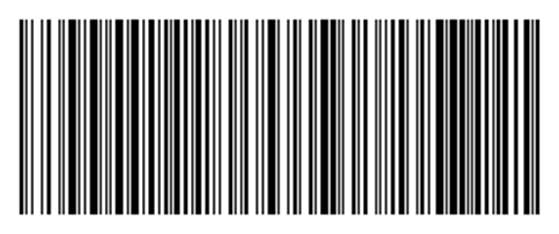
Examples of Barcode usage:
- Product codes (UPC) on food and beverage packaging.
- Inventory labels in warehouses or logistics companies.
- Tracking system for shipping packages.
Even though the data capacity is more limited than QR Codes, barcodes are still very relevant because of their speed and simplicity.
QR Code vs Barcode Comparison
| Feature | Powered by E-Mail | Barcode |
| Shape | Box | Line |
| Capacity | Large (thousands of characters) | Small (20-25 characters) |
| Resistance | 30% damage resistance | Error if the line is scratched |
| Application | Multifunction | Product specific |
| Scanning | Need a good camera | Can be done with a simple laser |
QR codes can be read even if 30% are damaged, while barcodes are more prone to errors!
How to Create QR Codes and Barcodes in MS Word Easily & Quickly
One of the hidden but very useful features in Microsoft Word is its ability to generate QR Codes directly, without the need for additional applications. Yes, you read that right. With a few simple steps, you can insert a QR Code into your documents, whether it’s for business, an invitation, or administrative purposes.
The following are three practical methods to create a QR Code in MS Word. In this section, we will discuss the first method, which is to use the official add-in of Microsoft Office.
Method 1: Using Microsoft Add-ins (Official and Secure Way)
If you are looking for the easiest and most recommended way to create QR Codes and Barcodes directly from MS Word, then using the official Add-in from the Microsoft Store is the best option. The process is fast, secure, and requires no technical expertise.
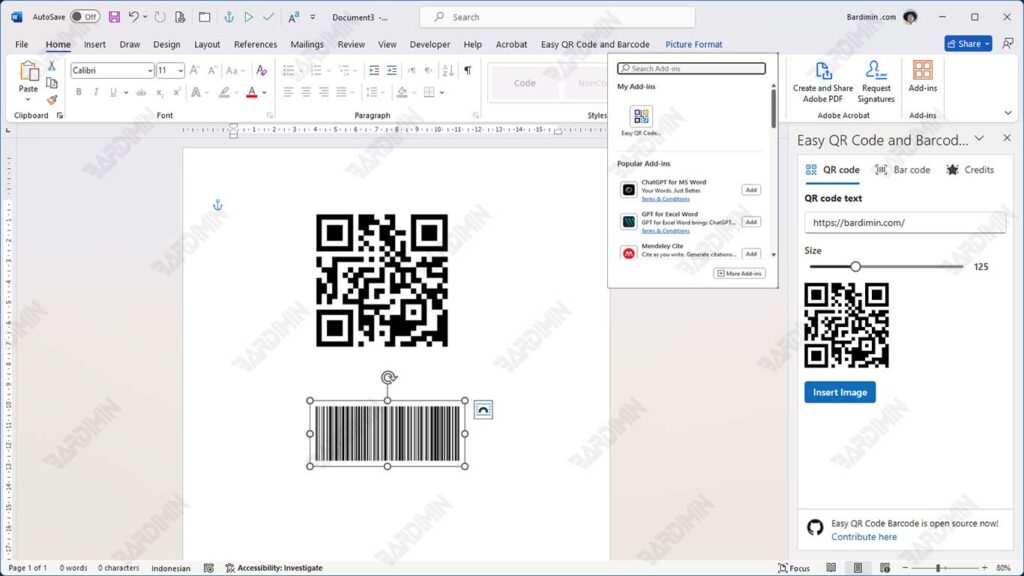
Steps:
- Open your document in Microsoft Word.
- Click the Insert menu, then select Get Add-ins.
- Type and search for “Easy QR Code and Barcode Generator” in the search box.
- Click Add to install the Add-in in your Word.
- Once installed, select the type: QR Code or Barcode. Then you can directly enter the URL, text, or other data into the fields provided.
- Click the Insert Image button, and the QR Code or Barcode will automatically appear in the document.
- Set the size and position of the QR Code or Barcode as needed.
With this method, you can create QR Codes and Barcodes in just a few seconds, directly from Word without leaving the app.
Method 2: Utilizing Barcode Fonts in MS Word (Creative Alternatives Without Add-ins)
If you prefer a simple, fast, and non-dependent method of internet connection or add-ins, then this method is worth trying. You can simply convert plain text to a Barcode by changing the font or font. Yes, it’s that easy!
This method is perfect for needs such as labeling goods, creating inventory lists, or adding barcodes to printed documents without having to use graphic design software or a special barcode generator.
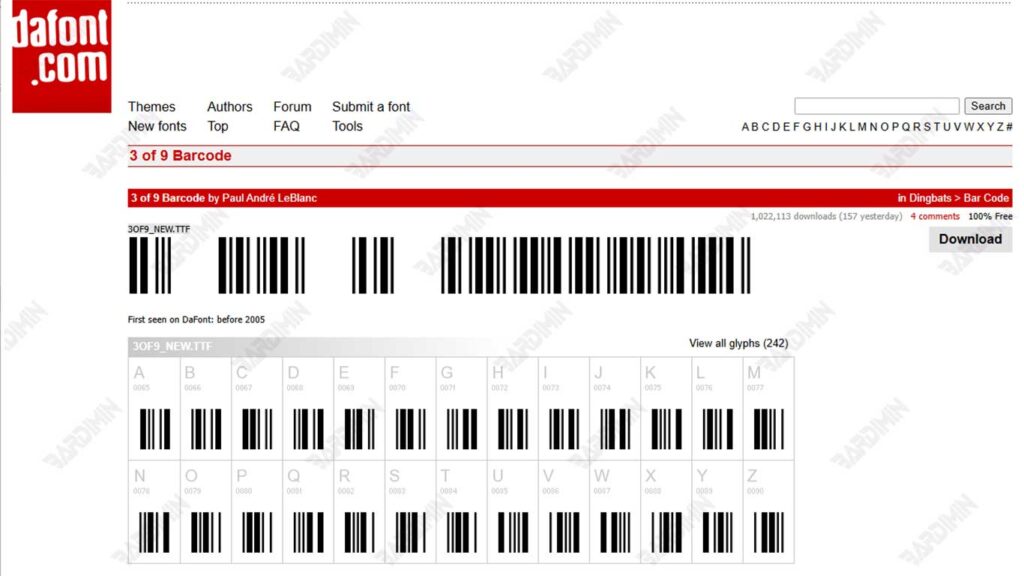
Steps to Create a Barcode in Word Using Fonts:
- Download the barcode font named “Free 3 of 9 Barcode”. These fonts are available for free on many font provider sites such as dafont.com or fontsquirrel.com.
- Install fonts on your computer (Windows or Mac). Simply double-click the font file .ttf and then select Install. Once installed, the font will automatically be available in Word and other programs.
- Open Microsoft Word, then type the text you want to convert into a barcode. Example: \TEST123\
- Block the text, then change the font type to “Free 3 of 9”.
- Automatically, the text will be transformed into a classic barcode that can be scanned using a standard barcode scanner.
For the “Free 3 of 9” font, make sure you add a backslash (\) or an asterisk (*) at the beginning and end of the text so that the barcode can be read by most barcode scanners.
Examples of correct writing: \12345678\ or *12345678*
Method 3: Insert QR Code Images from Online Generators
If you’re looking for a more flexible and highly customizable way, then using an online QR Code generator is a great choice. This method allows you to create a unique, colorful QR design, even include a logo, and then insert it into a Microsoft Word document very easily.
You don’t need to install any additional software or set up custom fonts. With just an internet connection and a few clicks, QR Codes are ready to be used as needed.
Steps to Insert a QR Code from an Online Generator to MS Word:
1. Visit a trusted QR Code generator site, such as:
2. Enter the data you want to convert into a QR Code, such as:
- Copyright © 201
- Text or phone number
- Google Maps Location
- Contact (vCard)
3. Set the QR Code display if needed:
- Choose a color
- Add a logo
- Select the image resolution size
4. Click Download to save the QR Code to your computer in PNG, SVG, or EPS format.
5. Open the Microsoft Word document, then select the Insert > Pictures menu to insert the QR Code image into your document.
