

Forgot the password protecting your Excel sheet or workbook? It’s not the end of the road. Several technical methods can help you remove worksheet or workbook protection without knowing the original password—whether you’re using an older version or the latest Microsoft 365. This guide walks you through each step with professional clarity.
Microsoft Excel offers password-based security to prevent unauthorized access or modifications. Broadly, there are two protection layers: a password to open the file and a password to modify sheets or the workbook structure. If you’ve forgotten the modification password, you can still open and view the content, but editing is locked out. This is a common headache for professionals, technicians, and even gamers who rely on Excel for tracking scores or game stats. Fortunately, several technical workarounds exist to lift that protection—no password required.
Understanding Excel’s Protection Types
Before diving into solutions, it’s crucial to distinguish between the two main protection types because recovery methods differ:
- Sheet Protection: Locks specific elements within a worksheet—cells, formulas, or objects. Users can view the sheet but cannot edit without the password.
- Workbook Protection: Secures the workbook’s structure, such as hiding sheets, adding/deleting sheets, or window resizing. This prevents structural changes.
- Password to Open: Encrypts the entire file, rendering it unreadable without the password. The methods covered here do not apply to this type because modern encryption is extremely difficult to bypass.
This article focuses on recovering access to password-protected sheets and workbooks, assuming you can already open the file (it is not encrypted at the file-open level).
Unlocking Sheet Protection in Excel 2010 and Older
For Microsoft Excel 2010 and earlier versions, the sheet protection algorithm is relatively weak. You can leverage a VBA macro to either discover the password or disable protection entirely. Follow these steps:
- Open the problematic Excel file.
- Press Alt + F11 to launch the Visual Basic Editor (VBE).
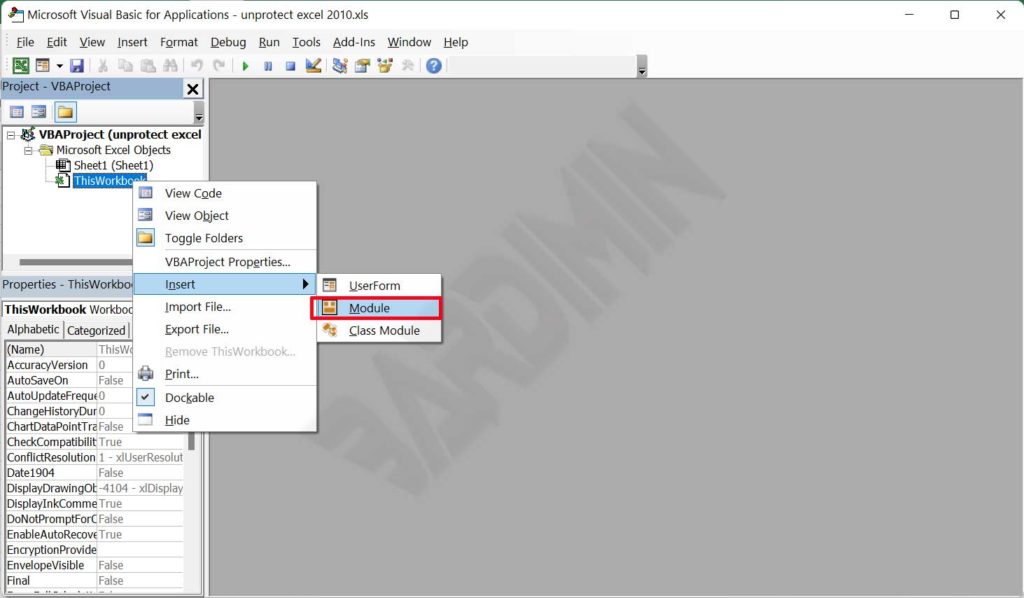
- In the VBE, right-click ThisWorkbook in the left panel, then choose Insert > Module.
- Copy and paste the following VBA code into the new module window:
Sub PasswordBreaker()
    'Breaks worksheet password protection.

    Dim i As Integer, j As Integer, k As Integer
    Dim l As Integer, m As Integer, n As Integer
    Dim i1 As Integer, i2 As Integer, i3 As Integer
    Dim i4 As Integer, i5 As Integer, i6 As Integer

    On Error Resume Next

    For i = 65 To 66: For j = 65 To 66: For k = 65 To 66
    For l = 65 To 66: For m = 65 To 66: For i1 = 65 To 66
    For i2 = 65 To 66: For i3 = 65 To 66: For i4 = 65 To 66
    For i5 = 65 To 66: For i6 = 65 To 66: For n = 32 To 126

        ActiveSheet.Unprotect Chr(i) & Chr(j) & Chr(k) & _
            Chr(l) & Chr(m) & Chr(i1) & Chr(i2) & Chr(i3) & _
            Chr(i4) & Chr(i5) & Chr(i6) & Chr(n)

        If ActiveSheet.ProtectContents = False Then
            MsgBox "Password is " & Chr(i) & Chr(j) & _
                    Chr(k) & Chr(l) & Chr(m) & Chr(i1) & Chr(i2) & _
                    Chr(i3) & Chr(i4) & Chr(i5) & Chr(i6) & Chr(n)

            Exit Sub

        End If

    Next: Next: Next: Next: Next: Next
    Next: Next: Next: Next: Next: Next
End Sub
Source: ablebits.com
- Return to Excel and ensure the protected sheet is active.
- Press Alt + F8 to open the Macro dialog, select the PasswordBreaker macro, and click Run.
This VBA script works only on the currently active sheet. Double‑check that the protected sheet is selected before running the macro.
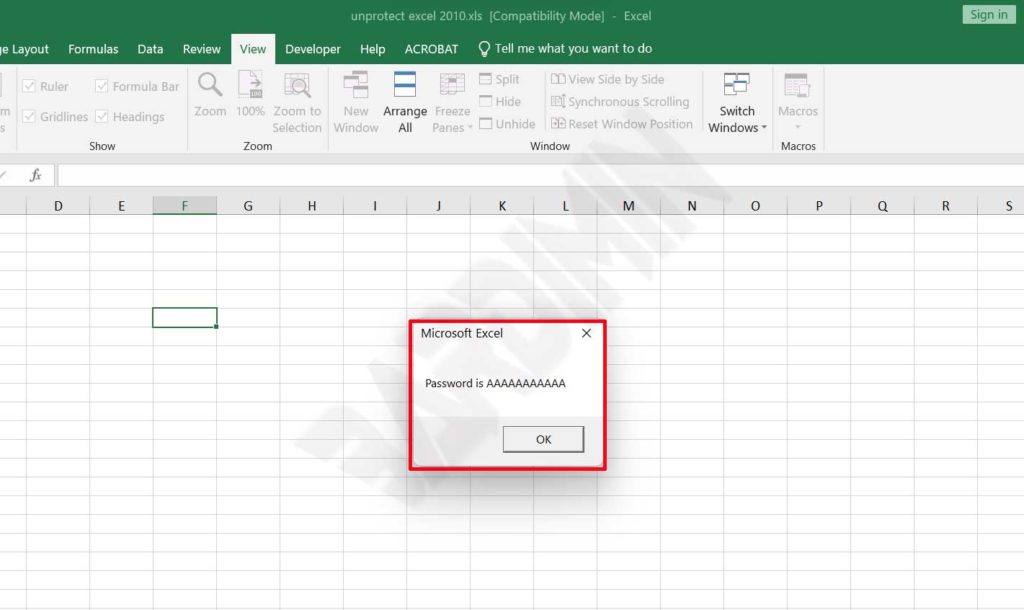
- Wait for the process to finish. If successful, a message box will appear displaying the sheet’s password. Protection is automatically removed.
Method for Excel 2013 and Later (Including Microsoft 365)
Starting with Excel 2013 (2016, 2019, 2021, and Microsoft 365), Microsoft strengthened the sheet protection algorithm. As a result, the VBA macro above no longer works directly on native files. However, you can still bypass protection by downgrading the file format to the legacy .xls format, which uses weaker encryption. Here’s how:
- Open the protected Excel file (modern format).
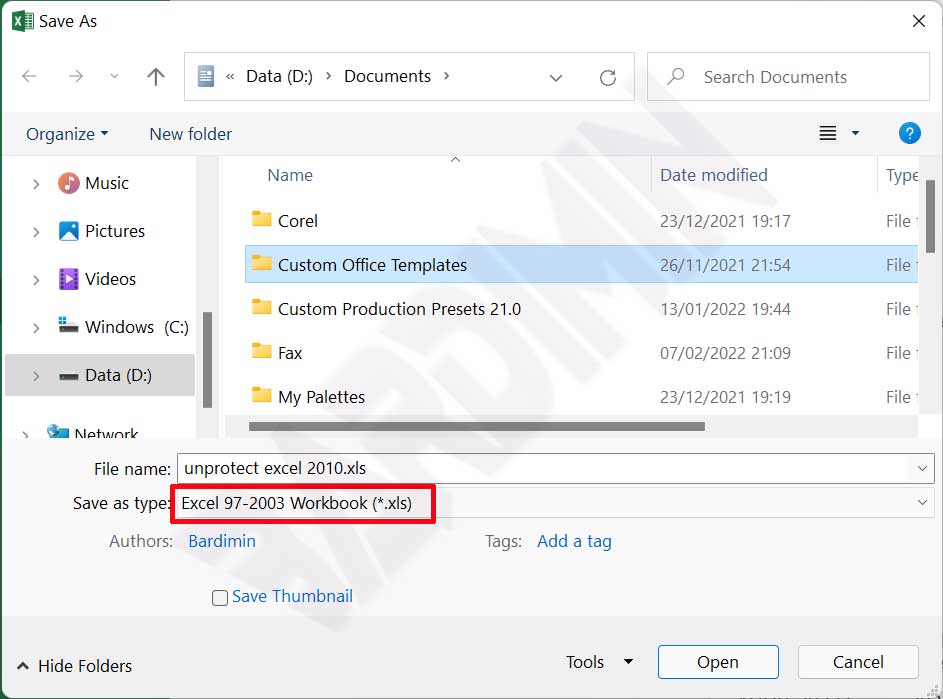
- Click File > Save As and choose a save location.
- In the Save as type dropdown, select Excel 97-2003 Workbook (*.xls).
- Click Save, then close the file.
- Reopen the newly saved .xls file.
- Now apply the same VBA macro steps described earlier (Alt+F11, insert module, run PasswordBreaker). The sheet protection will be removed.
- After unlocking, you can save the file back to a modern format (.xlsx) if desired.
Important note: This trick works for sheet protection only, not for workbook protection. Unprotecting a workbook in modern Excel versions is more challenging and may not be possible with this method.
Alternative: Third-Party Software
If the manual methods seem too complex or fail, several third-party tools offer automated password recovery. Be cautious, though—your Excel files might contain sensitive data. Stick to reputable software like LostMyPass or Password Recovery Tools. Always download from official sites and review their privacy policies. Most of these tools use brute‑force or dictionary attacks, which can take time—especially for long passwords.
Online recovery services are another option, but they require uploading your file to a third‑party server—strongly discouraged for confidential documents.
Password Management Tips to Avoid Future Lockouts
Prevention is better than cure. To avoid ever being locked out again, adopt these practices:
- Use a password manager (e.g., LastPass, 1Password, Bitwarden) to store all your Excel passwords securely.
- Maintain an encrypted text file containing your passwords and store it in a safe location (like a locked USB drive).
- Leverage automatic cloud backup (OneDrive, Google Drive) with versioning, so you can revert to a pre‑protection version if needed.
- For team environments, consider cloud‑based access control (e.g., SharePoint) that doesn’t rely on sheet passwords.
Security warning: The techniques described here should only be applied to files you own. Using them to bypass protection on someone else’s file without permission may violate laws and professional ethics. Always respect copyright and data confidentiality.
Conclusion
Forgetting an Excel sheet or workbook password is a solvable problem, especially when you know which version you’re using. By understanding the distinction between sheet and workbook protection, and applying the VBA macro for older versions or the format‑conversion trick for newer ones, you can regain editing access quickly. Always manage your passwords proactively to prevent recurrences. If standard methods fail, third‑party tools are a last resort—but weigh the security implications. We hope this technical guide serves professionals, technicians, and gamers who frequently work with password‑protected Excel files.
