

The power supply is an important part of a computer system that is the main power source for all its devices. Without a power supply, computer hardware cannot function. The power supply converts the AC from the power source into the DC required by computer components such as motherboards, hard drives, and graphics cards.
The main function of the power supply is to provide a stable and appropriate DC voltage for each component in the computer. Each component needs a certain voltage to operate properly, and the power supply ensures all components get the right power. For example, motherboards typically require +3.3V and +5V, while hard drives and CD/DVD drives require +5V and +12V.
In addition, the power supply also helps to keep the computer temperature optimal by providing cooling through the fans inside. This fan functions for air circulation inside the computer case, preventing overheating of sensitive components. Thus, the power supply not only functions as a power provider but also as an important element in maintaining the performance and stability of the overall computer system.
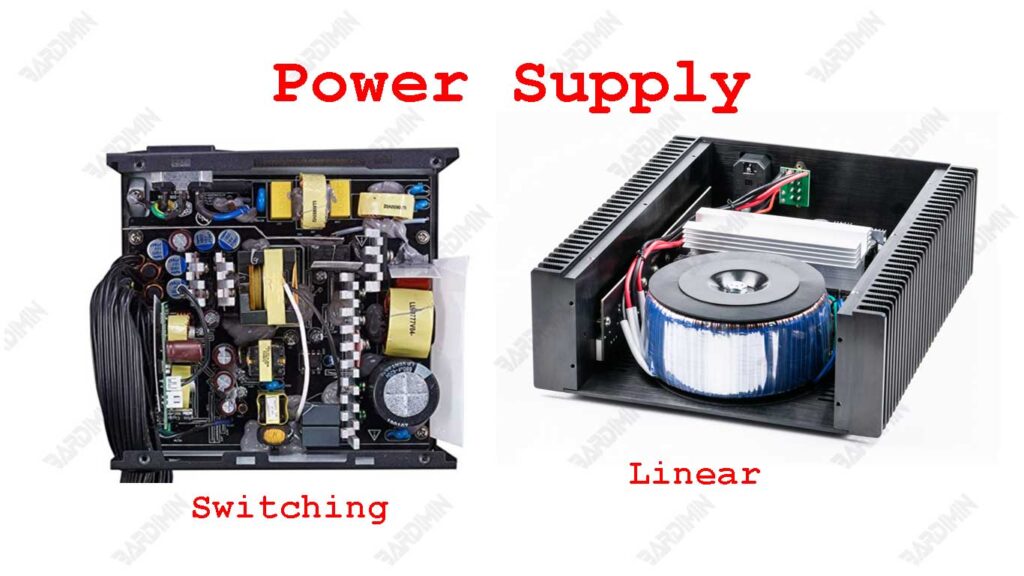
Types of Power Supplies
1. Linear Power Supply
Linear power supply is a type of power supply that utilizes passive components such as resistors and capacitors to convert AC current into DC current. This process produces a stable voltage by lowering the input voltage to the desired level through resistance regulation.
The main characteristics of linear power supplies are their simple design, ease of use, and ability to provide a very stable output.
Linear power supplies are typically used in applications that require high-voltage stability, such as quality audio devices, medical devices, and laboratory instruments. The use of linear power supplies is preferred when noise or electrical interference must be minimized, as this type tends to produce less noise compared to power supply switching.
Advantages and Disadvantages
The advantages of linear power supply include:
- Provides a very stable output, suitable for sensitive applications.
- The resulting electrical noise is very low which reduces signal interference, ideal for audio devices and precision instruments.
However, there are some drawbacks:
- Linear power supplies are less efficient, especially at high loads, because energy is wasted in the form of heat.
- The simple design makes it larger and heavier compared to power supply switching.
- They are generally more expensive in terms of production and material costs.
2. Switching Power Supply
Power supply switching is a type of power supply that uses switching techniques to convert AC into DC. This process involves converting AC from a power source into a DC pulse with the help of a transistor that functions as a switch.
These DC pulses are then converted into a stable DC voltage using components such as inductors and capacitors. This method allows power supply switching to efficiently regulate and distribute power to various computer components.
Power supply switching is the main choice in modern computers because of its high efficiency and small size. With the ability to convert power more effectively, this power supply can provide the power needed by components with less energy loss.
This is especially important for computer systems that require a lot of power, such as gaming rigs or workstations. In addition, power supply switching is also more cost-effective in production, making it more affordable for users.
Advantages: Efficiency, Small Size, and Low Heat
- Power supply switching can achieve an efficiency of more than 90%, thereby reducing wasted energy as heat. This helps to reduce electricity costs and extend the life of the hardware.
- The small power supply switching design allows manufacturers to create lighter and smaller units compared to linear power supplies, thus saving space inside the computer case.
- With high efficiency, switching power supplies produce less heat. This reduces the need for additional cooling systems and keeps the computer’s internal temperature stable.
Comparison table between the two types.
Here is a more detailed comparison table to make it easier to understand:
| Power Supply Type | Excess | Deficiency |
| Switching | – High efficiency, capable of reaching >80%. | – Produces higher electrical noise. |
| – Small size and lightweight, suitable for modern devices. | – More complex, difficult to repair if damaged. | |
| – Reduces overheating, thus extending the life of components. | ||
| Linear | – The output voltage is very stable with low ripple. | – Low efficiency because a lot of energy is wasted as heat. |
| – Very low noise, ideal for sensitive devices such as medical devices. | – Large size and heavy as it requires a large transformer. | |
| – Simple design, easy to repair. | – Not suitable for applications that require a lot of power. |
Key Components in Power Supply
Power supplies have several important components that support their performance. Here is an explanation of these components:
Connector
Connectors are the parts that connect the power supply to other components in the computer, such as motherboards, hard drives, and graphics cards. There are various types of connectors used, including:
- 24-pin ATX connector: Connects the power supply to the motherboard.
- 8-pin CPU connector: Provides additional power to the processor.
- SATA connector: Used to connect modern storage devices such as SSDs and HDDs.
- Molex Connector: Used for older devices such as hard drives and CD/DVD drives.
Fan
The fan in the power supply functions to keep the temperature low by circulating air inside the computer case. This fan cools the internal components and prevents overheating. Many modern power supply models use a reverse airflow system, where air is blown into the case to keep the CPU and memory temperatures optimal.
Internal Circuitry
Circuits in a power supply are made up of various electronic components that convert AC into DC. These include:
- Transistors: Serve as switches to regulate the flow of power.
- Inductors and Capacitors: Used to store and distribute electrical energy efficiently.
- Protection System: Some power supplies are equipped with protection circuits to prevent damage due to surges or overvoltage.
The quality of the components in the power supply greatly affects its performance. A high-quality power supply will be more stable, and efficient, and have a longer lifespan. Poor quality can cause problems such as power fluctuations, high noise, or damage to other components in the computer. Therefore, choosing a power supply with high-quality components is essential to ensure optimal performance and overall reliability of the computer system.
How to Choose the Right Power Supply
Choosing the right power supply for your computer is essential for good performance and stability. Here are some things to consider when choosing a power supply:
Power Output
Output power is the main factor in choosing a power supply. Make sure the power supply is capable of providing enough power for all the components in your computer. To find out the power requirements, add up the power required by each component, such as CPU, GPU, and storage. It is recommended to choose a power supply with a slightly higher output power than the total needs so that there is room for future upgrades.
Motherboard Compatibility
Make sure the power supply you choose matches your motherboard. Check the type of connector required by the motherboard, such as a 24-pin or 8-pin connector for the CPU. Also, make sure that the size of the power supply matches your computer case (e.g. ATX, SFX, or others).
Number of Connectors
Check the number and type of connectors present on the power supply. Make sure there are enough connectors for all the devices you want to connect to, such as hard drives, SSDs, and graphics cards. If you plan to add more devices in the future, choose a power supply with additional connectors or consider using an adapter if needed.
Tips for Choosing Based on User Needs
- Gaming: If you’re gaming, opt for a power supply with high power and efficiency certifications like the 80 PLUS Gold or Platinum. Also, make sure there are enough PCIe connectors for the latest graphics card.
- Workstation: For workstations that require a lot of power for heavy processing or rendering, choose a power supply with large capacity and additional protection features to maintain stability.
- General PC: For everyday use such as browsing and light applications, a power supply with moderate power is sufficient. Make sure to choose quality products for reliability.
Common Power Supply Problems and Solutions
The power supply is one of the important parts of a computer that often suffers from problems. Signs of damage are usually seen from a malfunctioning system or unstable performance. Here are some common problems with power supplies and simple ways to solve them.
Signs of Problems with the Power Supply
1. The Computer Doesn’t Turn On
- There is no reaction when the power button is pressed.
- The fan does not move, and the indicator light is off.
2. Restart or Sudden Death
- The computer suddenly shuts down while running heavy programs.
- Restart without warning, usually due to unstable power.
3. Components Not Working Properly
- The hard disk or SSD is not detected.
- The graphics card or other device is not working properly.
4. Burning Smell or Strange Sounds
- The smell is like burning plastic, indicating damage to components in the power supply.
- Buzzing or noisy sound from the power supply fan.
5. Overheating of Components
- The power supply overheats due to poor air circulation or excessive power load.
Simple troubleshooting steps
Step 1: Check Connections and Cables
- Make sure all connectors from the power supply are properly connected to the motherboard, CPU, and other devices.
- Check if any cables are damaged or not properly installed.
Step 2: Test the Power Supply with Other Devices
- Use a power supply tester to check the voltage of each connector (24-pin, SATA, PCIe, etc.).
- If you can, try using a different power supply to determine if the problem is with the power supply or other devices.
Step 3: Clean the Power Supply
- Turn off the computer and unplug the power cord.
- Clean dust from fans and vents using compressed air.
- Make sure the ventilation is not obstructed by objects around the case.
Step 4: Check for Overtemperature
- Make sure the power supply fan is working properly.
- Add a fan in the case if the computer temperature is too high.
Step 5: Identify Excess Loads
- Check that the power supply has enough power for all computer components.
- If the system uses components with high power requirements such as high-end GPUs, consider replacing the power supply with a larger one.
Step 6: Reset the Power Supply
- Unplug the power cord from the power outlet and press the power button on the case for 10-15 seconds to remove any remaining static electricity.
- Reconnect the power cord and try to turn on the computer.
Step 7: Check Other Components
- If the problem persists, check your motherboard, graphics card, or storage device to make sure there is no other damage affecting the system.
- Symptoms of problems with the power supply.
- Simple troubleshooting steps.
