

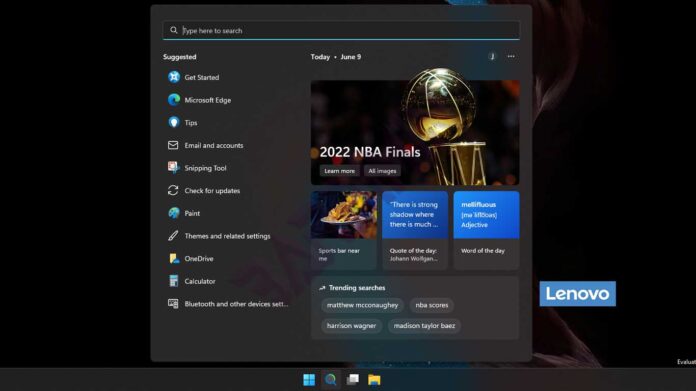
The Search Highlights feature displays search-related content when users interact with the Windows search box. While interesting, some users prefer speed over additional features.
Microsoft introduced Search Highlights in Windows 11 to display trending news, important events, and daily content. This feature comes as an effort to increase user engagement with Microsoft services. However, many users report that this feature actually slows down search performance.
2 Methods to Configure Search Highlights in Windows 11
You can adjust Search Highlights settings through the following two methods. Choose the method that suits your needs and system access level.
1. Through Windows Settings
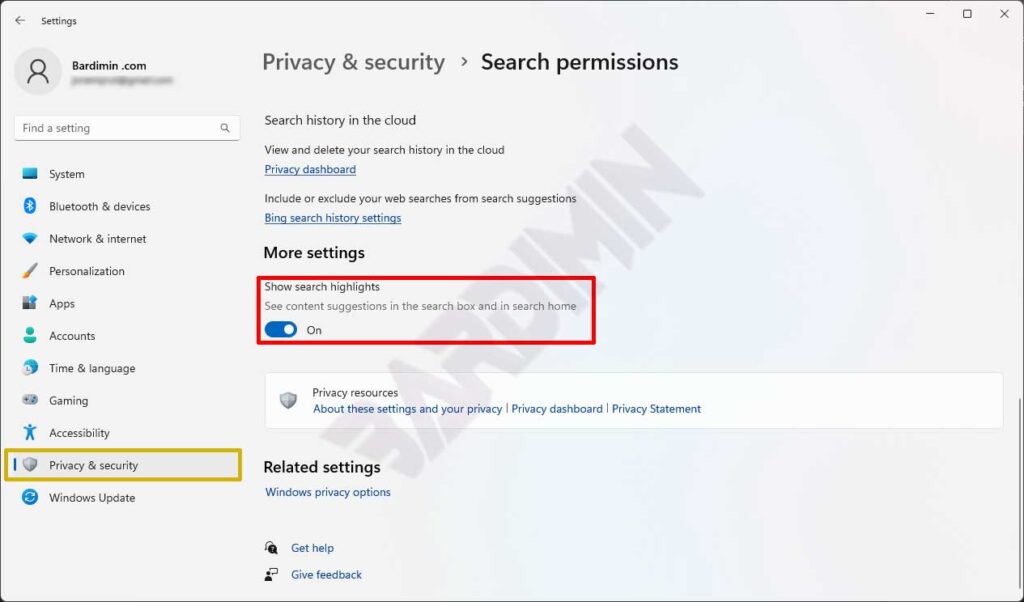
- Open Settings using the WIN + I key combination
- Navigate to Privacy & Security > Search permissions
- Scroll down until you find the Show search highlights option
- Toggle the switch to enable or disable the feature
2. Using Group Policy Editor
This method is available for Windows 11 Pro and Enterprise edition users. Here are the steps:
- Open Run by pressing WIN + R
- Type gpedit.msc and press Enter
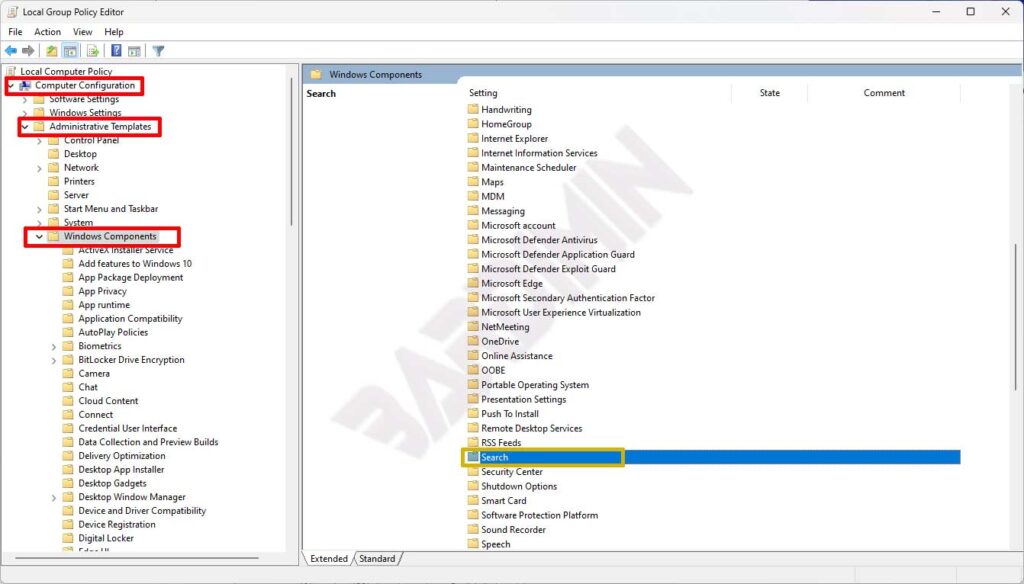
- Go to path: Computer Configuration > Administrative Templates > Windows Components > Search
- Double-click the Allow search highlights policy
- Select Enabled or Disabled according to your preference
- Click OK to save changes
Benefits of Disabling Search Highlights
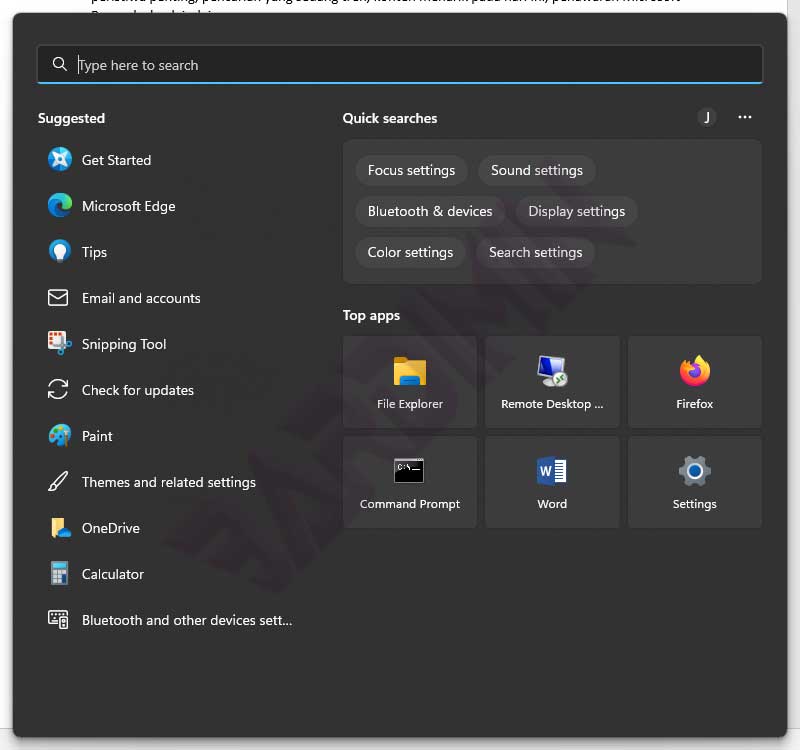
Disabling this feature can improve Windows search responsiveness. Users will experience faster and lighter search processes. Additionally, the search display becomes cleaner without additional content distractions.
When Should You Use Search Highlights?
This feature is useful for users who want to stay updated with current news and Microsoft offers. However, for productivity needs and optimal performance, disabling Search Highlights is the right choice.
According to Microsoft’s official documentation, this feature continues to be developed to provide a more personalized experience. Users can always change settings according to their preferences at any time.
