

Dead pixels are malfunctioning dots on a monitor screen that disrupt visuals. This article explains their difference from stuck pixels, provides an accurate testing guide, and reviews current repair methods for technicians and advanced users.
Every image on an LCD or LED monitor is composed of millions of pixels. A pixel is the smallest digital picture element. If one pixel fails, a disruptive dot appears. This defect is commonly known as a dead pixel or a stuck pixel.
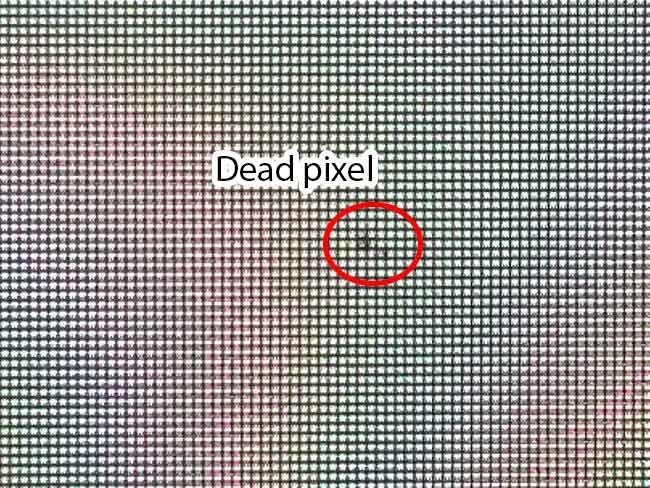
Each pixel consists of three colored subpixels: red, green, and blue, forming the RGB model. Their combination produces the colors we see.
Therefore, pixel defects are categorized into two types:
- Stuck Pixel: Occurs when one or two RGB subpixels are permanently lit. The dot appears as a constant red, green, or blue spot.
- Dead Pixel: Occurs when all three subpixels are completely off. The dot appears black as it emits no light.
How to Accurately Check for Dead Pixels
Before testing, clean the screen surface first. Use a soft microfiber cloth and a dedicated LCD cleaning solution. This ensures any dark spots are not just dirt.
The testing principle involves filling the screen with solid colors. This makes malfunctioning pixels stand out. You can display full-screen white, black, red, green, and blue backgrounds alternately.
However, a more practical and structured method is using an online dead pixel test website. Sites like LCD Tech Info Dead Pixel Test provide dedicated tools.
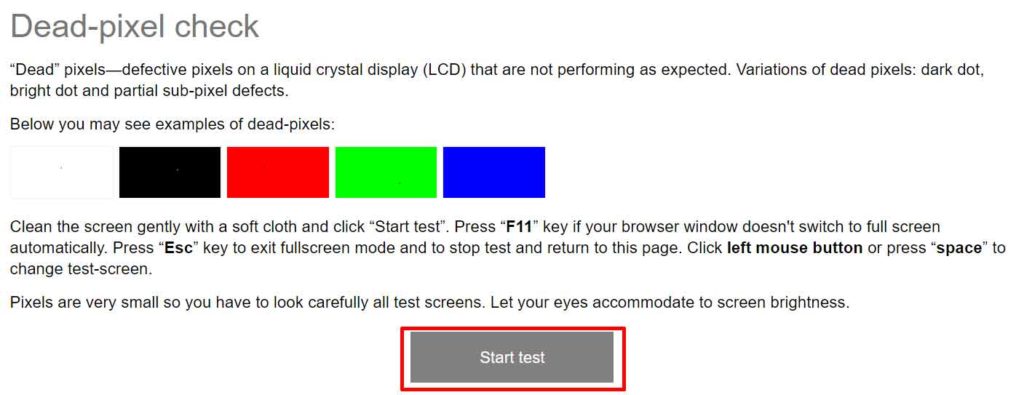
Usage is simple. Click the “Start Test” button. Then, click on the screen to change the background color. Observe carefully for any anomalous dots. Press the ‘Esc’ key to end the test.
Steps to Repair a Stuck Pixel
It’s important to know that a dead pixel is permanent and cannot be repaired. However, a stuck pixel may still be recoverable. Repair methods work by stimulating the stuck subpixel with rapid color cycling (pixel flashing).
You can try the following tools. This process may take several hours and is not always successful. Always back up important data before starting.
1. JScreenFix (Web-Based Tool)
JScreenFix is an installation-free solution. You only need to visit their site and run the tool. A flashing area will appear, which you can drag over the stuck pixel location. Let the process run for 30 minutes to several hours.
Link: Visit JScreenFix
2. UDPixel (Windows Application)
UDPixel is free software for the Windows operating system. This application offers modes to detect and repair defective pixels. Its dead pixel fixer feature displays a flashing box that can be positioned over the problem area.
Link: Download UDPixel
3. PixelHealer (Alternative Windows App)
PixelHealer offers similar ease with more complete control. You can set the flashing area size, color, interval, and an automatic timer. This tool is effective for attempting localized stuck pixel recovery.
Link: Download PixelHealer
As an important note, repair success depends on the damage level and monitor age. Always consider your device’s warranty period. If the issue appears soon after purchase, a warranty claim is the best solution. For more details on panel display quality standards, you can refer to official documents from organizations like ISO.
