

Want your computer to turn off automatically on a schedule without extra apps? The Windows auto shutdown feature helps save power, maintain device performance, and enforce work or playtime discipline. This guide covers four practical methods to schedule an automatic shutdown, from Task Scheduler for routines and Command Prompt for one-time timers to flexible batch scripts, including how to cancel them.
Benefits of Setting Up Auto Shutdown in Windows
Leaving your computer running constantly, especially overnight, is not a good habit. It wastes electricity and can shorten the lifespan of components like the CPU, hard drive, and GPU due to constant thermal stress . Scheduling an auto shutdown offers several advantages:
- Energy Saving: Reduces your electricity bill by ensuring the PC doesn’t stay on when unused.
- Device Maintenance: Gives hardware components a “rest,” increasing longevity and reducing overheating risk.
- Productivity & Discipline: Excellent for limiting gaming time or setting a hard stop for tasks like video rendering or large downloads.
- Convenience: You can leave your computer running a long task (like a backup) peacefully, knowing it will shut down afterward.
Method 1: Scheduled Auto Shutdown via Task Scheduler
Task Scheduler is Windows’ most powerful built-in tool for recurring tasks. It’s the ideal solution if you want your computer to shut down automatically at a specific time every day, for example, at 11:30 PM .
- Open Task Scheduler. Click Start and type “Task Scheduler“, then open the app.
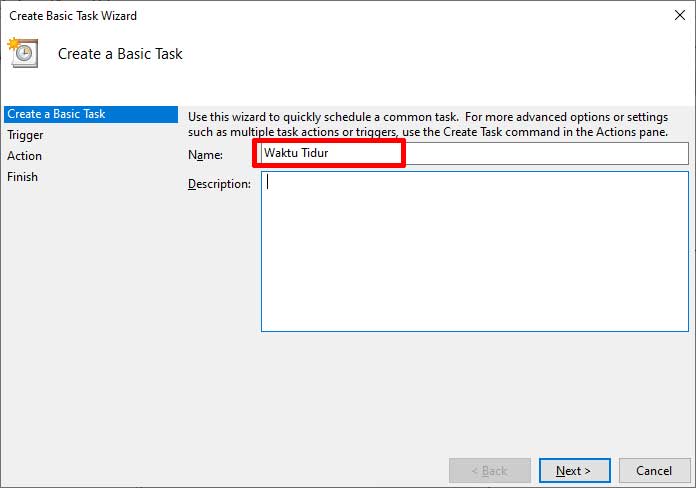
- Create a Basic Task. In the Actions panel on the right, click Create Basic Task…
- Name the Task. For example, “Nightly Shutdown“. Click Next.
- Choose the Trigger. For a daily shutdown, select Daily. Click Next.
- Set the Time. Set the start date and specific time for shutdown. Click Next.
- Choose the Action. Select Start a program. Click Next.
- Configure the Shutdown Program.
- In the Program/script field, type:
C:\Windows\System32\shutdown.exe - In the Add arguments field, type:
/s /f /t 0/sis the shutdown command./fforces hanging applications to close./t 0sets a 0-second delay before execution.
- In the Program/script field, type:
- Finish. Click Next, review the summary, and click Finish.
Method 2: One-Time Auto Shutdown via Command Prompt
This method is perfect for a single-use shutdown with a countdown. For example, you want the computer off in 90 minutes because you’re leaving, or after a 3-hour game download finishes.
- Open Command Prompt as Administrator. Click Start, type “cmd“, then select Run as administrator.
- Enter the Shutdown Command. Type the following command:
shutdown /s /f /t 5400- Replace 5400 with your desired number of seconds (5400 seconds = 90 minutes).
- Use an online conversion tool if you need to convert hours or minutes to seconds .
- Press Enter. A notification will appear in the corner, confirming the auto shutdown is scheduled.
Quick Tip: You can also run this command directly via Windows Run (Win + R) without opening CMD. Just type shutdown /s /t 3600 and press Enter .
Method 3: Flexible Auto Shutdown via Batch Script
Batch scripts (.bat) offer more complex control. You can create an interactive timer or schedule a shutdown at an absolute specific time. Here are two practical examples.
Script A: Simple Interactive Timer
This script prompts you to enter the delay time in seconds .
@echo off
set /p timer= "Enter shutdown delay time (in seconds): "
timeout %timer%
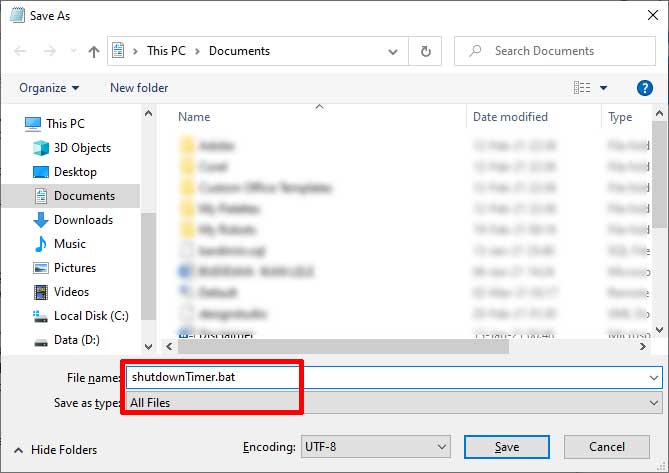
shutdown /s /f- Copy the code above into Notepad.
- Save the file with a .bat extension (e.g.,
shutdown_timer.bat). Select “Save as type: All Files”. - Run the file by double-clicking. Enter the number of seconds when prompted.
Script B: Shutdown at a Specific Time
This script will shut down the computer exactly at the set time (24-hour format), perfect for limiting usage time .
@echo off
:loop
if %time% GEQ 22:30:00.00 (
    shutdown /s /f /t 60 /c "Bedtime! Computer will shut down in 60 seconds."
    goto :end
)
timeout /t 30 /nobreak > nul
goto :loop
:end
Change 22:30:00.00 to your target time. The script will check the time every 30 seconds and execute the auto shutdown when the time arrives.
How to Cancel Auto Shutdown Easily
If you change your mind, canceling a scheduled auto shutdown is straightforward. Choose the method based on how you set it up.
| Original Setup Method | Cancellation Method |
|---|---|
| Task Scheduler | Open Task Scheduler, find the created task, right-click and select Delete . |
| Command Prompt / Run | Open CMD or Run (Win+R), type shutdown /a and press Enter. A “Logoff is cancelled” notification will appear . |
| Batch Script (.bat) | Close the Command Prompt window running the script, or press Ctrl + C inside that window. |
Conclusion
Setting up auto shutdown in Windows is a smart practice for hardware care, energy saving, and time management. To conclude, choose the method that best fits your needs:
- Use Task Scheduler for a regular daily shutdown routine.
- Use Command Prompt for a quick, one-time timer.
- Use a Batch Script if you need special logic, like a shutdown at an absolute time or with user interaction.
By understanding these methods, you have full control to schedule when your computer should rest, keeping your productivity and device efficiency optimally maintained.
