

Passwords in web browser login forms are often hidden behind asterisks for security. In certain technical situations, knowing how to show a password in the browser becomes essential. This guide explains the method using Inspect Element, a technique valuable for IT professionals, technicians, and advanced users.
Browser security features mask password input into rows of asterisks or dots. This prevents visual theft or shoulder surfing. However, there are times when you need to verify a typed password. Showing a password in the browser is possible if the site lacks a “show password” button.
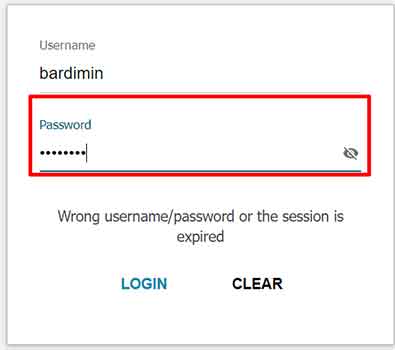
This method uses the browser’s built-in Developer Tools. Therefore, the process is similar across platforms like Google Chrome, Mozilla Firefox, or Microsoft Edge. This way to view a hidden password is local and only changes the temporary display on your device.
Important Note: Use this knowledge only to access your own accounts or with the account owner’s permission. Misusing it to view others’ passwords without consent is illegal and unethical.
Steps to Show Password Using Inspect Element
Below is a step-by-step guide to show a password in the browser. This tutorial uses Chrome, but steps are comparable for other browsers.
- Open the webpage containing the hidden password field.
- Right-click directly on that password field. Then, select the “Inspect” or “Inspect Element” option from the context menu.
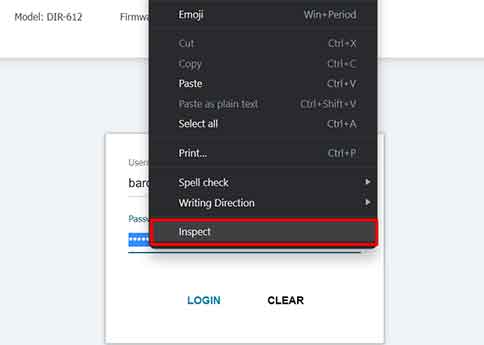
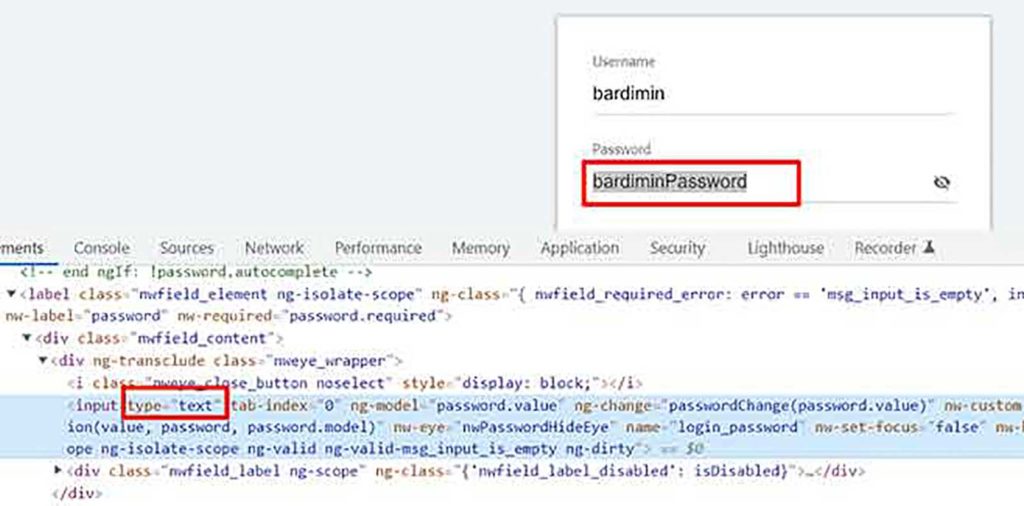
- The Developer Tools window will open. The HTML code for the password input will be highlighted. Look for the
type="password"attribute in the highlighted code line. - Double-click on the
"password"text. Change its value to"text", so it becomestype="text".

type value from “password” to “text” in the HTML code.- Immediatly after the change, the actual text in the password field on the webpage will become visible. You have now successfully viewed the hidden password.
This process is temporary. Changes are lost if the page is reloaded. This technique is usefull for troubleshooting or ensuring typing accuracy. For developers, understanding form elements is crucial. You can learn more about HTML Input Types in the MDN Web Docs documentation.
As an alternative, some password managers or browser extensions offer similar features. However, the Inspect Element method remains a universal solution without additional installation. This technical knowlege is highly beneficial for professionals who frequently handle login and account verification issues. Thus, you can be more self-reliant in resolving technical problems related to credentials.
