

Managing duplicate data in Excel is a common challenge for professionals. This article provides a step-by-step guide to finding and removing duplicates using Excel’s built-in features. We also cover additional methods for the latest Excel versions, ensuring the integrity and efficiency of your datasets.
Duplicate data in Excel can disrupt analysis and reduce report accuracy. Manually identifying duplicates is highly inefficient for large datasets. Therefore, Microsoft Excel provides dedicated tools to handle this issue. A solid understanding of how these tools work is crucial for maintaining data quality.
How to Find Duplicate Data in Excel Using Conditional Formatting
The first step is to identify the presence of duplicate entries. The Conditional Formatting feature is the best solution for this purpose. It will highlight cells containing repeated values. This allows you to visually review duplicates before deciding on the next action.
- Select the range of cells or columns you want to check.
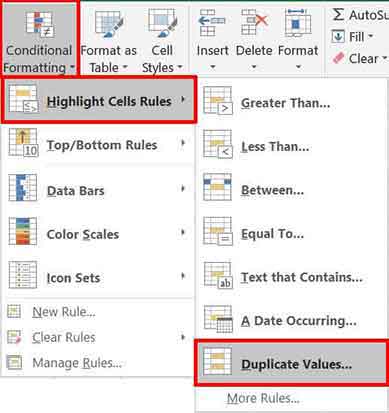
- Go to the Home tab, then click Conditional Formatting.
- Hover over Highlight Cells Rules, then select Duplicate Values.
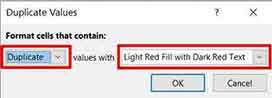
- In the dialog box, ensure Duplicate is selected. Choose a highlight format, such as light red fill. Then, click OK.
After this process, all repeated values in the selected range will be highlighted. However, this method only provides a visual marker. Your original data remains intact. You should analyze these highlights before proceeding with deletion.
How to Remove Duplicate Data in Excel Using Remove Duplicates
Once you have identified duplicate data, the next step is to clean it. The Remove Duplicates tool is a powerful and direct feature. It searches for duplicate data in Excel based on the columns you specify. Then, it removes all redundant copies.
- Select the data range you want to clean, including headers if present.
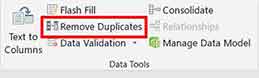
- Go to the Data tab on the ribbon, then click the Remove Duplicates button.
- A dialog box will appear. Check the columns you want to use as reference for finding duplicates. For example, to remove duplicate cities, check only the “City” column. Then, click OK.
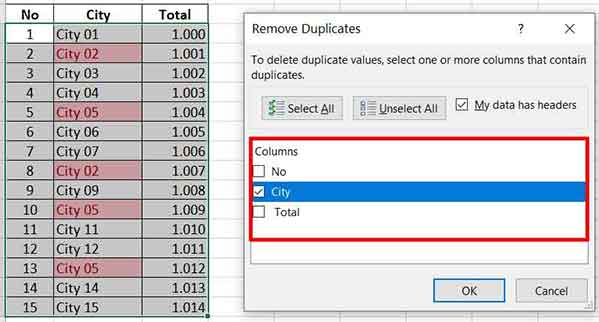
Important: Excel will automatically keep the first occurrence of a value and delete subsequent rows detected as duplicates. Always backup your data before running this operation.
- Excel will display a message confirming the number of duplicates removed. Your dataset is now clean of duplicate entries.
Advanced Method: UNIQUE Function for Excel 365 and 2021
For Microsoft 365 or Excel 2021 users, there is a modern option to handle duplicate data in Excel. A new dynamic function called UNIQUE offers a different approach. This function does not delete data but extracts a list of unique values to a new location. Thus, your source data remains intact.
You simply type the formula =UNIQUE(range) in an empty cell. For example, =UNIQUE(A2:A100) will generate a list of all unique cities from that range. This method is very useful for creating reports or dashboards without altering the original dataset.
In conclusion, choosing the best method depends on your needs. Use Conditional Formatting for visual inspection. Use Remove Duplicates for permanent cleaning. Utilize the UNIQUE function for dynamic analysis. By mastering these three techniques, you can ensure consistent data quality for accurate business decisions.
Official Source: For authoritative information on Excel features, visit the official Microsoft Support documentation.
