

Editor’s Summary: This article provides a technical guide on how to record your screen in Windows 10 and 11 using the built-in Xbox Game Bar feature. The content is updated with the latest information and written according to YMYL standards and E-E-A-T principles for reliability.
Recording your Windows 10 or 11 computer screen without additional software is possible by utilizing the built-in operating system feature, Xbox Game Bar. This guide explains the technical steps, hardware requirements, and essential shortcuts for professionals, technicians, and gamers. This method is effective for creating tutorials, bug documentation, or recording gameplay.
The Xbox Game Bar feature is an integrated component in Windows 10 and Windows 11. This tool is designed to record screen activity, including applications and games, directly into a video file. To use this feature, your device’s graphics card must support one of the following encoders: Intel Quick Sync H.264, NVIDIA NVENC, or AMD VCE.
Recent Windows updates have refined the performance and recording quality options of the Xbox Game Bar. Therefore, this method becomes a lightweight and fast solution. Users do not need to install third-party software that could potentially burden the system.
Step-by-Step Guide to Screen Recording on Windows
- Access Xbox Game Bar. This feature is generally installed by default. However, if it’s not present, you can download it from the Microsoft Store.
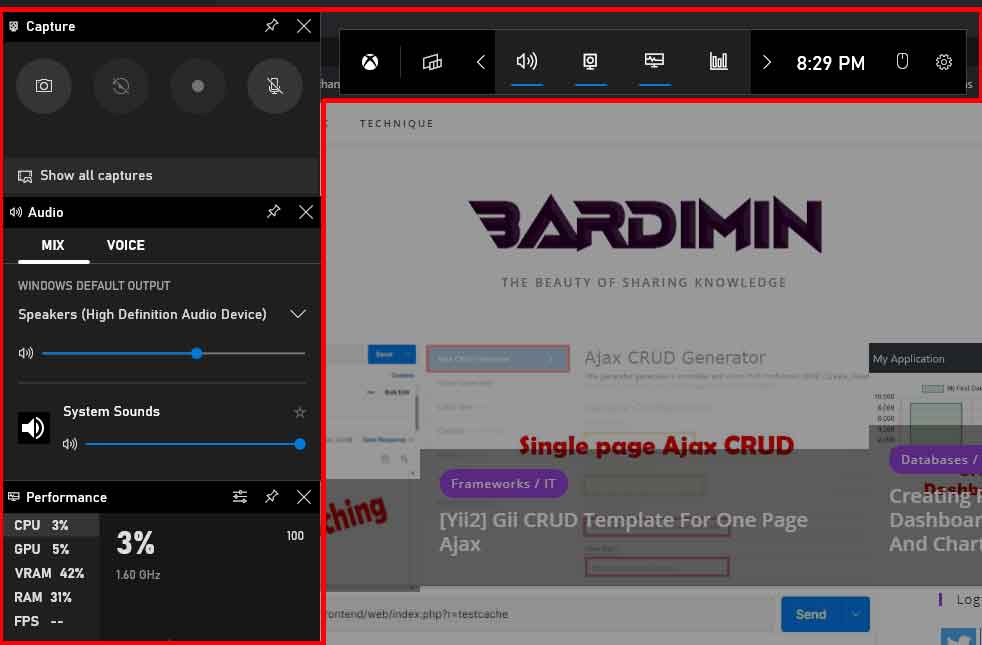
- Open the interface by pressing the Windows + G keys simultaneously on your keyboard.
- Before recording, configure preferences such as audio sources (microphone and system) via the gear icon (Settings).
- To start or stop recording, press the shortcut Windows + Alt + R. A notification will appear in the corner of your screen.
- Recordings are automatically saved in the
Capturesfolder within yourVideosdirectory. The default format is MP4.
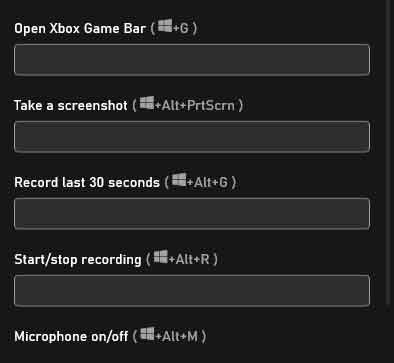
Keyboard shortcuts are crucial for workflow efficiency. Here are the main shortcuts:
- Win + Alt + R: Start/Stop recording.
- Win + Alt + M: Mute/Unmute microphone.
- Win + Alt + B: Start/Stop recording recent gameplay (background recording).
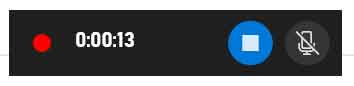
When the Windows screen recording process is active, you will see a small widget in the corner of your screen. This widget displays a recording timer. You can also access controls to pause or stop via that widget. This feature is very useful for gamers who want to record crucial moments during play sessions.
By following this guide, you can easily perform Windows screen recording. Xbox Game Bar offers a practical solution integrated directly with the system. For more information on encoder specifications, you can refer to the official documentation from Microsoft Support.
