

A fast and responsive computer is very important in carrying out daily activities, both for work, study, and entertainment. The speed of the Windows 11 operating system affects how efficiently we can complete the tasks at hand. With optimal performance, applications can run smoothly, loading times are reduced, and multitasking becomes more effective.
A slow computer can cause a variety of problems, such as delays in completing tasks, frustration due to waiting for a long process, and decreased productivity. This can negatively impact work, and study, and even interfere with the comfort of enjoying entertainment content.
One solution to improve Windows 11 performance is to use the ReadyBoost feature. ReadyBoost is a feature that utilizes external storage devices such as USB Flash Drives or SD Cards to increase system speed.
By allocating a portion of the memory from an external storage device to be used as a cache, ReadyBoost can help reduce application loading times and improve overall system responsiveness.
What is ReadyBoost?
ReadyBoost is a feature introduced by Microsoft in Windows Vista and continues to be used until Windows 11. This feature allows users to improve the performance of the operating system by using external storage devices such as USB Flash Drives or SD Cards as additional caches.
The main function of ReadyBoost is to speed up the data access process and improve system responsiveness, especially on computers with limited RAM capacity.
ReadyBoost works by utilizing free space on external storage devices and using it as a disk cache. When enabled, ReadyBoost stores frequently accessed data in this cache, speeding up the time it takes to access that data.
This process helps reduce the load on the main hard drive, especially on computers with slower hard drives, such as mechanical hard drives (HDDs). By using an external storage device that has high read/write speeds, ReadyBoost can significantly improve system speed and performance.
Advantages of Using ReadyBoost
1. Increased Speed
ReadyBoost works by taking advantage of free space on external storage devices to store frequently accessed data. With this additional cache, Windows 11 can access data faster than relying solely on the main hard drive. This reduces application loading times and improves overall system responsiveness.
2. Easy to Use
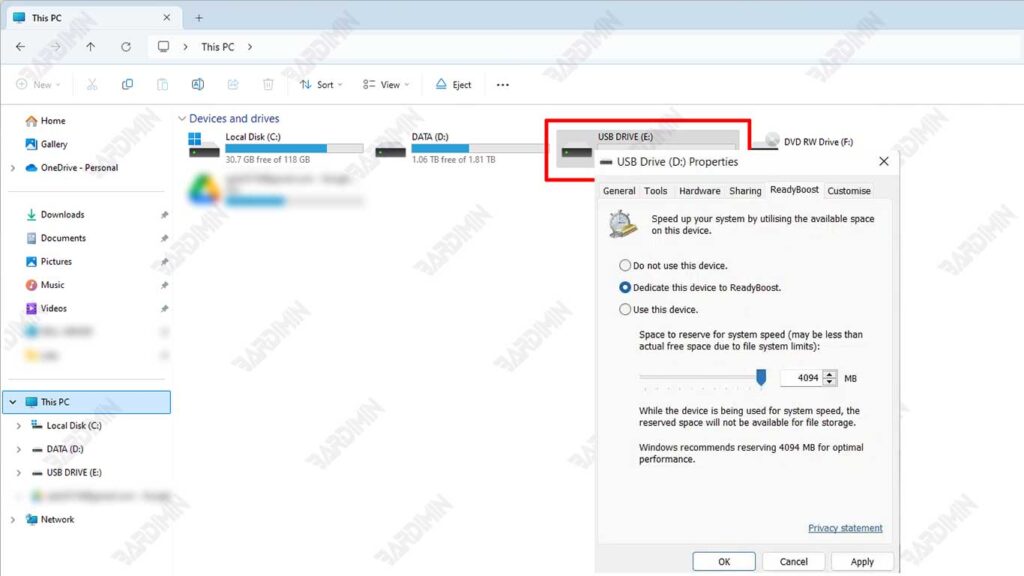
Simple steps to enable ReadyBoost in Windows 11 :
- Connect an external storage device (USB Flash Drive or SD Card) to your computer.
- Open File Explorer and right-click on the detected storage device.
- Select “Properties” from the context menu.
- Go to the “ReadyBoost” tab.
- Select the “Use this device” option and set the amount of space you want to allocate to ReadyBoost.
- Click “Apply” and then “OK” to activate ReadyBoost.
3. Speed Up Boot Time
By using ReadyBoost, important data required during boot can be cached to an external storage device. This allows Windows 11 to access that data faster than relying solely on the main hard drive, significantly reducing boot times.
4. Improve Application Responsiveness
Frequently used apps can be cached by ReadyBoost so that when the app is opened, the necessary data is already available in the cache. This reduces the time it takes to open an app and improves overall responsiveness.
5. Speed Up Data Transfer
When transferring files, ReadyBoost can help reduce the time required by providing an additional cache. Data that is frequently accessed during the transfer process can be cached, speeding up the file transfer process.
6. Economical
Upgrading your RAM or hard drive can be an expensive solution to improve your computer’s performance. ReadyBoost offers a more economical alternative by utilizing external storage devices that users may already have. With ReadyBoost, users can improve system speed and performance without having to spend a fortune on new hardware.
How to Maximize ReadyBoost
Choosing the Right Storage Device
Recommended USB or SD Card specifications for optimal performance:
- Read/Write Speed: Choose a storage device with a read speed of at least 2.5 MB/s and a write speed of at least 1.75 MB/s. A device with a higher speed will provide better performance.
- Capacity: It is recommended to use a device with a capacity of at least 4 GB. The larger the capacity, the more data can be cached, thus improving system performance.
- Type: USB 3.0 or later is recommended as it has a higher data transfer speed compared to USB 2.0.
Managing Memory Capacity Efficiently
For optimal performance, allocate about two to four times the existing RAM capacity. For example, if your computer has 4 GB of RAM, allocate between 8 to 16 GB for ReadyBoost.
Do not allocate the entire storage device capacity to ReadyBoost. Leave enough space for the device to be used for other functions and to avoid performance degradation.
FAQ (Frequently Asked Questions)
Can ReadyBoost be used on all Windows 11 devices?
ReadyBoost can be used on most devices running Windows 11, but there are certain requirements. External storage devices such as USB Flash Drives or SD Cards must meet minimum speed standards to be able to use ReadyBoost.
Not all storage devices support ReadyBoost and computers with SSDs (Solid State Drives) may not benefit significantly because SSDs are already very fast at handling data.
What is the ideal memory capacity for ReadyBoost?
The ideal memory capacity for ReadyBoost varies depending on the user’s needs and the computer’s specifications. In general, it is recommended to allocate about two to four times the existing RAM capacity. For example:
- Computers with 4 GB of RAM: Allocate between 8 to 16 GB for ReadyBoost.
- Computer with 8 GB of RAM: Allocate between 16 to 32 GB for ReadyBoost.
Users can customize this capacity according to their specific needs.
Does ReadyBoost replace the need for RAM?
ReadyBoost does not replace the need for RAM on your computer. RAM (Random Access Memory) is the main memory used by operating systems and applications to run programs in real time.
ReadyBoost, on the other hand, is an additional cache that helps speed up data access by using external storage devices. ReadyBoost can improve performance on computers with limited RAM, but it cannot completely replace RAM functions and speeds.
Conclusion
ReadyBoost is an effective and economical solution to improve the performance of computers running Windows 11. By utilizing external storage devices such as USB Flash Drives or SD Cards, ReadyBoost can speed up the application loading process, reduce boot times, and improve overall system responsiveness. This feature is especially useful for users who have computers with limited RAM capacity and don’t want to spend a lot of money on hardware upgrades.
If you feel that your computer is running slow and want to improve its performance without having to buy new hardware, try using ReadyBoost. With simple steps and the right storage device, you can experience the speed and efficiency gains in Windows 11. Feel free to try and experience for yourself the benefits of ReadyBoost in increasing your productivity and comfort in daily computer use.
