

Have you ever encountered an error accessing the registry when trying to import .reg files into the Registry Editor? If yes, then you are not alone. Many Windows 11 users are facing this problem and feel frustrated at not being able to change registry settings to their liking.
The registry is a database that stores important information about the operating system, hardware, software, and user preferences. Changing the registry can help you customize Windows 11 according to your needs, but it can also cause problems if you’re not careful.
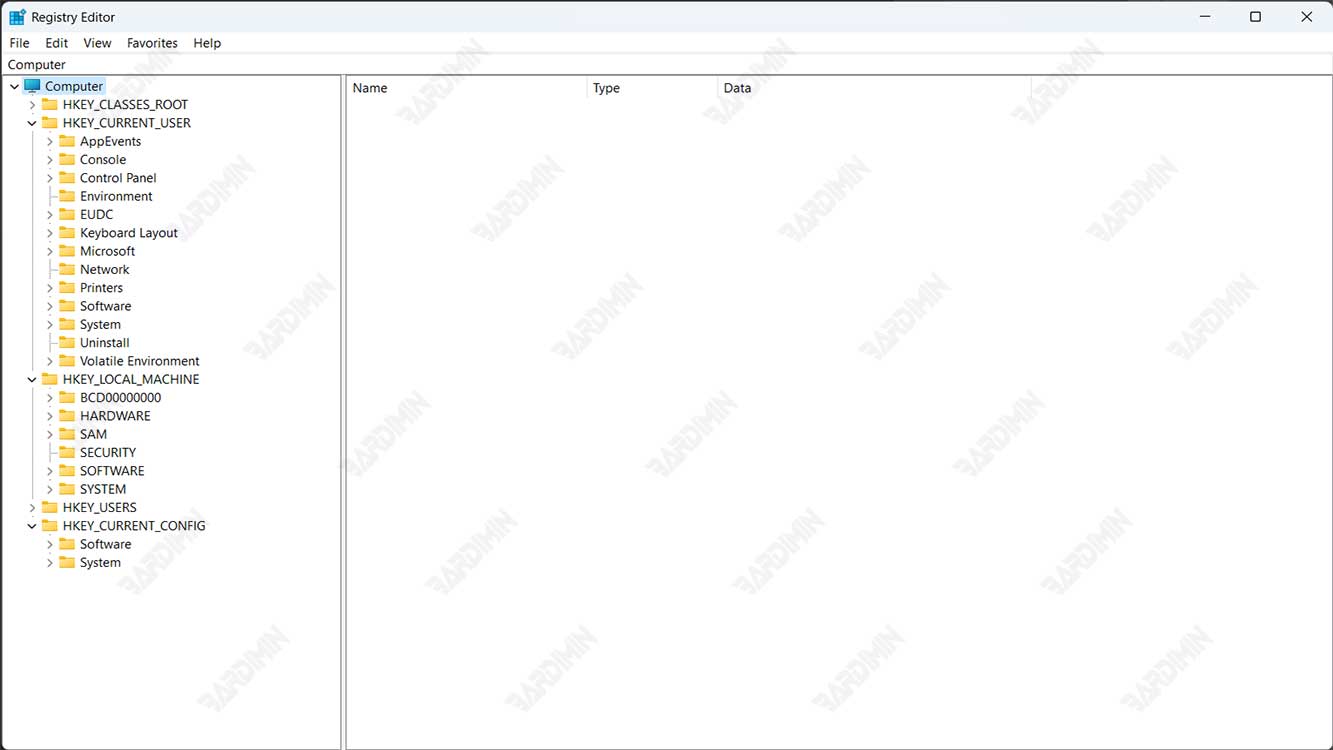
Error accessing the registry is one of the problems that can occur when you try to import .reg files into the Registry Editor. A .reg file is a text file that contains commands to add, delete, or change certain registry values. You can create .reg files yourself or download them from trusted sources. However, sometimes, when you double-click a .reg file or right-click and select Merge, you will get an error message saying “Cannot import [file name].reg: Error accessing the registry.” This means that Registry Editor cannot access or modify the registry according to the .reg file you choose.
What Causes Errors Accessing the Registry?
Several possible causes can cause errors accessing the registry, including:
- Insufficient access rights. You may not have sufficient permissions to modify the registry. This usually happens if you’re using a standard or guest user account instead of an administrator account. Administrator accounts have full rights to modify the registry, while other accounts may be restricted by group policy or security settings.
- Corrupted or incompatible .reg files. The .reg file you’re trying to import might be corrupted, incomplete, or incompatible with your version of Windows 11. For example, .reg files created for Windows 7 may not work properly in Windows 11. Corrupted or incompatible .reg files can lead to errors accessing the registry or even more severe registry damage.
- Third-party software issues. Some third-party software, such as antivirus, firewall, or registry cleaners, can interfere with the .reg file import process. This software may perceive .reg files as a threat and prevent them from accessing or modifying the registry. The software can also change registry settings on its own and cause conflicts or inconsistencies with the .reg file you are trying to import.
- System problems. Sometimes, errors accessing the registry can be caused by broader system problems, such as a corrupted registry, viruses, malware, or disk errors. These system issues can affect the overall performance and stability of your Windows 11, including your ability to import .reg files.
How do I fix the error Accessing the Registry?
To fix the error accessing the registry, you can try the following methods:
Method 1: Run Registry Editor as Administrator
One of the easiest ways to resolve errors accessing the registry is to run Registry Editor as an administrator. This will give you enough permissions to modify the registry according to the .reg file you choose. Here are the steps:
- Right-click on the .reg file you want to import and select Copy.
- Press Windows + R to open the Run dialog box.
- Type regedit and press Ctrl + Shift + Enter to run Registry Editor as administrator. Click Yes if prompted by User Account Control (UAC).
- In the Registry Editor, click File and select Import.
- Paste the location of the .reg file you copied earlier in the File name box and click Open.
- Wait for the import process to complete and close the Registry Editor.
If this method works, you won’t get any more error messages when importing the .reg file. However, if this method does not work, you can try the next method.
Method 2: Change Registry Permissions
If you still get errors accessing the registry after running Registry Editor as administrator, there may be a problem with your registry permissions. You can try changing registry permissions to give you full control over the registry keys associated with the .reg file you are trying to import. Here are the steps:
- Open Registry Editor as administrator as described in the previous method.
- Look for the registry key associated with the .reg file you are trying to import. You can see the registry key name at the top of the .reg file if you open it with Notepad. For example, if your .reg file contains the following lines:
[HKEY_CURRENT_USER\Software\Microsoft\Windows\CurrentVersion\Explorer]
Then the associated registry key is
HKEY_CURRENT_USER\Software\Microsoft\Windows\CurrentVersion\Explorer.
- Right-click on the corresponding registry key and select Permissions.
- In the Permissions window, click on your account name and check the Full Control box under the Allow column. If your account name is not in the list, click Add and type your account name in the Enter the object names to select box. Click Check Names to verify and click OK.
- Click Apply and OK to save the changes.
- Close Registry Editor and try importing the .reg file again.
If this method works, you will be able to import .reg file without any problem. However, if this method does not work, you can try the next method.
Method 3: Check Your .reg Files
If you still get the error accessing the registry after changing your registry permissions, there may be a problem with the .reg file itself. You can try checking your .reg files to make sure that they are not corrupted, incomplete, or incompatible with your version of Windows 11. Here are some things you can do:
- Open the .reg file with Notepad and check if it has the correct format. The .reg file should begin with the following line:
Windows Registry Editor Version 5.00
Followed by an empty row and a row containing the registry key and registry value you want to change. For example:
Windows Registry Editor Version 5.00
[HKEY_CURRENT_USER\Software\Microsoft\Windows\CurrentVersion\Explorer] “ShowSuperHidden”=dword:00000001
If your .reg file does not have the correct format, you can try editing it with Notepad or create a new .reg file with the correct format.
- Check if your .reg file is compatible with your version of Windows 11. .reg files created for older versions of Windows may not work properly in Windows 11. You can try searching for .reg files created for Windows 11 with the same or similar keywords as your .reg files. You can search for .reg files on trusted websites like tenforums.com or winaero.com. Make sure you read the description and comments of the .reg file before you download and import it.
- Make a backup copy of your registry before you import .reg files. This will help you restore the registry to its previous state in case of problems. You can make a backup copy of the registry by following these steps:
- Open Registry Editor as administrator as described in the previous method.
- Click File and select Export.
- Choose a location to save your registry backup file and name it a file. Make sure you select the All option under the Export range.
- Click Save and wait for the export process to complete.
- To restore the registry from a backup file, click File and select Import. Select the registry backup file you created earlier and click Open.
If this method works, you will be able to import the .reg file without getting an error accessing the registry. However, if this method does not work, you can try the next method.
Method 4: Turn Off Annoying Third-Party Software
If you still get the error accessing the registry after checking your .reg files, there may be third-party software interfering with the .reg file import process. You can try turning off suspicious third-party software, such as antivirus, firewall, or registry cleaners, while you import .reg files. Here are the steps:
- Right-click on the third-party software icon on the taskbar and select the option to disable or exit the software. You can also open Task Manager by pressing Ctrl + Shift + Esc and end the process associated with that third-party software.
- Try importing the .reg file again and see if the problem is resolved.
- If yes, then you can re-enable that third-party software after you finish importing the .reg file. You can also look for settings or options that allow you to exclude .reg files from the inspection or protection of such third-party software.
- If not, then you can try the next method.
Method 5: Run the System Scanner and System File Checker
If you still get the error accessing the registry after shutting down annoying third-party software, there may be a broader system issue causing this issue. You can try running a system scanner and system file checker to fix corrupted registry, virus, malware, or disk errors. Here are the steps:
- Press Windows + X and select Windows PowerShell (Admin) or Command Prompt (Admin). Click Yes if prompted by User Account Control (UAC).
- In a PowerShell or Command Prompt window, type the following command and press Enter:
sfc /scannow
This will start a system file checker that will scan and repair corrupted or missing system files.
- Wait for the process to complete and see if there is a message saying that the system file checker found and fixed the problem. If yes, then try importing the .reg file again and see if the problem is resolved.
- If not, then type the following command and press Enter:
DISM /Online /Cleanup-Image /RestoreHealth
This will start a system scanner that will scan and repair your Windows 11 image.
- Wait for the process to complete and see if there is a message saying that the system scanner found and fixed the problem. If yes, then try importing the .reg file again and see if the problem is resolved.
- If not, then you can try the next method.
Method 6: Perform System Restore or Reinstall Windows 11
If you still get the accessing the registry error after running the system scanner and system file checker, there may be no other solution than performing a system restore or reinstalling Windows 11. System Restore will restore your Windows 11 to a previous restore point, where you haven’t experienced this issue. Reinstalling Windows 11 will erase all your data and settings and reinstall Windows 11 from scratch. These two methods are the last steps you should take if all other methods fail. Here are the steps:
- To perform a System Restore, follow these steps:
- Press Windows + I to open Settings.
- Click System and select Recovery on the left.
- Under Reset this PC, click Get started.
- Select Keep my files or Remove everything, depending on your preference.
- Follow the on-screen instructions to complete the system restore process.
- To perform a reinstallation of Windows 11, follow these steps:
- Download the Media Creation Tool tool from Microsoft’s website here.
- Run the tool and select Create installation media (USB flash drive, DVD, or ISO file) for another PC.
- Select your desired Windows 11 language, edition, and architecture and click Next.
- Select the USB flash drive or ISO file, depending on the installation media you want, and click Next.
- Follow the on-screen instructions to create Windows 11 installation media.
- Once the installation media is ready, insert or connect it to your PC and restart your PC.
- Press any key to boot from the installation media and follow the on-screen instructions to reinstall Windows 11.
How do I prevent errors from accessing the registry?
To prevent errors accessing the registry from happening again in the future, you can follow these tips:
- Always run Registry Editor as administrator when you want to import .reg files.
- Always check the .reg file before you import it and make sure it is in the correct format and compatible with your version of Windows 11.
- Always make a backup copy of your registry before you import .reg files and store those backup files in a safe location.
- Always download .reg files from trusted sources and read .reg file descriptions and comments before you import them.
- Always turn off suspicious third-party software, such as antivirus, firewall, or registry cleaners, while you import .reg files.
- Always run system scanners and system file checkers periodically to fix system problems that may affect your registry.
- Always update your Windows 11 to the latest version to get bug fixes and new features that can improve the performance and stability of your Windows 11.
Conclusion
Error accessing the registry is a problem that can occur when you try to import a .reg file into Registry Editor. A .reg file is a text file that contains commands to add, delete, or change certain registry values. Changing the registry can help you customize Windows 11 according to your needs, but it can also cause problems if you’re not careful.
