

Learn how to fake your location in Google Chrome without VPN or extensions using the Sensors panel in Developer Tools. This method helps protect privacy, access region-restricted content, or test location-based applications. This technical guide provides detailed steps with manual coordinate input.
Google Chrome includes a built-in geolocation service that allows websites to access your position. This service uses various sources, such as GPS signals on mobile devices, IP addresses, or nearby Wi-Fi network data. Location accuracy depends heavily on the method used; mobile devices are usually more precise due to GPS support, while laptops or PCs rely only on IP addresses, which are often less accurate.
Many professionals, technicians, and gamers need location flexibility for various purposes. For instance, testing web applications with geo-specific content, accessing streaming services available only in other countries, or simply maintaining privacy so sites don’t track your actual position. Instead of using a VPN or third‑party extensions, Chrome offers a built‑in feature in Developer Tools that lets you set fake coordinates manually.
Why Fake Your Location in Google Chrome?
Spoofing your location isn’t just about hiding your identity; it’s also a crucial tool in web development. Here are some common reasons:
- Testing location‑based applications: Developers need to ensure features like local weather, regional pricing, or exclusive content work correctly across different regions.
- Accessing restricted content: Some news sites, streaming services, or online stores limit access based on country. With a fake location, you can reach that content.
- Privacy and security: Avoid tracking by sites that collect location data for ads or analytics.
- Gaming: Certain online games use location data for matchmaking or regional events; changing it can offer a different experience.
With Chrome DevTools, you can simulate any coordinates without leaving a trace or altering system settings.
How to Fake Location in Google Chrome Using Developer Tools
This method uses the hidden Sensors panel inside Developer Tools. No extra installation is required, and the changes only last while the panel is open. Follow these steps:
Step 1: Open Your Target Site
Visit the website that needs location information, for example Google Maps (https://maps.google.com). Make sure the site includes geolocation elements so you can easily verify the change.
Step 2: Activate Developer Tools
Press Ctrl+Shift+I (Windows/Linux) or Cmd+Option+I (macOS) to open the Developer Tools panel. You can also access it via the three‑dot menu in the top‑right corner of Chrome > More tools > Developer tools.
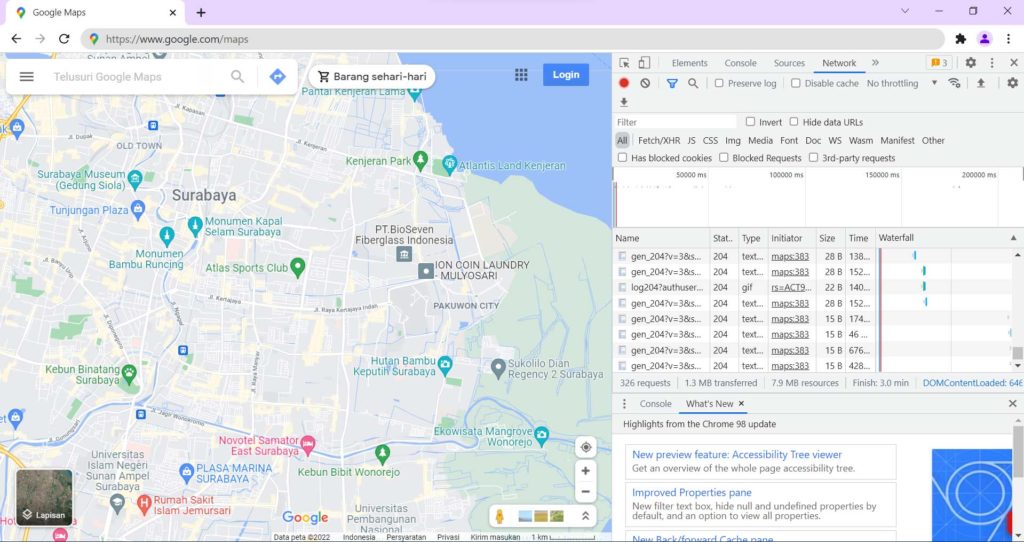
Step 3: Open the Sensors Panel
Inside Developer Tools, click the vertical three‑dot icon in the top‑right corner of the panel. Choose More tools > Sensors. The Sensors panel will appear at the bottom or side, depending on your layout.
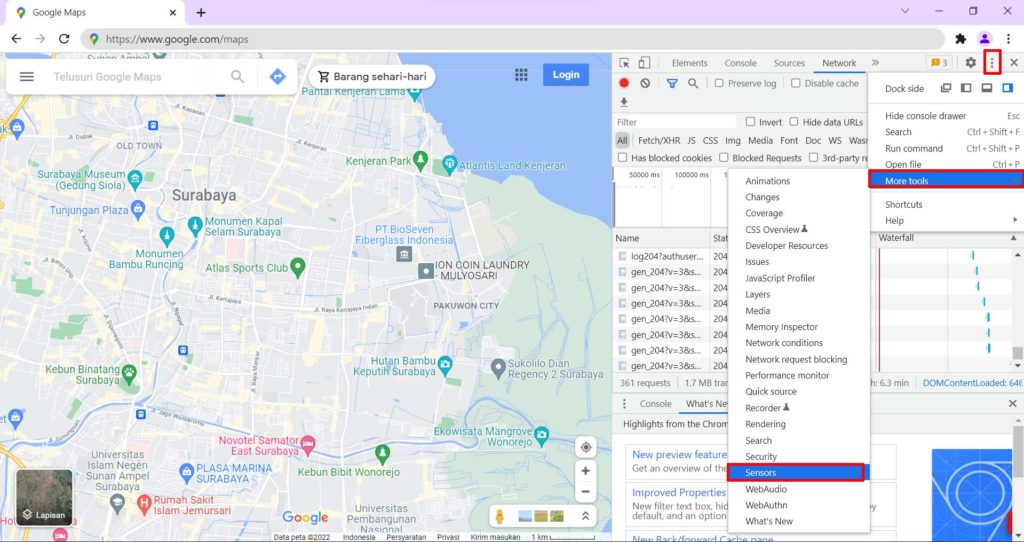
Step 4: Set the Location Coordinates
In the Sensors panel, locate the Location section. By default, it’s set to “No override,” meaning Chrome uses your actual location. Click the dropdown and select a preset city, like “New York” or “Tokyo.” For a custom spot, pick Other… and enter the latitude and longitude in the fields that appear.
Tip: To get coordinates for a place, open Google Maps, right‑click the desired point, and choose “What’s here?” The coordinates will show in the search box. You can also use services like latlong.net.
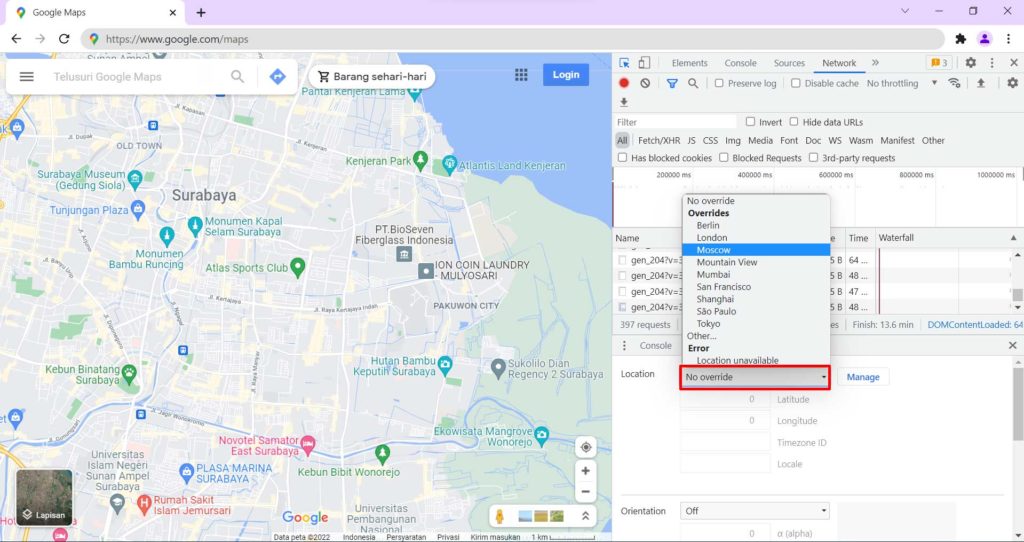
Step 5: Verify the Change
After setting the coordinates, refresh the Google Maps page or any other site you’re testing. The map should display the area corresponding to the fake coordinates. To double‑check, use the nearby places search — the results should point to the spoofed region.
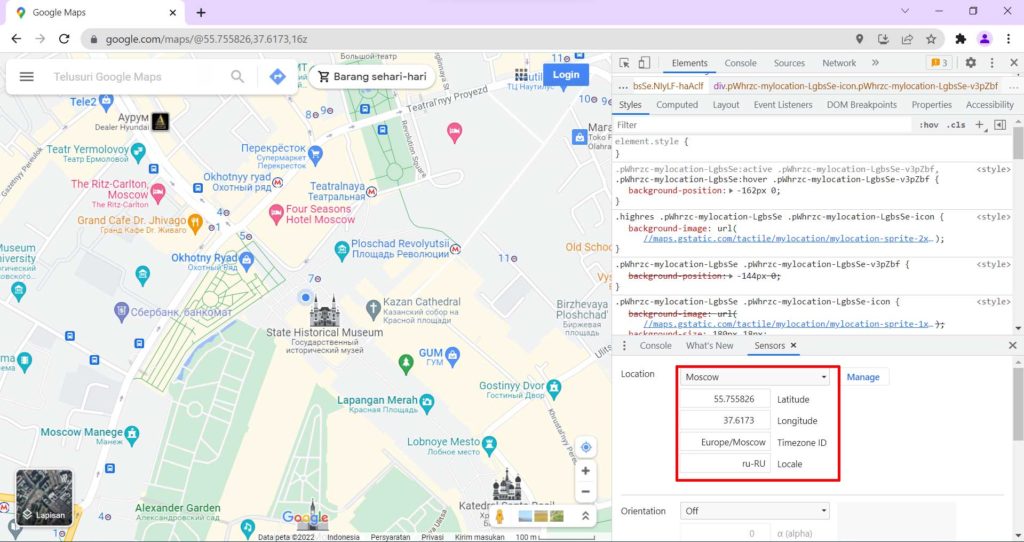
Important Considerations
- Changes are temporary: Once you close the Sensors panel or turn off Developer Tools, Chrome reverts to your real location. This is ideal for quick testing without permanent effects.
- Not all sites respond: Some websites use additional location‑detection methods, like IP address. Even if you spoof coordinates, they might still estimate your region from your IP. For complete anonymity, combine this with a VPN.
- Coordinate accuracy: Ensure the latitude/longitude format is correct (decimal, e.g., 40.7128, -74.0060 for New York). Incorrect input will make the location invalid.
- Impact on other applications: The change only affects the current Chrome tab; it doesn’t influence other apps or your operating system.
Alternatives for Faking Your Location
Besides the method above, you can use browser extensions like “Location Guard” or “Manual Geolocation.” However, extensions often require additional permissions and may slow down performance. A VPN also changes your IP, but it doesn’t affect the GPS or Wi‑Fi data your browser sends. Therefore, Chrome’s built‑in DevTools feature remains the lightest and most reliable choice for technical needs.
It’s important to use this technique ethically. Do not spoof your location for illegal activities, fraud, or to violate any platform’s terms of service. Respect copyright and local regulations.
— Digital Ethics
Conclusion
Mastering how to fake your location in Google Chrome via Developer Tools gives you full control over the geolocation data shared with websites. This method is extremely useful for IT professionals, app developers, privacy advocates, and gamers who need to test or access cross‑region content. With the simple steps outlined above, you can instantly set any coordinates without additional software.
Moreover, understanding how geolocation works helps you become more aware of what information leaks while browsing. Use this feature wisely and always prioritize your personal data security.
If you encounter issues while practicing, make sure your Chrome is updated to the latest version, as the Developer Tools interface may change over time. For further reference, visit the official Chrome DevTools documentation at developer.chrome.com/docs/devtools or learn about the W3C geolocation specification at w3.org/TR/geolocation.
