

Windows 11 Kiosk Mode is a feature designed for Enterprise environments or public use, where security and access control are critical. This feature allows administrators to restrict user access to only one or a few specific applications so that users cannot access the operating system or other applications that are not allowed.
In situations such as building lobbies, museums, or information centers, many people often use devices without the need for authentication. Kiosk mode ensures that users can only access predefined applications, such as building directories or product information, without being able to open other applications or change system settings.
The existence of Kiosk Mode is essential because it can improve security and operational efficiency. By restricting user access to the operating system, this mode reduces the risk of abuse or intentional damage. Additionally, Kiosk Mode makes it easier for administrators to manage devices used by multiple people, reducing the time and resources required to monitor and maintain devices.
What is Windows 11 Kiosk Mode?
Windows 11 Kiosk Mode is a feature designed to limit user access to only certain apps. This is the right solution for situations where the device needs to be used with strict supervision. In this mode, Windows Explorer is replaced by an alternate shell that only allows the use of applications that have been defined by the administrator. As a result, users cannot access the Start menu, desktop, or any other application beyond what has been set.
This feature is commonly used in Corporate, Educational, and public places environments to improve safety and operational efficiency. Kiosk Mode allows the device to operate in Single-App (one application) or Multi-App (multiple predefined applications) mode, according to the needs of the business or institution.
Differences between Kiosk Mode and Regular User Mode in Windows 11
| Aspects | Kiosk Mode | Casual User Mode |
| Access the App | Can only run specified applications | Can run all installed apps |
| Interface | Using an alternate shell, without access to the desktop or Start menu | Has a desktop, taskbar, and Start menu |
| Security | higher, preventing system changes and unauthorized access | Users can change settings and install apps |
| Management | Can be centrally controlled by administrators | Doesn’t have built-in access restrictions |
| User Sessions | Automatically closed after the main app is closed | Users have full control over Windows sessions |
Examples of Windows 11 Kiosk Mode Usage
This feature can be used in a variety of situations, including:
- Self-Service Kiosks – Used at airports, fast food restaurants, or shopping malls for self-ordering meals or self-check-in flights.
- Digital Signs – Displays information or advertisements on public screens without the need for user interaction, such as in shopping malls or train stations.
- Guest Registration – Allows visitors to fill in their data when entering an office building, hotel, or hospital.
- School Computer Lab – Manages student access only to specific educational applications without changing device settings.
- Customer Service Device – Used by a company to display product or service information with full control over user access.
How Windows 11 Kiosk Mode Works
Windows 11 Kiosk Mode restricts user access to only certain apps defined by the administrator. In this mode, Windows Explorer is replaced by a dedicated shell, so users can’t access the desktop, taskbar, Start menu, or any other application beyond what has been defined. This ensures the device is used for specific purposes, improves security, and prevents unauthorized system changes.
1. Kiosk Mode Replaces Windows Explorer with a Dedicated Shell
In this mode, Windows Explorer, which is usually the main interface of Windows, is replaced by a special shell that displays only the predefined applications. This shell can be in the form of:
- Apps Universal Windows Platform (UWP) – Apps from the Microsoft Store that run in full-screen mode.
- Win32 Apps – Traditional desktop apps that are organized using Shell Launcher.
With this override, users cannot open other applications, access system settings, or make unauthorized changes.
2. User Access is Limited to Administrator-Defined Applications
Administrators have full control over the applications that can be accessed in Kiosk Mode. In Single-App Kiosk Mode, the device runs only one app in full-screen mode, whereas in Multi-App Kiosk Mode, users can access multiple pre-selected apps through a limited Start Menu.
3. Automatic Session Closure After Application Closed
When the user closes the app in Kiosk Mode, the system automatically:
- Terminate a user session to prevent access to the operating system.
- Restart the app to keep the device in kiosk mode.
- Reboot or shut down according to the settings of the administrator.
With this system, Windows 11 Kiosk Mode ensures that devices remain secure, are only used for predetermined purposes, and do not provide an opportunity for users to access the operating system outside of predetermined restrictions.
How to Configure Windows 11 Kiosk Mode
Windows 11 Kiosk Mode allows administrators to restrict device access to specific apps only. This setting can be applied to UWP (Universal Windows Platform) apps as well as Classic Win32 apps.
a. Settings for UWP (Universal Windows Platform) Apps
UWP apps are apps that come from the Microsoft Store and can be set up to operate in kiosk mode. There are three main methods to enable Kiosk Mode for UWP apps:
1. Manual Way through Settings in Windows 11
This method is the easiest way to activate Kiosk Mode on a single device.
Steps:
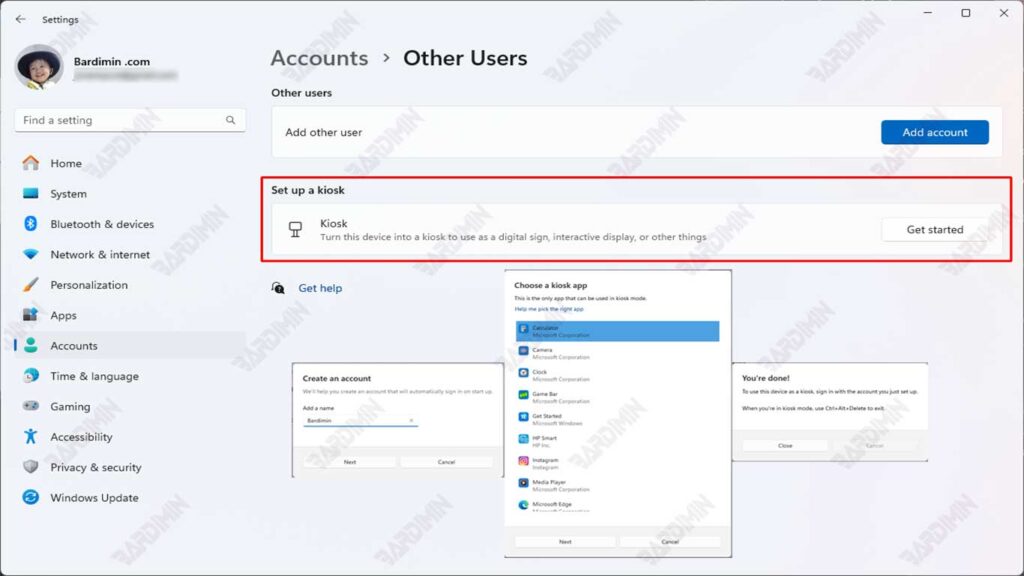
- Open Settings by pressing Win + I.
- Select Accounts > Family & other users.
- In the Set up a kiosk section, click Assigned access.
- Click Get started, then enter the account name for the kiosk.
- Select the UWP app you want to use in kiosk mode.
- Select the appropriate mode:
- Single-App Mode – Only one app runs in full screen.
- Multi-App Mode – Some apps can be accessed from the configured menu.
- Click Save & Restart to apply the settings.
2. How to Automate using PowerShell Script
You can also automate the Kiosk Mode configuration process using PowerShell scripts. Here is an example of a script that can be used:
Set-AssignedAccess -AppUserModelId <AppID> -UserName <Username>- AppID: The ID of the UWP app model that will be used as the kiosk app.
- Username: The username to be set for kiosk mode.
This script will set a specific UWP app as a kiosk app for a specified user, making it easy to configure on multiple devices at once.
3. Configuration Using Mobile Device Management (MDM) or Provisioning Package
For Enterprise environments, you can set up Kiosk Mode using Mobile Device Management (MDM) or Provisioning Package. This is very useful for centrally managing multiple devices.
MDM Policy:
- Use an MDM console such as Microsoft Intune to configure Kiosk Mode.
- Create a policy that defines a UWP app as a kiosk app and apply that policy to the desired device.
Provisioning Package:
- Create a provisioning package using Windows Configuration Designer.
- Include the Kiosk Mode configuration in the package and apply it to the device by installing the provisioning package.
b. Configuration for Classic Win32 Apps
1. Activate the Shell Launcher
To configure Kiosk Mode with the Win32 app, you need to enable Shell Launcher. This can be done through:
a. Programs and Features Wizard:
- Open Control Panel > Programs > Turn Windows features on or off.
- Check Shell Launcher and click OK to install.
b. DISM (Deployment Imaging Servicing and Management):
- Use the following command in Command Prompt with administrator privileges:
DISM /Online /Enable-Feature /FeatureName:Client-EmbeddedShellLauncher2. Setting the Default Shell using the WMI Namespace
Once Shell Launcher is enabled, you can set the default shell using the WMI namespace (root\standardcimv2\embedded). Here’s an example PowerShell script to set the default shell:
$shell = New-Object -ComObject ShellLauncher.Shell
$shell.SetDefaultShell(“path\to\your\app.exe”)- path\to\your\app.exe: The full path to the Win32 application that will be used as the default shell.
3. Options after Application Closed
Administrators can configure the actions that will be performed after the kiosk application is closed. Available options include:
- App Relaunch: The app will be relaunched automatically.
- Restart the Computer: The system will restart after the application is closed.
- Computer Shutdown: The device will be shut down after the application is closed.
Conclusion
Windows 11 Kiosk Mode is an ideal solution for restricting user access and improving system security. This feature allows administrators to control the user experience by restricting access to only certain apps, be they UWP apps or Win32 apps, depending on business needs. By replacing the default shell and isolating user sessions, Kiosk Mode ensures that the system remains safe from misuse or accidental damage.
The choice between UWP apps and Win32 apps provides great flexibility for organizations to customize configurations according to their specific needs. Proper implementation of Kiosk Mode not only improves security but also productivity in the work environment, especially in multi-user or public use scenarios.
With various configuration methods available, ranging from manual through Settings, automatically using PowerShell scripts, to centralized management through MDM or Provisioning Package, Windows 11 Kiosk Mode is a very effective tool to improve operational efficiency and user experience. By utilizing these features, organizations can create a safer, more controlled, and productive work environment.
