

Windows God Mode is a virtual folder that consolidates every system setting and Control Panel shortcut into a single, unified interface. This article provides a complete technical guide to enabling it on Windows 11, 10, and earlier versions, along with an in-depth analysis of its benefits for IT professionals, technicians, and gamers who want to streamline system configuration.
Understanding Windows God Mode Technically
Windows God Mode—officially known as the Master Control Panel shortcut—is a Windows shell feature that leverages a Class Identifier (CLSID) to display every Control Panel applet inside a single folder. Introduced with Windows Vista and retained through Windows 11, it remains highly valued for its efficiency. When a user creates a folder whose name ends with a specific GUID, Windows recognizes it as a virtual folder and renders all Control Panel objects registered in the registry.
With God Mode, technicians can access more than 200 administrative tools without drilling through layered Settings or Control Panel menus.
How the GUID Works in the Windows Shell
The GUID {ED7BA470-8E54-465E-825C-99712043E01C} is a unique identifier registered under HKEY_CLASSES_ROOT\CLSID in the Windows Registry. When File Explorer encounters a folder name containing this GUID, it invokes IContextMenu and IShellFolder interfaces to display virtual content. This folder does not store physical files; every shortcut you see is pulled directly from the Control Panel Category Views and Canonical Names already present on the system. Consequently, God Mode consumes negligible disk space and makes no permanent changes to the registry.
How to Activate God Mode Error-Free
Activating God Mode requires precise folder naming. Follow these detailed steps, suitable for both technicians and casual users:
- Navigate to your desktop or any preferred directory (e.g., D:\Tools). Right‑click, select New > Folder.
- Name the folder exactly as:
GodMode.{ED7BA470-8E54-465E-825C-99712043E01C}. Copy the GUID including the curly braces. Do not add any spaces before or after the dot. - Press Enter. If successful, the folder icon will change to a Control Panel icon and the folder name will disappear (only the icon remains without a label). If nothing changes, refresh the desktop with F5 or double‑check the GUID spelling.
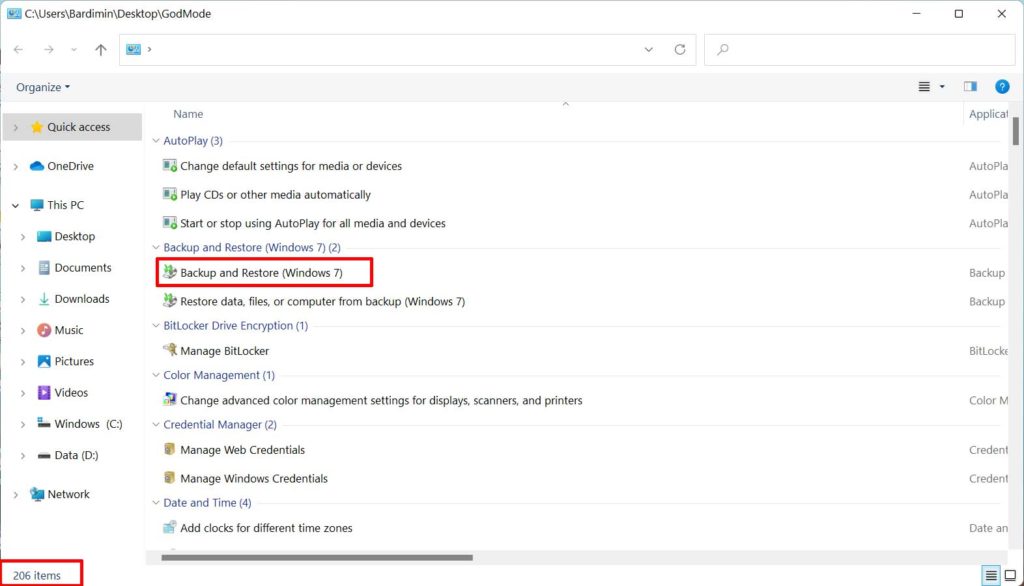
- Double‑click the folder to open God Mode. You will see an alphabetically sorted list of shortcuts, grouped into categories like Administrative Tools, System and Security, and Hardware and Sound.
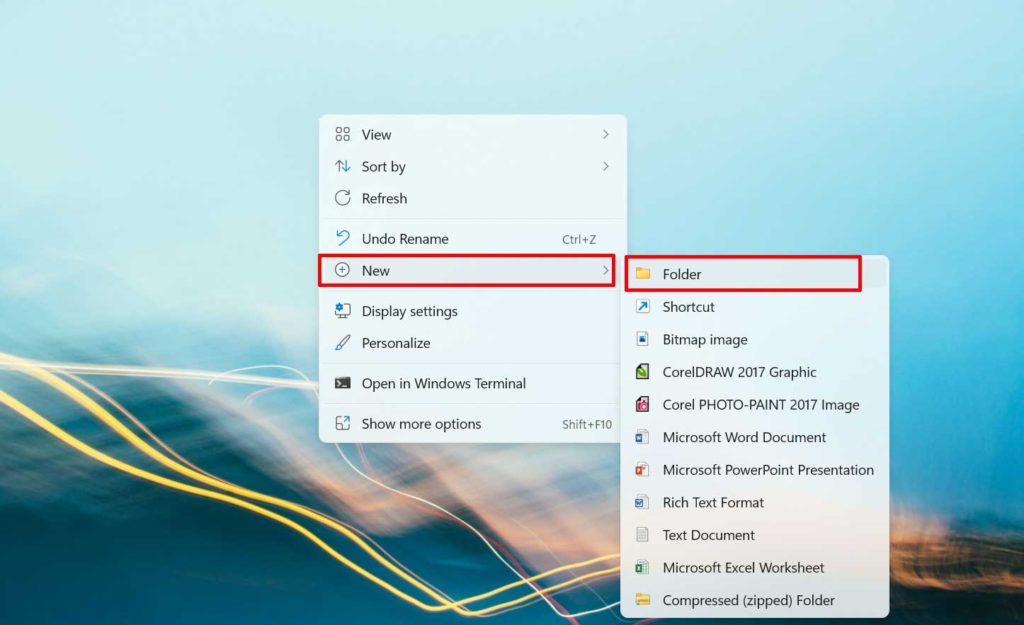
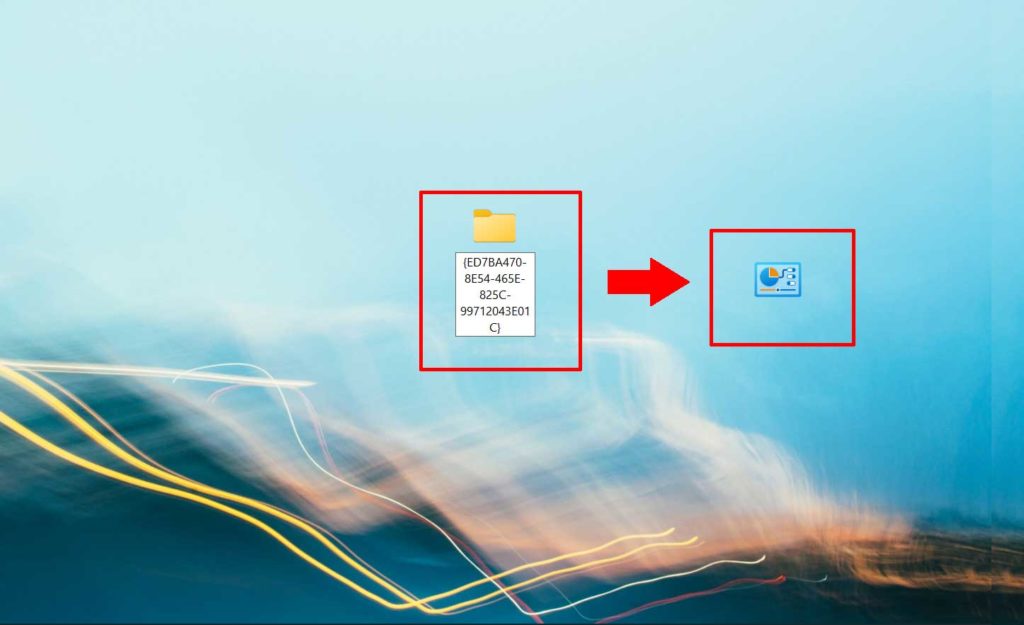
Critical note: Is the GUID case‑sensitive? No, Windows does not differentiate upper/lower case in GUIDs. However, a single wrong character will prevent the folder from becoming God Mode. Always copy‑paste the GUID from a trusted source to eliminate errors.
Analyzing God Mode’s Contents for Different Needs
Once you open God Mode, you are greeted with an exhaustive list of shortcuts. Below are some essential items frequently used by IT professionals:
- Administrative Tools: Includes Computer Management, Defragment and Optimize Drives, Event Viewer, Performance Monitor, Resource Monitor, Services, and System Configuration. These are vital for troubleshooting and maintaining servers or workstations.
- System and Security: Provides access to Action Center, BitLocker Drive Encryption, File History, Windows Defender Firewall, and Security & Maintenance. Ideal for hardening system security and managing policies.
- Network and Internet: Contains Network and Sharing Center, Internet Options, and Remote Access. Simplifies local network and VPN configuration.
- Hardware and Sound: Includes Device Manager, Power Options, Sound, and Printers. Gamers and hardware technicians often turn here to optimize drivers and power management.
Optimization for Professionals and Technicians
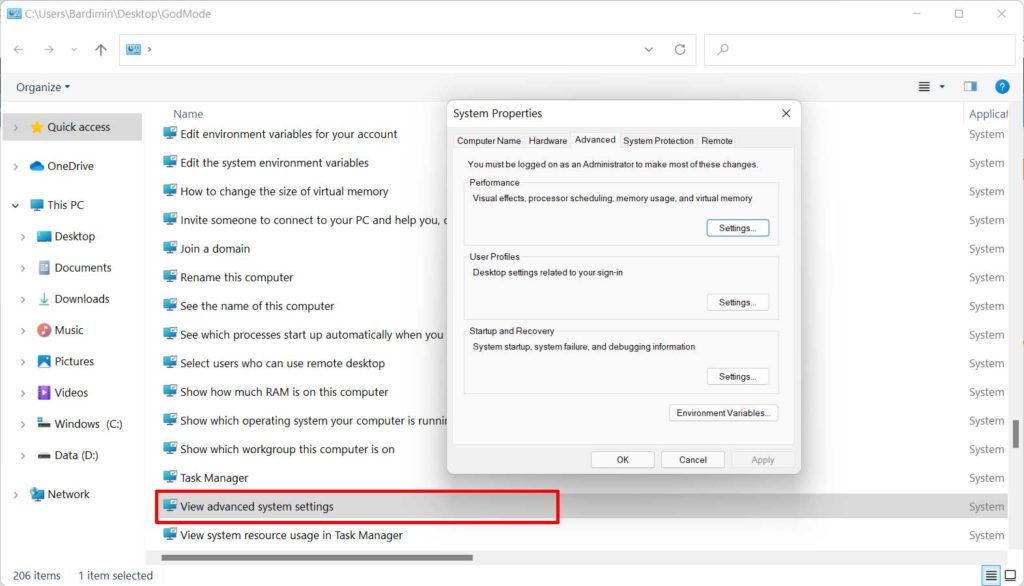
For technicians who regularly perform system repairs, God Mode saves considerable time. For instance, accessing Advanced System Settings (used to configure environment variables and performance) normally requires navigating Settings > System > About > Advanced system settings—at least four clicks. With God Mode, simply locate the shortcut “View advanced system settings” and click once. Similarly, Backup and Restore (Windows 7), which is buried in the modern Control Panel, appears directly in God Mode.
Specific Benefits for Gamers
Gamers can leverage God Mode to boost gaming performance. Relevant shortcuts include:
- Power Options: Choose the High Performance or Ultimate Performance plan (available in Windows 10/11 Pro for Workstations) to ensure the CPU and GPU run at maximum speed.
- Device Manager: Disable unused devices such as Bluetooth or onboard audio controllers to reduce latency and free up resources.
- Performance Information and Tools: Although Windows 11 no longer displays a WEI score, this shortcut still leads to visual effects settings and performance index options.
- Administrative Tools > Resource Monitor: Monitor real‑time CPU, memory, disk, and network usage while gaming to spot bottlenecks.
Technical Deep Dive: Registry Structure and Advanced Customization
God Mode relies on the Shell Folder mechanism defined in the registry. Each Control Panel applet has a Canonical Name (e.g., Microsoft.BackupAndRestore) and its own CLSID. The God Mode folder aggregates every CLSID listed under HKEY_LOCAL_MACHINE\SOFTWARE\Microsoft\Windows\CurrentVersion\Explorer\ControlPanel\NameSpace. Therefore, if you add or remove entries in that registry key, God Mode dynamically adjusts its contents.
Alternative Ways to Open God Mode
Besides creating a folder, you can access God Mode through several other methods:
- Run Dialog: Press
Win + R, typeshell:::{ED7BA470-8E54-465E-825C-99712043E01C}, and hit Enter. The God Mode window opens immediately without creating a folder. - Command Prompt or PowerShell: Run the command
explorer shell:::{ED7BA470-8E54-465E-825C-99712043E01C}for the same result. - Create a Custom Shortcut: Right‑click the desktop, choose New > Shortcut, enter
explorer shell:::{ED7BA470-8E54-465E-825C-99712043E01C}, name it “God Mode”, and finish. This shortcut can be pinned to the taskbar or Start Menu.
Risk Mitigation and Security Considerations
Many users worry that God Mode might compromise their system because of its dramatic name. In reality, God Mode only provides shortcuts to existing tools. No additional code runs, no registry changes occur, and no extra privileges are granted. Standard (non‑administrator) users will still be prompted by User Account Control (UAC) when attempting to access settings that require admin rights. In short, God Mode is a read‑only convenience feature—it simplifies navigation but does not elevate access.
God Mode is a completely safe shell feature supported by Microsoft. It does not modify the system or disable UAC.
— Raymond Chen, Principal Software Engineer at Microsoft (The Old New Thing blog)
For further details on CLSIDs and shell folders, refer to the official Microsoft documentation on Control Panel. For Windows security guidance, visit the Windows Security support page.
Troubleshooting When God Mode Fails
If your folder does not transform into God Mode after renaming, possible causes include:
- GUID typing error: Compare carefully; ensure no missing characters or extra symbols. The correct GUID is
{ED7BA470-8E54-465E-825C-99712043E01C}. - Hidden file extensions: If Windows is set to hide extensions for known file types, the folder might automatically become “GodMode.{ED7BA470-8E54-465E-825C-99712043E01C}.folder. Temporarily disable Hide extensions for known file types in File Explorer Options.
- Registry corruption: In very rare cases, the God Mode CLSID may be unregistered. To fix it, open Command Prompt as administrator and run
regsvr32 /i shell32.dll.
Conclusion and Usage Recommendations
Windows God Mode is a productivity trick every power user, technician, and gamer should know. By consolidating all settings into a single interface, it eliminates the need to remember complex menu paths. Its simple implementation—merely creating a folder or running a command—makes it accessible to anyone. Although it adds no new features, God Mode significantly speeds up workflows and reduces frustration when hunting for specific settings. For best results, combine God Mode with keyboard shortcuts and other administrative tools like Windows Terminal and PowerToys.
