

Boot Configuration Database (BCD) is an important element in the Windows 11 boot process that stores information about how the operating system runs when turned on. BCD replaces the boot.ini file used in previous versions of Windows and is a vital part of modern boot systems, especially on devices using UEFI. BCD allows users to set boot order, choose the default operating system, and manage other boot options.
Understanding how to edit the BCD is essential, especially for users with dual-boot configurations or frequently experience boot issues. By mastering a tool like BCDEdit, you can fix boot issues, improve startup time, or add new boot entries for additional operating systems. However, editing BCDs also comes with risks. Errors in the configuration can cause the system to fail to boot, so it’s crucial to always make a backup before making changes.
Bardimin will provide a step-by-step guide to edit Boot Configuration Database (BCD) in Windows 11 using BCDEdit. From understanding the basics of BCD to using essential commands, you’ll learn how to manage the boot system safely and effectively. Follow the full guide to improve your booting experience!
What is Boot Configuration Database (BCD)?
Boot Configuration database (BCD) is a database that stores important information about boot settings on the Windows operating system. BCD was first introduced with Windows Vista to replace the boot.ini system used in previous versions of Windows. This database makes it easier for users and operating systems to manage boot settings more securely and flexibly.
As an important part of Windows Boot Manager, the BCD functions to determine the operating system to run, the boot parameters used, as well as recovery options in case of problems during booting. When the computer is turned on, Windows Boot Manager will read the information from the BCD to load the operating system selected by the user or that has been set as the default.
BCDs have an organized structure, consisting of various entries each of which has a unique Identifier. Here are the main components of the BCD structure:
- Identifier: Each entry in the BCD has an identifier that can be a technical name, a text string, or a GUID (Globally Unique Identifier). An example of a commonly used identifier is {current}, which refers to the main operating system that is currently active.
- Boot Entry: Each boot entry stores information about the operating system or application to be booted. This includes a path to the boot loader file, such as windowssystem32winload.efi, as well as additional settings such as language and description.
- Global Settings: BCD also stores global settings that apply to all boot entries, such as boot timeout and boot order. This setting can be inherited by a specific boot entry.
Why Edit the Boot Configuration Database?
Boot Configuration Database (BCD) is an important component in the Windows operating system that governs the boot process. Sometimes, users need to edit the BCD to ensure that the system is working properly or to fix existing problems. Here are some of the main reasons why BCD editing is necessary:
1. Dual Boot Settings: Adding or Removing Boot Entries
For users who have more than one operating system on their computer (dual boot), BCD provides convenience in managing boot entries. If the second operating system is not detected automatically, users can add it manually using BCDEdit. In addition, if the old operating system is no longer in use, users can remove it from the boot list to avoid confusion when the computer is turned on.
Adding a new boot entry:
bcdedit /create {ntldr} /d “Windows 7”Delete unused boot entries:
bcdedit /delete {ID}2. Resolving Boot Errors: Fixing Corrupted Boot Manager or Missing Boot Entries
Corruption in the Boot Manager or loss of boot entries can result in Windows not booting. Some common mistakes that can be fixed by editing BCD include:
- “Bootmgr is missing”
- “Operating system not found”
- “The boot configuration data file is missing or contains errors”
One of the most commonly used solutions to solve this problem is to run the following command in Command Prompt in Recovery mode:
bootrec /rebuildbcdThis command will search for an existing operating system and add it back to the BCD.
3. Boot Optimization: Setting a Waiting Time or Changing the Boot Order
Windows gives a waiting time before choosing the default operating system on a computer that has more than one OS. If the user wants to reduce the waiting time or change the boot order, the BCD can be adjusted to speed up the boot process.
Setting the boot timeout (in seconds):
bcdedit /timeout 5Change the boot order to make Windows 11 default:
bcdedit /default {current}4. Windows Boot Customization: Specifying the Default OS, Enabling Debugging, and More
More experienced users may want to enable debugging options, safe mode, or run certain commands at boot. Using BCD, users can perform some additional settings such as:
Enable debugging for system analysis:
bcdedit /debug ONRunning Windows in safe mode:
bcdedit /set {current} safeboot minimalHow to Access and Edit BCDs with BCDEdit
Step 1: Open Command Line as Administrator
To start editing the BCD, you need to open the Command Prompt or Windows Terminal as an Administrator. How:
1. Right-click on Start Menu.
2. Select Command Prompt (Admin) or Windows Terminal (Admin).
Step 2: Use BCDEdit Commands
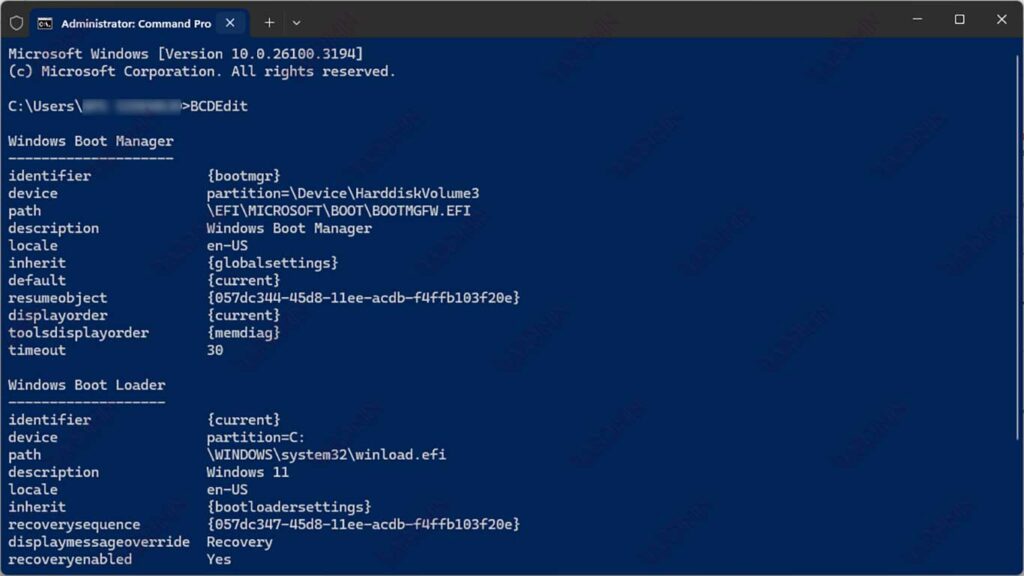
Once the Command Prompt opens, type the following command to view the contents of the BCD:
BCDEditStep 3: Understanding BCD Identification
Each entry in the BCD has an Identifier that can be a technical name, a text string, or a GUID (General Unique Identifier). Example:
{current}This identifier is used to refer to the main operating system that is running.
BCDEdit Command List and Its Functions
BCDEdit is a built-in Windows tool that is used to view and manage Boot Configuration Database (BCD). With this command, users can edit boot entries, adjust operating system settings, and fix boot issues. Here is a list of basic BCDEdit commands and their functions.
BCDEdit Basic Commands and Their Functions
| BCDEdit Commands | Function |
| bcdedit /enum | Displays a list of all entries in Boot Configuration Database. |
| bcdedit /copy {id} /d “OS Name” | Make a copy of an existing boot entry with a new description. |
| bcdedit /delete {id} | Removes unnecessary boot entries. |
| bcdedit /set {id} option value | Changing the boot parameters for a specific entry, e.g. enabling safe mode. |
| bcdedit /default {id} | Set the default operating system to run at boot. |
| bcdedit /timeout X | Specifies the timeout before selecting the default OS (in seconds). |
| bcdedit /bootsequence {id} /addfirst | Set the boot order for one subsequent boot. |
| bcdedit /export filename | Making backup BCD for future recovery. |
| bcdedit /import filename | Import a previously saved BCD backup file. |
| bcdedit /rebuildbcd | It scans all available operating systems and fixes missing boot entries. |
Table of Identifiers in BCDEdit
Each entry in the Boot Configuration Database has a unique identifier used in the BCDEdit command. Here are some identifiers that are often used:
| Identifier | Function |
| {current} | The operating system that is currently in use. |
| {default} | The default operating system is automatically selected at boot. |
| {bootmgr} | Windows Boot Manager that manages the boot process. |
| {ntldr} | Loader for older versions of Windows (XP and earlier). |
| {memdiag} | Windows memory diagnostic tool. |
BCDEdit Important Commands You Should Know
1. bcdedit /bootdebug
This command is used to enable or disable the debugger for a specific boot entry. Example:
bcdedit /store C:\BootDebugLog /bootdebug {current} ON2. bcdedit /bootsequence
This command specifies the boot order for a single boot. Example:
bcdedit /bootsequence {e397815a-15a9-11e5-9622-fc025c6ab93c} {current} {ntldr}3. bcdedit /copy
This command makes a copy of an existing boot entry. Example:
bcdedit /copy {e397815a-15a9-11e5-9622-fc025c6ab93c} /d “Copy of Windows 11”4. bcdedit /create
This command creates a new boot entry. Example:
bcdedit /create {ntldr} /d “Compatibility OS”5. bcdedit /delete
This command deletes certain boot entries. Example:
bcdedit /delete {cbd971bf-b7b8-4885-951a-fa03044f5d71} /cleanup