

Adding descriptions to desktop shortcuts in Windows 11 isn’t just about neatness, it’s about efficiency. By adding custom comments to a shortcut’s pop-up, you can provide context, instructions, or important notes that appear instantly when hovering over the icon. This simple feature is invaluable for technicians, professionals, and gamers who manage numerous shortcuts.
In Windows 11, when you hover your cursor over an object like a file, folder, or shortcut, the system displays an infotip. This small pop-up box typically contains basic information such as the name, modification date, and file size. However, you can customize it. You can add your own custom description to replace or complement the default Windows data.
Why would you want to do this? For instance, you could write the application version, the specific purpose of a folder, or a warning before running a script. This allows you to create a more informative and personalized navigation system on your computer.
Steps to Add Comments to a Shortcut’s Pop-Up
The process for editing this description is very straightforward and only requires a few clicks. You don’t need any third-party software. Here is the complete guide.
1. Open the Properties Menu for the Shortcut
First, locate the shortcut you want to comment on, whether it’s on the desktop or in File Explorer. Next, right-click on the icon. From the context menu that appears, select the bottom option, “Properties“.
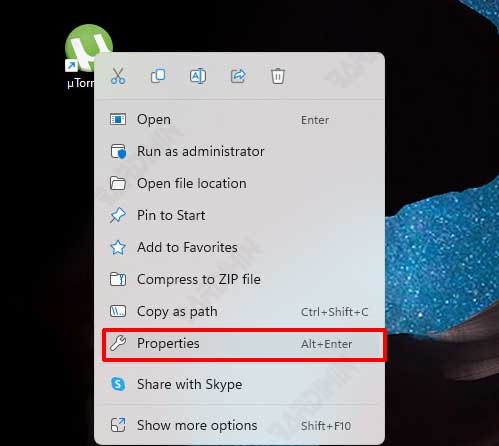
2. Navigate to the Shortcut Tab and Find the Comment Field
Once the Properties window opens, you will see several tabs. Select the tab labeled “Shortcut“. Inside this tab, look for the field or text box labeled “Comment“. This box is the key to customizing the Windows 11 shortcut pop-up.
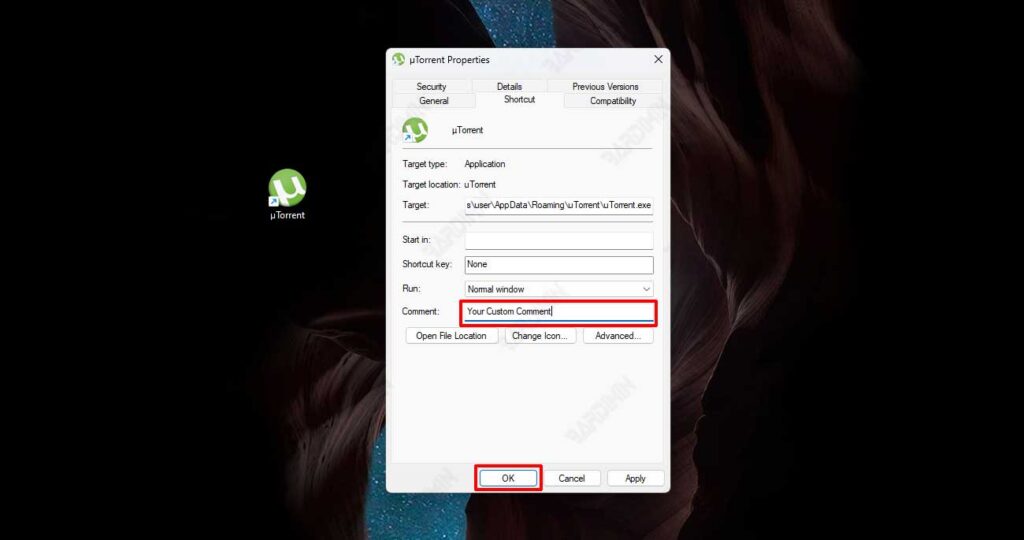
3. Type and Save Your Custom Comment
Now, type the description or custom comment you want to display. The text you enter can be instructions, version notes, or any other relevant information. When finished, click the “Apply” button and then “OK” to close the window.
4. Refresh the View to See the Result
The change may not be immediately visible. Therefore, you need to refresh the desktop view or the File Explorer window. It’s easy—just press the F5 key on your keyboard. After that, hover your cursor over the edited shortcut. The pop-up will now display your newly created custom comment.
Tips and Best Practices for Shortcut Comments
- Use Clear and Concise Language: Infotips have limited space. Write only the key points for easy reading.
- Maintain Consistency: Apply the same format to all similar shortcuts, for example, always including the version number at the beginning.
- Leverage for Collaboration: If the computer is shared, comments can serve as a basic communication system between users.
By following this guide, you have personalized your Windows 11 experience. This feature of adding comments to a shortcut’s pop-up is a small example of the many customizations you can perform to boost productivity. For professionals and technicians, it’s a simple way to keep workflows organized.
For more information on file and shortcut properties, you can refer to the official Microsoft support documentation.
