

Need to limit gaming time on a family or office computer? Windows’ built-in Software Restriction Policies (SRP) feature allows for effective application access control, including blocking specific games. This article outlines practical steps to block game applications with SRP using the Black Listing method.
Software Restriction Policies (SRP) is a longstanding Windows security policy tool, still relevant in Windows 10 and 11 Pro, Enterprise, and Education editions. SRP enables administrators or users with full rights to define which applications are allowed or disallowed to run on the system. It serves as a powerful system-level parental control solution, complementing Windows’ built-in Family Safety features.
Important Note: This guide is intended for advanced users, IT technicians, or parents familiar with system administration. Misconfiguration can affect system performance. Always create a System Restore Point before modifying system policies.
Preparation and SRP Blocking Concept
The Black Listing method in SRP means you only create a list of folder or file application paths to block. Applications not on the list will run normally. This approach is suitable for blocking specific game applications without interfering with other programs.
Before starting, ensure you are logged into Windows with an account that has administrative rights. Then, open the Local Group Policy Editor by pressing Win + R, typing gpedit.msc, and pressing Enter.
Accessing SRP in Group Policy Editor
- In the Local Group Policy Editor window, expand the menu: Computer Configuration > Windows Settings > Security Settings > Software Restriction Policies.
- If this is the first time, right-click on Software Restriction Policies and select New Software Restriction Policies.
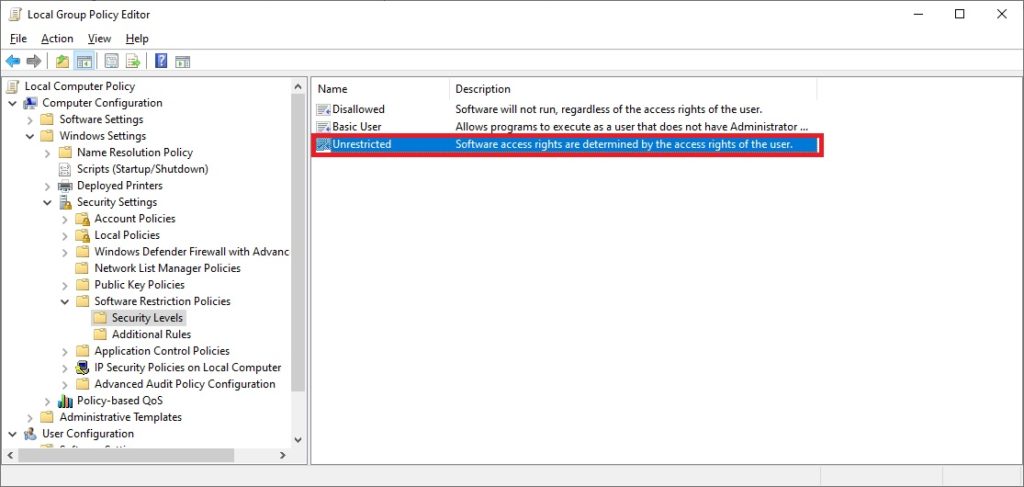
- In the right panel, you will see the Security Levels and Additional Rules options.
Practical Steps to Block Game Applications with SRP
Here are the specific steps to create a blacklist rule to block unwanted game applications.
- In the Security Levels panel, ensure the default security level is set to Unrestricted. This means all applications are allowed to run except those on the block list.
- Click on Additional Rules. Delete any existing default rules (if present) by right-clicking and selecting Delete to start with a clean configuration.
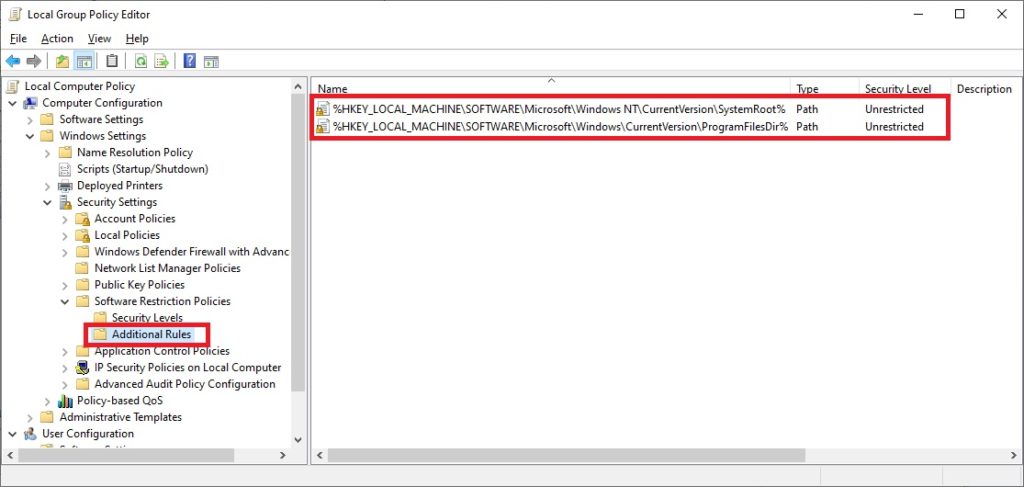
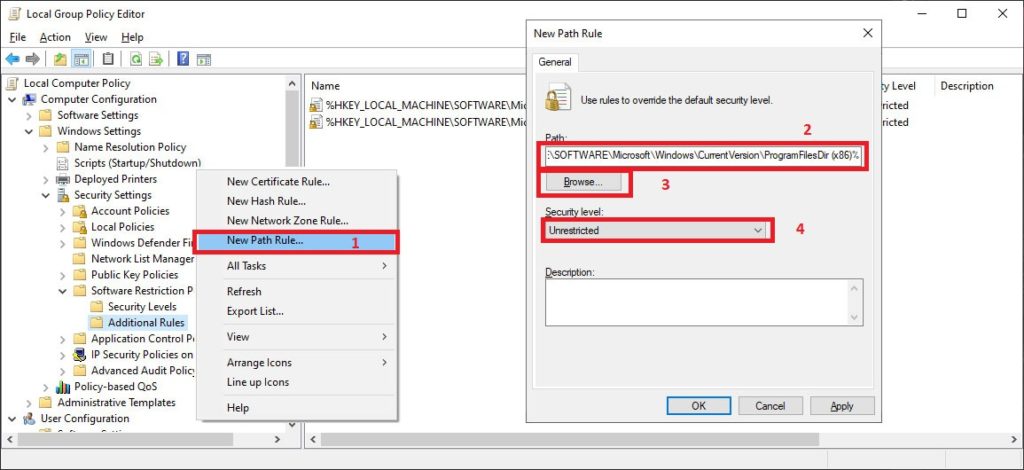
- To create a block rule, right-click in an empty area of the Additional Rules panel, then select New Path Rule.
- In the pop-up window, click Browse to navigate and select the main folder where the target game or application is installed. You can also manually type the path.
- Ensure the Security Level is set to Disallowed.
- Provide a brief description in the Description field, e.g., “Block ABC Game”.
- Click OK to save the rule.
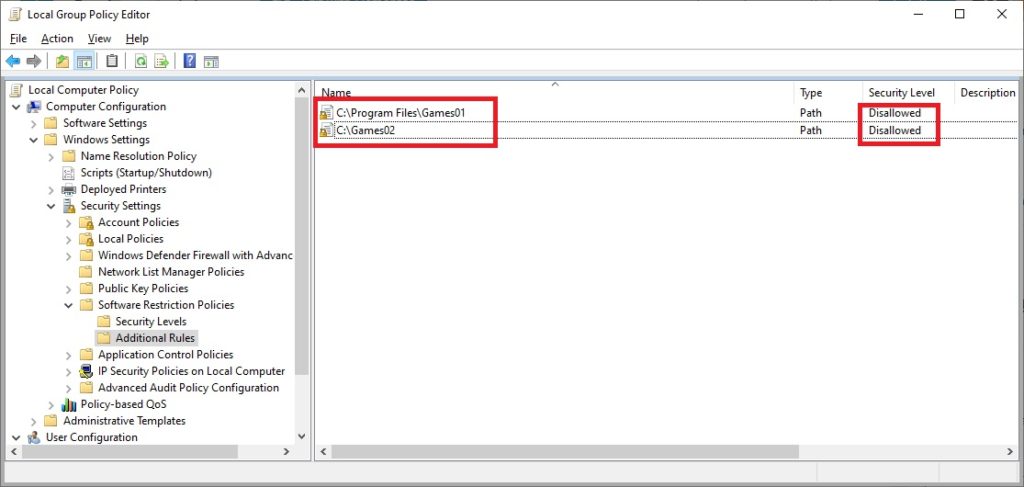
For example, if a game is installed in C:\Program Files\OnlineGame or on another drive like D:\Games\BattleArena, create a path rule for each of those folders. Consequently, all executable files (.exe) within the blocked folder will not run on the system.
Tips and SRP Troubleshooting
After applying the rules, the policy may take a moment to take effect. You can speed this up by opening Command Prompt as administrator and running the command gpupdate /force.
Important Considerations:
- SRP can block based on path, file hash, certificate, or network zone. Path rules are the most common but can be bypassed if the game files are moved.
- Some game launchers (like Steam, Epic Games) may have update mechanisms that could circumvent path rules. Consider blocking the launcher folder if necessary.
- For more granular and modern management, certain Windows editions provide AppLocker. However, SRP remains a valid and powerful solution.
By following this guide, you have leveraged a system feature to control application access. Implementing Software Restriction Policies to restrict games is a proactive step in security and productivity management. Always test the created rules on the target user account to ensure effectiveness.
