

The drawable feature in EditText allows developers to add icons to the sides of Android input fields. However, implementing drawable click EditText requires a specific approach using OnTouchListener. In this practical guide, you’ll learn proven techniques with ready-to-use code optimized for best performance and user experience.
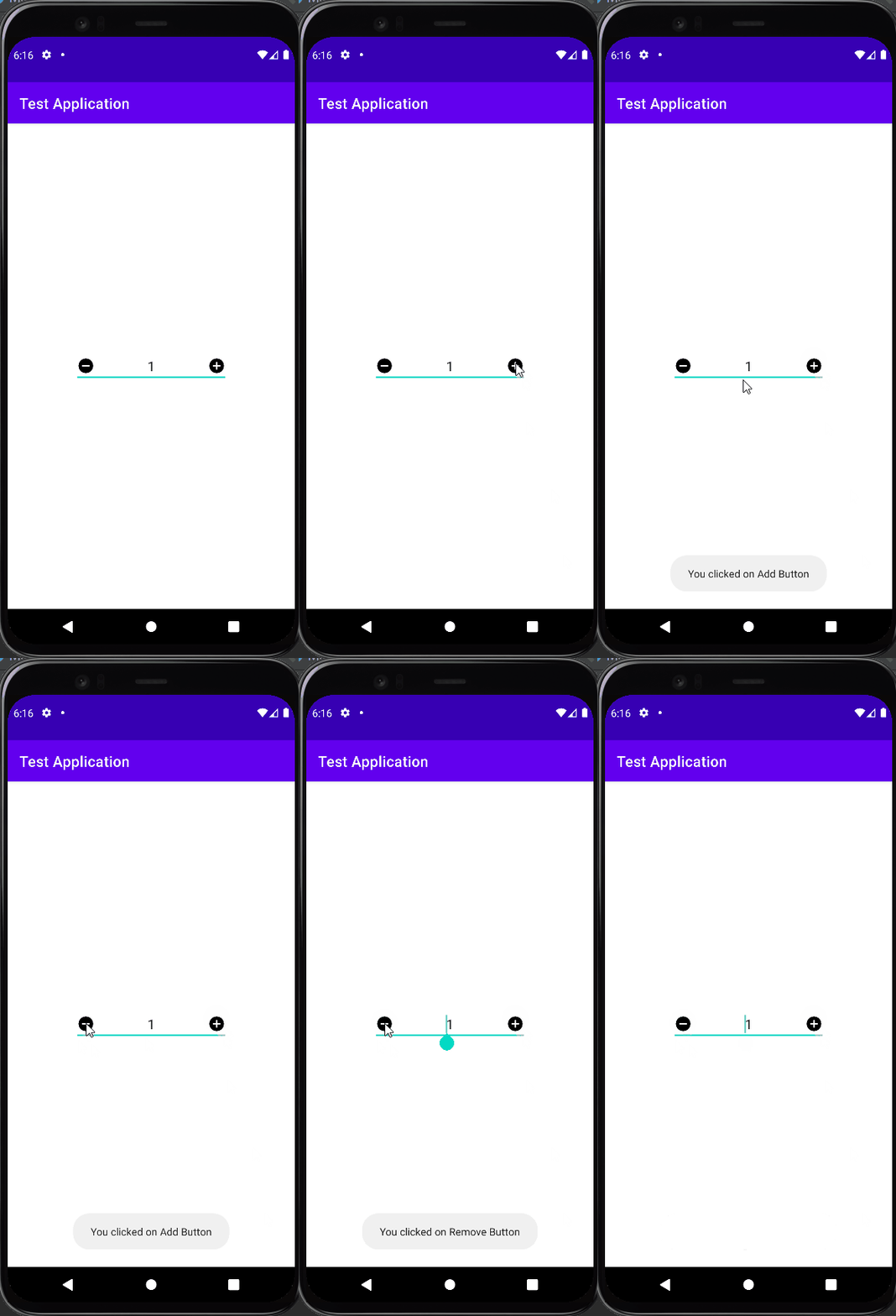
Understanding Drawable Click EditText Concepts
Android’s EditText supports drawable placement in four different positions: start, top, end, and bottom. To handle clicks on these elements, you need to use OnTouchListener since there’s no dedicated onClick method. This approach enables precise tap coordinate detection and comparison with the drawable area.
As a developer, understanding the drawable click EditText mechanism is crucial for creating intuitive user experiences. This technique is commonly used in input forms, search fields, and numerical controls across modern Android applications.
XML Layout Implementation for Drawables
First, create a layout with EditText that has drawables in both drawableStart and drawableEnd properties. Ensure you’ve added the required icons in the res/drawable folder with appropriate sizes and resolutions.
<?xml version="1.0" encoding="utf-8"?>
<androidx.constraintlayout.widget.ConstraintLayout
    xmlns:android="http://schemas.android.com/apk/res/android"
    xmlns:app="http://schemas.android.com/apk/res-auto"
    android:layout_width="match_parent"
    android:layout_height="match_parent"
    android:padding="16dp">

    <EditText
        android:id="@+id/editText1"
        android:layout_width="0dp"
        android:layout_height="wrap_content"
        android:drawableStart="@drawable/ic_baseline_remove_circle_24"
        android:drawableEnd="@drawable/ic_baseline_add_circle_24"
        android:drawablePadding="8dp"
        android:ems="10"
        android:gravity="center_horizontal"
        android:inputType="number"
        android:text="1"
        android:textSize="18sp"
        app:layout_constraintEnd_toEndOf="parent"
        app:layout_constraintStart_toStartOf="parent"
        app:layout_constraintTop_toTopOf="parent" />

</androidx.constraintlayout.widget.ConstraintLayout>
OnTouchListener Configuration in MainActivity
Here’s the comprehensive OnTouchListener implementation to detect clicks on drawables. Use drawable position constants and accurately calculate tap boundary areas for reliable interaction.
public class MainActivity extends AppCompatActivity {

    private static final int DRAWABLE_LEFT = 0;
    private static final int DRAWABLE_RIGHT = 2;

    @SuppressLint("ClickableViewAccessibility")
    @Override
    protected void onCreate(Bundle savedInstanceState) {
        super.onCreate(savedInstanceState);
        setContentView(R.layout.activity_main);

        setupDrawableClickListeners();
    }

    private void setupDrawableClickListeners() {
        EditText myText = findViewById(R.id.editText1);
        myText.setOnTouchListener((view, motionEvent) -> {
            if (motionEvent.getAction() == MotionEvent.ACTION_UP) {
                Drawable[] drawables = myText.getCompoundDrawables();

                // Detect click on end drawable (right)
                if (isDrawableClick(motionEvent, myText, drawables, DRAWABLE_RIGHT)) {
                    incrementValue();
                    return true;
                }

                // Detect click on start drawable (left)
                if (isDrawableClick(motionEvent, myText, drawables, DRAWABLE_LEFT)) {
                    decrementValue();
                    return true;
                }
            }
            return false;
        });
    }

    private boolean isDrawableClick(MotionEvent event, EditText editText,
                                   Drawable[] drawables, int drawableIndex) {
        if (drawables[drawableIndex] == null) {
            return false;
        }

        int drawableWidth = drawables[drawableIndex].getBounds().width();
        float x = event.getRawX();

        switch (drawableIndex) {
            case DRAWABLE_RIGHT:
                return x >= (editText.getRight() - drawableWidth - editText.getPaddingRight());
            case DRAWABLE_LEFT:
                return x <= (editText.getLeft() + drawableWidth + editText.getPaddingLeft());
            default:
                return false;
        }
    }

    private void incrementValue() {
        EditText myText = findViewById(R.id.editText1);
        try {
            int value = Integer.parseInt(myText.getText().toString());
            myText.setText(String.valueOf(value + 1));
        } catch (NumberFormatException e) {
            myText.setText("1");
        }
    }

    private void decrementValue() {
        EditText myText = findViewById(R.id.editText1);
        try {
            int value = Integer.parseInt(myText.getText().toString());
            if (value > 1) {
                myText.setText(String.valueOf(value - 1));
            }
        } catch (NumberFormatException e) {
            myText.setText("1");
        }
    }
}
Advanced Implementation Techniques
For more complex scenarios, consider implementing multiple drawable interactions and handling different drawable states. This approach enhances the drawable click EditText functionality for professional applications.
// Advanced drawable click handling with state management
public class AdvancedEditTextDrawableClickListener implements View.OnTouchListener {
    private final DrawableClickCallback callback;

    public interface DrawableClickCallback {
        void onDrawableClick(int drawablePosition);
    }

    public AdvancedEditTextDrawableClickListener(DrawableClickCallback callback) {
        this.callback = callback;
    }

    @Override
    public boolean onTouch(View v, MotionEvent event) {
        if (event.getAction() == MotionEvent.ACTION_UP && v instanceof EditText) {
            EditText editText = (EditText) v;
            Drawable[] drawables = editText.getCompoundDrawables();

            for (int i = 0; i < drawables.length; i++) {
                if (drawables[i] != null && isDrawableClicked(editText, drawables[i], i, event)) {
                    callback.onDrawableClick(i);
                    return true;
                }
            }
        }
        return false;
    }

    private boolean isDrawableClicked(EditText editText, Drawable drawable,
                                    int position, MotionEvent event) {
        // Implementation for precise drawable click detection
        return calculateDrawableClick(editText, drawable, position, event);
    }
}
Best Practices and Performance Optimization
To achieve optimal drawable click EditText implementation, always check drawable existence before processing events. Additionally, use getRawX() for absolute coordinates or getX() for relative coordinates based on your specific requirements.
- Validate null on drawables before accessing bounds
- Use density-independent pixels for visual consistency
- Implement visual feedback for user interactions
- Optimize performance by avoiding repeated calculations
- Handle configuration changes and memory management
- Test on various screen densities and sizes
Common Issues and Troubleshooting
When implementing drawable click EditText functionality, developers often encounter specific challenges. Here are solutions to common problems:
- Drawable not responding to clicks: Check drawable bounds and padding calculations
- Inconsistent tap detection: Verify coordinate system usage (rawX vs X)
- Performance issues: Optimize drawable loading and event handling
- Memory leaks: Properly manage listeners in lifecycle methods
Advanced Enhancement Strategies
By mastering drawable click EditText techniques, you can create more intuitive interactions in Android applications. Always test functionality across various devices to ensure consistent responsiveness and compatibility.
For additional reference on Android development best practices, visit the official Android Developers documentation for comprehensive guidance on touch handling and gesture detection.
Furthermore, consider implementing haptic feedback and accessibility features to make your drawable click EditText implementations more inclusive and user-friendly for all audiences.
