

Updated 2025 Guide: This article has been updated for Windows 11 version 23H2, including the latest Group Policy methods and current security recommendations.
Experiencing dropped network connections when trying to access file shares from legacy printers or IoT devices? This issue is often caused by mismatched encryption standards. This comprehensive guide will discuss in detail how to change the file sharing encryption level in Windows 11, complete with in-depth risk analysis, modern alternative solutions, and best practices for hybrid networks.
For IT professionals, network technicians, or gamers building a LAN party, the Windows 11 File Sharing feature is a vital component. By default, Microsoft enforces 128-bit encryption to protect every data transfer between devices. However, this high-security standard creates compatibility barriers with legacy equipment.
Many older devices such as early-2000s network printers, certain IoT systems, or NAS devices with outdated firmware only support 40- or 56-bit encryption. Consequently, the authentication process fails and the connection is rejected. Therefore, understanding how to change the file sharing encryption level in Windows 11 becomes an essential skill for system administrators and advanced users.
Why Adjust the Encryption Level? In-Depth Technical Analysis
Before making changes, first identify the specific scenarios that require this adjustment. Here are the two main cases frequently encountered in the field:
- End-of-Life (EoL) Device Compatibility: Drivers or firmware for network devices that no longer receive security updates often only support older encryption standards (RC4). Examples include early-generation enterprise printers and some industrial control systems.
- Advanced SMB Protocol Troubleshooting: If you encounter errors like “ERROR_ACCESS_DENIED” or “STATUS_BAD_NETWORK_NAME” even though permission configurations are correct, incompatibility in SMB encryption negotiation could be the root cause.
Critical Security Warning: Lowering the encryption level increases vulnerability to man-in-the-middle and eavesdropping attacks. Always apply this change only on isolated, trusted private networks. Avoid implementation on public networks or guest WiFi.
Method 1: Change Encryption Level via Advanced Sharing Settings (GUI)
Below are the detailed steps validated on Windows 11 version 23H2. This process requires local administrator rights.
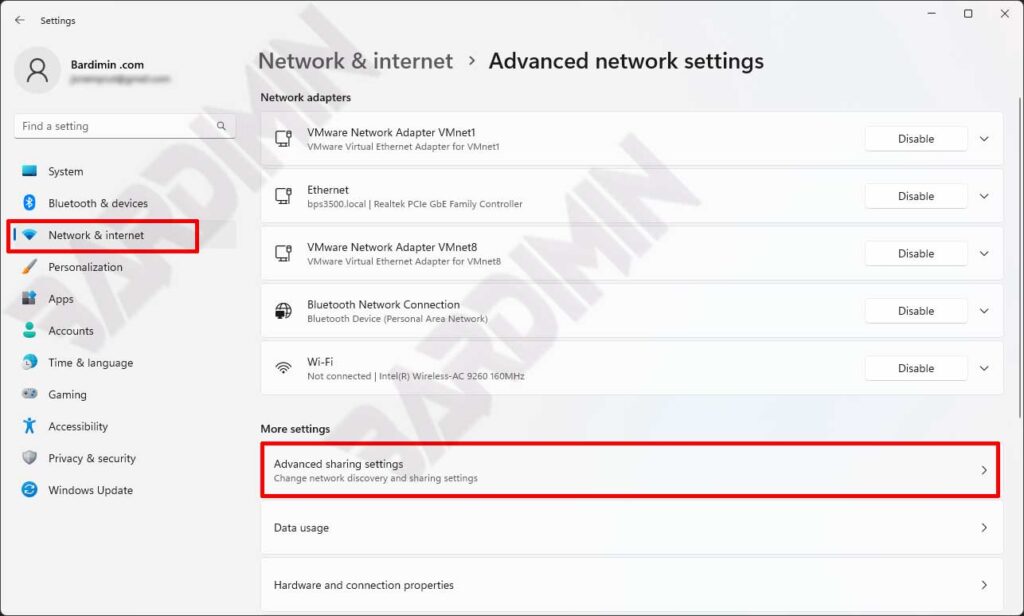
- Access Network & Internet Settings.
Right-click the network icon in the system tray (taskbar) > select “Network and Internet settings“. Alternatively, open Settings (Win + I) > go directly to “Network & internet“. - Navigate to Advanced Network Settings.
Scroll down and click “Advanced network settings“. Then, under “More settings”, select “Advanced sharing settings“. - Configure Network Profile.
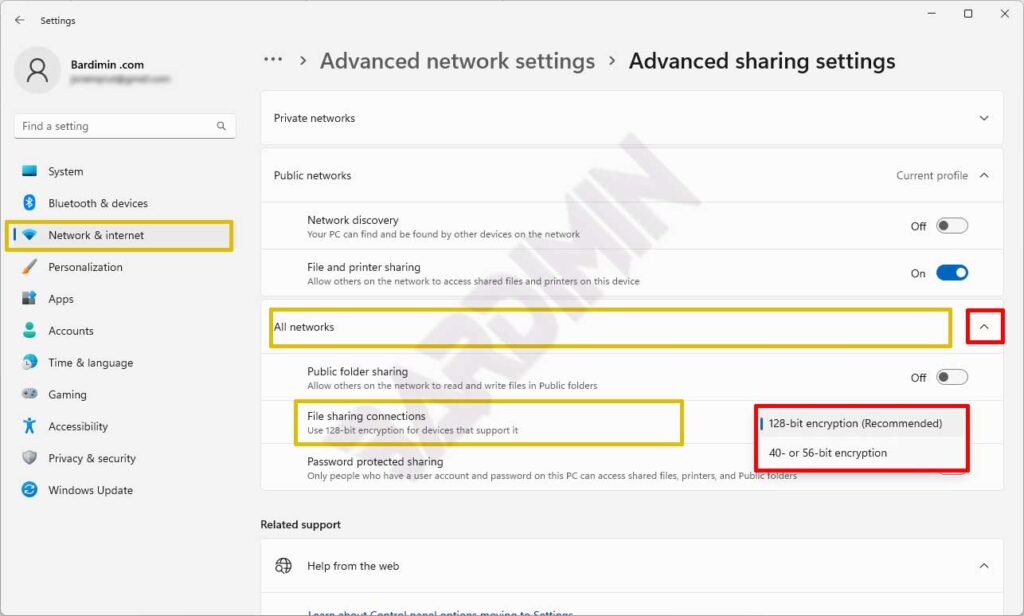
Ensure you are in the active network profile (Private/Home). For a universal change, expand the “All Networks” section at the very bottom of the window.
- Modify File Sharing Encryption Settings.
Scroll until you find the subsection “File sharing connections”. Click the dropdown menu next to it to see the options:
– Enable 128-bit encryption (recommended): The default high-security standard for Windows 11.
– Enable 40 or 56-bit encryption: Select this option for compatibility with legacy devices.
- Apply and Validate Changes.
Click “Save changes“. To ensure the changes take effect, restart the computer or execute the following command in PowerShell (Admin):
Restart-Service -Name LanmanWorkstation -Force
Then, test the connection to the target shared resource.
Method 2: Configuration via Local Security Policy (For Enterprise Environments)
On Windows 11 Pro, Enterprise, or Education editions, you can use a more centralized tool to manage this policy systematically.
- Open Local Security Policy (secpol.msc) as Administrator.
- Navigate to: Local Policies > Security Options.
- In the right panel, find the policy named: “Network security: Configure encryption types allowed for Kerberos“.
- Double-click it, then enable the “DES_CBC_CRC” and “DES_CBC_MD5” options to allow compatibility with weaker encryption.
- Apply and restart the computer. This method provides more granular control but is only available in specific editions.
Method 3: Registry Editor Modification (Advanced Users & Scripting)
For mass deployment scenarios or scripting automation, modifying the registry is an effective option to change the file sharing encryption level in Windows 11.
- Open Registry Editor (regedit) with administrator privileges.
- Navigate to the following key:
HKEY_LOCAL_MACHINE\SYSTEM\CurrentControlSet\Control\Lsa\MSV1_0 - In the right panel, create a new DWORD (32-bit) value named “NtlmMinClientSec”.
- Set the Value data to “536870912” (decimal). This value allows the use of weaker session keys (56-bit).
- Restart the computer or the workstation service. Important note: Always back up the registry before making modifications. Errors can cause system instability.
Risk Mitigation Strategies and Hybrid Security Architecture
Lowering the encryption level must be balanced with a layered defense strategy. Here is a comprehensive recommended approach:
- Network Segmentation with VLANs: Isolate legacy devices requiring lower encryption on a separate VLAN. Implement strict firewall rules to restrict traffic between the legacy VLAN and the main network.
- SMB Signing Implementation: Mandatorily enable SMB Packet Signing via Group Policy (
Microsoft network server: Digitally sign communications (always)). This ensures data integrity even if encryption is lowered. - Transition to Modern Solutions: Consider replacing End-of-Life devices with equipment supporting current security standards like SMB 3.1.1 with AES-256-GCM. Read security recommendations from the Microsoft Security Baseline for SMB for more detailed guidance.
- Monitoring and Auditing: Enable auditing for file share access (Audit Object Access) and regularly monitor security logs to detect suspicious activity.
Comprehensive Troubleshooting and Alternative Solutions
If the problem persists even after you change the file sharing encryption level in Windows 11, investigate the following areas:
- Firewall and Endpoint Protection: Verify that inbound firewall rules for “File and Printer Sharing (SMB-In)” are enabled for all network profiles (Domain, Private). Some third-party endpoint security solutions may also block older SMB protocols.
- SMB Protocol Version Issues: Very old devices (like Windows 2000/XP) may require SMBv1, which is disabled by default in Windows 11 due to severe security vulnerabilities (e.g., EternalBlue). Avoid enabling SMBv1. Instead, consider using a Windows Server as a bridge with “SMB Transparent Failover” features or deploy a file gateway application.
- Authentication and Credentials: Windows 11 blocks network logon connections with empty credentials by default. For workgroups, ensure the use of accounts with identical passwords on both machines, or configure Computer Configuration\Windows Settings\Security Settings\Local Policies\Security Options: “Network access: Sharing and security model for local accounts” to “Classic”.
- Alternative File Sharing: For very difficult cases, consider alternative protocols such as FTP over TLS/SSL, WebDAV with HTTPS, or third-party solutions like SFTP/SCP. While requiring additional configuration, this approach is often more secure and stable.
