

While Windows 11 comes with Microsoft Edge as its default browser, many users prefer Chrome, Firefox, or other browsers as their go-to application for web browsing. This article will guide you through the latest, simple steps to change the default browser in Windows 11 according to your preference, whether for comfort, productivity, or a better gaming experience.
As a professional or gamer, having full control over your device is crucial. The default browser is often linked to URLs from other apps, emails, or documents. Therefore, using the browser you are most proficient with can boost your efficiency and security. The process of changing it is now more intuitive in Windows 11.
Why Should You Change the Default Browser in Windows 11?
Microsoft Edge is a solid browser with modern features. However, you may have invested time in another browser’s ecosystem. For instance, bookmark and extension syncing in Chrome or Firefox, or a preference for specific performance in heavy web applications. Setting your chosen Windows 11 default browser ensures all links open in an environment you have already configured.
Complete Guide: How to Change the Default Browser in Windows 11
Ensure your browser of choice is already installed on your computer. Then, follow the systematic steps below. This process applies to the latest Windows 11 updates.
- Open the Settings App. You can press the Windows + I keys on your keyboard to open it quickly.
- In the Settings window, select the Apps menu on the left, then click Default apps.
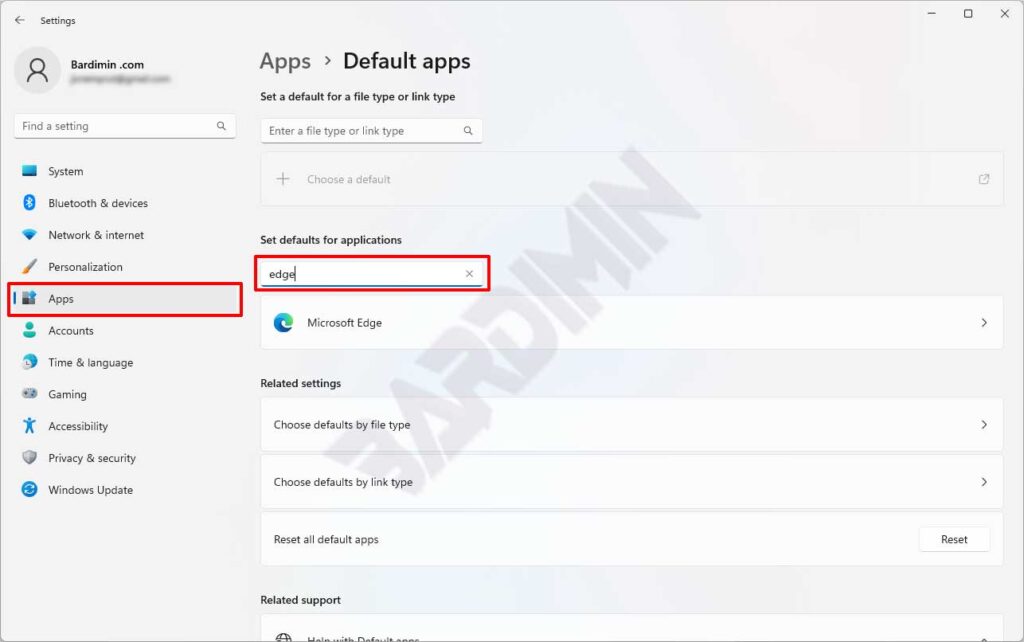
- In the search box under “Set defaults for applications,” type Microsoft Edge. Alternatively, scroll down the list until you find it. Click on the Microsoft Edge logo.
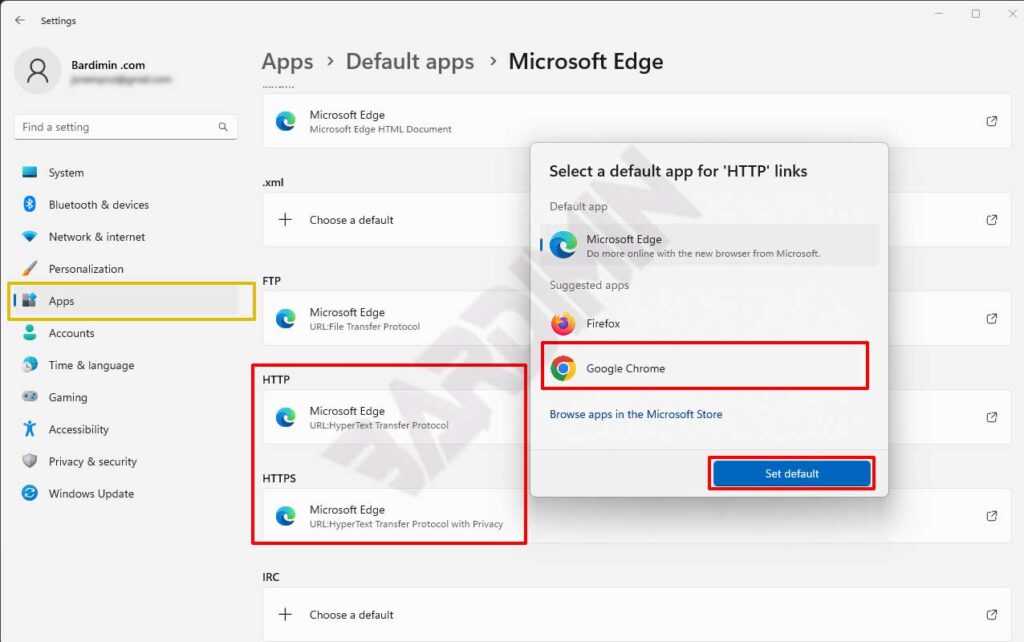
- You will see a list of protocols and file types (such as .HTML, .HTM, HTTP, HTTPS). To change the Windows 11 default browser comprehensively, find the entries for HTTP and HTTPS. Click on the application listed next to them (Microsoft Edge).
- A “Choose an app” pop-up window will appear. Select your preferred browser (for example, Google Chrome) from the available list.
- Finally, click Switch anyway or Set default to confirm the change. Repeat the same step for the HTTPS protocol if required.
Verify Your Default Browser Change
After following the steps above, it’s a good idea to ensure the settings were successful. Try opening a link from apps like Email or WhatsApp Desktop. The link should now open in your chosen browser. Additionally, the default browser icon in the Start Menu will also change.
Important Tips and Considerations for Users
This process is completely reversible. You can always return to Microsoft Edge at any time by repeating the previous steps. Note that some applications, especially from Microsoft like Teams or Widgets, may still use the Edge engine internally. However, for your primary web browsing activities, your chosen browser will be active.
For technicians and gamers, using a browser that supports productivity extensions or features like optimal hardware acceleration can make a noticeable difference. Ensure your browser is updated to the latest version for maximum performance and security.
By completing this configuration, you have taken full control of a vital tool for work and online activities. Changing the default browser in Windows 11 is a simple step for personalization that significantly impacts your daily workflow.
