
Ensuring Python integration with Environment Variable in Windows is critical so Python programs can be accessed directly through Command Prompt. By adding Python Path to Windows PATH, you can run Python commands from anywhere without including the full path. This not only increases efficiency in development but also makes it easier to run scripts and install packages using pip.
Bardimin will provide practical and safe steps to add Python Path to Windows PATH so that the application can function optimally. Bardimin will discuss two methods: automatic addition during installation and manual addition through system settings.
Methods of Adding Python to PATH Automatically
When you install Python, you have the option to add Python to PATH automatically through the installer. This ensures that Python integrates directly with Environment Variable without the need to manually set up PATH.
Steps to Add Python to PATH During Installation
- Visit the official Python website: https://www.python.org/ and download the latest version of Python that is compatible with your Windows operating system.
- Run the downloaded Python installer file by double-clicking.
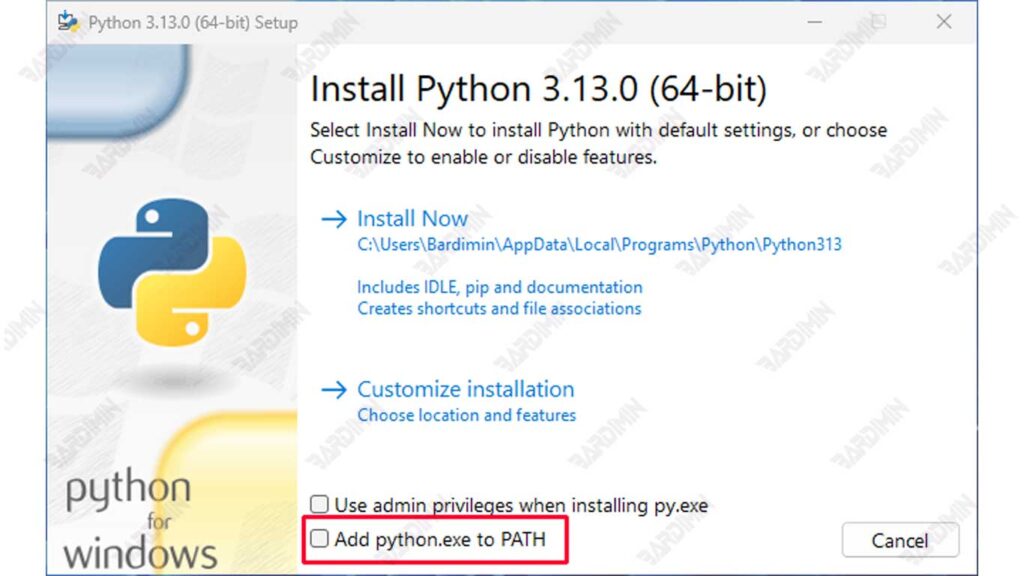
- On the installer’s initial window, make sure to check the “Add Python to PATH” option located at the bottom. This option will automatically add the Python directory to your Windows system PATH.
- After checking the option, click “Install Now” to continue the installation process. By selecting this option, Python will automatically connect to Environment Variable PATH, so you can access it directly through Command Prompt.
How to Add Python to PATH Manually
If you don’t select the “Add Python to PATH” option during the installation process, you can add it manually via Environment Variables in Windows. This step will ensure that Python can be accessed via Command Prompt.
Steps to Add Python Path in Windows
1. Verify the installation of Python
- Open the Command Prompt by pressing Win + R, typing cmd, and then pressing Enter.
- Enter the following command to check if Python is installed:
python --versionIf the Python version is displayed, it means that Python is already installed on your system. Otherwise, you need to download and install Python first from [Python official website](https://www.python.org/).
If Python is already installed but has not been added to the PATH, please proceed to the next step to configure it manually.
2. Find the Python Location on Your Computer
To find the location of the Python installation on your computer, you can follow these steps:
Access the Python Installation Folder
Python is generally installed in one of the following two locations:
- C: \Program Files\Python313
- C:\Users\<Username>\AppData\Local\Programs\Python\Python313
Replace <Username> with the appropriate username.
Inside the folder, you’ll find a file like python.exe, which indicates that Python is installed in that location.
Methods to Find Locations Easily
If you’re not sure where Python is installed, you can use the following steps to find it:
- Open Command Prompt by pressing the Windows + R key, type cmd, and then press Enter.
- Enter the following command and press Enter:
where python- This command will show you the full path to the Python executable if it is already installed and registered in the PATH.
3. Open System Properties in Windows
To unlock System Properties in Windows, follow these steps:
- Press the Windows + R button combination at the same time to open the Run dialog box.
- Type sysdm. cpl in the dialog box that appears, then press Enter. This will display the System Properties window.
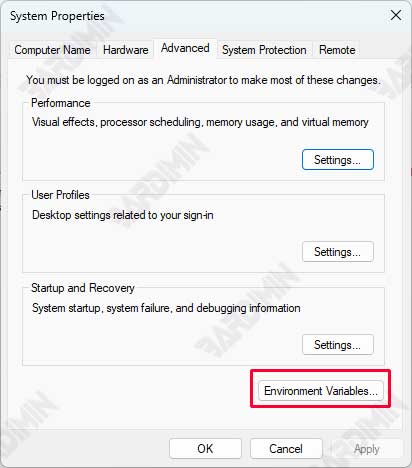
- In the System Properties window, select the “Advanced” tab. This tab contains advanced settings for your system.
- At the bottom of the Advanced tab, click the “Environment Variables….” button. This will open a new window showing the Environment Variables for the system and the user.
4. Adding Python Paths to Environment Variables
After opening the Environment Variables window, the next step is to add a Python Path to the variable. Here are the steps to follow:
Find and Select Variabel Path
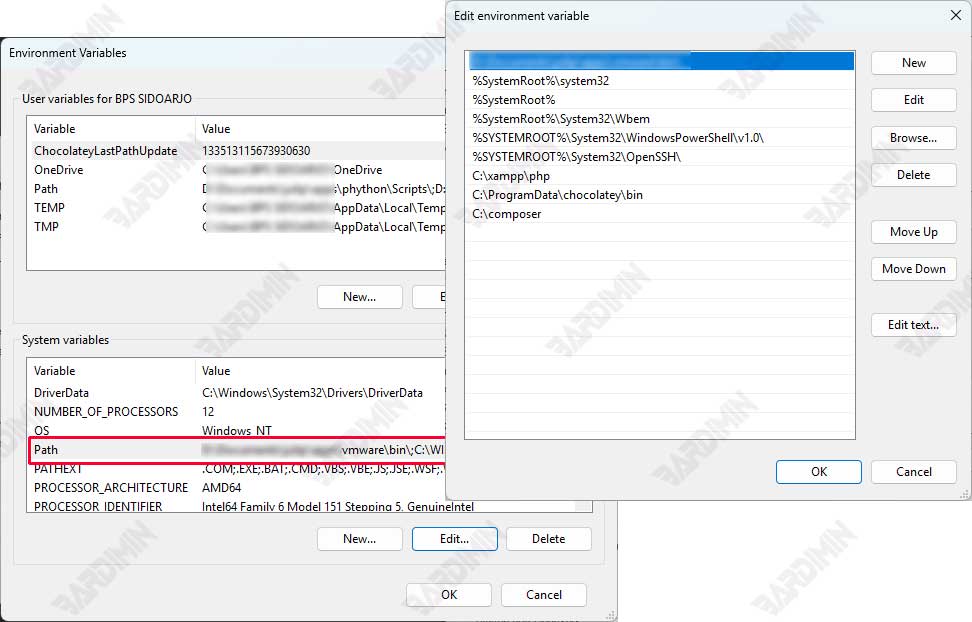
- In the System Variables section, look for a variable named Path.
- Select the variable and click the Edit…. button.
Add Python Installation Folder Location
- In the Edit Environment Variables window, you’ll see a list of existing paths.
- Click the New button to add a new path.
- Enter the location of the Python installation folder. These locations are usually the following:
C:\Users\<Username>\AppData\Local\Programs\Python\Python313
Replace <Username> with your appropriate username.
Add Scripts Directory
After adding the main installation path, you will also need to add the Scripts directory that is inside the Python installation folder. These paths are usually the following:
C:\Users\<Username>\AppData\Local\Programs\Python\Python313\Scripts
Click the New button again and enter this path.
Save Changes
- Once all paths have been added, click OK to save the changes in the Edit Environment Variables window.
- Click OK again in the Environment Variables window, and then click OK in the System Properties window to close it.
5. Verify PATH Settings
Once you’ve added Python to the PATH, the final step is to verify that the configuration has been done successfully. Here are the steps to check those settings:
- Press the Windows + R button to open the Run dialog box.
- Type cmd and press Enter to open Command Prompt.
- In the Command Prompt window, type the following command and press Enter:
Python- If Python opens without any issues and you see a Python interactive prompt (often a >>>), then the configuration has been done successfully.
- If you see an error message like:
'python' is not recognized as an internal or external command, operable program, or batch file.Then this indicates that there is a problem with the PATH settings and you need to double-check the steps you have taken.
