

Imagine opening Gmail to find all your important emails gone, replaced by a ransom threat from hackers. This terrifying scenario is real. This article discusses 6 critical Gmail security features you must activate now to build a defensive fortress and prevent a digital tragedy.
Cybersecurity statistics reveal a shocking fact. According to a study from the University of Maryland, attacks on email accounts happen every 39 seconds. Since the pandemic, attacks on accounts like Gmail have even surged by 300%. This risk is real for professionals, technicians, and gamers who store vital data in email.
Paradoxically, Gmail security can actually be drastically improved with built-in features that are often overlooked. Google has embedded advanced defense layers. Unfortunately, many users haven’t activated them. Yet, in an era of sophisticated phishing and social engineering, passwords alone are no longer enough. Therefore, let’s be proactive. Here are 6 Gmail security features you must configure immediately to protect your digital assets.
1. Two-Factor Authentication (2FA): The Primary Shield Against Intruders
Two-Factor Authentication (2FA) is the foundation of modern Gmail security. This feature adds a second verification layer. So, even if your password is leaked, hackers still need a one-time code (OTP) that only exists on your phone or authenticator app.
According to Google, enabling 2FA can block up to 99% of automated hacking attempts, even if your password is considered weak. This is the first and most important line of defense.
How to Enable 2FA in Gmail:
- Open your Google Account.
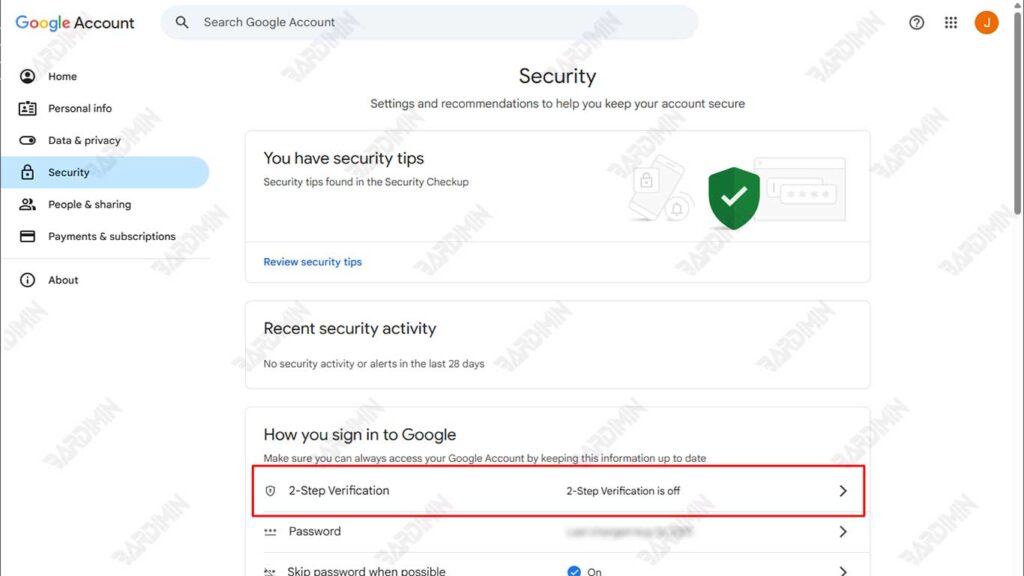
- Select “Security” in the left menu.
- Find the “How you sign in to Google” section and choose “2-Step Verification”.
- Click “Get Started” and follow the instructions to link your phone number or an authenticator app (like Google Authenticator or Authy).
2. Advanced Protection Program: The Fortress for VIP Accounts
For professionals with access to highly sensitive data (like CEOs, journalists, activists), the Advanced Protection Program (APP) is Google’s strongest solution. This program restricts access only to trusted devices and requires a physical security key (like a YubiKey) to log in.
- Who it’s for: Individuals at high risk of targeted attacks, owners of secret intellectual property data, or anyone wanting maximum protection.
- Advantages: Blocks access from unverified third-party apps, prevents automated phishing, and requires physical authentication.
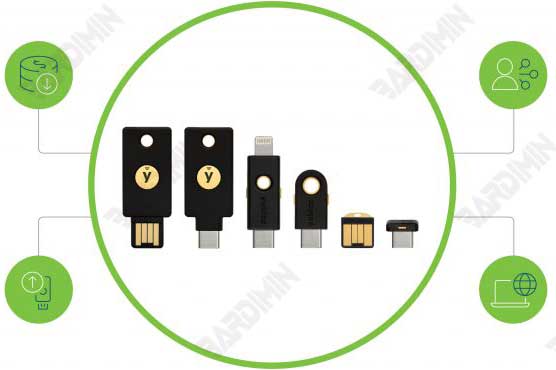
How to Enroll: Visit g.co/advancedprotection. You will need at least two physical security keys (one primary, one backup) to start.
3. Use a Password Manager & Create Unique Passwords
The habit of using the same password for many accounts is a security disaster. If one site is breached, all your accounts are at risk. The solution is to use a Password Manager.
Benefits of a Password Manager:
- Creates & Stores long, complex, and unique passwords for every account.
- Auto-fills login forms, so you don’t have to remember them.
- Strong Encryption securely stores your password database.
Trusted Password Manager Recommendations:
- Bitwarden (Open-source, free for core features).
- 1Password (Very user-friendly interface, great family features).
- Google Password Manager (Integrated directly with Chrome and Android).
4. Monitor Login Activity & Enable Login Alerts
Early detection is key. Gmail allows you to monitor all login activity on your account. If there’s suspicious access from an unfamiliar location or device, you can act immediately.
How to Check Recent Login Activity:
- Open Gmail in a desktop browser.
- Scroll to the very bottom of the inbox page.
- At the bottom right, click the “Details” link next to “Last account activity”.
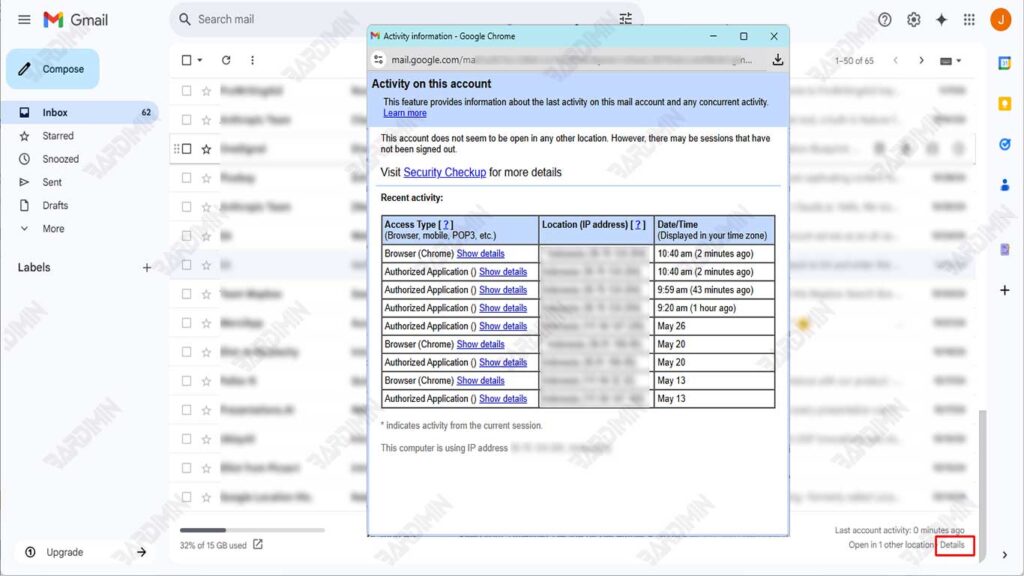
On this page, you can see a list of accesses. If you find an unfamiliar session, immediately click “Sign out of all other Gmail web sessions” and change your password.
5. Disable External Image Auto-Loading
Many promotional or phishing emails embed tracking pixels (microscopic images). When the image loads, the sender can know when you opened the email, your location, even your device type. This is a privacy violation and a verification tool for spammers.
How to Turn Off Automatic Image Loading:
- In Gmail, click the gear icon (⚙️) then “See all settings”.
- Go to the “General” tab.
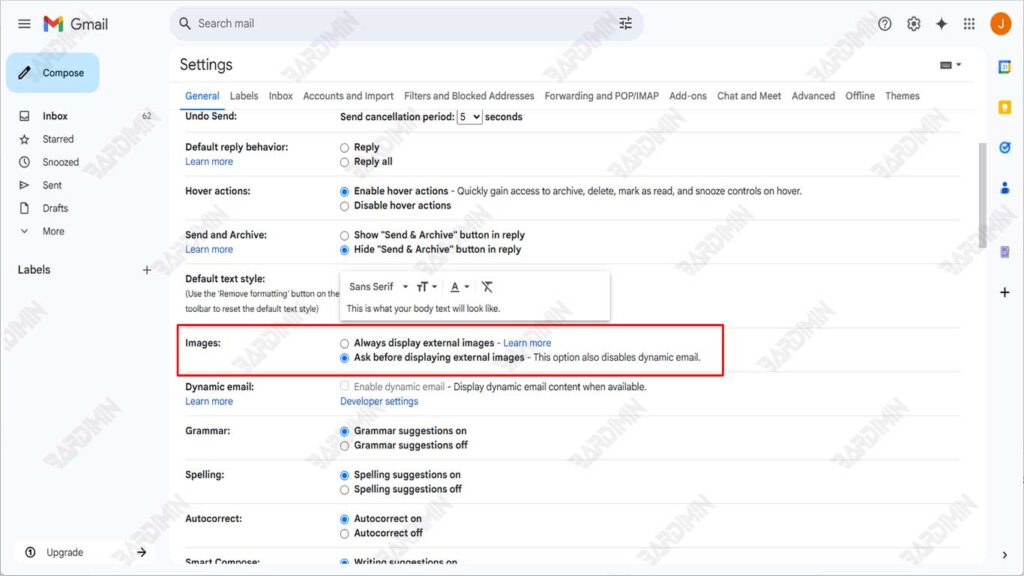
- Scroll to the “Images” section.
- Select the option: “Ask before displaying external images”.
- Scroll down and click “Save Changes”.
6. Update Your Recovery Email & Phone Number
Recovery information is your emergency exit. If you get locked out of your account, Google will send a reset code to your recovery email or phone number. Ensure this data is always current and secure.
How to Update Recovery Info:
- Open Google Account > the “Security” tab.
- Find the section “Ways we can verify it’s you”.
- Click “Recovery phone” and “Recovery email” to update.
- Use an email address or phone number that is still active and only accessible by you.
By activating these six Gmail security features, you have significantly strengthened the defensive fortress of your email account. Cybersecurity is not a one-time setup goal, but an ongoing process. Periodically check these settings and always be vigilant against phishing attempts. These proactive steps will give you peace of mind that your professional and personal data is well protected.
