

Identifying malware processes is very important in keeping the Windows 11 system secure. Malware can cause a variety of serious problems such as data theft, performance slowdowns, and even system damage.
By following the steps that will be explained, you will be able to identify malware processes quickly and accurately using the right tools. This will help you keep your system safe, stable, and free from malicious malware threats.
Understanding Malware and Its Process
Malware stands for Malicious Software is malicious software designed to damage, disrupt, or gain unauthorized access to computer systems. Types of malware include viruses, worms, trojans, ransomware, and spyware. The impact of malware can be devastating, including:
- Malware can steal sensitive information such as passwords, credit card numbers, and other personal data.
- Some malware can damage important system files, causing permanent damage to hardware or software.
- The presence of malware can significantly slow down system performance due to excessive resource usage.
- Some types of malware allow attackers to take control of the system remotely, giving them full access to perform malicious actions.
Malware is often designed to operate stealthily and monitor each other. This means that if one malware process is stopped or shut down, the other process will detect it and try to restart the stalled process.
This process involves several techniques, such as:
1. Use of Hidden Processes
Malware often disguises itself by using process names that are similar to legitimate system processes (e.g., svchost.exe). This makes it difficult for casual users as well as security software to detect.
2. Code Hiding
Many malware uses compression or packaging techniques to hide their code from antivirus scanners. In this way, they can operate without being detected.
3. Recovery Mechanism
If the malware detects that one of its instances has been terminated, it can automatically restart the process to ensure the continuity of its operations. This creates a network of processes that monitor each other and protect each other.
Get to know Process Explorer from Microsoft Sysinternals.
Process Explorer is a powerful tool developed by Microsoft Sysinternals to assist users in monitoring and managing processes running on Windows systems. The tool provides detailed information about each process, including its name, process ID, CPU and memory usage, and execution file path.
One of the key features of Process Explorer is its ability to highlight suspicious or potentially harmful processes, such as malware, by using different color coding. Thus, users can easily identify and take action against unwanted processes.
How to Download and Install Process Explorer
1. Download Process Explorer:
- Visit the official Microsoft Sysinternals website.
- Search for the Process Explorer section and click on the download link.
- The download file is usually a ZIP file.
2. Install Process Explorer:
- Extract the downloaded ZIP file to the desired location on your computer.
- Open the extracted folder and look for a file named procexp.exe or procexp64.exe (depending on your version of Windows).
- Double-click on the file to run Process Explorer without the need for formal installation.
3. Running Process Explorer:
- Once the app is opened, you will see an interface that displays a list of all the processes that are running.
- To get more information about a process, simply right-click on the process and select the appropriate option.
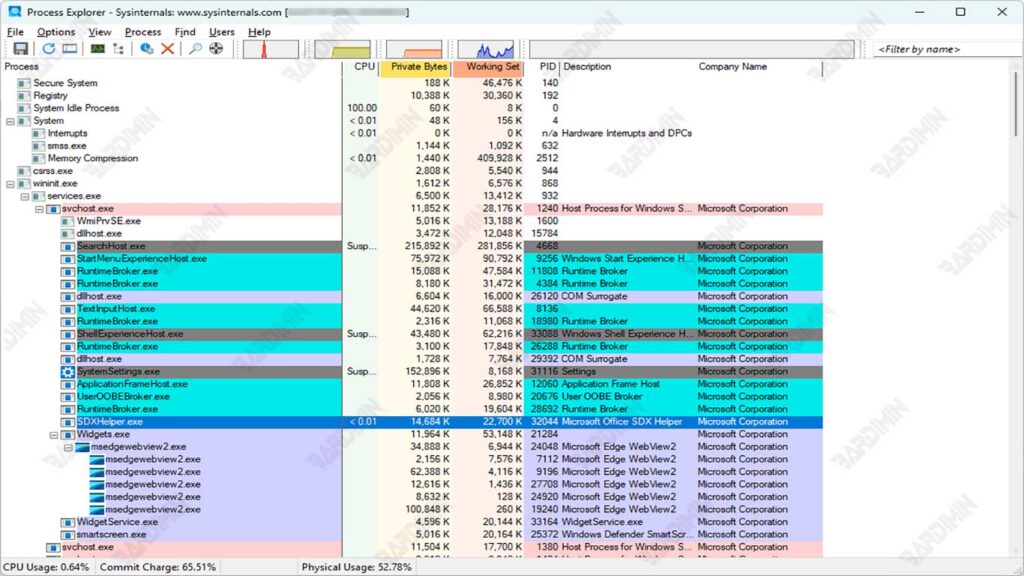
Steps to Identify Malware Processes Using Process Explorer
- Run Process Explorer on your Windows 11 system.
- Notice the processes marked in purple in the list of processes. Purple-colored processes are most likely malware because the files are compressed or packaged, which can hide malicious code.
- Right-click on the suspicious process and select “Properties” to check for more information.
- Check if the process is running under an unusual user account, such as not NT AUTHORITY\SYSTEM, LOCAL SERVICE, or NETWORK SERVICE. Processes running under other accounts are likely malware.
- If the process is an instance of svchost.exe, right-click and check its properties. The native Windows process will start with C:\Windows\System32\svchost.exe –k. If not, it might be malware.
Color Coding Process in Process Explorer
Process Explorer uses color coding to help users identify the type of process that is running. The following is an explanation of the color coding used:
Purple Process:
Indicates a compressed file (also known as packaged), which can hide malware code. This process is often an early indication of malware, as they are designed to hide themselves from antivirus scanners.
Red Process:
Indicates the process that is being stopped. This means that the process has been shut down or is in the process of being terminated.
Green Process:
Indicates a process that has just been carried out (also known as being born). This process may have just been launched and needs to be further checked to ensure its security.
Light Blue Process:
Shows the process run by the same account that started Process Explorer. This helps users understand the context in which the process is coming from.
Dark Blue Process:
Shows the process currently selected by the user in the Process Explorer view. This makes it easier for users to focus on specific processes.
Pink Process:
Shows the services running on the PC, including critical system processes such as svchost.exe. This process can accommodate one or more other services, sharing resources for efficiency.
Using Color Encoding for Malware Identification
By understanding this color coding, users can quickly identify potential threats in their systems. Purple-colored processes should be further examined to ensure that they are not malware, while other processes also need to be monitored based on their context and behavior.
Utilizing this feature in Process Explorer allows users to conduct an in-depth analysis of system activity and take necessary preventive measures to protect the computer from malicious threats.
Checking SVCHOST.EXE for Malware
Malware often tries to mimic the svchost.exe process because it is a critical component of the Windows operating system that runs system services. Since many users and security software recognize svchost.exe as a legitimate process, the malware takes advantage of this to hide its existence.
svchost.exe processes typically have many instances running in the background, making it more difficult to detect unauthorized processes. Malware disguised as svchost.exe can evade detection by using a similar name or by operating under unusual user accounts.
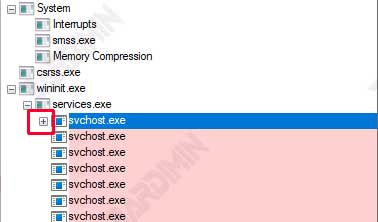
How to Use the [+] Icon to the Left of a Process to See Subprocesses That May Be Malware
- Run the Process Explorer app on your computer.
- Search the list of processes and find all instances of svchost.exe. You will see several entries for this process.
- To the left of the svchost.exe process name, you’ll see the [+] icon. This icon indicates that the process has subprocesses that can be further examined.
- Click on the [+] icon to expand the view and see the subprocesses associated with that svchost.exe instance. It will display all the subprocesses that may potentially be malware.
- Check those subprocesses to see if anything is suspicious or unknown. If you find a subprocess with an unusual or unfamiliar name, this could be an indication of malware.
Verifying the authenticity of the SVCHOST.EXE process
To verify the authenticity of the svchost.exe process, the first step is to enable the column that displays the user account that ran the process. Here are the steps:
- Run the Process Explorer application on your computer.
- At the top of the Process Explorer window, right-click on the column title to open the context menu.
- From the menu that appears, select the “Select Columns.” option.
- In the dialog that appears, locate and check the UserName option. After that, click OK to close the dialog.
- You’ll now see a new column in the process list that shows the user account for each running process.

Valid Username for SVCHOST.EXE Process
All original svchost.exe processes will run under one of the following three usernames:
- NT AUTHORITY\SYSTEM
- LOCAL SERVICE
- NETWORK SERVICE
If you find an instance of svchost.exe running under another username, this could be an indication that the process is malware.
Checking the Properties of SVCHOST.EXE Process to Ensure Authenticity
The next step to verify the authenticity of the process is to check its properties:
- Locate and right-click on the instance of the svchost.exe you want to check.
- From the context menu, select the “Properties” option.
- In the Properties window, look at the Command line field. The native Windows process will always start with:
C:\Windows\System32\svchost.exe –k
If the command line doesn’t fit this format, then it’s most likely malware.
Conclusion
Process Explorer is an important tool for identifying and dealing with malware processes on Windows 11 systems. By understanding the color coding used in Process Explorer, users can quickly recognize suspicious processes, especially those related to svchost.exe, which are often abused by malware.
Steps such as checking user accounts and properties of the process are crucial to ensure the authenticity and security of the system. Regularly checking the system using this tool will help keep the device safe from malicious malware threats.
