

Gadgets such as tablets, MP3 players, and e-readers have become essential daily. However, these devices are not immune to various problems, ranging from a malfunctioning touchscreen to an MP3 player that does not turn on.
Tablets can experience performance degradation due to many running applications or unresponsive touchscreens due to dust or damage to components. Likewise, MP3 players may not work due to dead battery or damage to the hard disk.
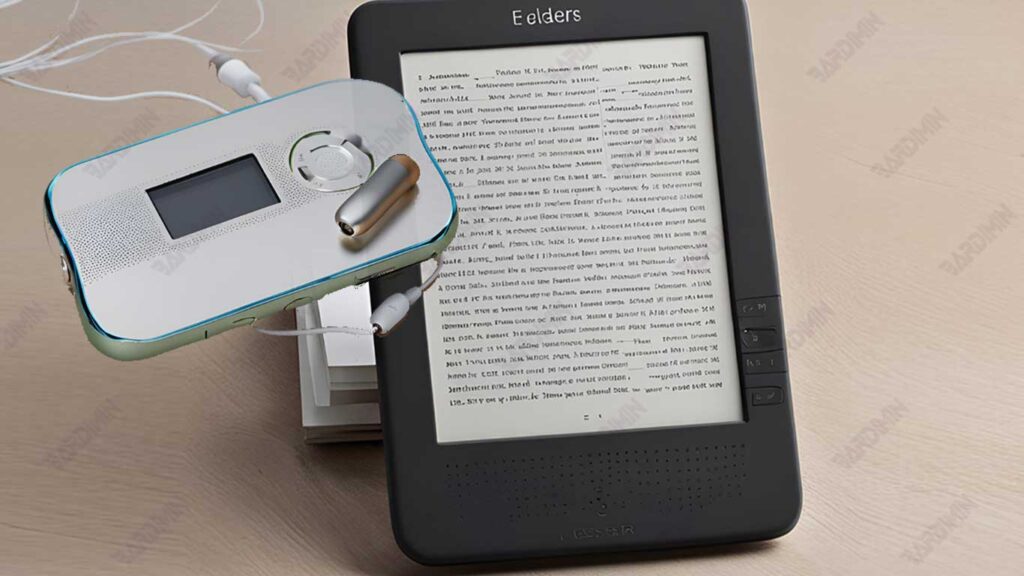
To help you overcome this problem, Bardimin will present a variety of practical solutions that are easy to implement. You will learn how to fix a slow tablet by disabling live wallpapers and unnecessary apps. In addition, Bardimin will also discuss simple steps to fix an MP3 player that won’t turn on, such as resetting or giving a slight tap to the device.
Common Problems with Tablets and Solutions
Tablets that experience poor performance or feel slow are often caused by a large number of apps active in the background, the use of widgets, and live wallpapers that put a strain on memory and processor.
If your tablet starts to show signs of slowing down, here are some steps you can take to improve its performance:
1. Turn Off Live Wallpaper
Live wallpapers or live wallpapers that move are attractive, but they can slow down the performance of the tablet. To disable it, go to Settings and select the Home Screen or Wallpaper option, then replace it with a lighter static wallpaper.
2. Remove Unnecessary Widgets
Widgets such as the weather, clock, or social media notifications that are constantly updated can reduce your device’s performance. Remove a widget that you rarely use by pressing and holding the widget on the home screen, then swiping it to the “delete” or “discard” icon at the top of the screen.
3. Reduce Apps Operating in the Background
Apps that stay active in the background can drain memory and battery power. To close an app that isn’t in use, go to App Manager or Settings > Apps, select the app you want to stop, and then press the Force Stop button.
4. Update the Operating System
An operating system that is not updated can cause the tablet to function more slowly. Make sure your tablet is always updated to the latest version for improved performance and security. To check for updates, go to Settings > System Update.
Unresponsive Tablet Touch Screen
A touchscreen that doesn’t work properly can be caused by a variety of things, from dust and dirt to software issues.
If your tablet is having problems with the touchscreen, here are some steps you can take to fix it:
1. Clean the Screen Using a Microfiber Cloth
Dust, oil from fingers, or other debris that sticks to the screen can affect the performance of the touchscreen. Make sure the tablet is turned off, then use a microfiber cloth to clean the screen in a gentle circular motion. Avoid using paper towels or coarse cloths, as they can scratch the surface of the screen. Also, don’t use harsh cleaning liquids that can damage the screen’s protective coating.
2. Check the Screen Protector
An old or damaged screen protector may interfere with the sensitivity of the touchscreen. If your tablet comes with a screen protector, try removing the protector to determine if the problem lies with the protector or the device itself.
3. Turn the Tablet Off and Restart
Sometimes, problems with the touchscreen can be solved in a simple way, which is to restart. Press and hold the power button until the Power Off option appears, then choose to turn off the tablet. Wait a few seconds, then turn the tablet back on to check if the screen is responsive again.
4. Reset the Tablet
If cleaning and restarting don’t give you the expected results, consider resetting the device. On some models, the reset can be done with a specific combination of buttons or through the reset option available in the Settings menu. It’s important to remember that resetting can erase any data on your tablet, so be sure to back up any important data before doing so.
5. Update or Check Applications and Operating Systems
Incompatible apps or an operating system that hasn’t been updated can cause the touchscreen to not work properly. Make sure all apps on your tablet have been updated to the latest version through the Google Play Store or App Store, and check for the availability of operating system updates in the Settings > System Update menus.
MP3 Player Not Turning On
If your MP3 player won’t turn on, there are a few fix steps you can try to resolve the issue.
Here are some steps that can be taken:
1. Check the Battery Power of the MP3 Player
Make sure the MP3 player’s battery is fully charged before proceeding to the rest of the steps. Connect the device to the charger and let it charge for 3-4 hours. Use suitable or original cables and adapters from the manufacturer to prevent further damage.
2. Check the Hard Disk (If Present)
Some MP3 players use a hard disk as a storage medium instead of flash memory. On these kinds of devices, there is a chance that the hard disk is experiencing problems. To fix this, take the following steps:
- Place the MP3 player on a flat surface with the screen facing down.
- Gently tap the back of the device using the rolled magazine. This tap aims to “free” the hard disk that may be stuck.
Note: Be sure to tap carefully so as not to damage the device. If your MP3 player still won’t turn on after this step, it’s best to take it to a professional technician.
3. Reset the Device
If there is, try resetting the device with the right combination of buttons. A reset can help resolve any software issues that may be causing the device to become unresponsive. For specific steps, please refer to the instructions in the manual or the manufacturer’s website.
Unsatisfactory Sound Quality of MP3 Player
If the sound produced by an MP3 player sounds unclear or distorted, here are some steps you can take to improve the audio quality:
1. Adjust the Equalizer Based on Music Genre
Many MP3 players come with an equalizer feature that allows you to adjust the audio frequency according to the type of music being played. For example, for bass-rich songs, you can increase the low frequencies to make the bass sound more pronounced. To access the equalizer, go to the Settings menu in the MP3 player and adjust the available equalizer settings.
2. Use Higher Quality Headphones
The standard headphones that come with an MP3 player are often of mediocre quality. To improve the audio experience, consider using headphones or earphones with better specifications. High-quality headphones can clarify sound details and provide a more satisfying listening experience. Choose headphones from trusted brands and make sure to try them on before buying to suit your sound preferences.
3. Check the Audio File Format Used
The format or compression of the audio file can affect the quality of the sound produced. If you want clearer sound, make sure your music files are in a high-quality format like Apple Lossless or FLAC. You can convert music files using software like iTunes or Windows Media Player to improve sound quality.
E-Reader Not Responding and Stopped
E-readers that suddenly become unresponsive or experience freezing issues can be caused by a variety of factors, ranging from software issues to low battery power.
If your e-reader is experiencing this situation, follow these steps to resolve it:
1. Check Battery Power Availability
Before proceeding to the other repair steps, make sure that your e-reader’s battery has enough power. Connect the device to the charger and let it charge for at least 1-2 hours. Some e-readers may not work or respond if the battery power is very low.
2. Turn the Device Off and Back On
Once you have made sure the battery is charged, try turning the device off and on again. Some e-readers are equipped with a special button to restart or reset. Press and hold the power button for 15-30 seconds until the device turns off, then wait a few seconds before turning it back on.
3. Perform a Factory Reset
If the previous steps didn’t work, you may need to perform a factory reset to restore your device to its factory settings. Please note that a factory reset will erase all data present on the device. Here are the general steps:
- Access the Settings menu on your e-reader.
- Find the Factory Reset option and choose to restore the device to its original state.
- Follow the on-screen instructions until the process is complete.
Important: Before performing a reset, make sure that you have backed up all important files, as all data will be erased during this process.
Changing File Format for E-Reader
Many e-readers only support certain formats for e-book files. For example, Kindle supports .mobi or .azw format, while other e-readers prefer EPUB format. If you have a book in a format that doesn’t fit your e-reader, changing the file format can be a solution.
Here are the steps to modify the file to fit your e-reader:
1. Use the Calibre Application to Change File Format
Calibre is a well-known software for managing and converting e-books into various formats. You can download it for free and use it to convert file formats to fit your e-reader. Here are the steps:
- Download and install Calibre on your computer.
- Open Calibre and add the e-book file you want to change.
- Select the e-book, then click Convert Books.
- Choose a format that works for your e-reader (for example, choose MOBI for Kindle or EPUB for other devices).
- Click OK to start the alteration process.
2. Check the Conversion Result and Transfer to E-Reader
Once the conversion process is complete, you can transfer the converted file to the e-reader using a USB cable or other transfer method supported by your e-reader. Make sure the file format is appropriate before moving it to your device so that the file can be opened and read properly.
3. Consider Alternative Applications If Needed
In addition to Calibre, other applications can also help you change the format of your e-book, such as Zamzar (online) or Any eBook Converter. However, Calibre is usually the top choice due to its flexibility and ease of use.
