

Microsoft Edge is one of the modern browsers designed for speed, efficiency, and security. Built with ever-evolving technology, many users often choose this browser for its optimal performance.
However, like any other app or software, Microsoft Edge‘s performance can degrade, especially when you have multiple tabs open or extensions running simultaneously. In a situation like this, managing and monitoring resource usage is critical. This is where the role of the Task Manager in Microsoft Edge becomes vital.
What is Task Manager in Microsoft Edge?
Task Manager in Microsoft Edge is a built-in feature designed to give users more control over the resources used by the browser. Each tab, extension, or process that runs in Microsoft Edge consumes some of your computer’s resources such as memory (RAM) and CPU power. The more tabs or extensions are active, the more likely it is that the browser will experience a drop in performance.
With Task Manager, users can view resource usage details in real-time. For example, you can look at the Memory Footprint to see how much memory is being used by each tab or process. You can also monitor CPU Usage to see which tabs or extensions are using the most processing power.
Another feature offered by the Task Manager is the Network column, which provides information about the network activity of each tab or process, so you can know which tabs are making downloads or using a large number of internet connections.
How to Access Task Manager in Microsoft Edge
To use Task Manager in Microsoft Edge, you can follow these steps:
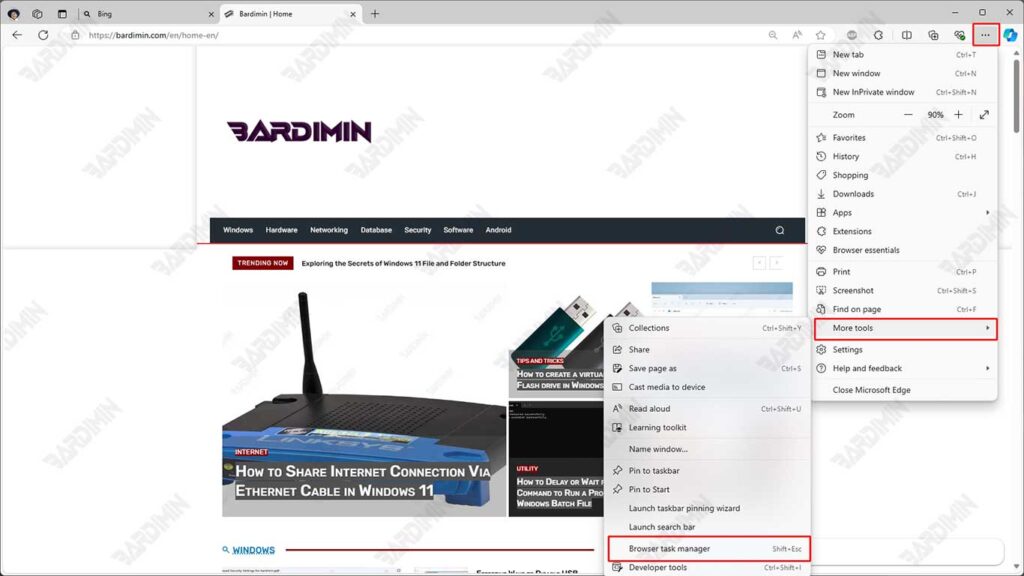
Via Menu
- Click the Three-Dot Icon: Find and click the three-dot icon in the top right corner of the browser to open the menu.
- Select More Tools Options: Hover over the More tools option that appears in the dropdown menu.
- Click Task Manager: From the submenu that appears, select Task Manager Browser.
Using Keyboard Shortcuts
Another quick way is to use keyboard shortcuts:
- Press Shift + Esc: This will instantly open the Task Manager in Microsoft Edge.
Understanding the Information Displayed by the Task Manager
Once you open the Task Manager in Microsoft Edge, you’ll be presented with a table that contains various columns of important information about the resource usage by each tab, extension, and process running in the browser.
To get the most out of the Task Manager, it’s important to understand what each column means and how it can help you optimize your browser’s performance. Here is an explanation of each of the columns displayed in the Task Manager:
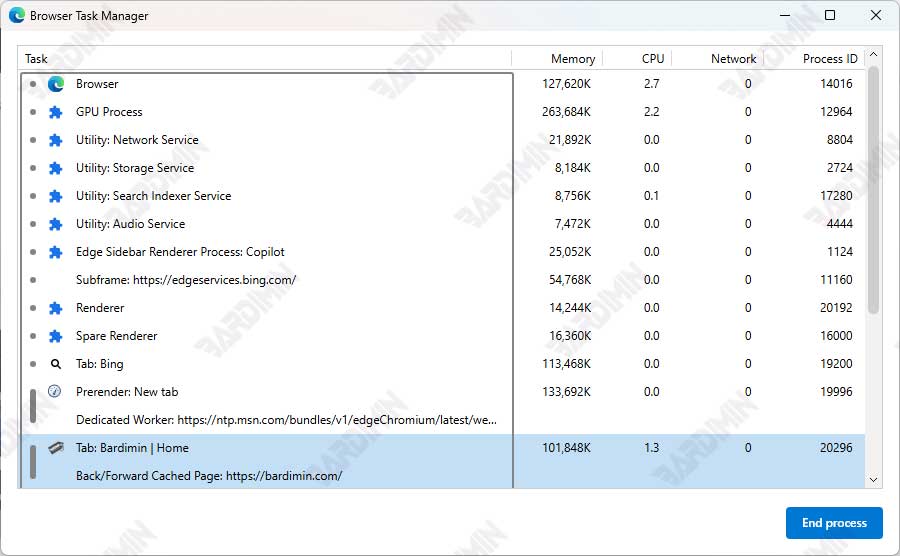
1. Memory Footprint
This column shows the amount of RAM (Random Access Memory) used by each tab or process running in Microsoft Edge. RAM is essential for application performance because it stores the data that is being processed by the system.
If a tab or extension is using too much RAM, it could lead to a decrease in browser performance, especially if you have a lot of tabs open. With the Task Manager, you can identify high-memory tabs and close them if they aren’t needed.
Closing a memory-intensive tab or extension will reduce the load on your system, making Microsoft Edge run faster and more responsive.
2. CPU Usage
This column shows the percentage of CPU (Central Processing Unit) usage used by each tab or process. The CPU is responsible for executing commands and operations on your computer.
If a tab or extension consumes too much processing power, it can cause your browser or even your computer to become slow or unresponsive. This column helps you identify processes that are draining CPU power.
If a process or tab shows abnormal CPU usage (high over a long period), you can close it through Task Manager to restore normal performance.
3. Network
The Network column shows the network activity performed by each tab or extension. It displays how much data is being downloaded or uploaded over the internet network by that tab.
If a tab is using a lot of bandwidth, you can identify if it’s caused by streaming, large downloads, or background activity from extensions.
If you see high network usage from tabs that should be inactive, there may be unwanted activity such as malware or extensions running in the background. Closing this process can save data usage and protect your privacy.
4. Process ID
The Process ID is a unique number assigned to each process running in Microsoft Edge. This column is usually used for technical purposes or more in-depth troubleshooting.
While not always required for the average user, Process ID is useful if you need to keep track of specific processes on your system, for example when using other system management tools such as Windows Task Manager.
In some situations, you may need to identify specific processes to see if they’re causing problems with your browser or computer’s performance.
How to Manage and Close Processes in Task Manager
Once you understand the information displayed in Microsoft Edge’s Task Manager, the next step is to manage the running processes to improve the browser’s performance.
Some processes may consume too many resources, such as RAM, CPU, or network bandwidth, slowing down the performance of your browser and computer. Therefore, it is important to know how to manage and close unnecessary processes.
Steps to Manage the Process:
- Open Task Manager: If it is not already open, access the Task Manager by following the steps described earlier, either through the More Tools menu or using the shortcut Shift + Esc.
- Select Unnecessary Processes: Once the Task Manager opens, you’ll see a list of all the tabs, extensions, and other processes that are running in Microsoft Edge. Look at the Memory Footprint, CPU Usage, or Network columns to identify processes that are consuming too many resources.
- Resource Usage Analysis:
- If a tab or extension is consuming too much RAM and causing a drop in performance, you may decide to close it.
- If a tab is using an unreasonable percentage of CPU, and is making your computer run slower, you can identify the tab as a problem.
- Processes that use multiple networks can also be the cause of slow internet connections. This often happens if you’re streaming or downloading a large one.
- Closing Process:
- To close a process that you don’t need, click on it in the Task Manager list.
- Once the process is selected, click the End Process button at the bottom right of the Task Manager window.
- Note: Selected processes will be terminated immediately, and if they are tabs or extensions, they will be closed from Microsoft Edge.
Conclusion
Using the Task Manager in Microsoft Edge is one of the best ways to manage and optimize browser performance, especially for users who often open many tabs or run various extensions. This tool allows you to monitor the usage of system resources in real time, including the RAM, CPU, and network used by each tab or extension.
One of the main strengths of Task Manager is its ability to give users full control over their browsers. You can easily identify tabs or processes that are consuming too many resources and then close them with just a few clicks. This not only speeds up the browser’s performance but also improves the overall efficiency of resource usage on your computer.
If you often find Microsoft Edge running slow or unresponsive, checking the Task Manager is a great first step. By managing processes running in the background, you can ensure that only important tabs and extensions are taking advantage of your computer’s resources. This will ultimately improve the overall browsing experience, in terms of speed, stability, and efficiency.
