

Learn how to create an automatic table of contents in Microsoft Word for professional documents. This article provides detailed steps, customization options, and tips for updating your TOC to keep your documents structured and easy to navigate.
Why a Table of Contents Matters in Professional Documents
A table of contents (TOC) acts as a roadmap, guiding readers to specific sections of your document. For lengthy technical reports, academic theses, or business proposals, an automatic TOC in Microsoft Word saves time and boosts professionalism. Readers can simply hold Ctrl and click an entry to jump directly to the corresponding page. Moreover, authors can instantly update the TOC when headings or page numbers change.
Microsoft Word includes built-in tools to generate a TOC automatically based on heading styles. This approach ensures consistent formatting and simplifies updates. Yet many users overlook these features or use them inefficiently. This technical guide will walk you through every step—from applying heading styles to customizing and troubleshooting your TOC.
An automatic table of contents not only saves time but also enhances your document’s credibility in the eyes of professional readers.
Preparation: Applying Heading Styles
Before inserting a TOC, you must mark your headings and subheadings with Word’s built-in styles. This step is crucial because the automatic TOC detects text formatted as Heading 1, Heading 2, and so on. Here’s how to do it:
- Select the text you want to use as a chapter title.
- On the Home tab, in the Styles group, choose the appropriate style—for example, Heading 1 for main chapters, Heading 2 for subsections.
- Repeat for all headings in your document.
Using heading styles also enables Word to build a document structure viewable in the navigation pane. To enable it, check the Navigation Pane box on the View tab. This pane lets you review your heading hierarchy before generating the TOC.
How to Create an Automatic Table of Contents in Word
Once all headings are styled, follow these steps to insert an automatic TOC:
- Place your cursor on the blank page where you want the TOC to appear (typically after the title page).
- Go to the References tab on the ribbon.
- Click Table of Contents to view the gallery of built-in styles.
- Choose an automatic style, such as Automatic Table 1, or select Custom Table of Contents for more control.
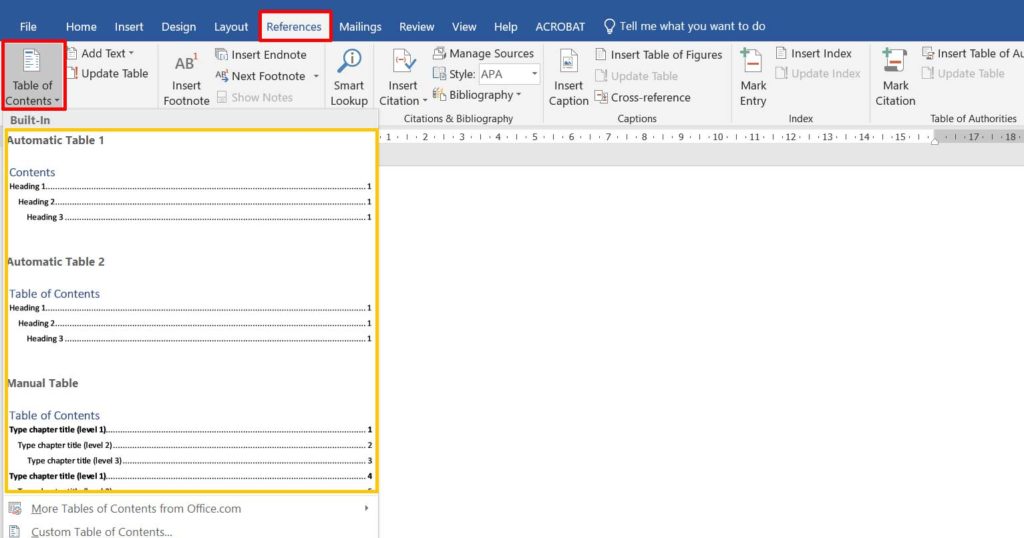
Word immediately generates a TOC listing all headings with their page numbers. Each entry is a hyperlink, allowing readers to navigate directly to a section without scrolling. This feature is especially useful for digital documents.
Customizing Your Table of Contents
The default styles may not always match your preferences. Word offers extensive customization through the Custom Table of Contents dialog. Here are the elements you can adjust:
- Tab leader: The characters between the heading and page number—options include dots, dashes, or none.
- Formats: Choose from designs like Classic, Modern, or Simple.
- Show levels: Set how many heading levels to display (e.g., only Heading 1 and 2).
- Hyperlinks: Enable “Use hyperlinks instead of page numbers” for digital distribution.
To access these options, click Table of Contents then Custom Table of Contents. In the dialog, make your changes and click OK to apply.
Important: If you add or delete headings after creating the TOC, the table does not update automatically. You must manually refresh it.
Updating the Table of Contents
Whenever you modify headings or page numbers, update the TOC to keep it accurate. The process is straightforward:
- Click anywhere inside the TOC.
- At the top of the TOC, an Update Table button appears. Click it.
- Choose Update page numbers only if only page numbers changed, or Update entire table if headings were added or removed.
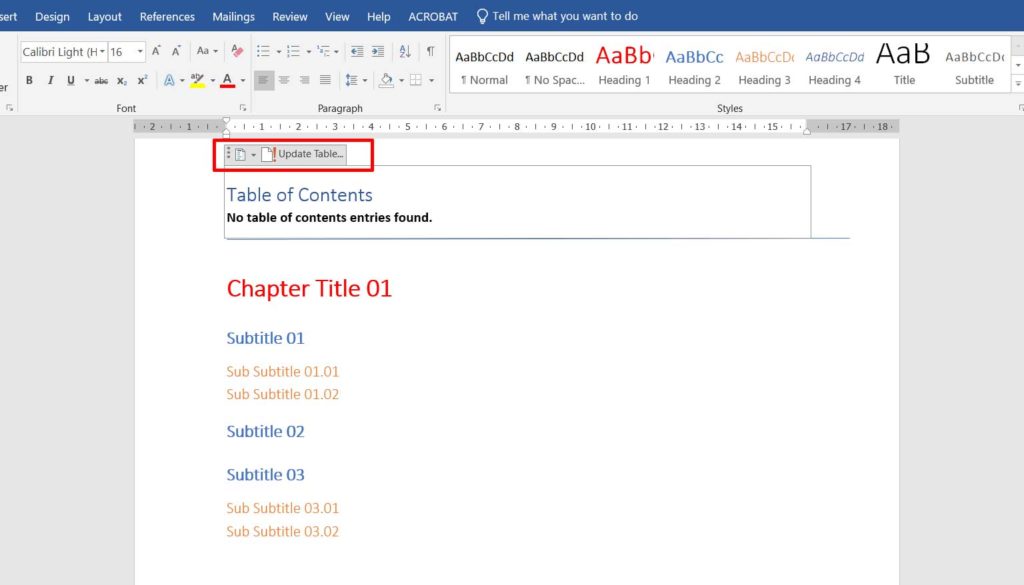
Updating the entire table is necessary when you add new chapters or alter heading hierarchy. If only page numbers shift due to added content, updating numbers alone suffices.
Removing the Table of Contents
To delete a TOC, click it, then on the References tab click Table of Contents and select Remove Table of Contents. The TOC disappears without affecting your headings or other content.
Tips for Technical and Academic Documents
For engineers, researchers, and professionals who frequently produce technical reports or documentation, consider these advanced tips:
- Use Heading 1 for major sections, Heading 2 for subsections, and so on. Consistency helps readers grasp the structure quickly.
- Leverage the Bookmark feature to point to content not styled as a heading, then manually link it in the TOC.
- For print documents, verify page numbers appear correctly. Use Update page numbers only right before printing.
- When collaborating in teams, standardize heading styles to maintain a consistent TOC when merging documents.
You can also save your customized TOC settings as a template for future projects. Simply create a TOC with your preferred options, then save the document as a Word template (.dotx).
Troubleshooting Common TOC Issues
Even experienced users encounter problems with automatic TOCs. Here are practical solutions:
- TOC is blank or missing entries: Ensure headings are formatted with built-in styles, not just bold text. Also check that headings aren’t inside hidden sections.
- Page numbers are incorrect: Update the TOC after changing page layout. If issues persist, verify the Page Number Format settings on the Insert tab.
- Hyperlinks don’t work: Confirm that “Use hyperlinks instead of page numbers” was enabled when you created the TOC. This option is highly recommended for digital documents.
- Inconsistent heading styles: Use the Styles pane to apply uniform formatting across all headings. You can modify a style by right-clicking it and selecting Modify.
Mastering the automatic table of contents feature can boost your technical document productivity by up to 50%.
Conclusion
Creating an automatic table of contents in Microsoft Word is an essential skill for professionals, technicians, and anyone working with lengthy documents. By using heading styles and the Table of Contents tool, you can produce well-structured, professional documents that are easy to navigate. Always remember to update the TOC after major revisions. For more details, visit the official Microsoft support page.
With this guide, you’re now ready to create clean, functional automatic TOCs. Apply these steps to your next document and experience teh difference.
Note: This article is based on Microsoft Word for Microsoft 365. Some interface elements may differ slightly in older versions, but core functionality remains the same.
